Use Alfy in Microsoft Teams
Open your Alfy settings in Microsoft Teams with the settings command, get help with the help command, and use the buttons on Alfy's channel posts.
 Microsoft TeamsUpdated Oct 20, 20262 min read
In Microsoft Teams, you talk to Alfy with two text commands: settings opens your personal settings and help explains how Alfy works. In a channel, mention Alfy first, for example @Alfy settings.
Open your settings#
Type settings to Alfy, then click ⚙️ Open settings.
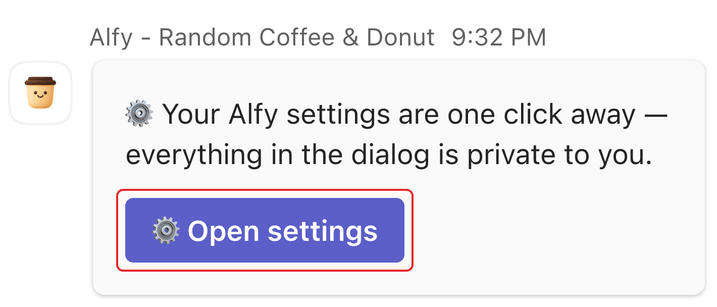
The Alfy Settings dialog opens. Everything in it is private to you.
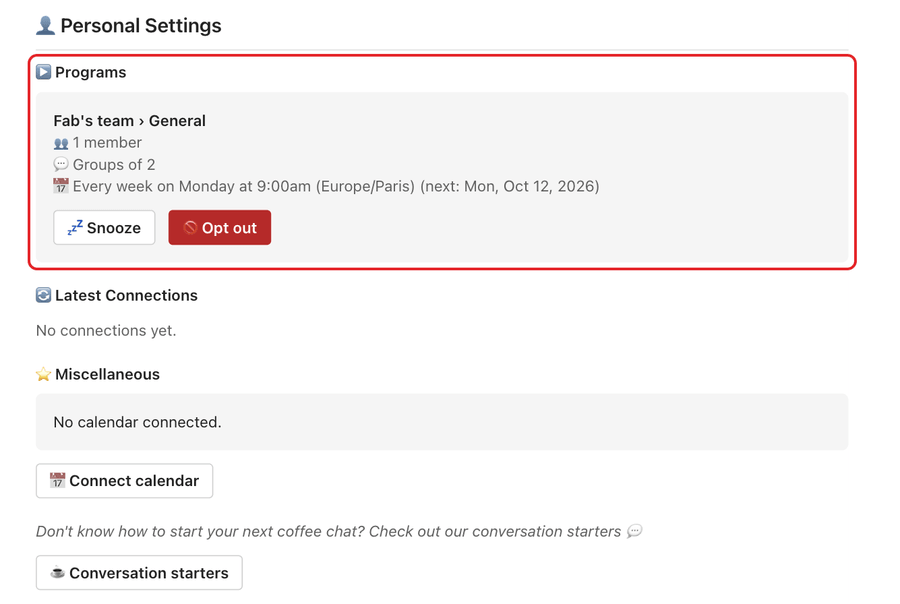
From there you can:
- See your programs: group size, schedule and next date, under
▶️ Programs. - Snooze a program: click
💤 Snooze, pick a date underSnooze untiland clickConfirm. See snooze a program. - Opt out of a program: click
🚫 Opt outand confirm. See opt out of a program. - See your latest connections, under
🔄 Latest Connections. - Connect your calendar: click
📅 Connect calendar, or📅 Edit Calendar Settingsonce it's connected. See connect your calendar. - Avoid specific teammates: click
✏️ Edit listunder🙅 Don't pair me with. Only you can see this list. See avoid being matched with someone. - Browse conversation starters with
☕️ Conversation starters.
Alfy admins also see a summary of every program and an Open dashboard ↗ button, plus a 🚀 Create a program button while a channel or group chat Alfy is in still has no program. Programs are managed in the web dashboard.
Get help#
Type help (or anything Alfy doesn't recognize) to get a card that explains how Alfy works, lists the commands and has ⚙️ Open settings and ☕️ Conversation starters buttons.
Use the buttons on a round's post#
Each round, Alfy posts the list of groups in the channel or group chat. The post has two buttons:
📅 Schedule your chat: see when your group is free and send everyone a calendar invite. See schedule your chat in Microsoft Teams.☕️ Conversation starters: get 5 ice-breaker questions. Click🔄 Shufflefor new ones.
Alfy posts matches in the channel or group chat and doesn't start a separate chat for each group. Until your chat is scheduled, Alfy sends you reminders by DM. See answer Alfy's coffee chat reminders.