Set a fixed meeting time for an Alfy program
Give everyone in an Alfy program one recurring calendar invite, so every group meets at the same time, like a team lunch or a Friday coffee, instead of booking their own chat.
 Slack
 Microsoft TeamsUpdated Nov 2, 20264 min read
To make every group of an Alfy program meet at the same time, edit the program in the web dashboard, choose Fixed meeting time under Scheduling, pick the meeting day, time and length, then save. Everyone in the program gets one recurring invite from your Google or Outlook calendar, and each round Alfy tells people who they're meeting at that time. It works well for a random lunch, a Friday coffee or any team ritual held at the same time.
Fixed meeting time or groups choose their time?#
Groups choose their time |
Fixed meeting time |
|
|---|---|---|
| When people meet | Each group picks a time when everyone is free | Everyone meets at the same time |
| Calendar invite | Someone in the group sends one through Alfy | One recurring invite for the whole program, from your calendar |
| Best for | Flexible 1:1 coffee chats | Lunches, rituals, everyone in one office or one video call |
Groups choose their time is the default.
Step 1: Open the program's Scheduling section#
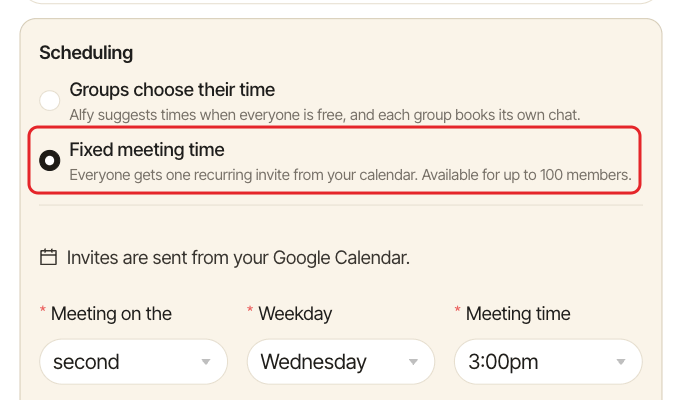
Open the web dashboard, switch to Admin › Settings and click Edit on the program, or click Add program to start a new one. Scroll to the Scheduling section and choose Fixed meeting time.
Step 2: Connect your calendar#
The invite is sent from your own calendar, so Alfy needs to create events in it. If it can't yet, click Connect calendar (or Reconnect with event access if your calendar is only connected to read your free times) and allow Alfy to add events. You then come back to the program to finish.
The invite comes from you, so you get it too. Decline it yourself if you won't attend.
Step 3: Pick the meeting day, time and length#
- Meeting day: the day of the meeting, which must fit how often the program runs.
- Meeting time: when the meeting starts, in the program's timezone.
- How long is the meeting?: 15, 30, 45, 60 or 90 minutes.
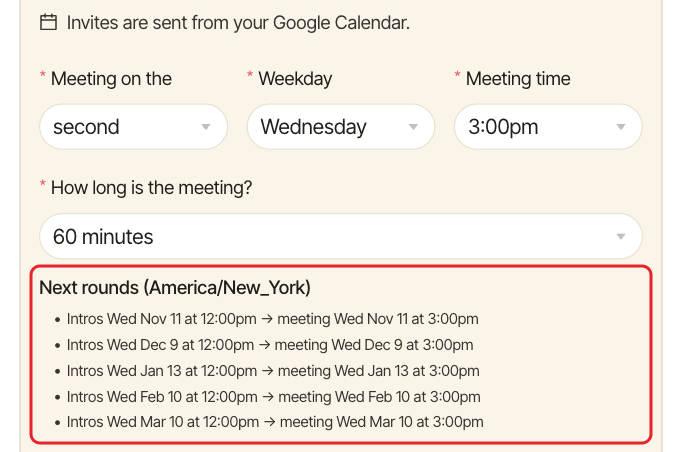
Each meeting must start at least 1 hour after Alfy announces the groups, and end before the next round. Under Next rounds, Alfy previews when the groups will be announced and when they'll meet, so you can check before saving.
Step 4: Save and send the invite#
Click Save (or Create program), then Send invite to confirm. Everyone in the program gets the recurring invite. When new people join the program, Alfy adds them to the invite, and removes those who leave.
What participants see#
- The invite shows in their calendar with the program's name.
- Each round, Alfy tells them who they're matched with and when the meeting is. There's no time to pick.
- Can't make it? They decline that meeting in their calendar. People who decline aren't matched for that round.
- After the meeting, Alfy asks if they met, with
✅ We metand🙅 We didn't meet, until someone answers.
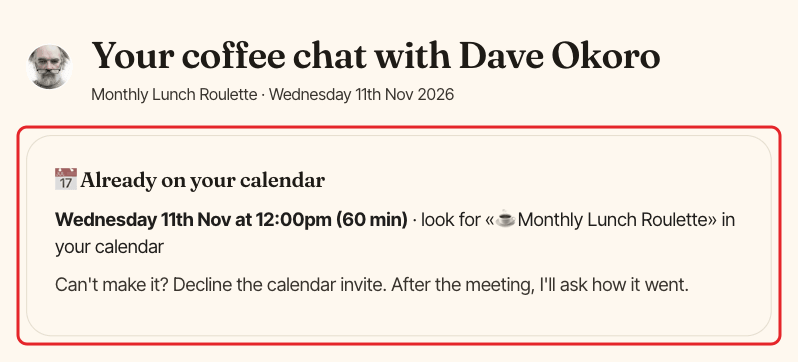
On their match page in the web dashboard, people see 📅 Already on your calendar with the meeting time before it happens.
In the Rounds tab, each round of the program shows its meeting date and time, and each group shows if it met. See view past rounds and matches.
Change or turn off the fixed meeting time#
Edit the program and change the day, time or length, then confirm with Save and send new invite. Everyone gets a new invite and has to accept it again. Past meetings stay in calendars.
Once a round's groups have been told when to meet, you can only change the meeting after that meeting has taken place.
To go back to letting groups book their own chats, choose Groups choose their time and confirm with Turn off fixed time. Upcoming meetings are removed from calendars. A meeting already announced still happens.
Deleting the program also ends its invite.
If Alfy shows a warning on the program#
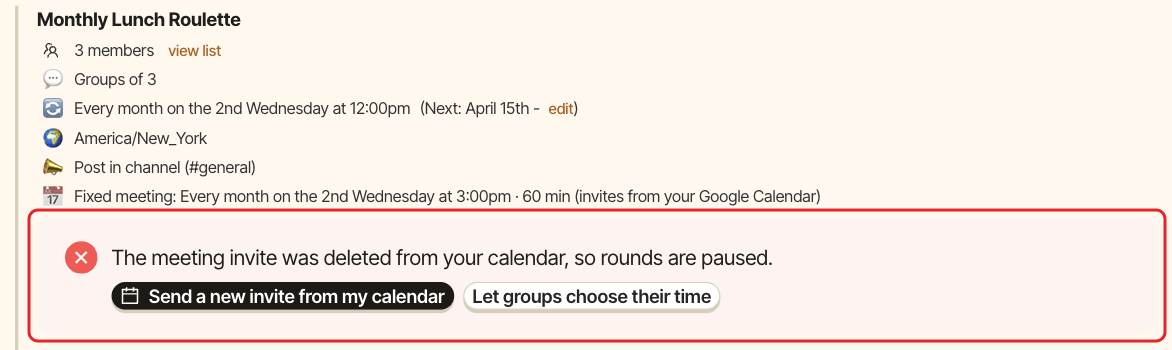
When the invite can't work as it should, a banner on the program explains why and what to do. Most of the time, rounds are paused until it's fixed.
| What happened | What to do |
|---|---|
| The invite was deleted from the organizer's calendar | Click to send a new invite from your calendar, or let groups choose their time |
| Alfy can't reach the organizer's calendar anymore | The organizer reconnects their calendar, or you send a new invite from yours |
| The program grew past 100 members, or past the calendar's guest limit | Narrow the audience, or let groups choose their time |
| The free trial ended | The invite comes back once you subscribe |