Add or remove an Alfy admin
Give or remove Alfy admin rights from the web dashboard so the right people can manage your coffee chat programs in Slack or Microsoft Teams.
 Slack
Slack Microsoft TeamsUpdated Oct 5, 20261 min read
To add or remove an Alfy admin, open Admin › Settings in the Alfy web dashboard, click Manage admins, edit the list and click Confirm. Alfy admins can create and edit programs, edit rounds, manage admins and handle billing.
Who is an Alfy admin#
- BuddiesHR workspace admins, including the person who first installed Alfy. They always have admin access.
- People added in Manage admins.
- Anyone who installs Alfy: in Slack, clicking
Add to Slackmakes you an admin by default. In Microsoft Teams, adding Alfy to a channel or group chat makes you an admin.
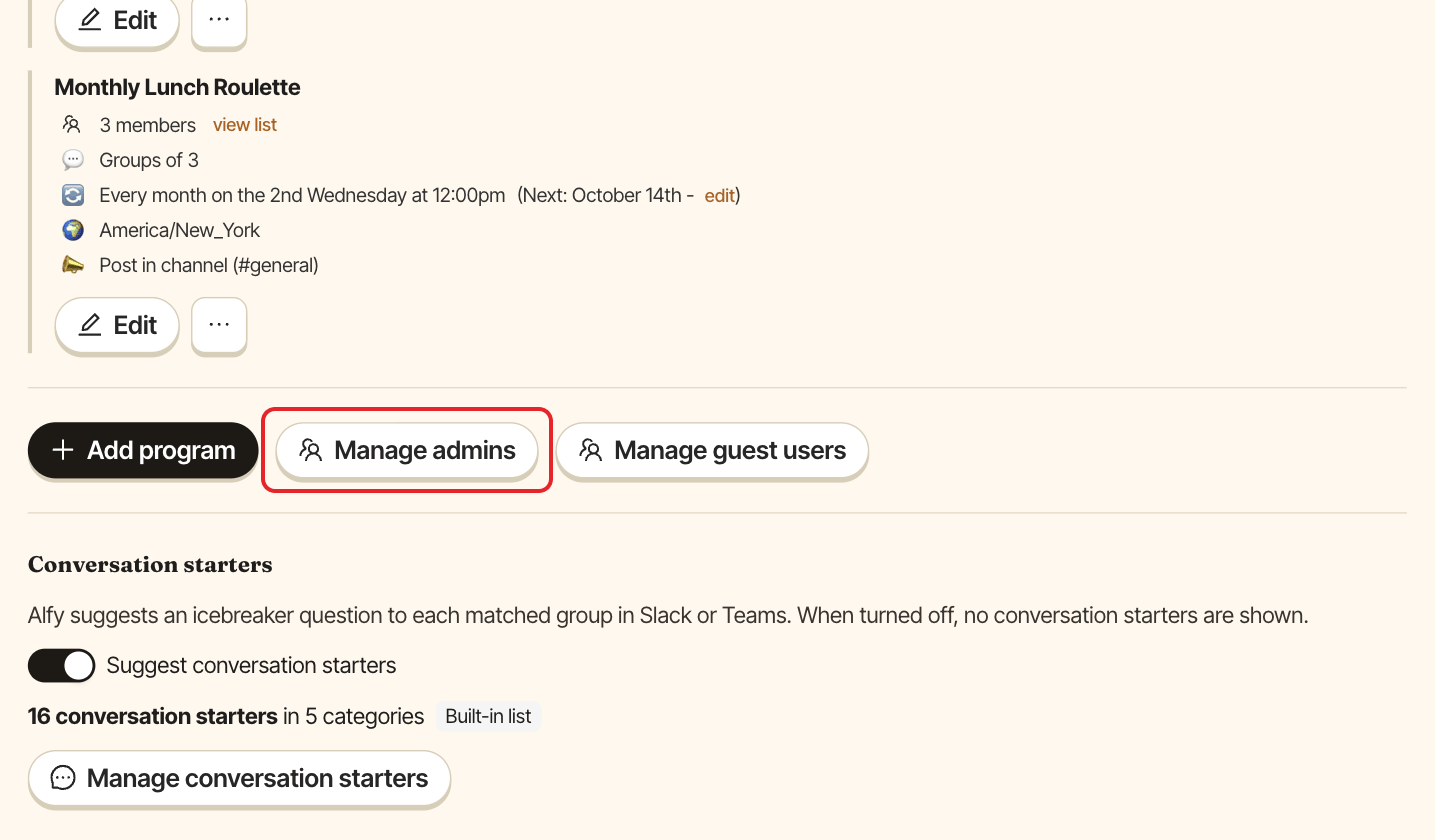
Step 1: Click Manage admins#
Open the web dashboard, switch to Admin and open the Settings tab. Under Programs, click Manage admins.
Step 2: Add or remove people#
In the Manage admins window:
- To add someone, search for them in the field and select them.
- To remove someone, remove them from the field.
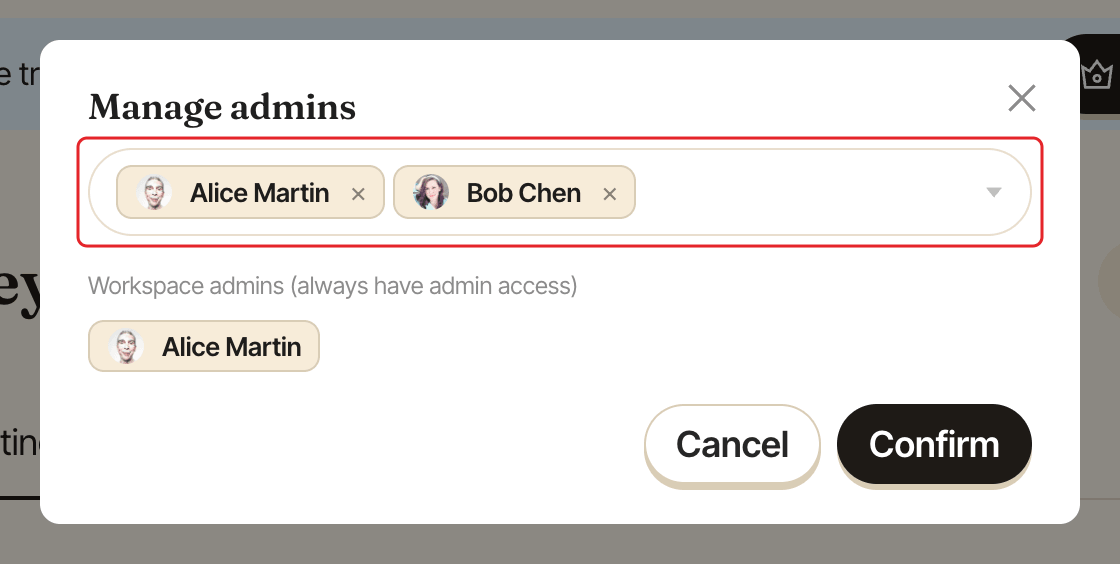
People listed under "Workspace admins (always have admin access)" can't be removed here.
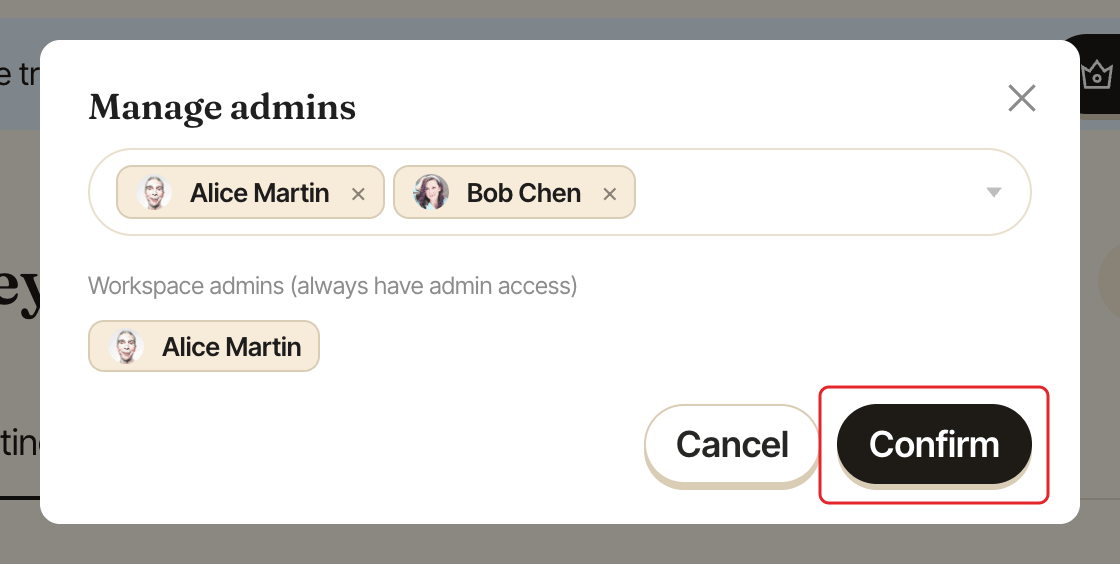
Step 3: Click Confirm#
Click Confirm.