Snooze an Alfy program
Pause your Alfy coffee chats until a date you choose, without leaving the program, from Slack, Microsoft Teams or the Alfy web dashboard.
 Slack
Slack Microsoft TeamsUpdated Oct 5, 20261 min read
Snoozing an Alfy program pauses your coffee chats until the date you choose. You stay in the program and are matched again after that date. Click 💤 Snooze in Slack or Teams, or 😴 Snooze in the web dashboard, then pick the date.
Snooze in Slack#
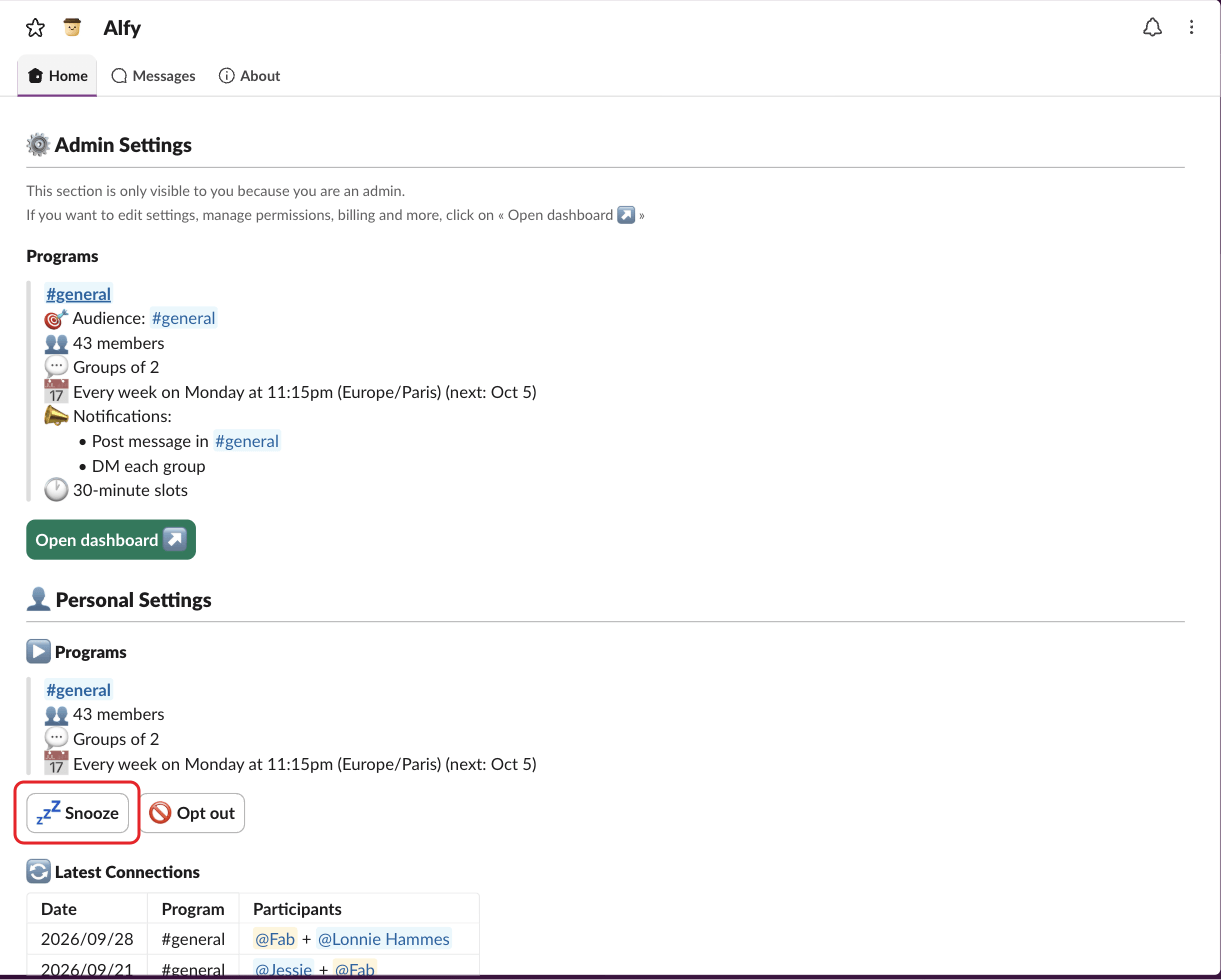
- Go to your personal settings on Alfy's Home tab.
- Under
▶️ Programs, click💤 Snoozenext to the program. - In the
Snoozewindow, pick a date underSnooze untiland clickConfirm.
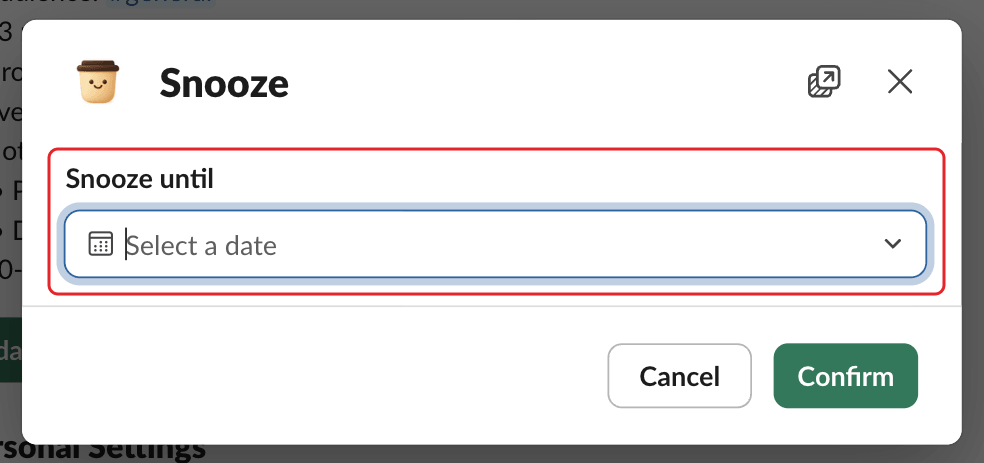
The program then shows 💤 Snoozed until and the date. To end the snooze early, click Cancel snooze.
You can't snooze a program you've opted out of.
Snooze in Microsoft Teams#
- Type
settingsto Alfy and click⚙️ Open settings. - Click
💤 Snoozenext to the program. - Pick a date under
Snooze untiland clickConfirm.
To end the snooze early, click Cancel snooze.
Snooze in the web dashboard#
- Open your personal settings in the web dashboard.
- Click
😴 Snoozeon the program. - Pick a date under "Snooze until:" and click
Confirm.
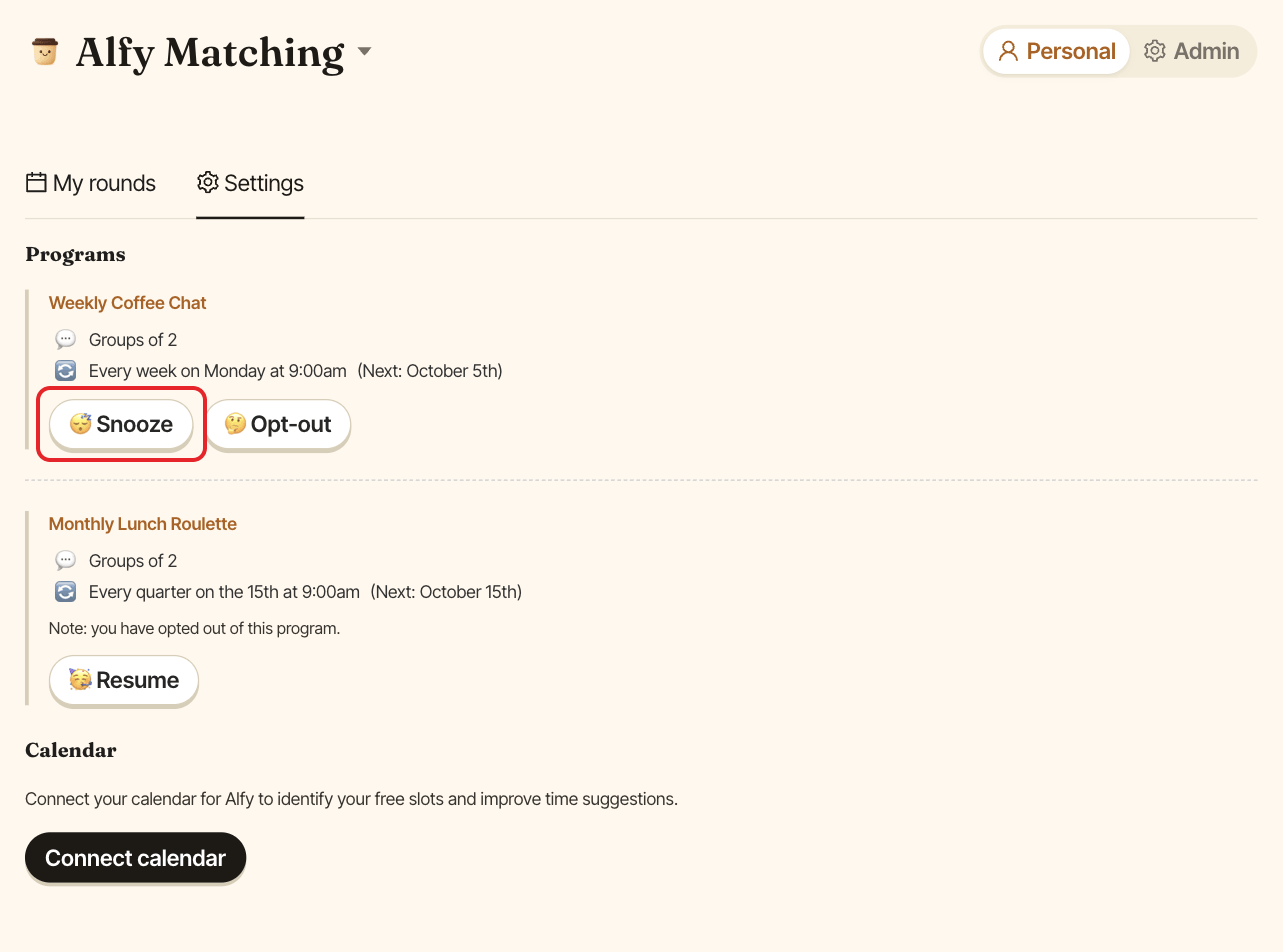
To end the snooze early, click 🥳 Resume, then Resume.