Create an Alfy program from Microsoft Teams
Set up a weekly Alfy coffee chat program for a Microsoft Teams channel or group chat in about a minute, without leaving Teams.
 Microsoft TeamsUpdated Oct 5, 20262 min read
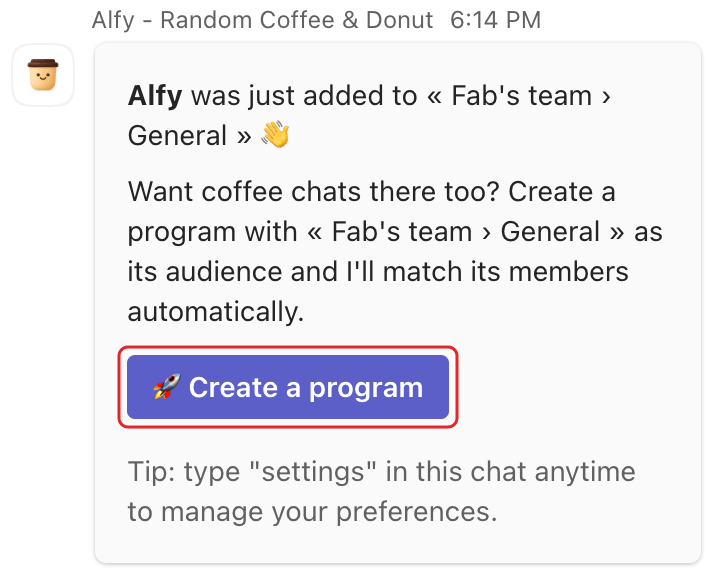
Right after you add Alfy to a Microsoft Teams channel or group chat, Alfy messages you a 🚀 Create a program button for it. The dialog covers the basics: group size and a weekly schedule. Everything else can be fine-tuned later in the web dashboard.
Step 1: Click Create a program#
In your chat with Alfy, find the message saying Alfy joined (or was added to) the channel and click 🚀 Create a program.
Step 2: Fill in the dialog#
The Create a program dialog opens.
| Field | Options | Default |
|---|---|---|
Group size |
Pairs (2 people), Groups of 3, Groups of 4, Groups of 5 |
Pairs |
How often |
Every week, Every 2 weeks, Every 3 weeks, Every 4 weeks |
Every week |
Day of week |
Monday to Sunday | Monday |
Time of day |
Rounded to the nearest 15 minutes | 09:00 |
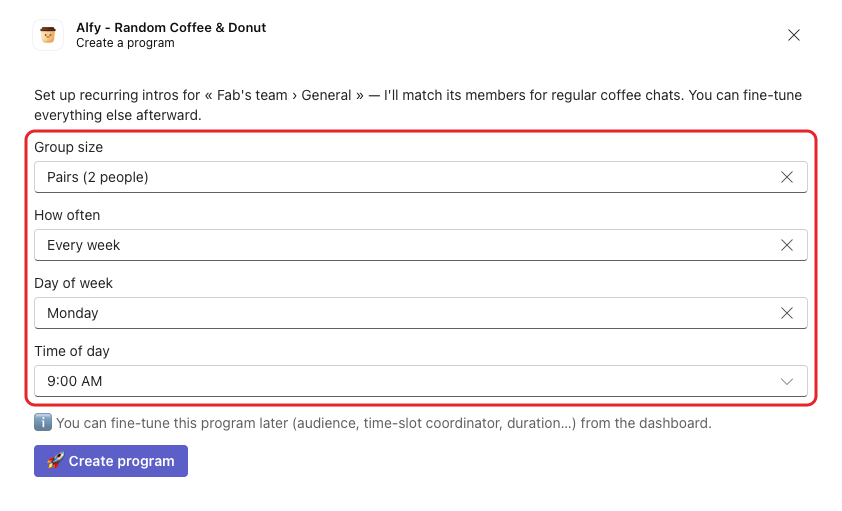
The time uses your Teams timezone.
Step 3: Click Create program#
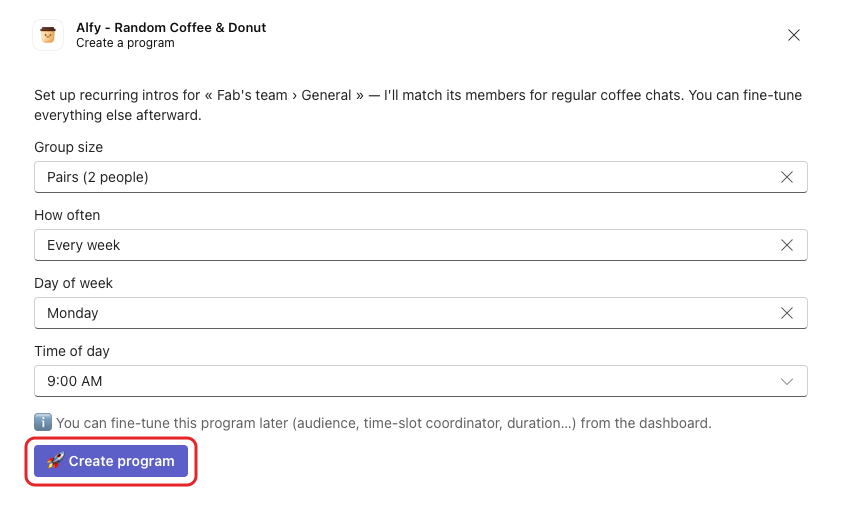
Click 🚀 Create program.
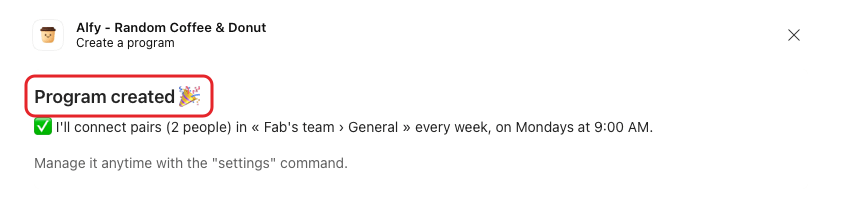
The dialog then shows Program created 🎉 and a summary of when Alfy will match people. Close the dialog when you're done.
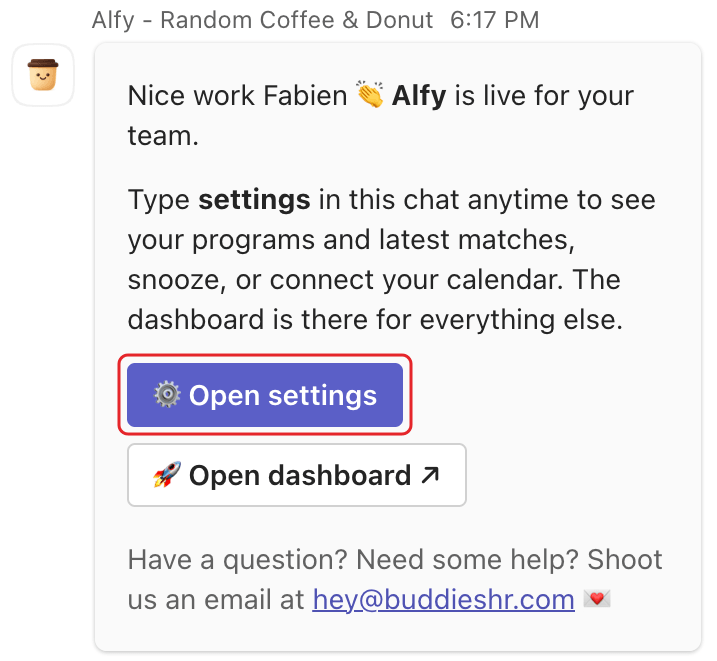
For your workspace's first program, Alfy also messages you that it's live, with an ⚙️ Open settings button and a link to the web dashboard.
Good to know#
- One program per channel or group chat from Teams. If one already exists, Alfy tells you to manage it with the
settingscommand or from the dashboard. - Weekly schedules only in this dialog. Alfy suggests 30-minute chats by default. For monthly, quarterly or custom schedules, several channels, chat duration, exclusions or the out-of-office option, edit the program in the web dashboard.
- Matches are posted in the channel or group chat. Teams has no group DMs from Alfy.
To see your programs later, type settings to Alfy. See use Alfy in Microsoft Teams.