Exclude people from an Alfy program
Keep specific people out of an Alfy coffee chat program's matches even though they're in its Slack or Teams channel, and see who is excluded.
 Slack
Slack Microsoft TeamsUpdated Oct 12, 20261 min read
To exclude someone from an Alfy program, an Alfy admin edits the program in the web dashboard, clicks Exclude users from matching and selects the person. Excluded people stay in the program's channel but are never matched. Use it for people who shouldn't take part, like a bot account or a manager who prefers not to.
Step 1: Edit the program#
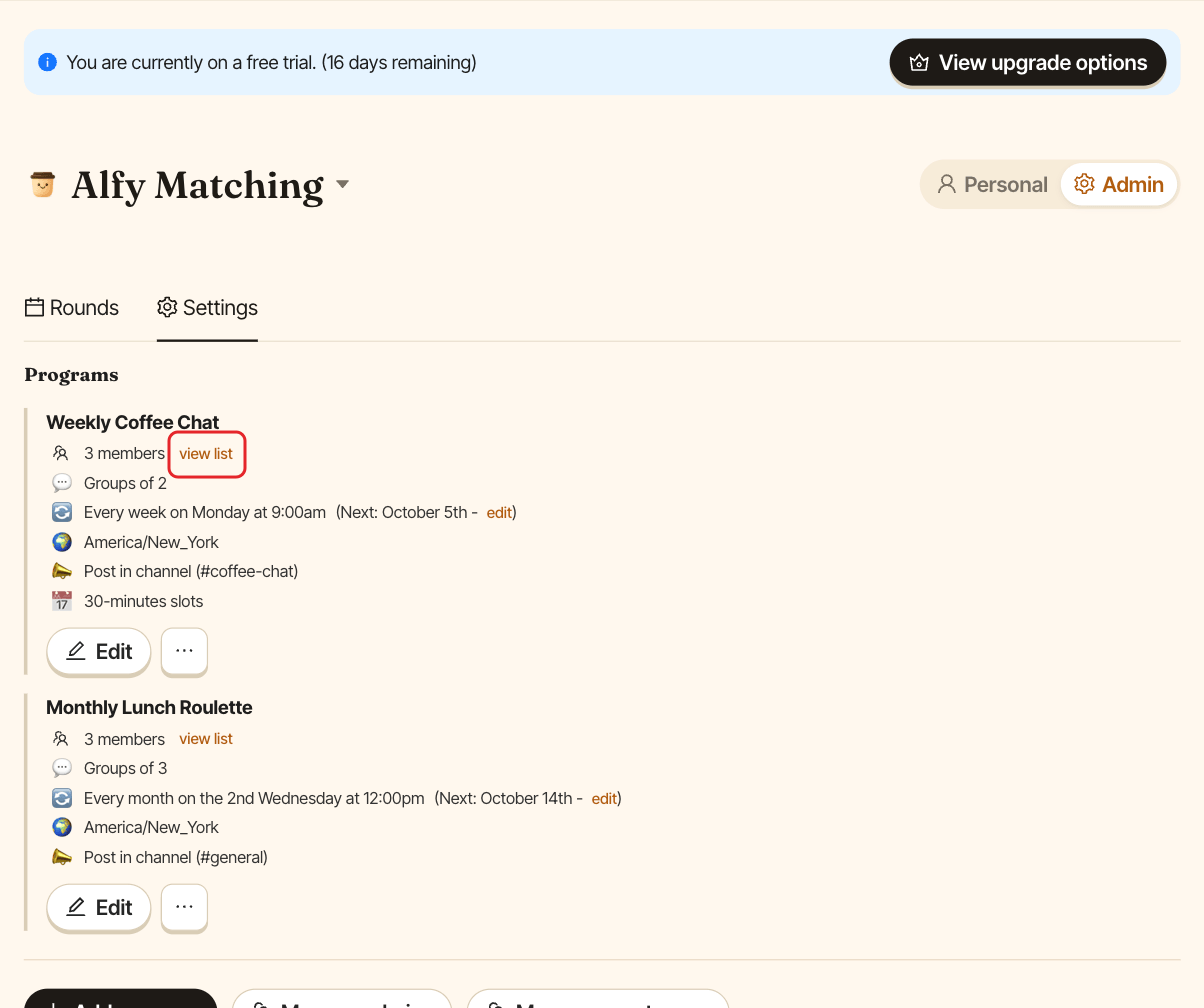
Open the web dashboard, switch to Admin and open the Settings tab. Click Edit on the program.
Step 2: Select the people to exclude#
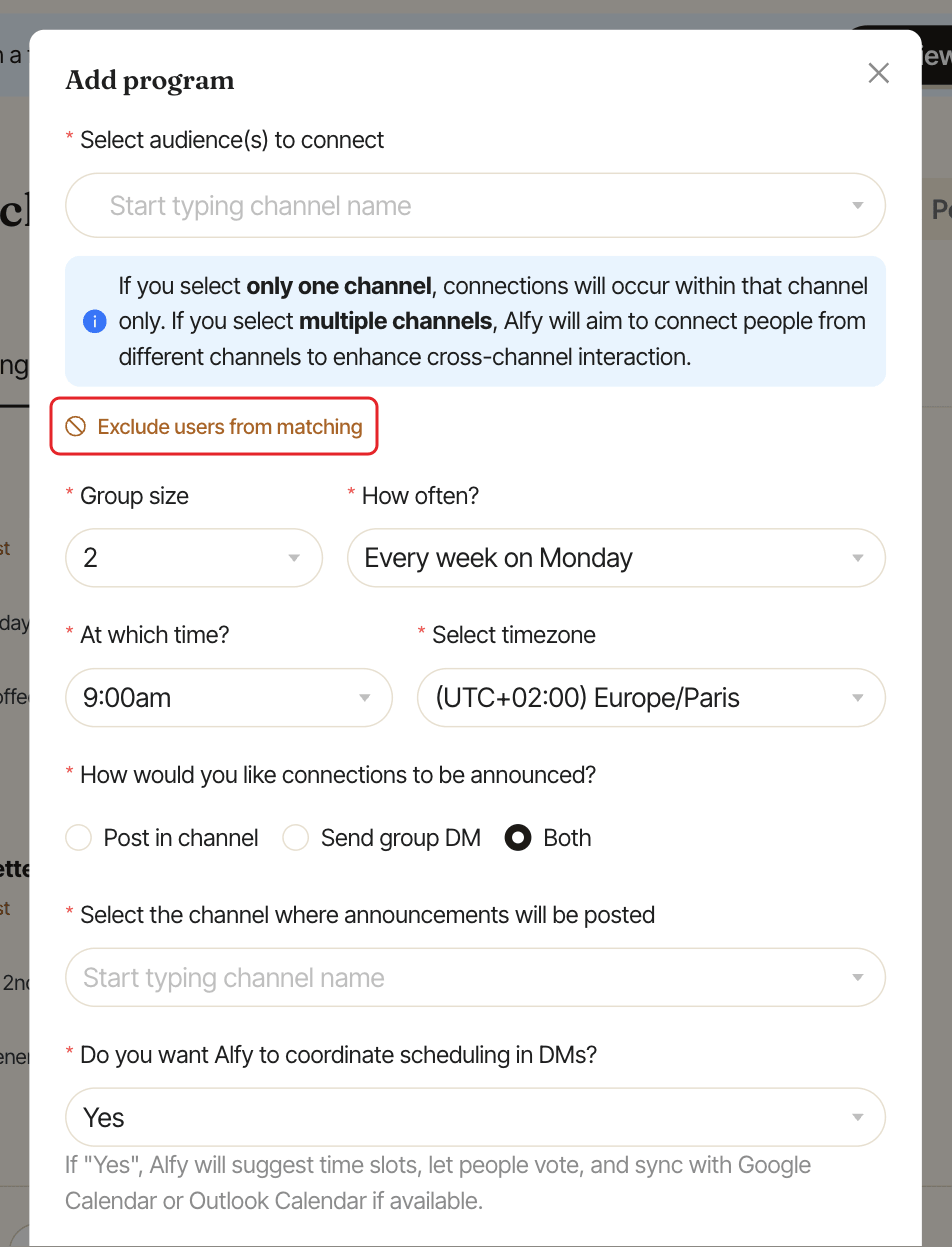
Click Exclude users from matching. Under Select the users to exclude from this program: (optional), type a name and select each person.
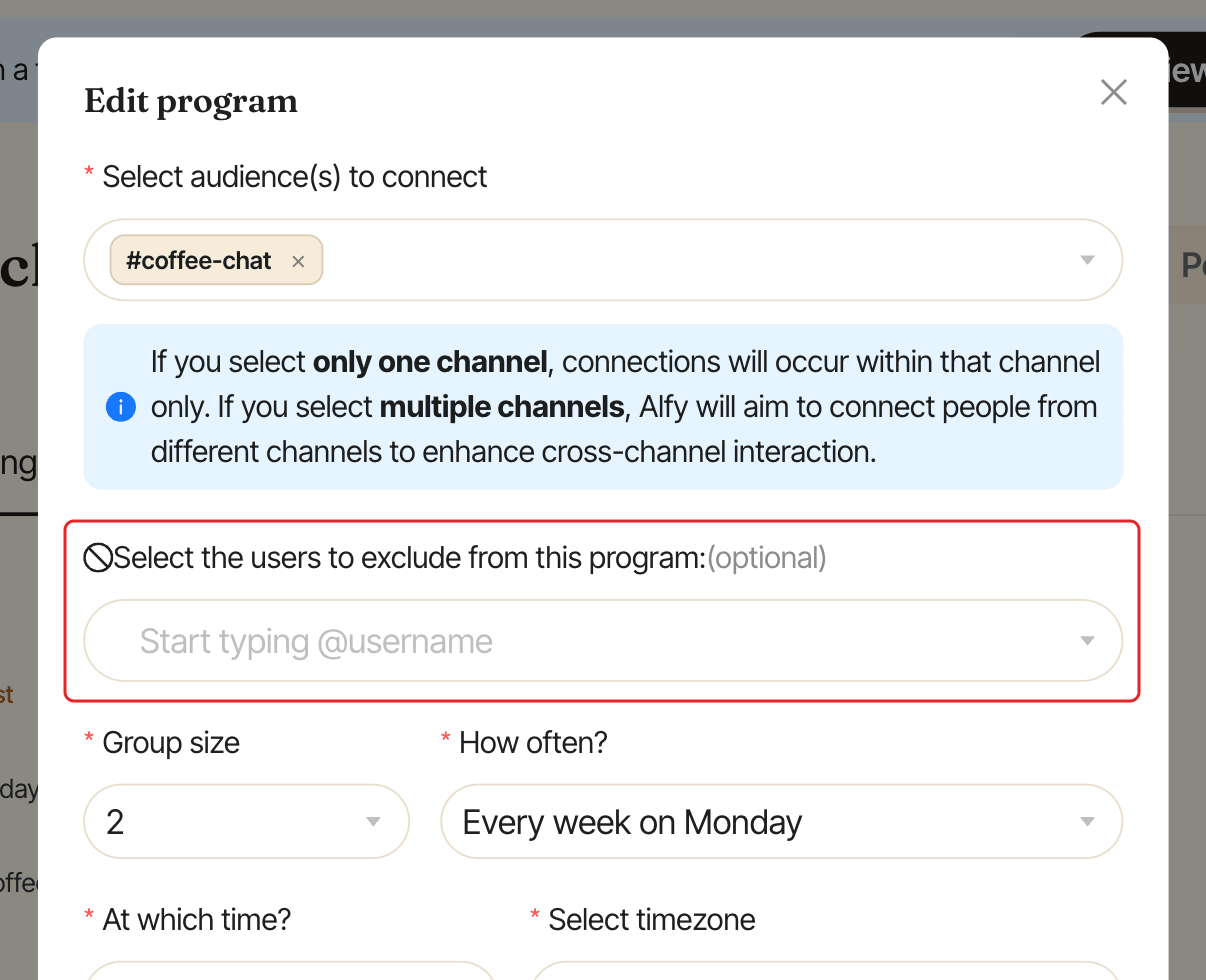
To include someone again, remove them from this field.
Step 3: Click Save#
Click Save. The exclusion applies from the next round.
Exclude someone from an upcoming round#
When you edit a round's groups, the Exclude tab also excludes a person. This adds them to the program's exclusions for all future rounds, not just that one. To undo it, remove them from the program's exclusions as in Step 2.
See who is excluded#
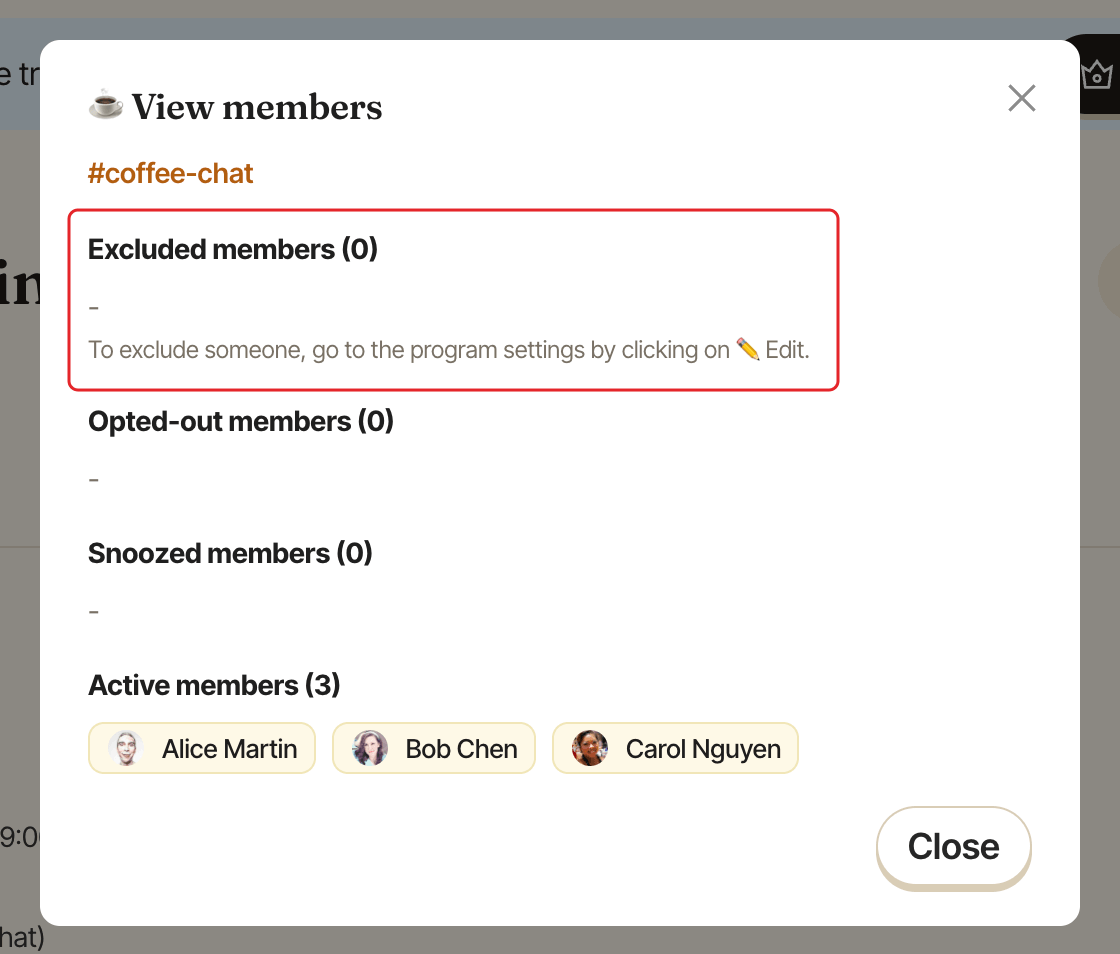
On the program card, click view list next to the member count. The ☕ View members window lists the program's members, with excluded, snoozed and opted-out people in their own sections (Opted-out members for people who opted out).