Subscribe to Billy in Slack or Microsoft Teams
Start a paid Billy subscription from Slack or Microsoft Teams when the free trial ends: pick monthly or yearly billing and pay with Stripe Checkout.
 Slack
Slack Microsoft TeamsUpdated Oct 8, 20261 min read
To keep Billy, the BuddiesHR birthday bot, running after the 30-day free trial, a Billy admin subscribes from Slack or Microsoft Teams and pays through Stripe Checkout. Prices and plans are explained in BuddiesHR pricing, free plan and trial.
In Slack#
Step 1: Open the subscription page#
In the admin settings, click Subscribe Now (or View Pricing, which opens the same page) under Free trial - N days left ⚠️, or under The free plan for Billy has ended 🚨 once the trial is over.
Step 2: Choose monthly or yearly billing#
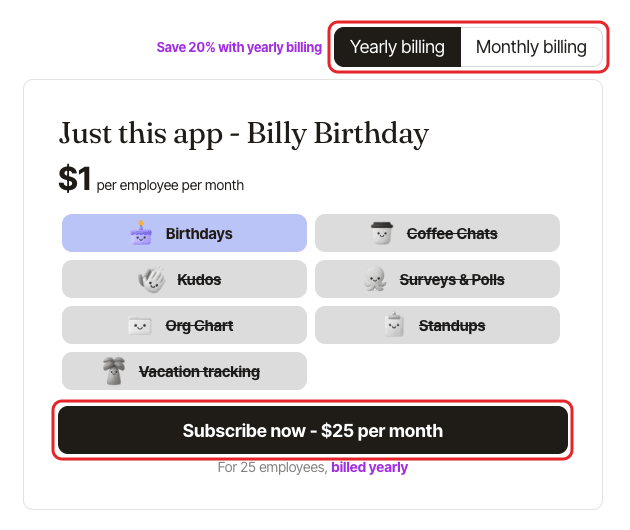
The Subscribe to BuddiesHR apps page opens on the BuddiesHR website. Pick Yearly billing (selected by default) or Monthly billing, then click Subscribe now on the Just this app card to subscribe to Billy alone. You can also take the bundle of all BuddiesHR apps on the same page.
Step 3: Complete Stripe Checkout#
Enter your billing address (required) and payment details, then confirm. You can also add your company's tax ID.
In Microsoft Teams#
Type Help in your chat with Billy and click Subscribe Now at the bottom of the card (shown from the fourth day of the trial). Once the trial is over, the link is also in Billy's reply to any command. View Pricing opens the pricing page instead. Then complete the checkout the same way.
Seats#
The number of seats is filled in for you, with a minimum of 10. See how Billy counts seats.
After subscribing#
You land on a confirmation page and Billy keeps celebrating without interruption. If Billy had stopped because the trial ended, it starts again. Invoices are in the billing portal.