Collect birthdays and work anniversaries with Billy
The four ways Billy admins get the team's birthdays and work anniversaries into Billy in Slack: automatic collection, Excel import, a reminder or direct edits.
 SlackUpdated Oct 5, 20263 min read
Billy admins can get birthdays and work anniversaries into Billy, the BuddiesHR birthday bot for Slack, in four ways, and combine them: automatic collection, an Excel import, a manual reminder, or editing someone's dates directly. Each channel card in the admin settings shows how many dates are still missing.
Using Microsoft Teams? See collect dates in Teams.
1. Automatic collection#
Turn on Would you like Billy to automatically collect dates by contacting members? when you add a channel or in its settings. It's on by default.
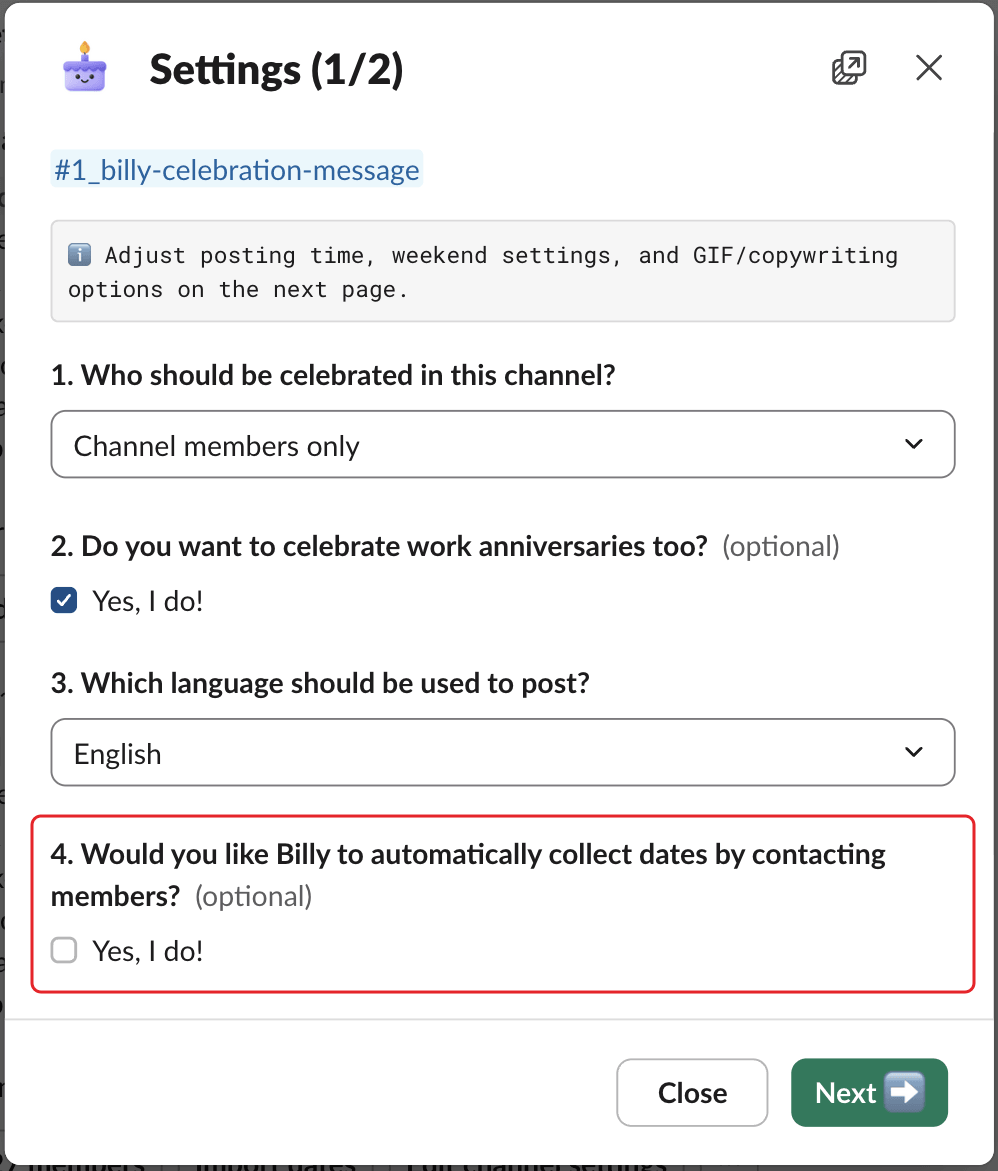
Billy then:
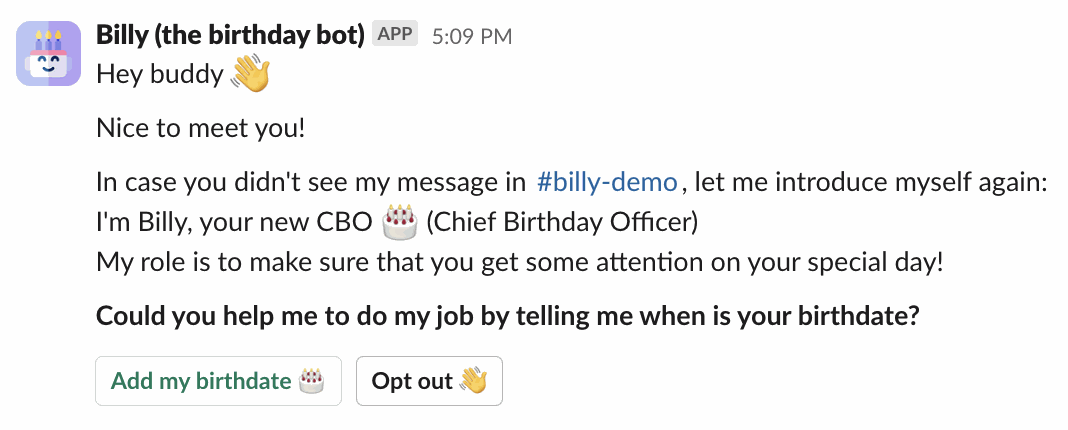
- Messages every member in the channel's scope whose dates are missing (once, right away).
- Sends a reminder to those who still haven't answered, 2, 5, 12 and 21 days later.
- Messages newcomers: people who join the workspace (for channels set to
All workspace members) or who join the channel (forChannel members only), if their dates are missing.
2. Excel import#
Step 1: Download the template#
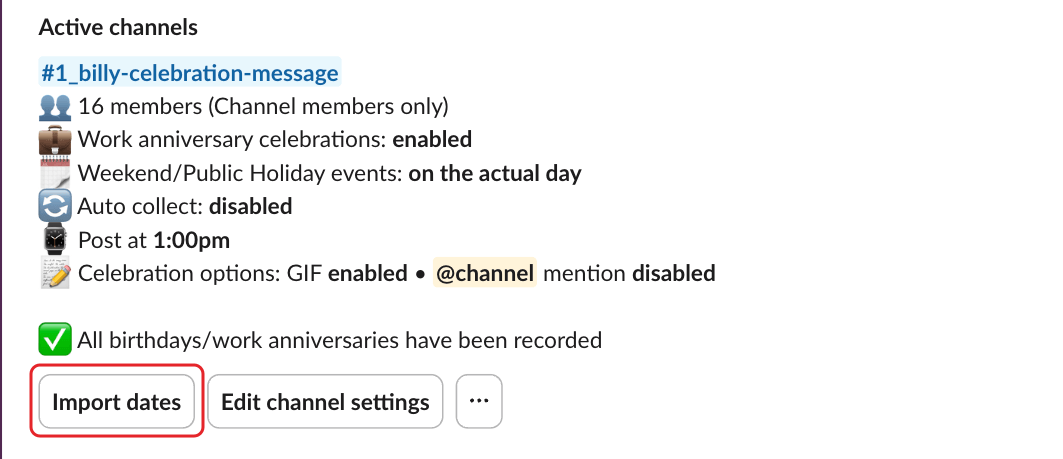
On the channel's card, click Import dates (or Import birthdays when work anniversaries are off).
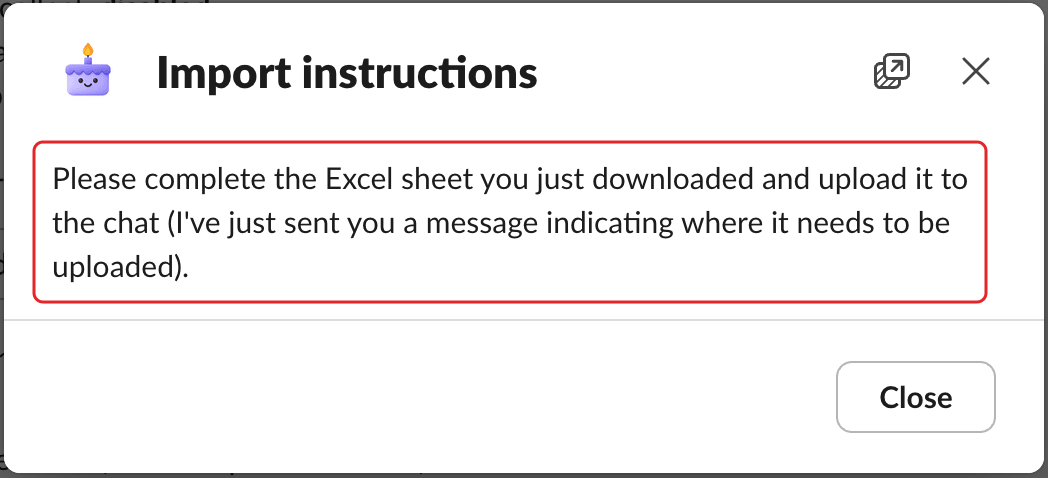
Billy downloads a file named BillyBirthday_team-members_….xlsx, opens an Import instructions window and sends you "Hey buddy 👋 Please send me the updated excel file here!" in its Messages tab.
Step 2: Fill out the template#
The template already lists everyone in the channel's scope, with the dates Billy knows and OPT OUT for people who opted out. Its columns are:
| Column | Notes |
|---|---|
ID |
Slack user ID or email address |
Full name, Display name |
For reference only |
Birthday month (1-12), Birthday day (1-31) |
No birth year |
Work anniversary month (1-12), Work anniversary day (1-31), Work anniversary year (YYYY) |
Only when work anniversaries are on. Year 1900 or later. |
Don't rename the column headers. Rows with an unknown ID are skipped. The headers are in the channel's language.
To delete a date, see remove someone's dates.
Step 3: Send the file back to Billy#
Upload the completed .xlsx file in Billy's Messages tab. One file at a time. Column headers in any of Billy's five languages are accepted.
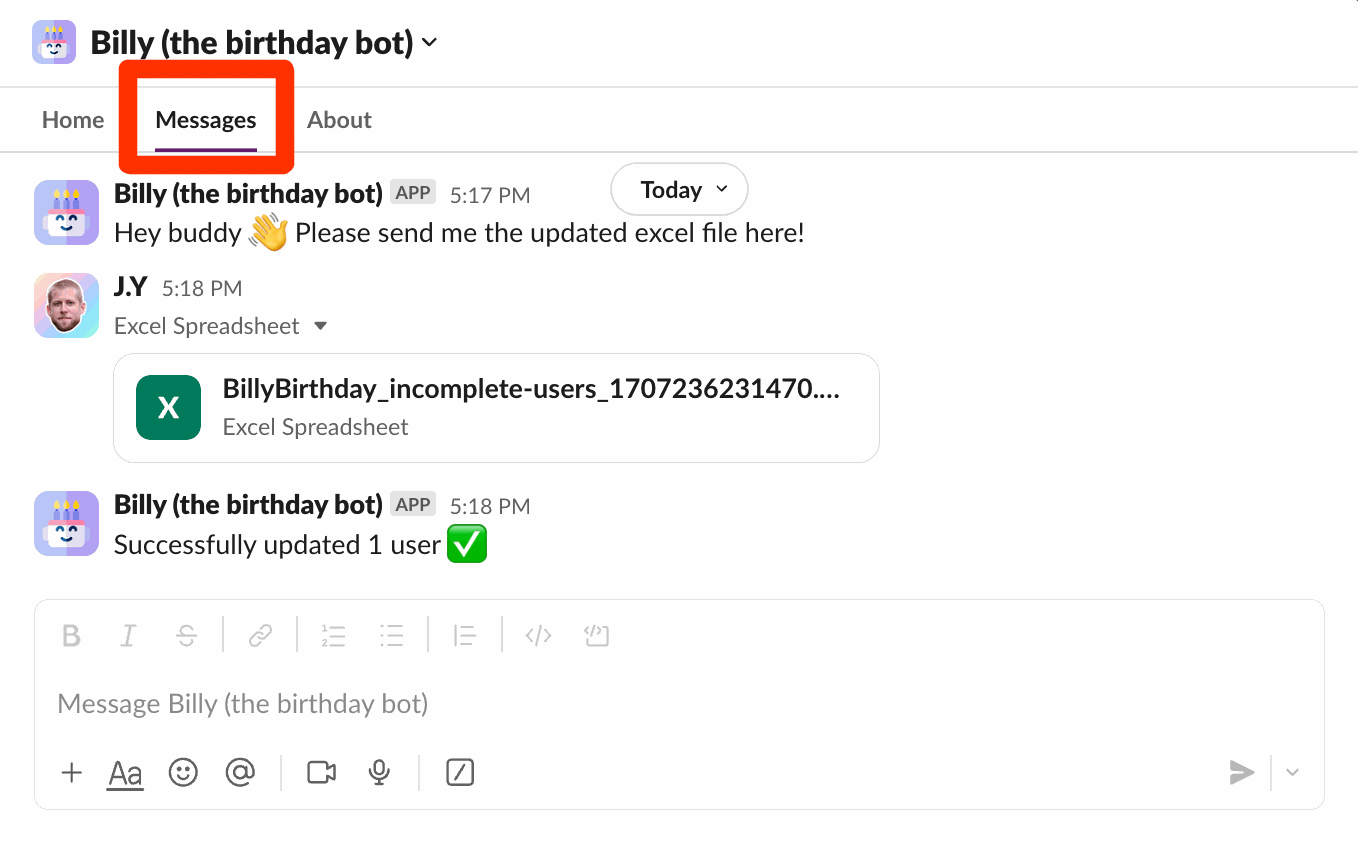
Billy replies "Successfully updated N users ✅" (or "Successfully received your file, however no user has been updated!" if nothing changed). If it can't read the file, it lists the likely causes: not an .xlsx file, renamed columns, or several files sent at once.
3. Notify members manually#
Step 1: Click Notify members#
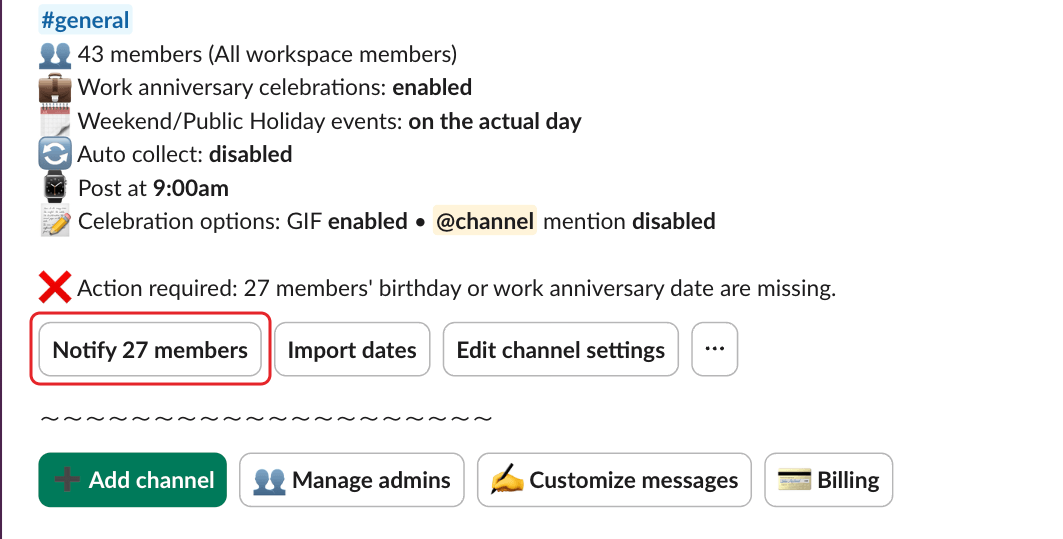
On the channel's card, click Notify N members. The button only shows when dates are missing.
Step 2: Confirm#
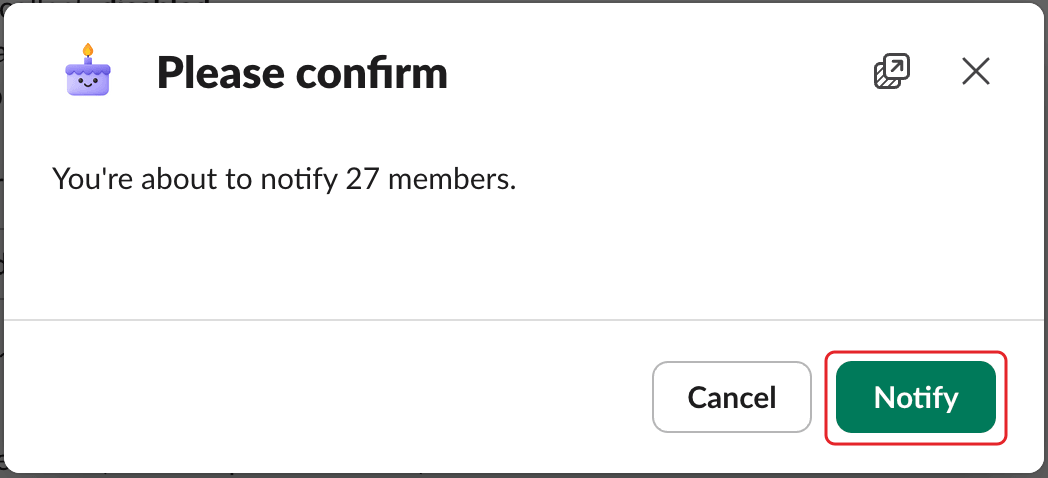
Click Notify. The window warns you if those members were already notified in the last 24 hours, but doesn't block you.
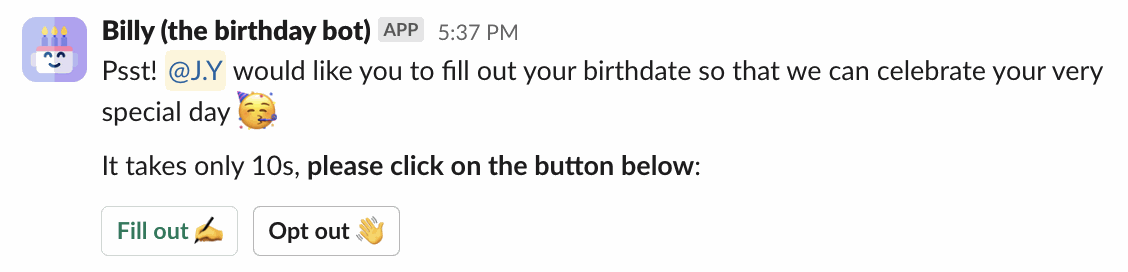
Each member gets a message asking for their dates:
4. Edit someone's dates#
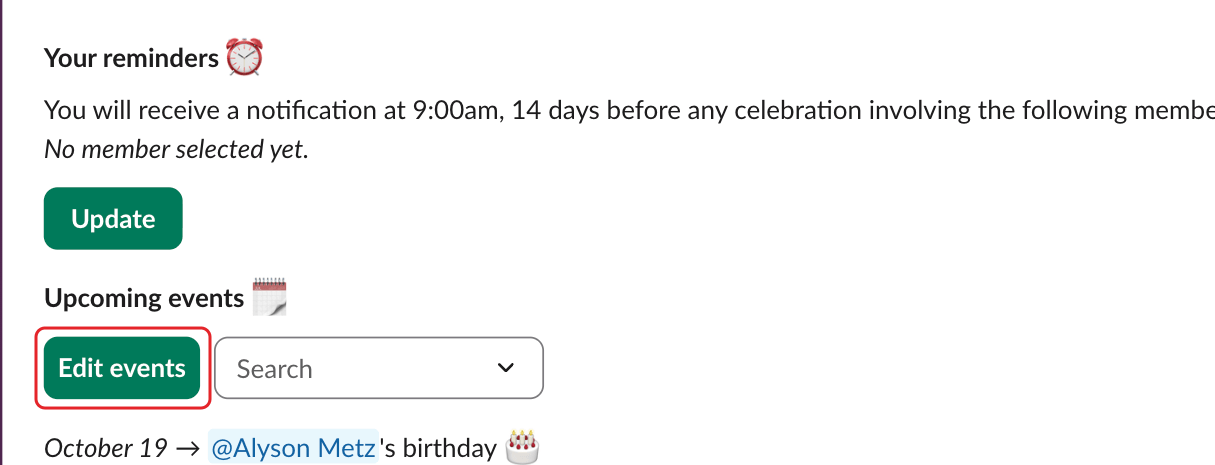
Step 1: Click Edit events#
In the Upcoming events 🗓 section of Billy's Home tab, click Edit events. Only admins see this button.
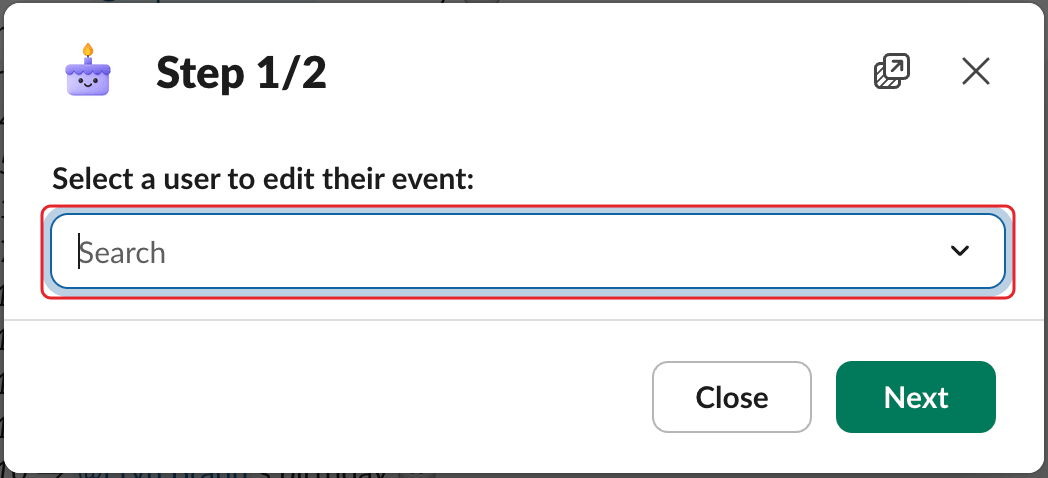
Step 2: Select the member#
Pick the member in Select a user to edit their event: and click Next.
Step 3: Pick the dates#
Under Birthday 🎂, pick the day and month. Under Work anniversary 💼, pick the day, month and optional year. Each value is saved as soon as you select it: Save only closes the window.
Billy reminds admins too#
While dates are missing, Billy sends the Billy admins listed in 👥 Manage admins a summary 1, 3, 10 and 19 days after setup. Click 🔕 Opt out of reminders in that message to stop it. See messages Billy sends.