Add or remove a Billy admin in Slack
Give a teammate access to Billy's admin settings in Slack with the Manage admins window, or take it away. Slack workspace admins always have access.
 SlackUpdated Oct 5, 20261 min read
Billy admins can see and change Billy's admin settings in Slack, and any Billy admin can add or remove others from 👥 Manage admins. In Slack, the person who installed Billy starts as an admin, and every Slack workspace admin is always a Billy admin.
Using Microsoft Teams? See add Billy admins in Teams.
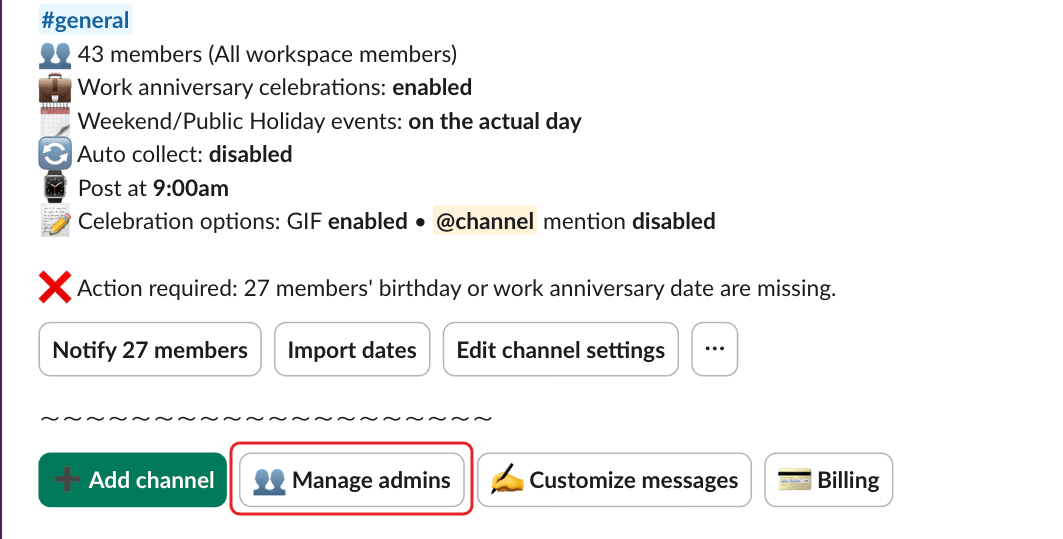
Step 1: Click Manage admins#
In the admin settings, click 👥 Manage admins.
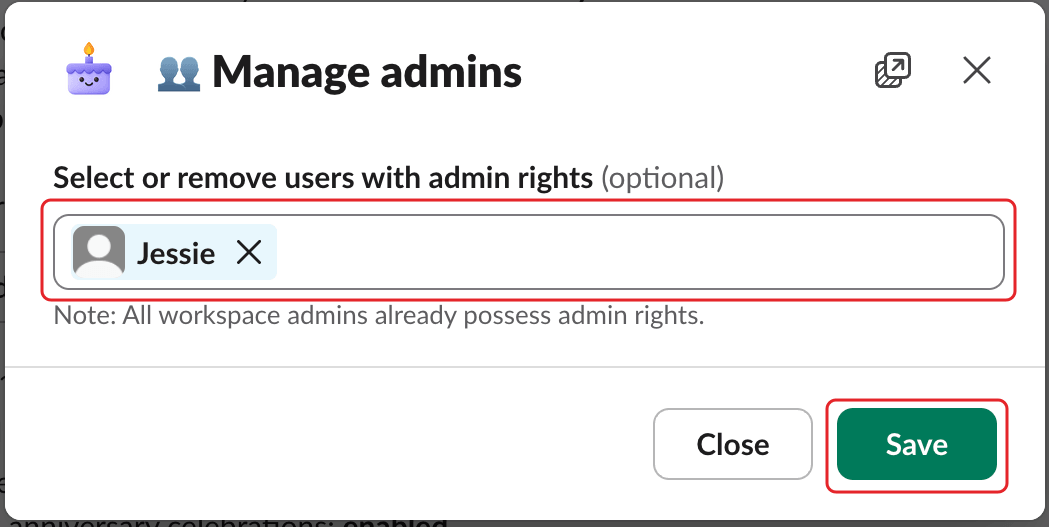
Step 2: Select users and save#
In "Select or remove users with admin rights", add the people who should have admin rights and remove those who shouldn't, then click Save. You can't add bots or people from outside your workspace.
New admins get a message from Billy: "You've been granted admin rights to manage my settings!", with a 🏡 Home button.