Look someone up with /whois in Slack
Use Linky's /whois command in Slack to see a colleague's org chart profile, manager and direct reports without leaving the conversation.
 SlackUpdated Oct 8, 20261 min read
Type /whois in any Slack conversation to see a colleague's Linky profile: their fields, their manager and their direct reports. Linky is the BuddiesHR org chart app for Slack. Anyone in the workspace can use /whois, and the result is only visible to you.
Look up someone you can mention#
Type /whois @name and send it. A /whois window opens with:
- every profile field your admins turned on,
- their
Managerand theirDirect reports, - a
View in org chart ↗️button that opens the org chart in your browser.
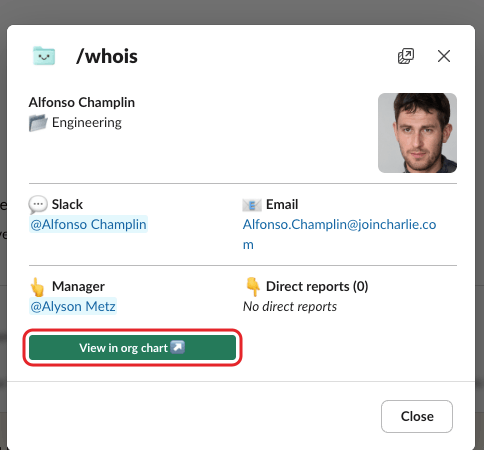
Click Close when you're done.
Search for someone#
Type /whois on its own and send it. In the window that opens, pick the person in Find someone and click View profile. Their profile replaces the search.
When /whois can't find someone#
| Message | What it means |
|---|---|
| "This is a bot account…" | You picked a bot. Pick a teammate instead. |
| "This command only works with users from your workspace (no bots, no external users)." or "This user is not in your workspace." | The person is outside your workspace, for example in a shared channel. |
| "User not found in the org chart. They might not have been added yet." or "This user is not in the org chart yet." | The person isn't on the chart yet. See /whois says the user isn't in the org chart. |