Place people on the Linky org chart
Build your Linky org chart by giving each Slack member a manager, putting leaders at the top and excluding bots or people who shouldn't appear.
 SlackUpdated Oct 5, 20262 min read
In Linky, the BuddiesHR org chart app for Slack, you build the hierarchy by giving each person a manager. Linky lists your Slack members who aren't on the chart yet, and you place them one by one. You need to be a Linky admin.
Step 1: Open the list of people#
Open the org chart in Admin mode. The list opens on its own right after the setup. Otherwise, either:
- click
Fill in informationin the "This Organisation Chart is incomplete" warning above the chart, or - click
⋮in the action bar, thenShow Excluded users.
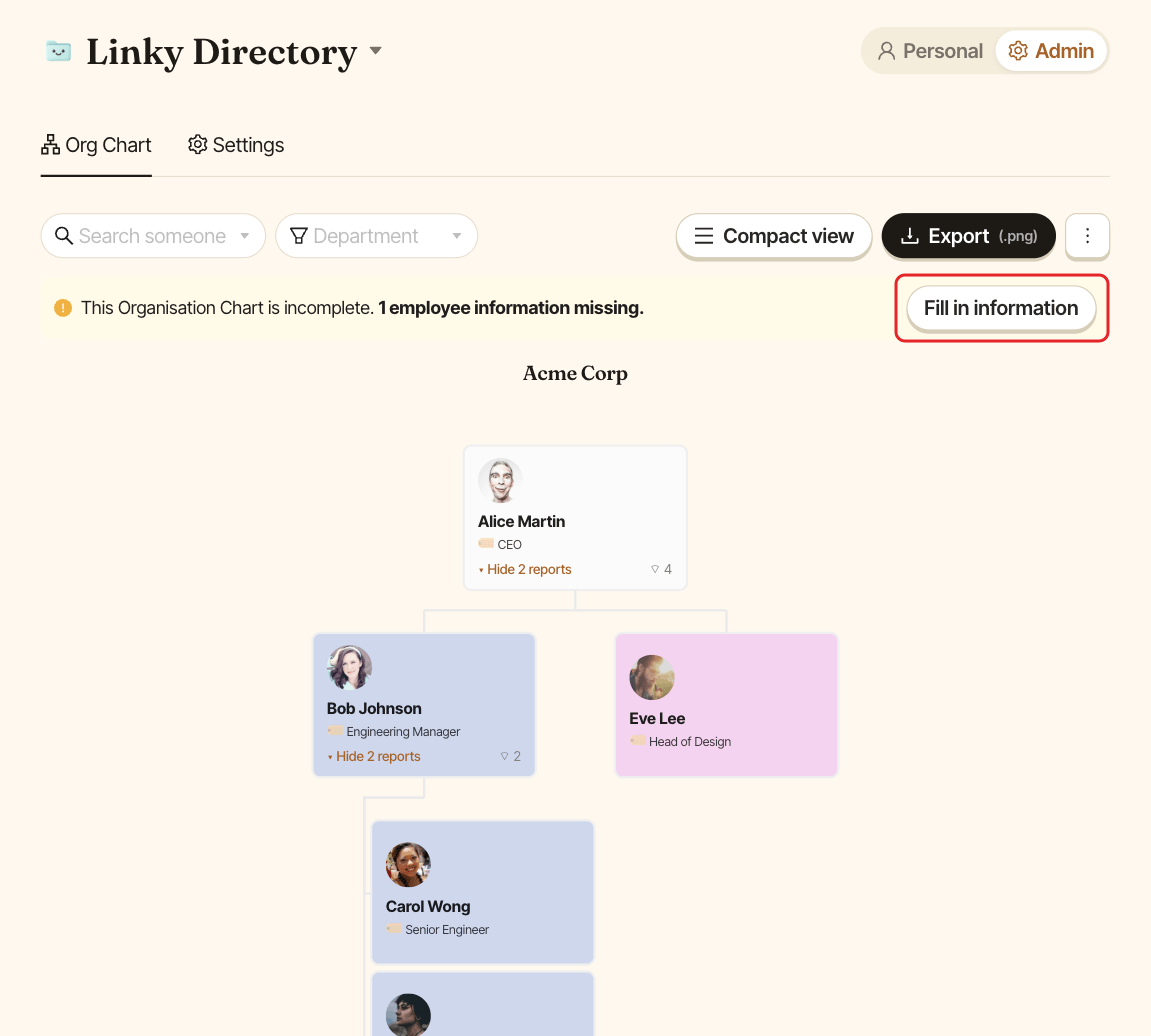
The list opens on the left. People not on the chart yet come first. People already on the chart and excluded people are grouped below, under Users already in the Org Chart + Excluded.
Step 2: Give each person a manager#
For each person, pick their manager in Select a manager. They appear under that manager straight away, with their name and job title taken from Slack.
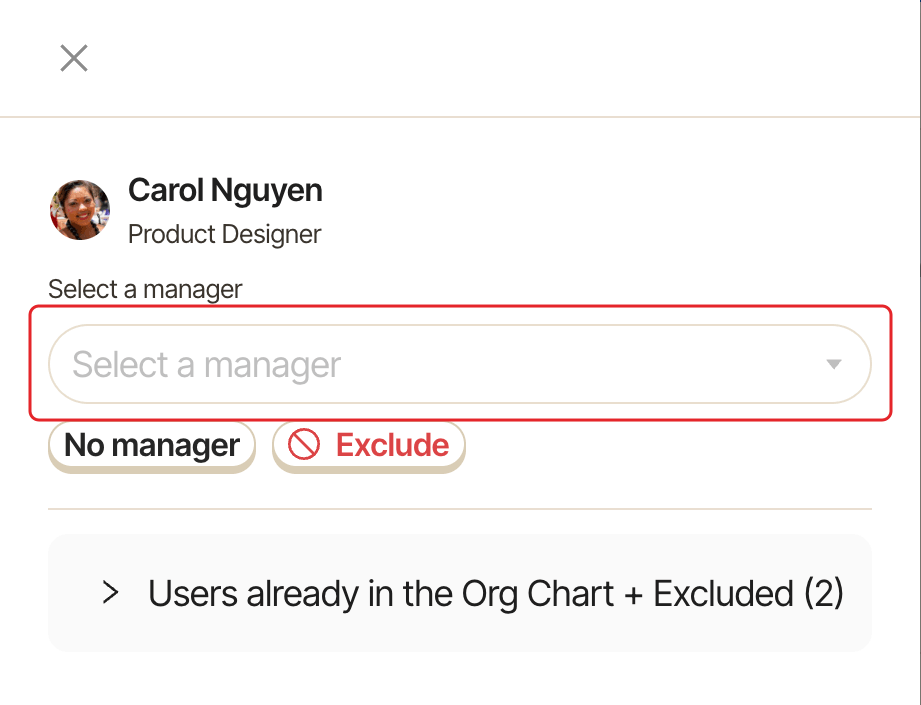
If the manager isn't on the chart yet, Linky adds them too, at the top of the chart with No manager. Find them under Users already in the Org Chart + Excluded to pick their own manager.
Step 3: Put leaders at the top#
For the people at the top of the company, such as the CEO, click No manager, then Confirm. They sit at the top of the chart.
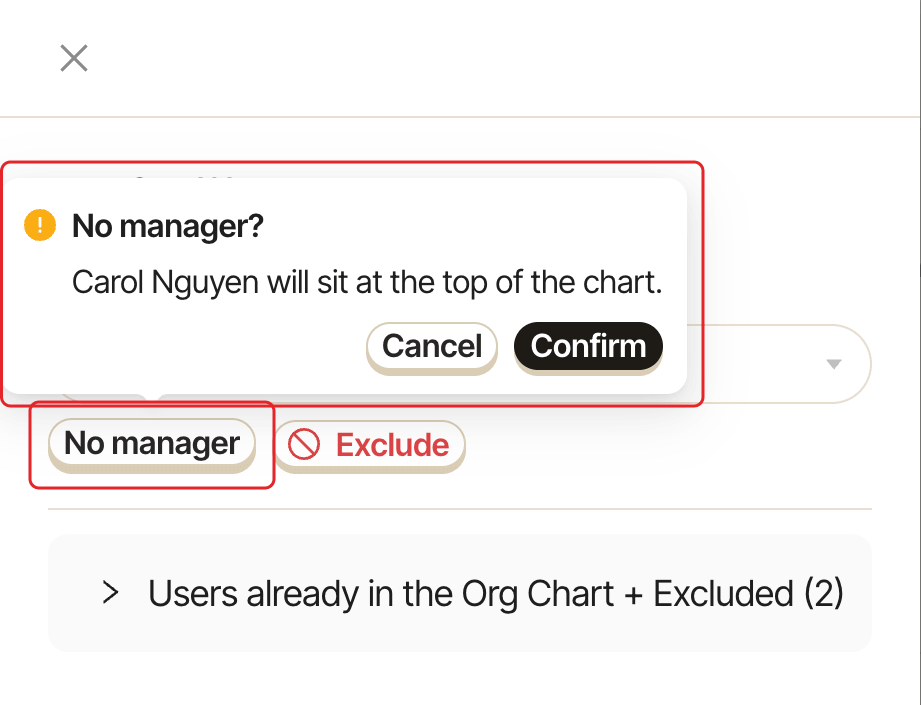
When several people have no manager, Linky shows a company card with the chart's name above them.
Step 4: Exclude people who shouldn't appear#
For bots, shared accounts or anyone who shouldn't be on the chart, click Exclude, then Exclude again to confirm. Excluded people are left off the chart and are never asked to fill in their profile.
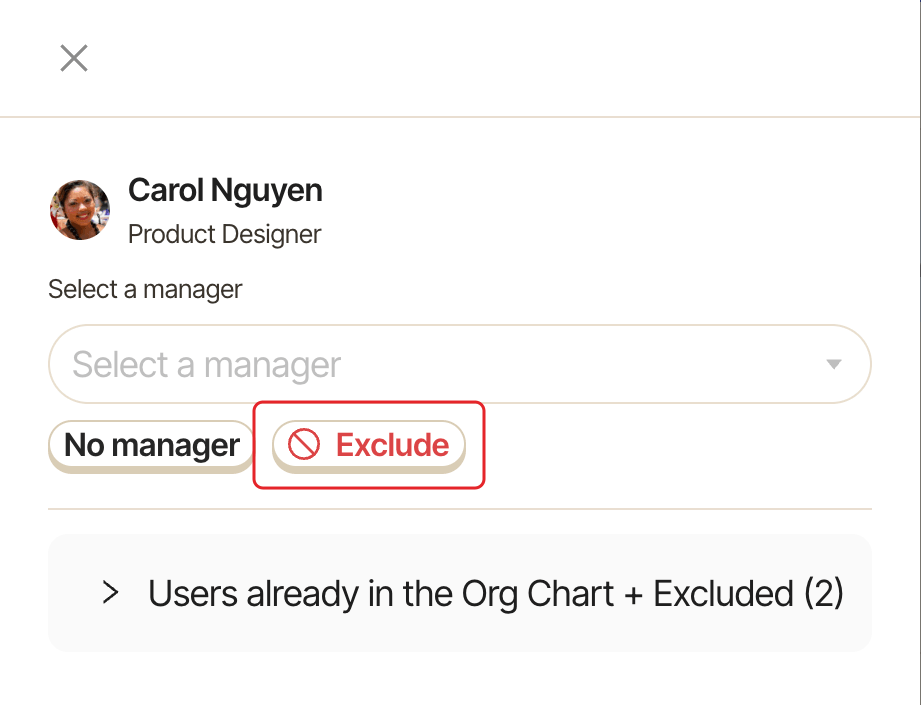
To bring someone back, find them under Users already in the Org Chart + Excluded, click Add back, then pick their manager.
When new people join Slack#
New Slack members are never placed automatically. They show up in this list, and the incomplete chart warning comes back. To hear about them in Slack, turn on change notifications.
By default, Slack guests aren't listed. See include Slack guests.