Keep Linky profiles in sync with Slack
Let Linky fill in names, job titles, pictures, emails, phone numbers and start dates from your team's Slack profiles, so the org chart never drifts.
 SlackUpdated Oct 5, 20262 min read
Linky, the BuddiesHR org chart app for Slack, can copy some profile fields from each person's Slack profile, so you don't have to type them twice. A synced field is updated from Slack every time Linky syncs. You need to be a Linky admin to choose which fields sync.
Fields that can sync#
First NameandLast NameJob TitleProfile PicturePhoneandEmail(only the first field of each type that's turned on, if you have several)Start Date(Slack only shares it when Slack Atlas is turned on)
When Linky is first installed from Slack, all of these sync by default.
Turn sync on or off for a field#
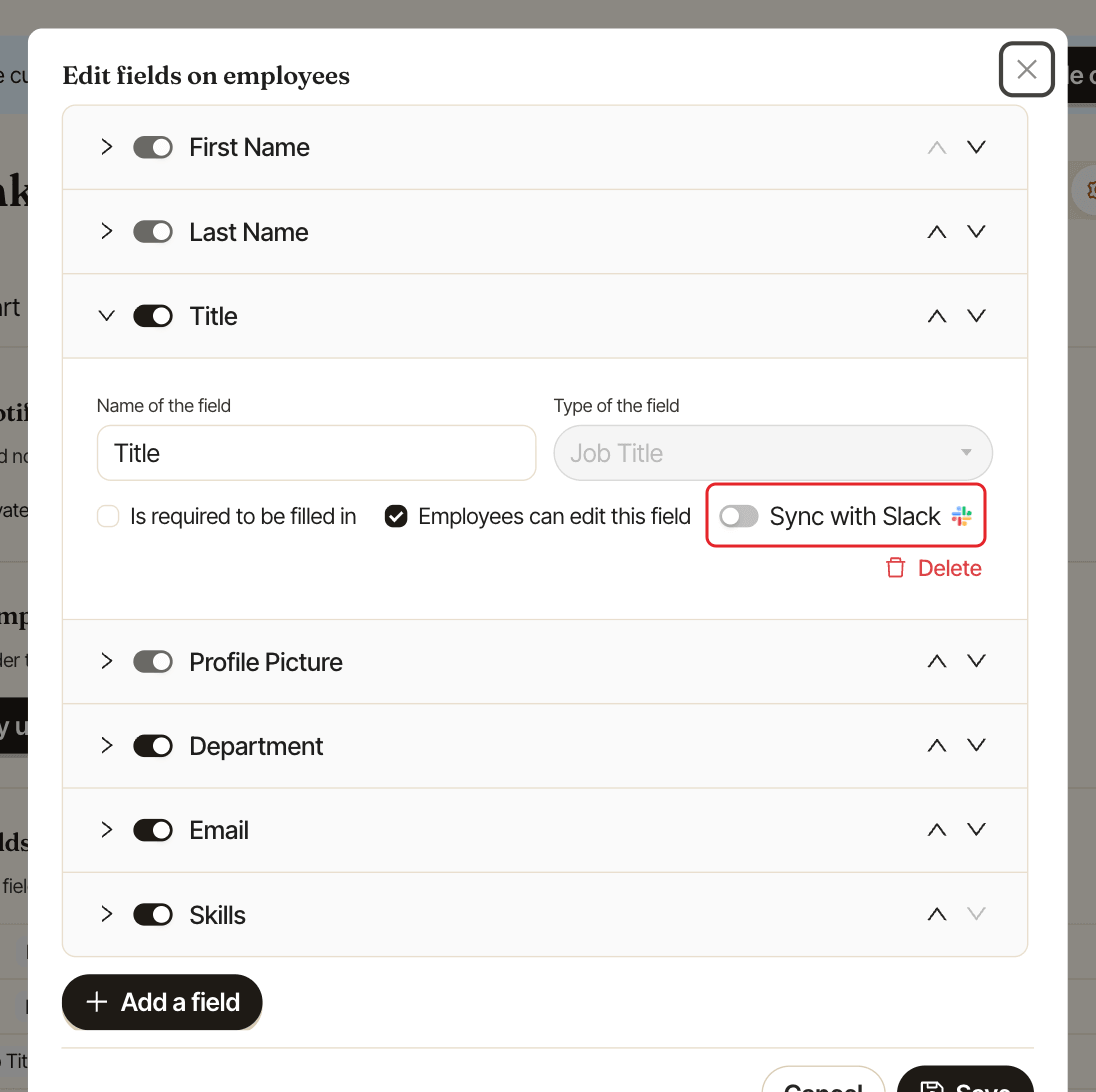
Open Linky in Admin mode, go to the Settings tab and click Edit profile fields. Open the field and use the Sync with Slack switch. Click Save. The switch only shows while Slack is connected.
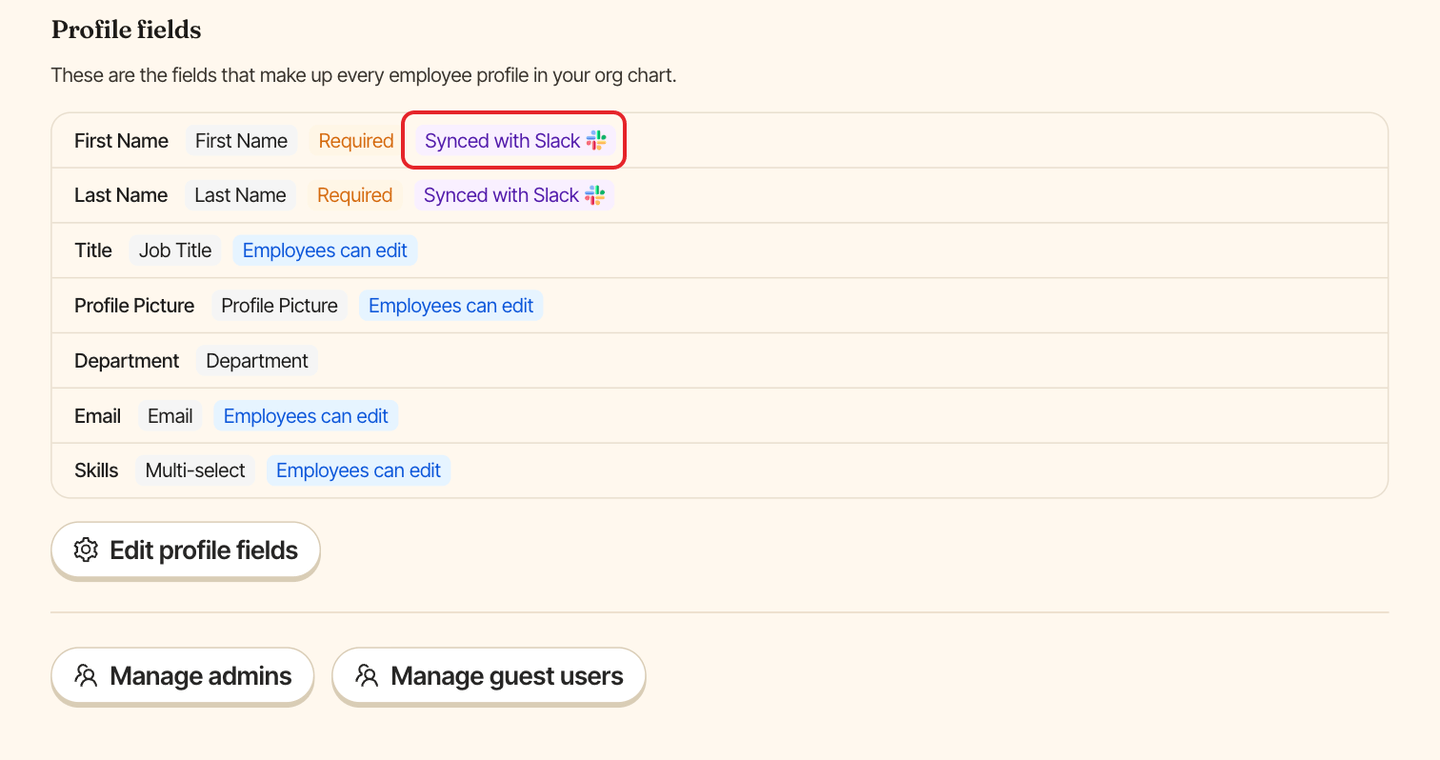
In the Settings tab, synced fields show the Synced with Slack tag.
How syncing works#
- On every sync, the field takes the value from the person's Slack profile, replacing what was typed in Linky.
- If the Slack value is empty, Linky keeps its own value.
- A synced field can't be made editable by employees. To let people edit it in Linky, turn off
Sync with Slackfirst. - People added by hand have no Slack profile, so their fields never sync.
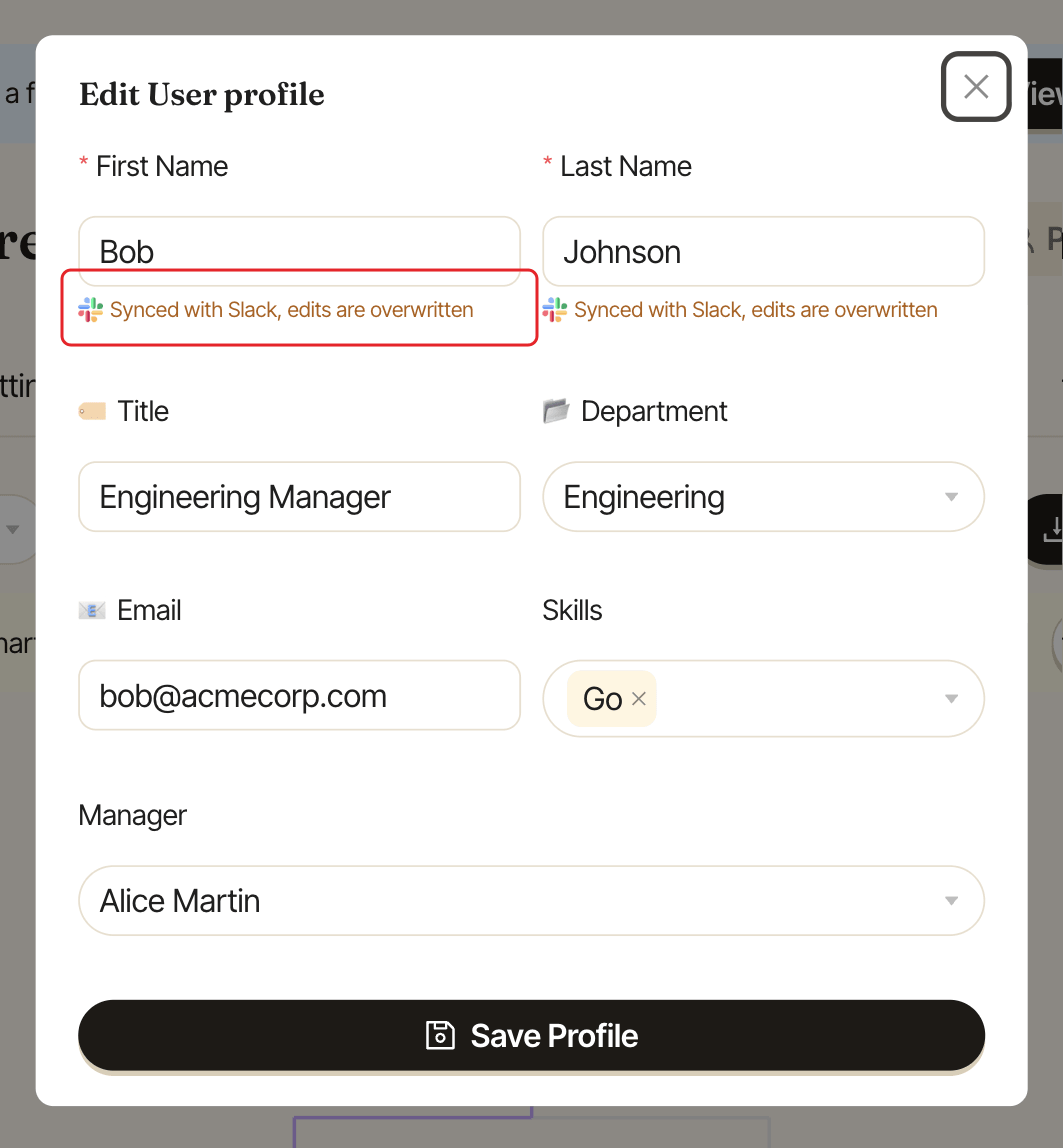
When an admin edits a profile, synced fields show "Synced with Slack, edits are overwritten" as a reminder that any change will be replaced by Slack. In the Profile panel, synced fields show the Slack logo.