Browse the Linky org chart
Open anyone's profile, see their manager and direct reports, expand and collapse teams and zoom in and out of your Linky org chart for Slack.
 SlackUpdated Oct 5, 20262 min read
Everyone in your workspace can browse the Linky org chart, open anyone's profile and see who reports to whom. Linky is the BuddiesHR org chart app for Slack. To open the chart, see open the org chart.
Open someone's profile#
Click a person's picture or name. The Profile panel opens on the right with:
- their picture and name,
- their
Managerand number ofDirect reports, - every profile field your admins turned on. Empty fields show a dash, required fields are marked with
*, and fields that come from Slack show the Slack logo.
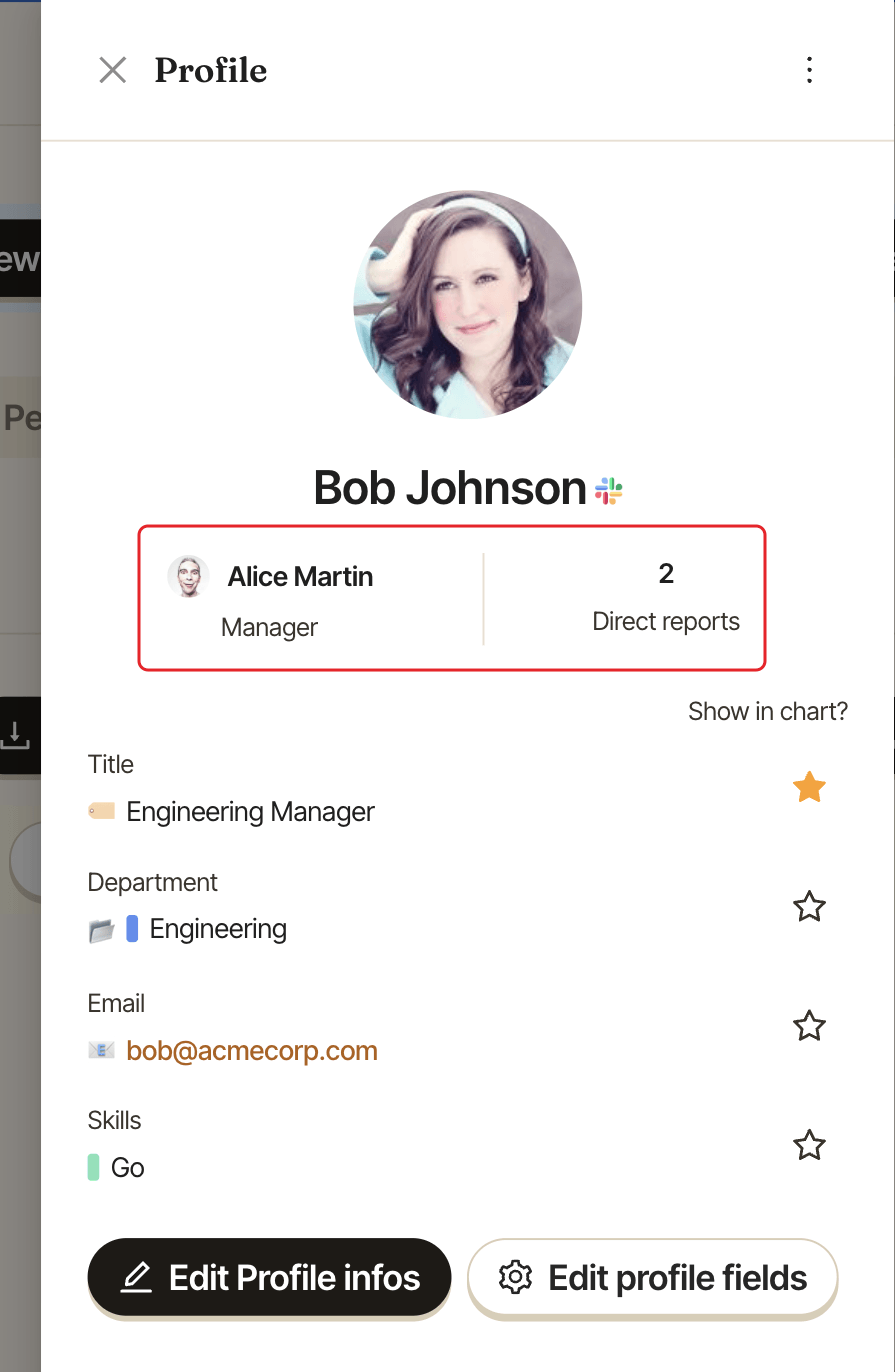
If someone has no department of their own, the panel shows the department they inherit from their manager. See set up departments.
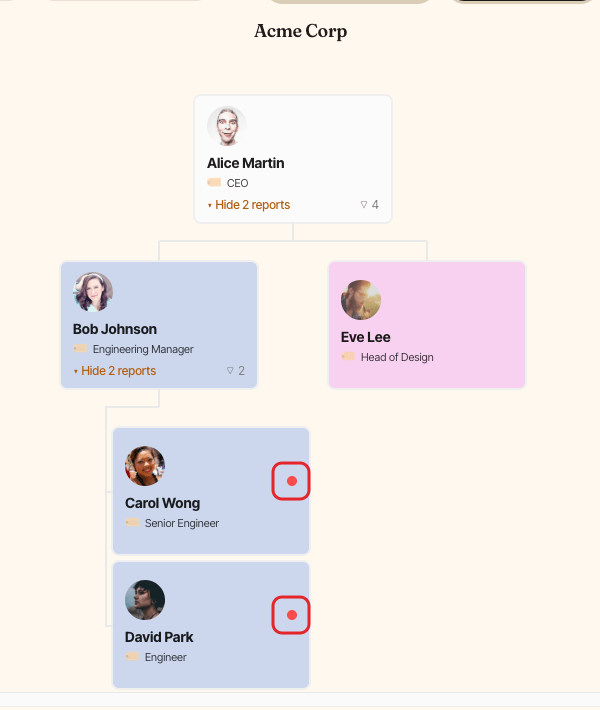
A small red dot at the top right of someone's card means a required field is missing from their profile.
Expand and collapse teams#
Under a manager's card, click ▸ Show N reports to unfold their team, or ▾ Hide N reports to fold it. The badge next to it gives the total number of people in their team, direct or not.

Move around and zoom#
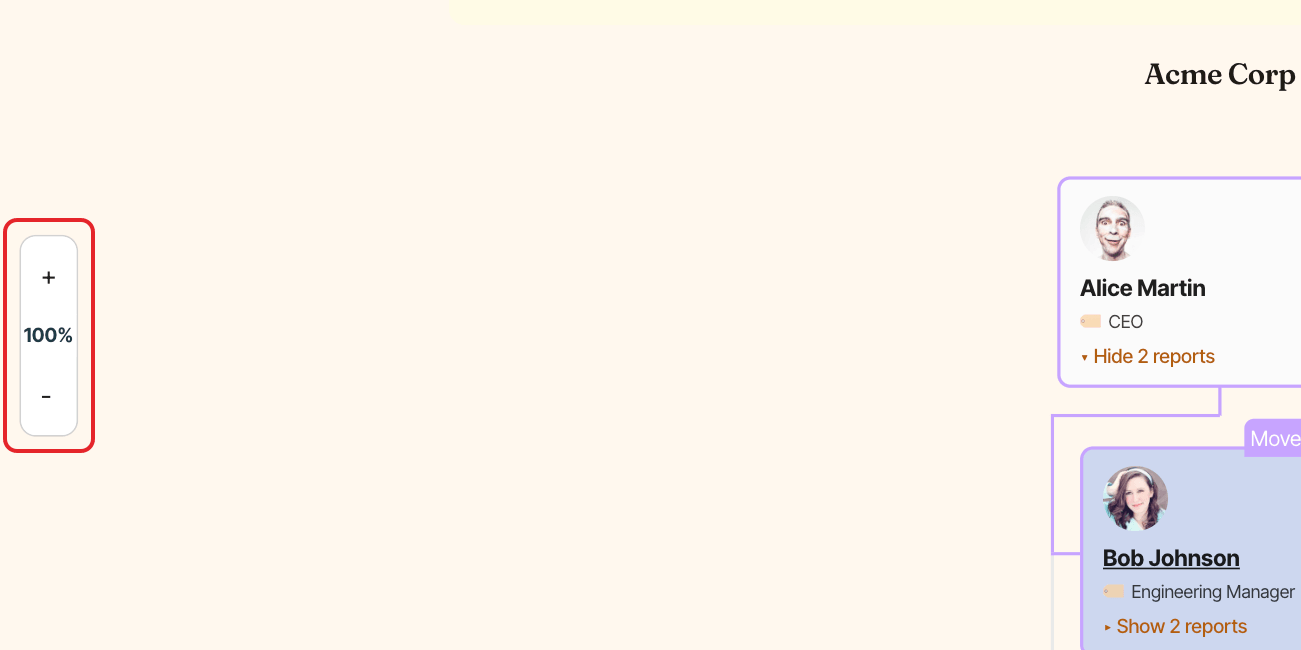
Click and drag the chart to move around it. Use the + and - buttons of the zoom control to zoom between 10% and 250%. It shows the current zoom level as a percentage. Wide charts are centered when the page opens.
Change the layout#
- Compact view shows smaller cards.
- A vertical layout stacks a wide team under its manager.
- Admins can choose which fields show on each card.
These choices only apply to you, in this browser.
Several charts#
If your company uses several charts, they're shown one below the other, each with its name as a heading.