Customize profile fields in Linky
Choose which fields every Linky profile has, add your own, mark them as required, let employees edit them and reorder them in the Slack org chart.
 SlackUpdated Oct 7, 20263 min read
Profile fields are the information each person has on the Linky org chart, such as job title, phone or start date. In Linky, the BuddiesHR org chart app for Slack, admins choose which fields exist, which are required and who fills them in. You need to be a Linky admin.
Open the profile fields#
Open Linky in Admin mode, go to the Settings tab and click Edit profile fields in the Profile fields section. You can also click Edit profile fields in anyone's Profile panel.
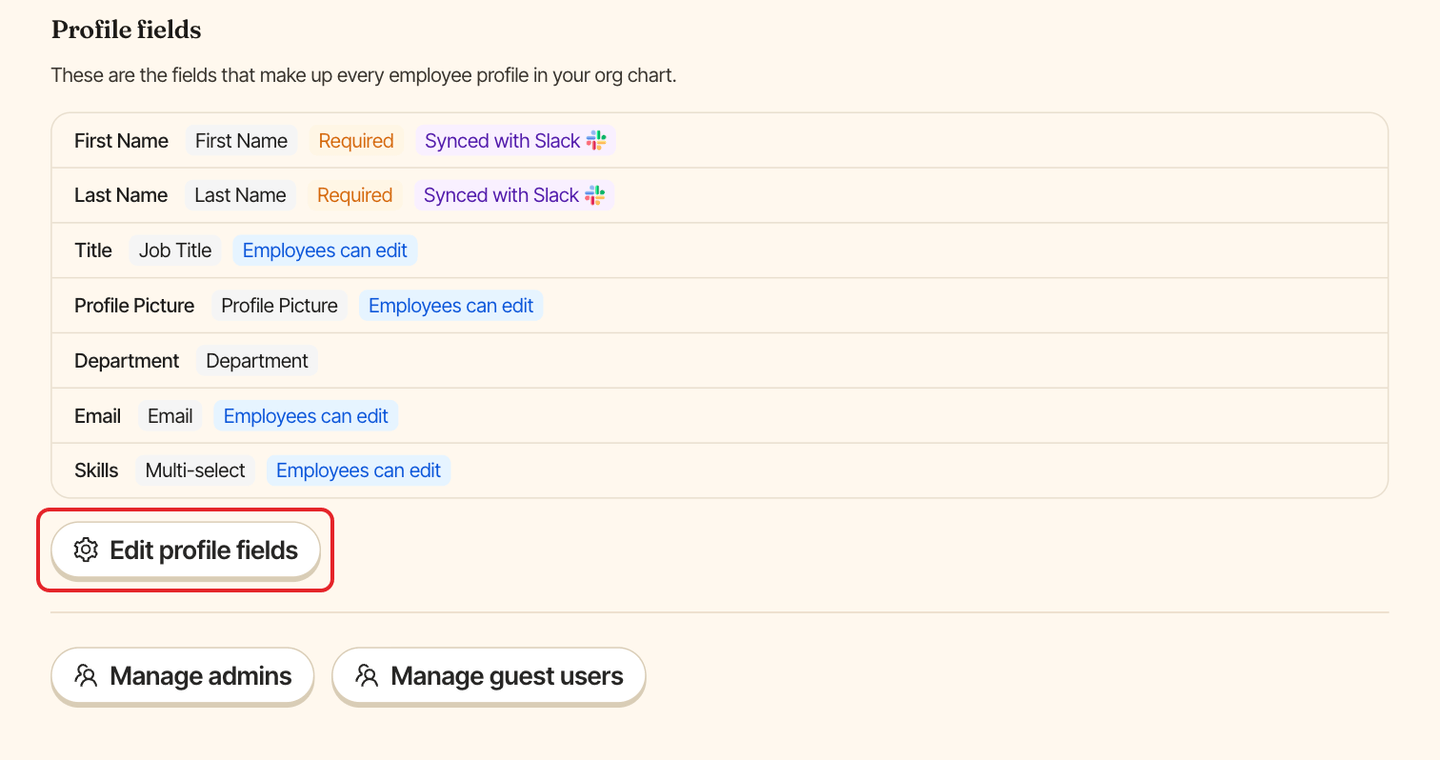
The Edit fields on employees window lists every field. Click a field to open its settings.
The default fields#
| Field | Default |
|---|---|
First Name, Last Name, Job Title |
On, required |
Profile Picture, Email, Phone |
On |
Department |
Off, with 10 ready-made departments |
Start Date, End Date, Date of Birth |
Off |
None of them can be edited by employees until you allow it.
Turn a field on or off#
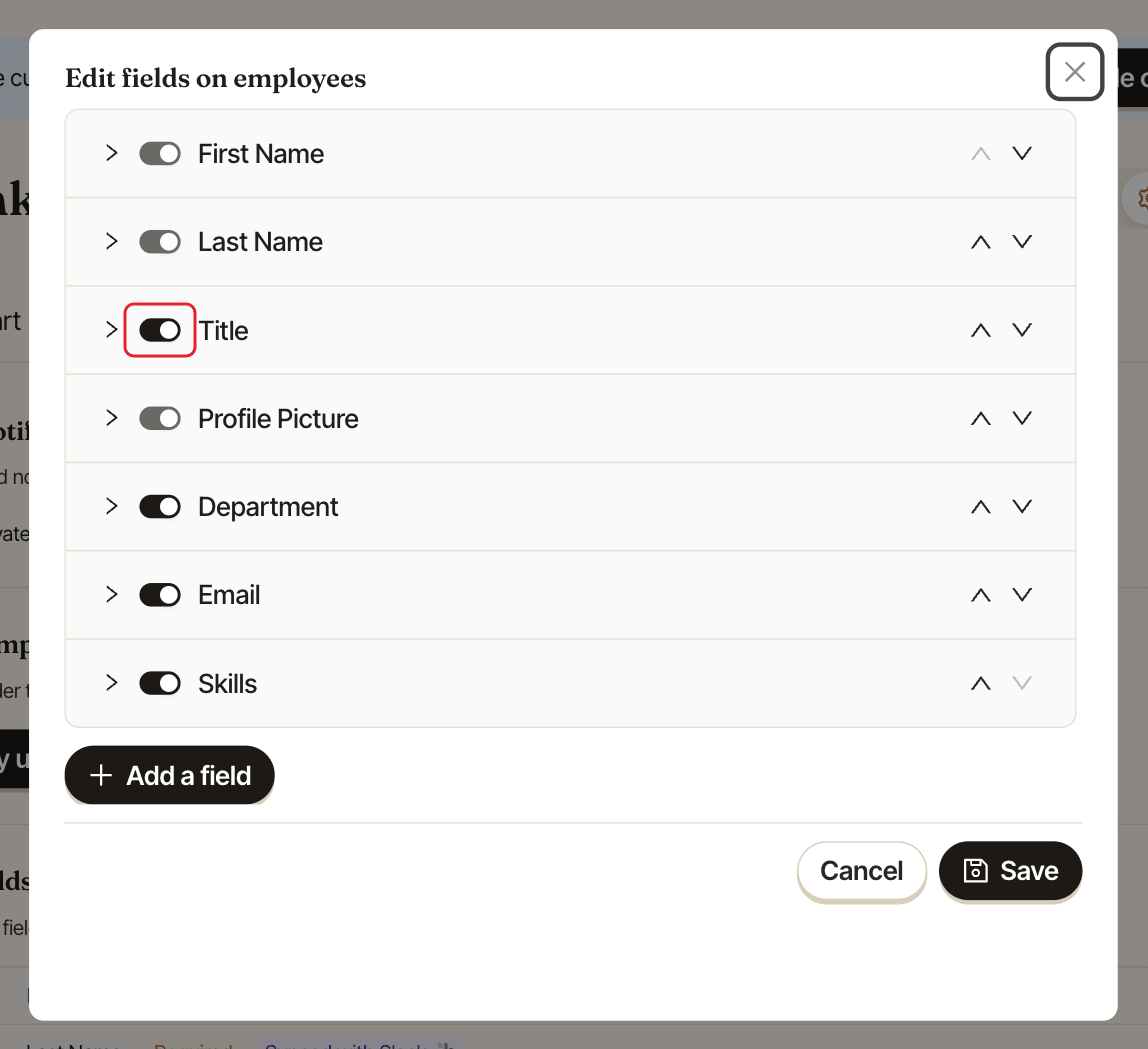
Use the switch at the top of the field. A field that's off doesn't show in profiles, in the Home tab or in /whois. In the Settings tab, it shows the Disabled tag.
Add a field#
Click Add a field, then fill in:
Name of the field: what people see, for example "Office" or "Pronouns". A field left without a name isn't saved.Type of the field: see the types below. You can't change the type once the field is saved.Options: forSelect,Multi-selectandDepartmentfields, add each choice and pick its color.
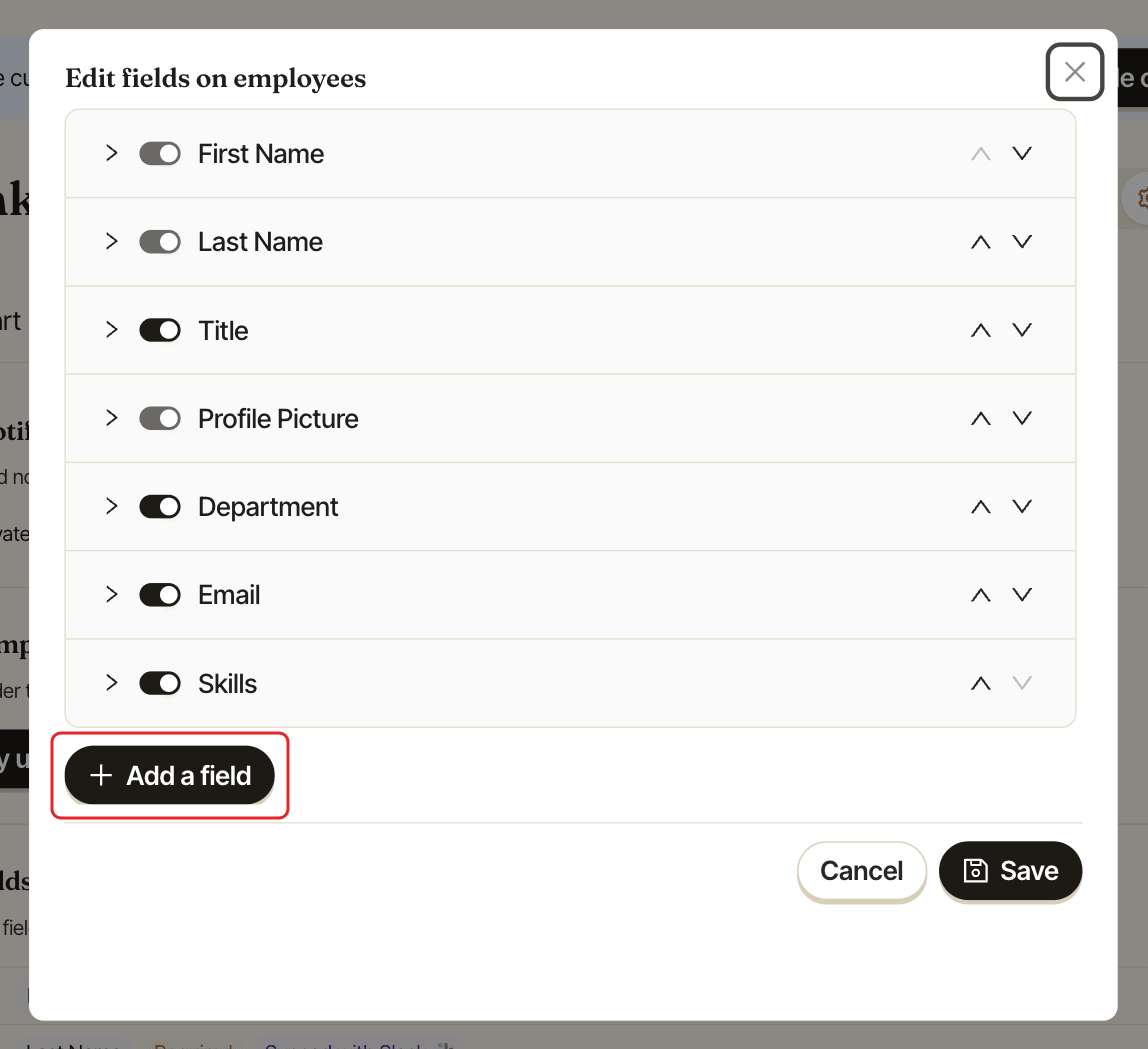
Click Save.
Field types#
| Type | What people enter | Limit |
|---|---|---|
Text |
Free text | |
Select |
One option from your list | |
Multi-select |
Several options from your list | |
Department |
One department, inherited from the manager when empty | Only one |
Email, Phone, URL |
An email address, a phone number, a link | |
Start Date, End Date, Date of Birth |
A date | One of each |
Job Title, First Name, Last Name, Profile Picture |
Built in | One of each |
Set the field's rules#
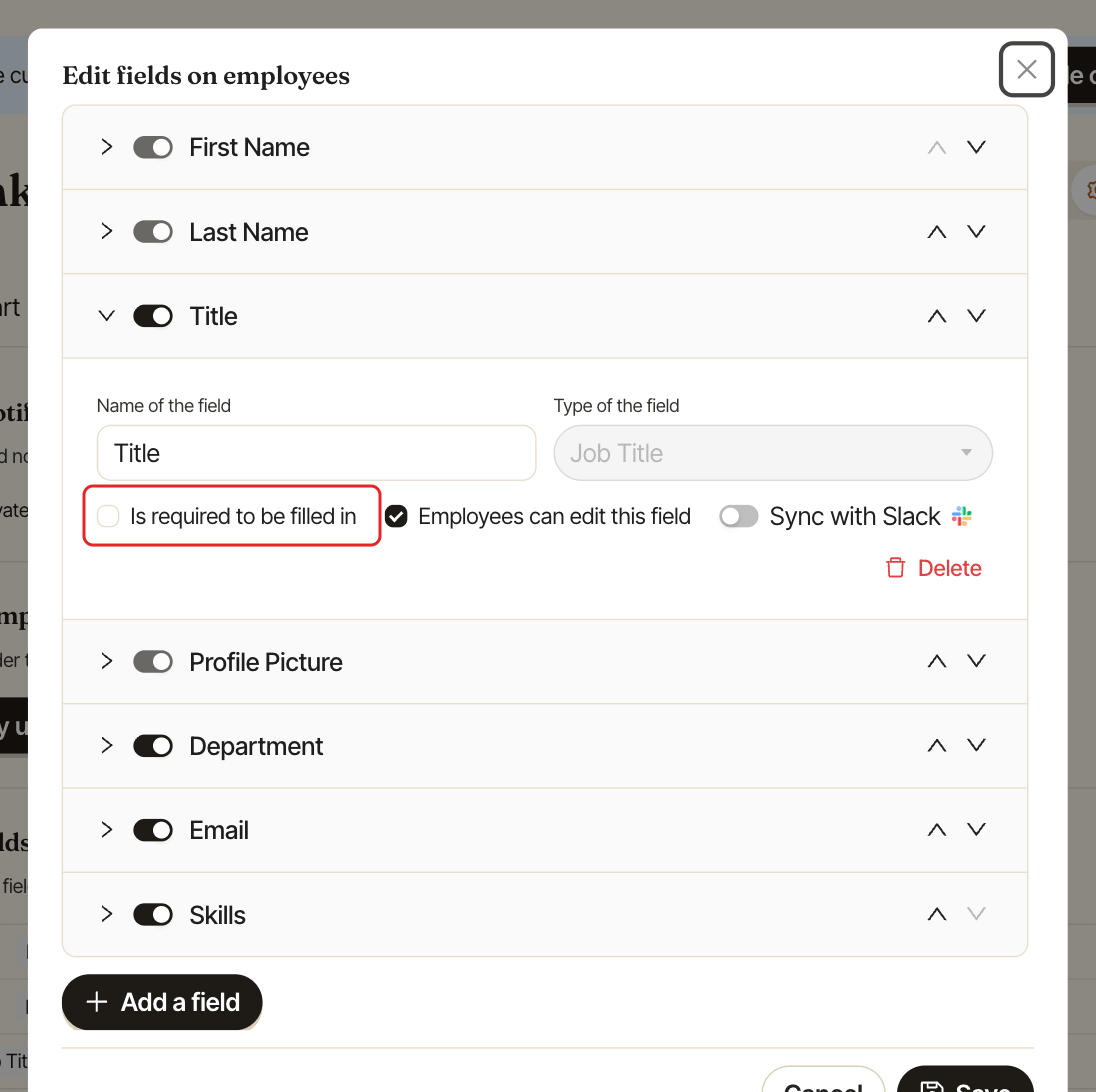
Inside each field:
Is required to be filled in: the field is marked with*and must be filled in when an admin adds someone by hand. People missing a required field get a red dot on their card and count in the Home tab's profile completion status. Editing an existing profile doesn't block on empty required fields.Employees can edit this field: people can fill it in on their own profile. See let employees edit a profile field.Employees can add new options: on aSelectorMulti-selectfield that employees can edit, people can add an option that's missing from your list, for example a skill. See let employees add options.Sync with Slack: only for fields Slack knows about, while Slack is connected. See keep profiles in sync with Slack.
Reorder or delete a field#
- Use the up and down arrows of a field to change its order in profiles.
- Click
Deleteto remove a field. Its values are removed from every profile.
First Name, Last Name and Profile Picture can't be renamed, turned off or deleted ("This field is mandatory"). Job Title can be renamed or turned off, but not deleted.
Click Save to apply your changes, or Cancel to drop them.