Create and manage several charts in Linky
Split your Linky org chart into several charts, for example one per country or company, then rename, reorder or delete them from Manage charts.
 SlackUpdated Oct 5, 20261 min read
Linky, the BuddiesHR org chart app for Slack, starts with one chart named "Company". If your organization has several entities, countries or boards, you can give each its own chart. They show one below the other on the dashboard. You need to be a Linky admin.
Open Manage charts#
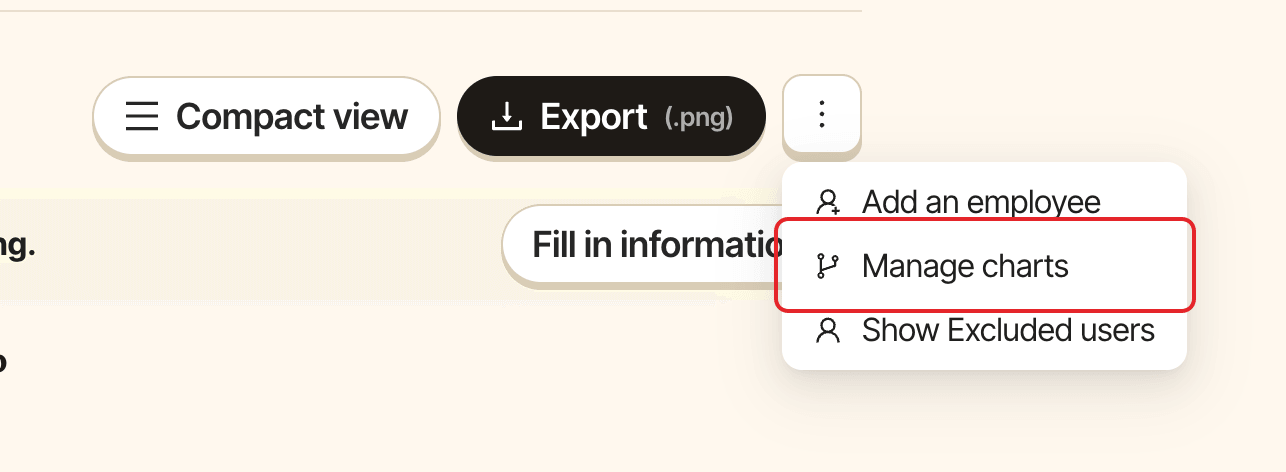
Open the org chart in Admin mode, click ⋮ in the action bar, then Manage charts.
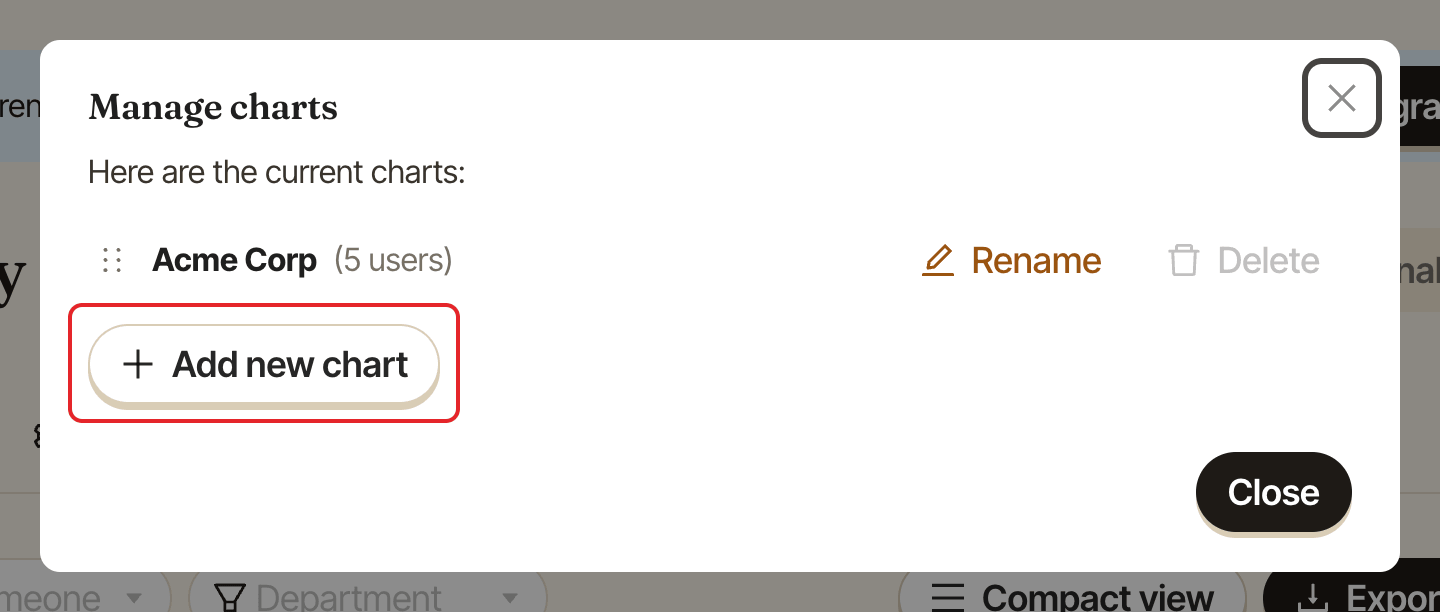
The Manage charts window lists your charts with the number of people in each.
Add a chart#
Click Add new chart, enter a name in "Name the chart" and click Add chart. Two charts can't have the same name.
The new chart is empty. To fill it, move people from another chart, or pick its name in Root when you add someone by hand.
Rename a chart#
Click Rename next to the chart, change its name and click Save changes. See rename the company in the org chart.
Change the order of the charts#
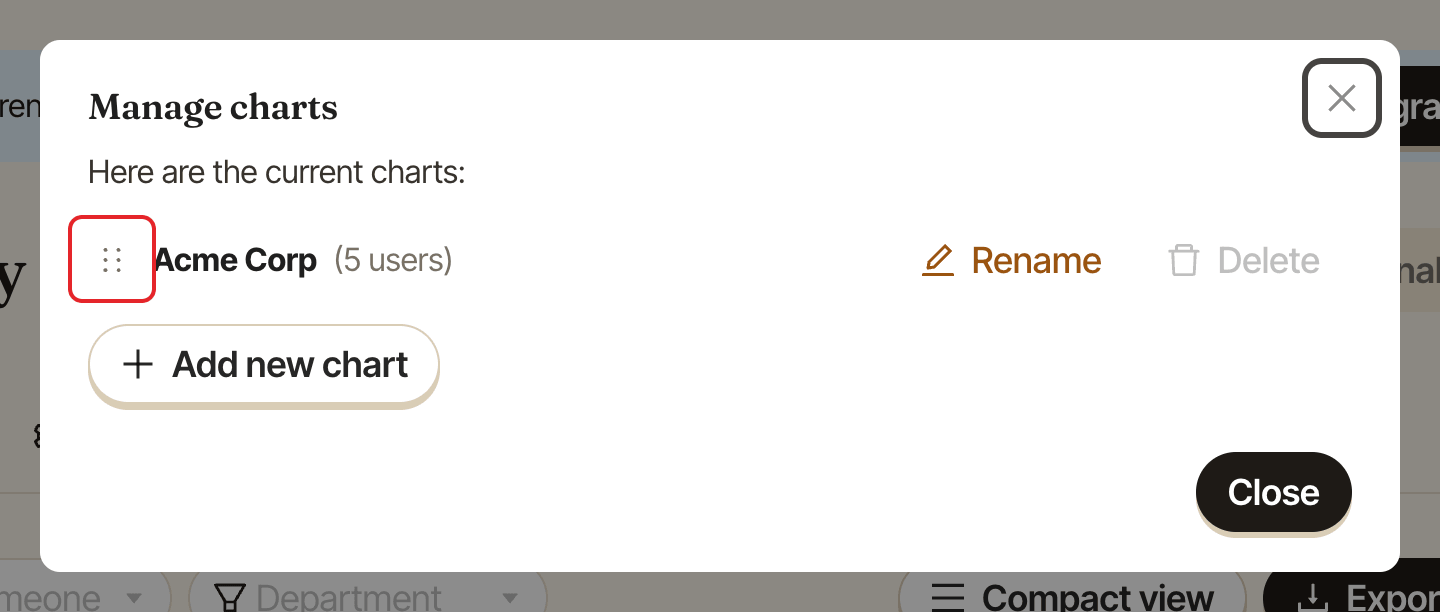
Drag a chart by its handle on the left to move it up or down the list. The dashboard shows the charts in this order.
Delete a chart#
Click Delete next to the chart and confirm with Delete.
You must keep at least one chart, so the last one can't be deleted.
Good to know#
- Each person can only be in one chart, and their manager must be in the same chart.
- Click
Backto return to the list, andClosewhen you're done.