Get notified when your team changes in Linky
Linky admins can get a Slack message when people join your Slack workspace or leave it, so the org chart stays up to date. Here's how to turn it on.
 SlackUpdated Oct 5, 20261 min read
Linky, the BuddiesHR org chart app for Slack, never places new Slack members on the chart by itself. Turn on change notifications to get a Slack message when people join or leave your workspace, so you can keep the chart up to date. You need to be a Linky admin.
Turn on change notifications#
Open Linky in Admin mode and go to the Settings tab. In Change notifications, turn on Activate change notifications.
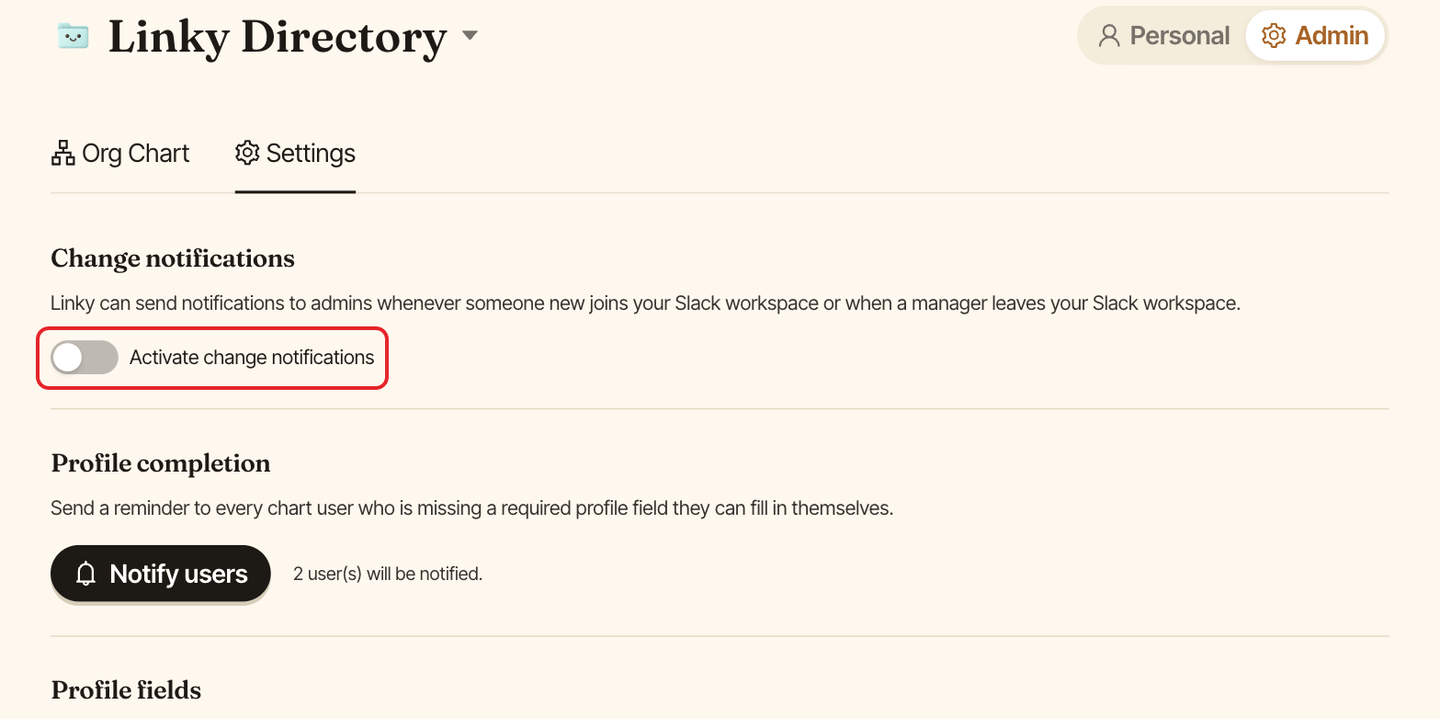
The setting is personal: each admin turns it on for themselves. It needs an active Slack connection. If the switch is greyed out, see Slack is disconnected from Linky.
What you receive#
When Linky detects changes, you get a Slack message from Linky saying team changes were detected in your org chart, with:
- the new teammates who can join the chart,
- the teammates who are on the chart but no longer fit, for example because they left the workspace.
Each list shows up to 10 names, then "…and N more".
Act on the changes#
Click Open chart settings ↗️. The org chart opens in your browser, already signed in, in Personal mode. Click Edit org chart to switch to Admin mode, then place the new people and remove the people who left.
Good to know#
- Linky doesn't send a notification the first time it checks your team, only for changes after that.
- No notifications are sent once the free trial has expired. See plans and free trial.
- Notifications are only sent in Slack, as a direct message from Linky.