Add or remove Linky admins
Choose who can build and edit the Linky org chart, edit anyone's profile and change Linky's settings in the BuddiesHR dashboard for Slack teams.
 SlackUpdated Oct 8, 20261 min read
Linky admins can build and edit the org chart, edit anyone's profile and change the settings of Linky, the BuddiesHR org chart app for Slack. Everyone else can browse the chart and edit their own profile fields. You need to be a Linky admin to change the list.
The person who installs Linky becomes its first admin.
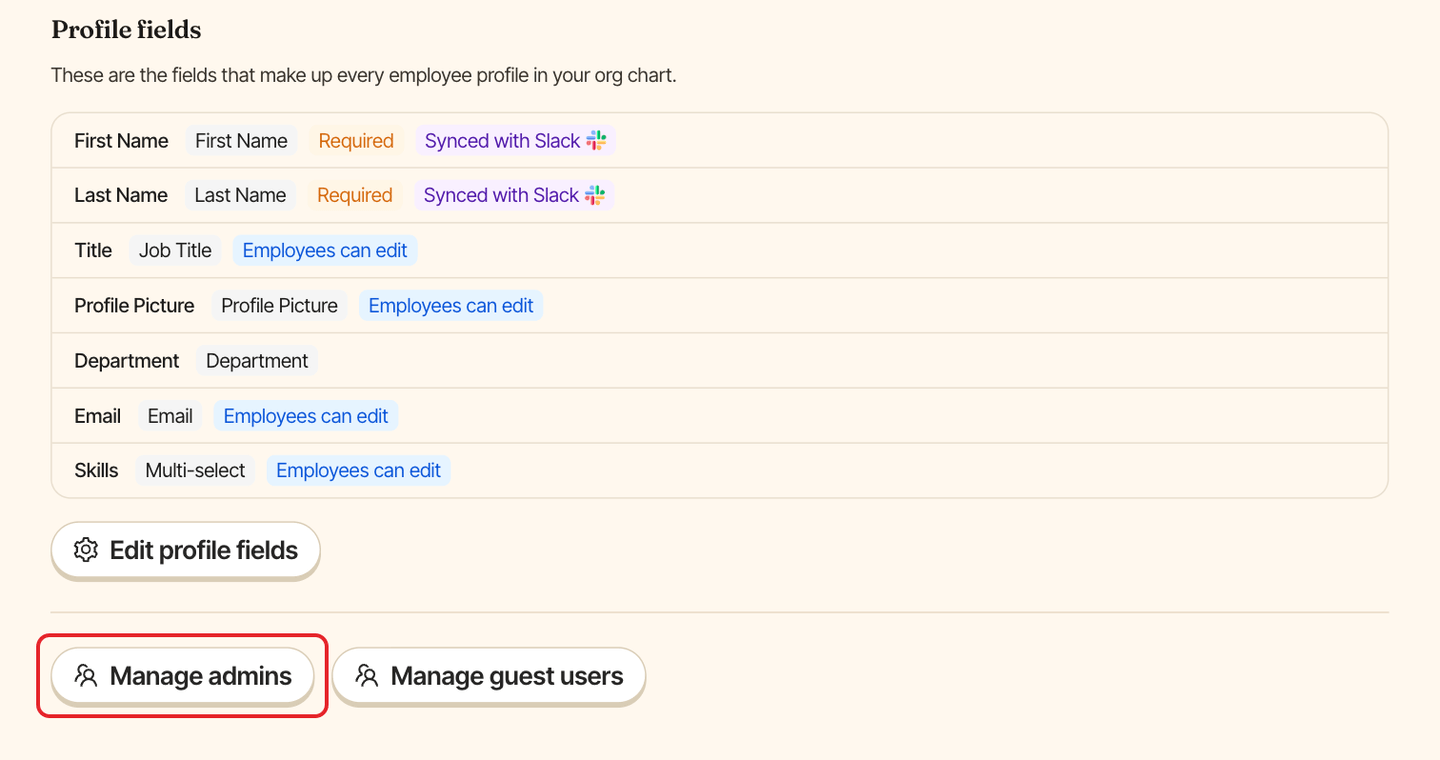
Step 1: Open Manage admins#
Open Linky in Admin mode, go to the Settings tab and click Manage admins at the bottom of the page.
Step 2: Add or remove admins#
In the Manage admins window:
- type a name in "Search for people to add as admin" and pick the person,
- remove someone from the list to take their admin access away.
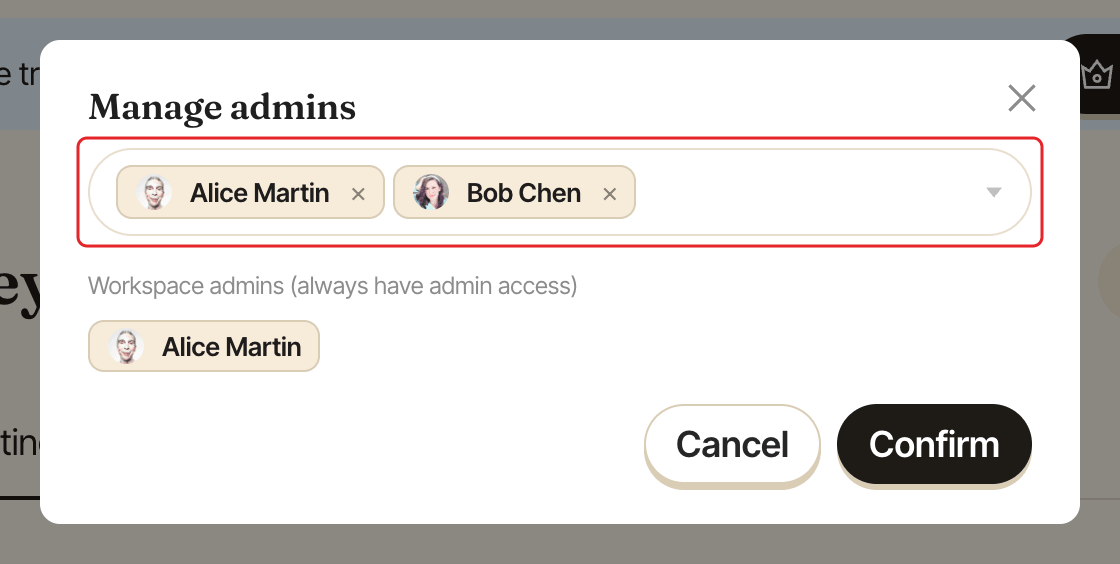
Click Confirm. Linky shows "Admins updated".
Workspace admins#
BuddiesHR workspace admins are always Linky admins. They're listed under "Workspace admins (always have admin access)" and can't be removed here.
What admins can do#
- Switch to
Adminmode on the dashboard and use theSettingstab. - See the
⚙️ Admin Settingssection in Linky's Home tab. See what's on Linky's Home tab. - Turn on change notifications for themselves.