Choose what shows on each Linky org chart card
Linky admins can pick which profile fields appear on the org chart cards, such as job title, department or phone, from anyone's Profile panel.
 SlackUpdated Oct 8, 20262 min read
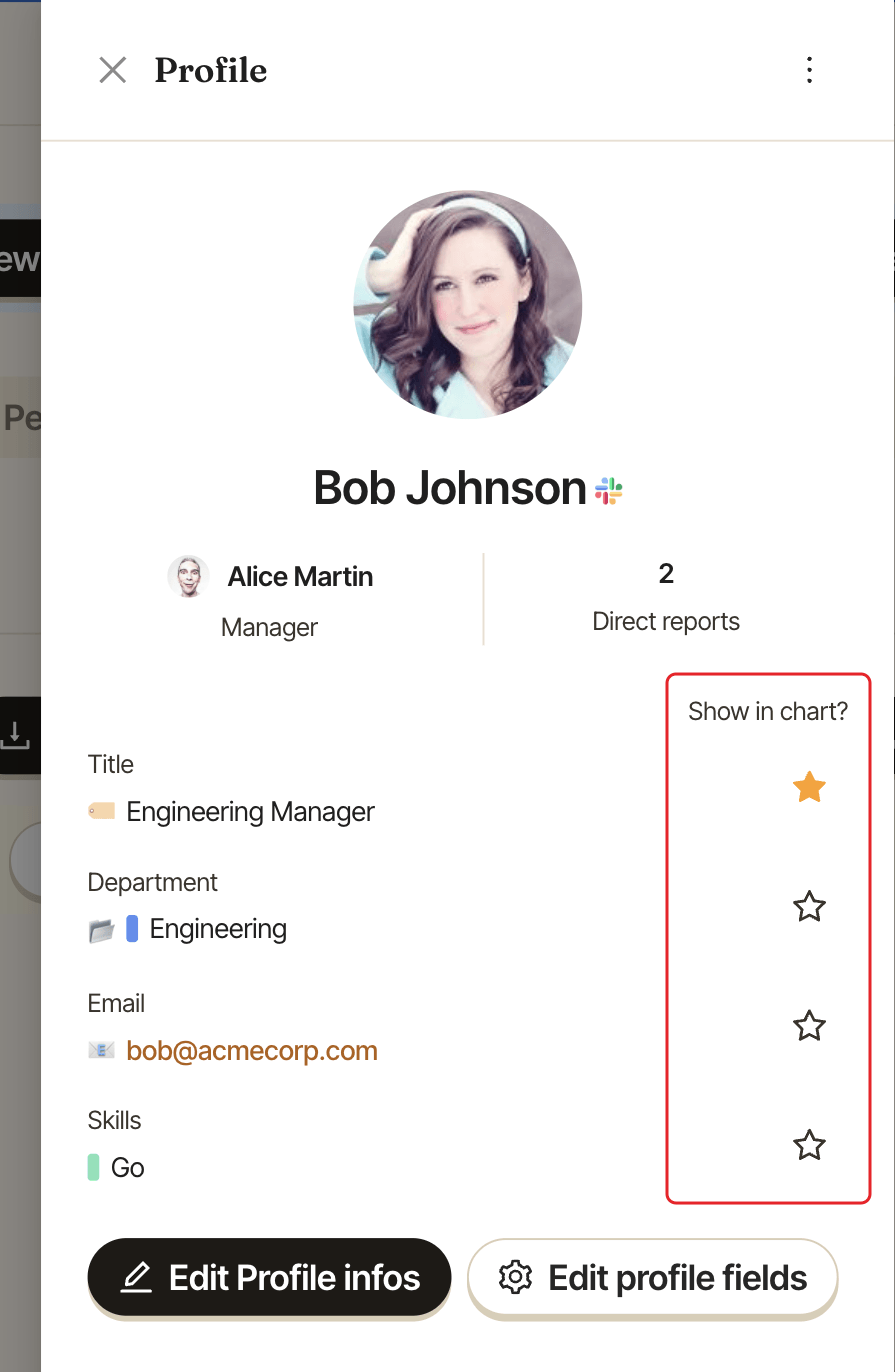
Each card on the Linky org chart shows a person's picture, name and job title by default, and takes the color of their department when you use departments. Linky admins can choose which profile fields appear under the name, such as department, skills or phone number, with the stars in the Profile panel.
Step 1: Switch to Admin mode#
Open the org chart and pick Admin in the Personal / Admin switch at the top right. The stars only show in Admin mode, for Linky admins.
Step 2: Open a profile#
Click anyone's picture or name on the chart. Their Profile panel opens on the right.
Step 3: Star the fields to show#
The Show in chart? column has a star next to each field. Click an empty star to show that field on the cards (Show on the chart cards), or click a filled star to hide it again (Hide from the chart cards).
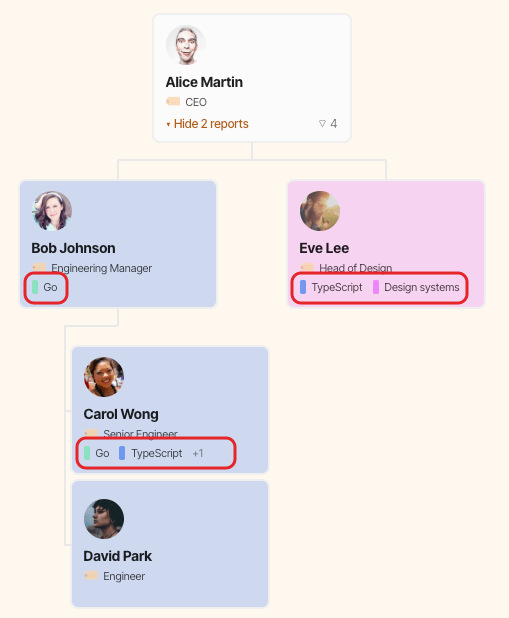
The cards update right away. Each starred field shows under the name on every card where the person has a value. Here, Skills was starred next to the job title:
Good to know#
- Keep it to two fields. Cards have room for two lines under the name, so a third starred field may be cut off. The job title counts as one.
- Lists are shortened. For a
Multi-selectfield such as skills, a card shows the first 2 values and+Nfor the others. The full list is in theProfilepanel. - Department is inherited. If someone has no department of their own, their card shows the one inherited from their manager.
- Compact view hides them. In compact view, cards only show the picture and name.
- PNG exports match. An export shows the cards with the fields you starred.
- Each chart has its own choice. If you manage several charts, star the fields on each one.