Search and filter the Linky org chart
Find a person on the Linky org chart, filter the chart by department or by any profile field, and share a link that opens the chart on them or on your filters.
 SlackUpdated Oct 12, 20262 min read
In the Linky org chart, use Search someone to jump to a person, Department to show only some teams, and the filter button to filter on any profile field. They're all in the action bar above the chart, for everyone.
Search for someone#
Click Search someone and type a name. Pick the person in the list: the chart folds down to the path from the top of the company to them.
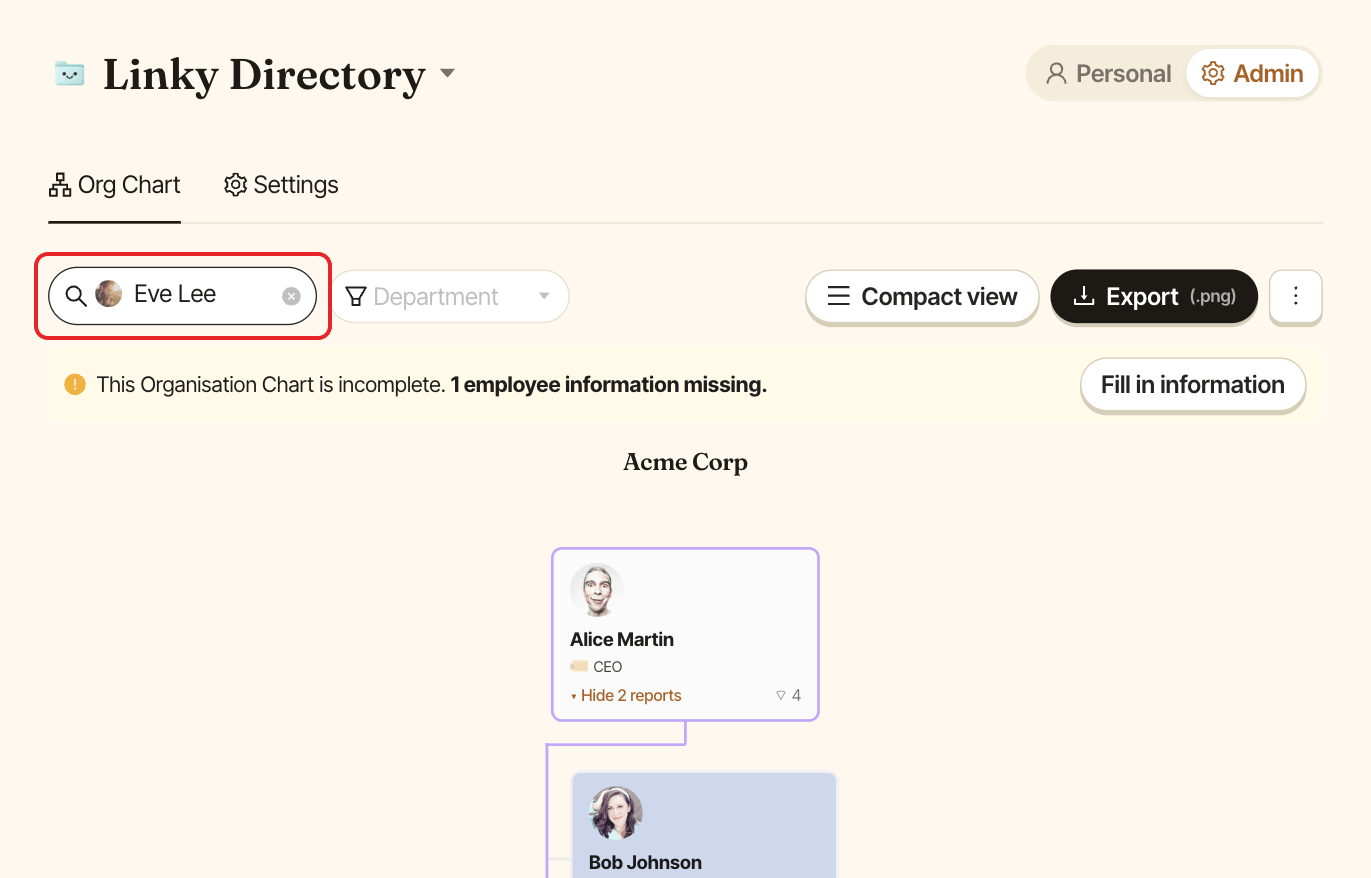
Clear the search to see the whole chart again.
Share a link to someone#
Once you've picked someone, the page address includes them. Copy it from your browser and share it: whoever opens it sees the chart folded down to that person.
Filter by department#
Click Department and pick one or more departments. The chart only keeps the people from those departments. Departments nobody belongs to are greyed out.
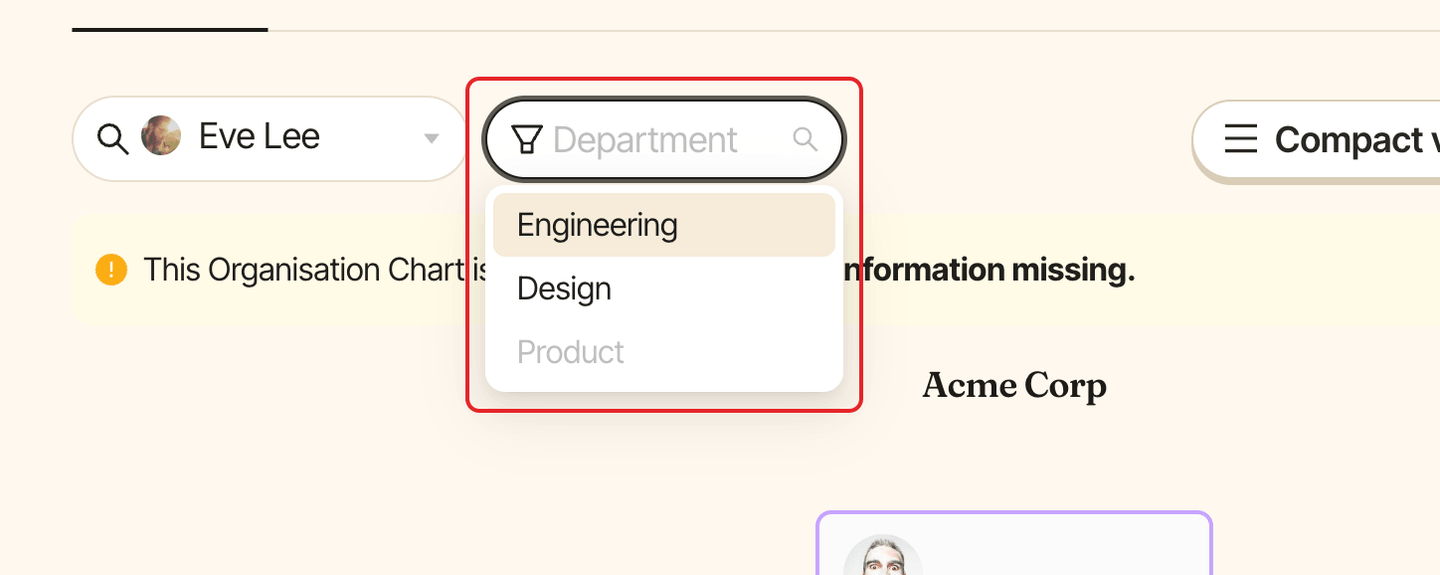
The Department filter only shows when your admins have set up a Department field. See set up departments.
Filter on any field#
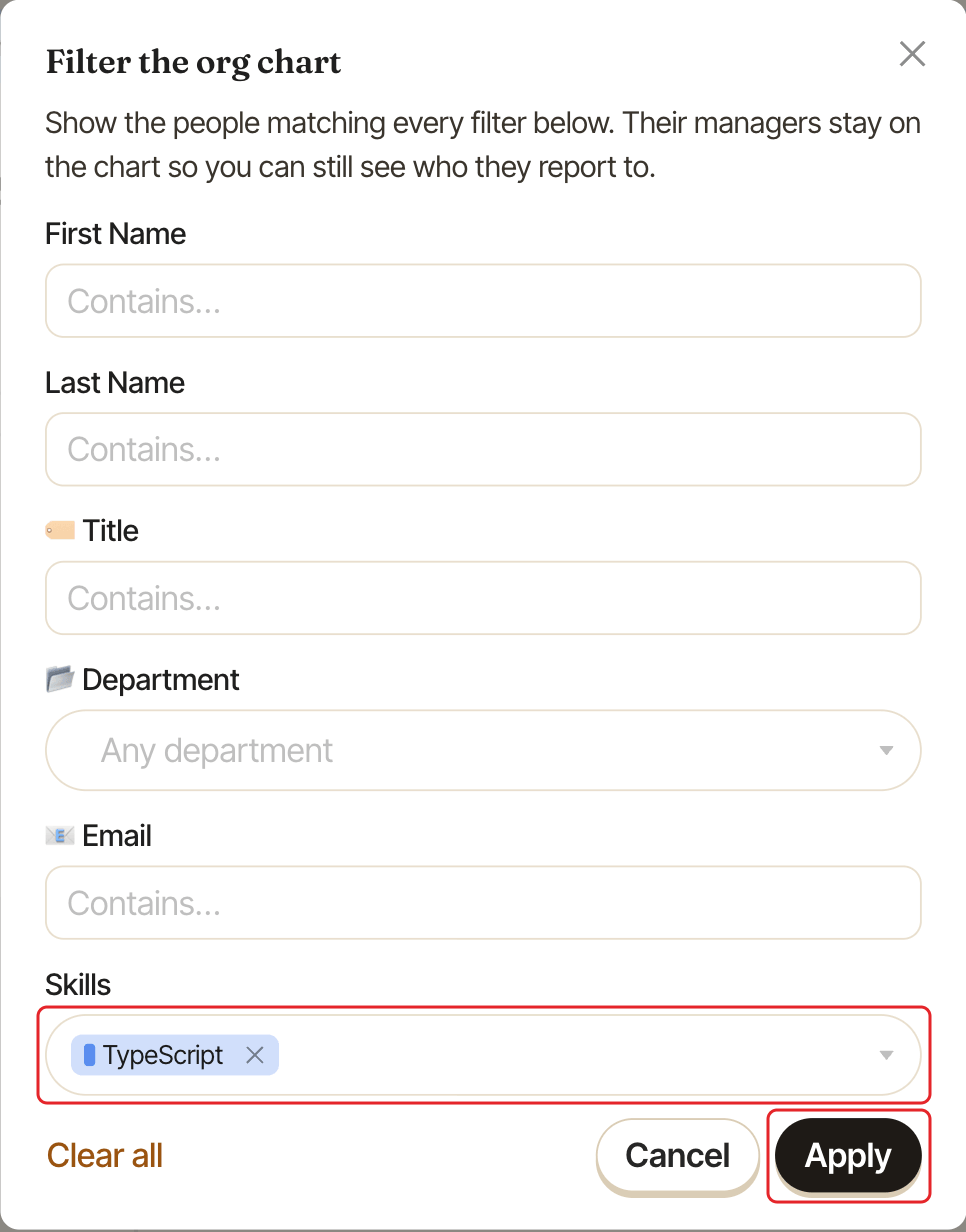
Click the filter button next to Department to open Filter the org chart. It has one filter for each field your admins turned on, except the profile picture:
- Department, select and multi-select fields: pick one or more options. Options nobody has are greyed out.
- Text fields (name, title, email…): type part of the value, for example
Parisin a Location field. - Date fields: pick a start date, an end date or both, for example everyone who joined this year.
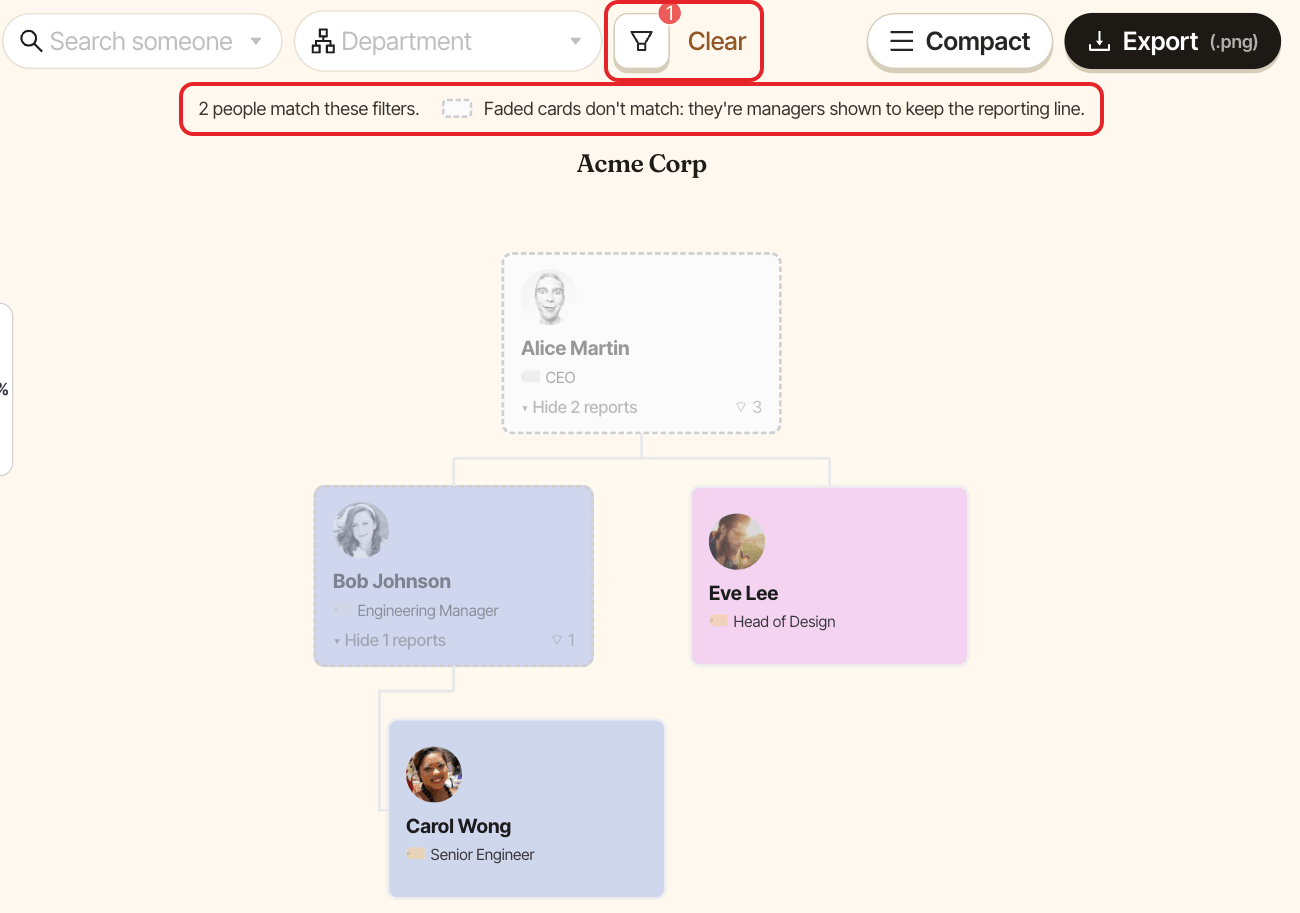
Click Apply. The chart only shows the people matching every filter. A number on the filter button tells you how many filters are on.
Faded cards#
To keep the reporting line visible, Linky still shows the managers of the people who match, even when they don't match themselves. Their cards are faded, with a dashed border. A line above the chart says how many people match.
If no one matches, Linky says so: click Clear filters to start over.
Clear the search and filters#
Click Clear next to the filter button to remove the person search and every filter in one go. To remove only the field filters, open the filter window and click Clear all.
Share a filtered chart#
Filters are saved in the page address. Copy it from your browser and share it: whoever opens it sees the chart with the same filters.