Get started with Linky, the org chart for Slack
Install Linky in Slack, choose the fields shown on profiles and place your first employees on the org chart. Setup takes three steps and a few minutes.
 SlackUpdated Oct 8, 20262 min read
Launching Linky, the BuddiesHR org chart app for Slack, takes three steps: install it in Slack, choose the fields shown on profiles, then place your employees on the chart. Everything after the install happens in the BuddiesHR web dashboard (dashboard.buddieshr.com).
Step 1: Install Linky in Slack#
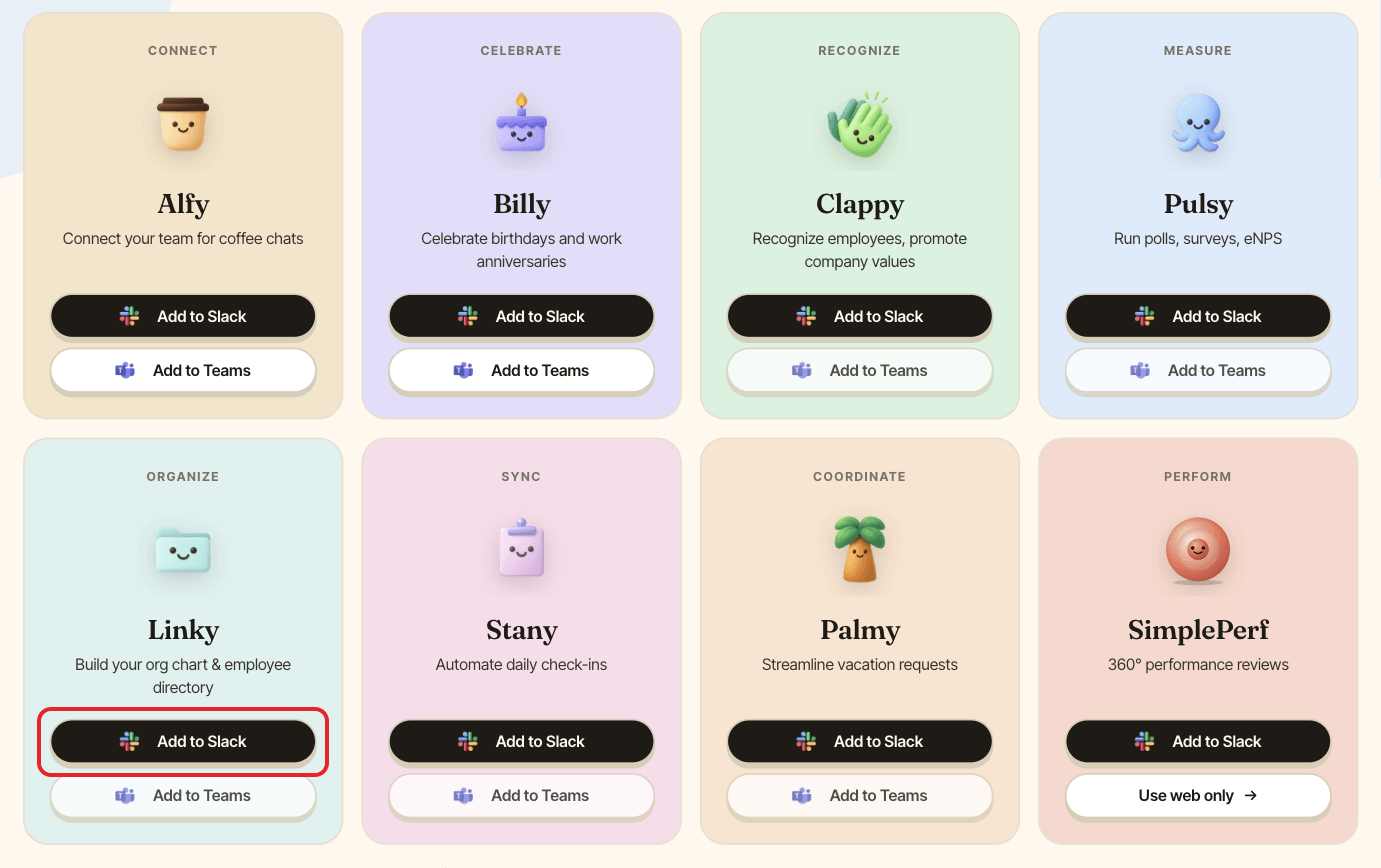
Go to the Get started page and click Add to Slack on the Linky card. On the Linky page, Start free in Slack takes you there too. Check that the right workspace is selected at the top right, then click Allow.
The person who installs Linky becomes its first admin. Slack then sends you to the Linky setup in the web dashboard. If Linky is your first BuddiesHR app, you're first asked "How did you find us?", which you can skip.
Step 2: Choose the fields used on profiles#
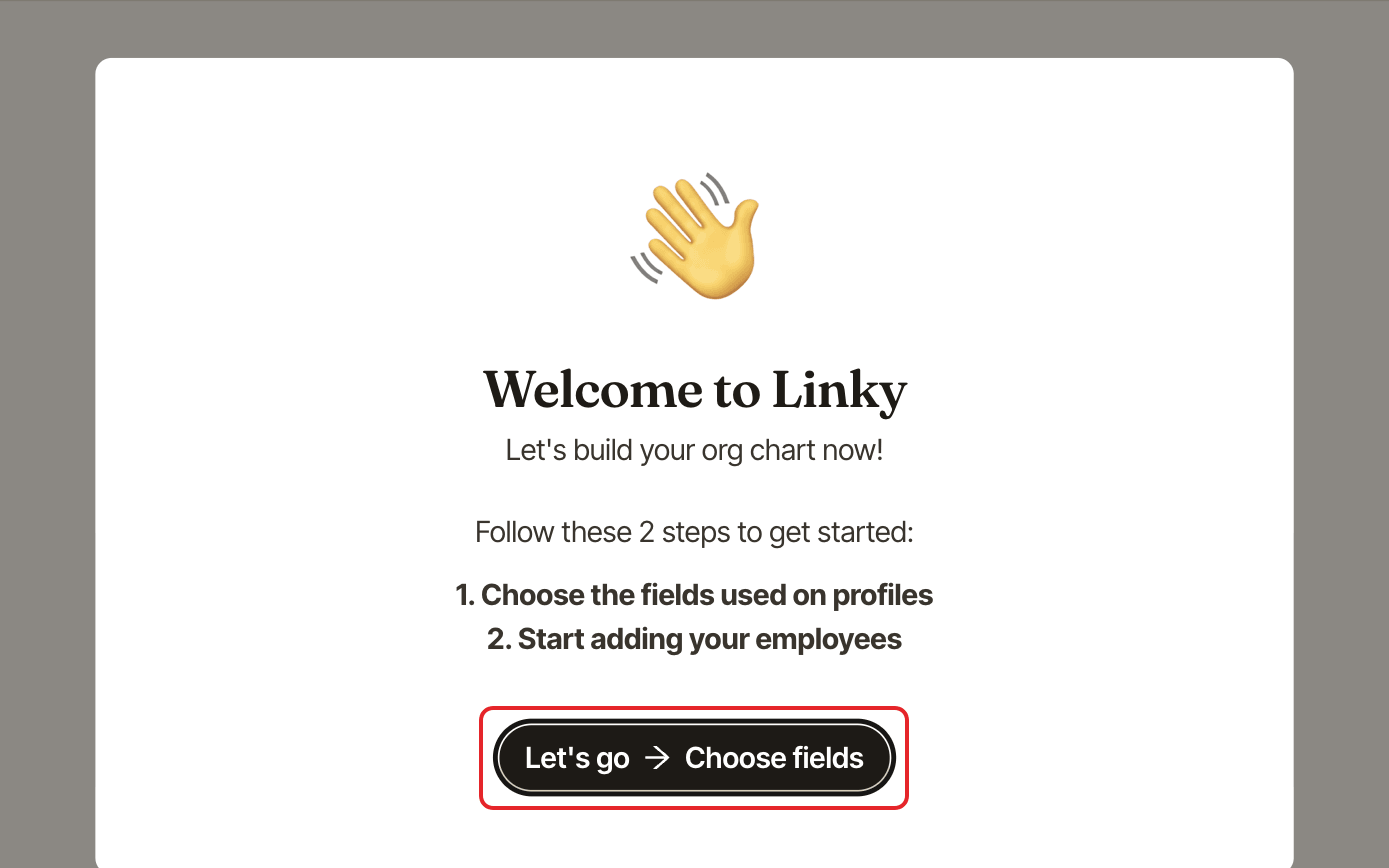
The Welcome to Linky window lists the two setup steps. Click Let's go → Choose fields.
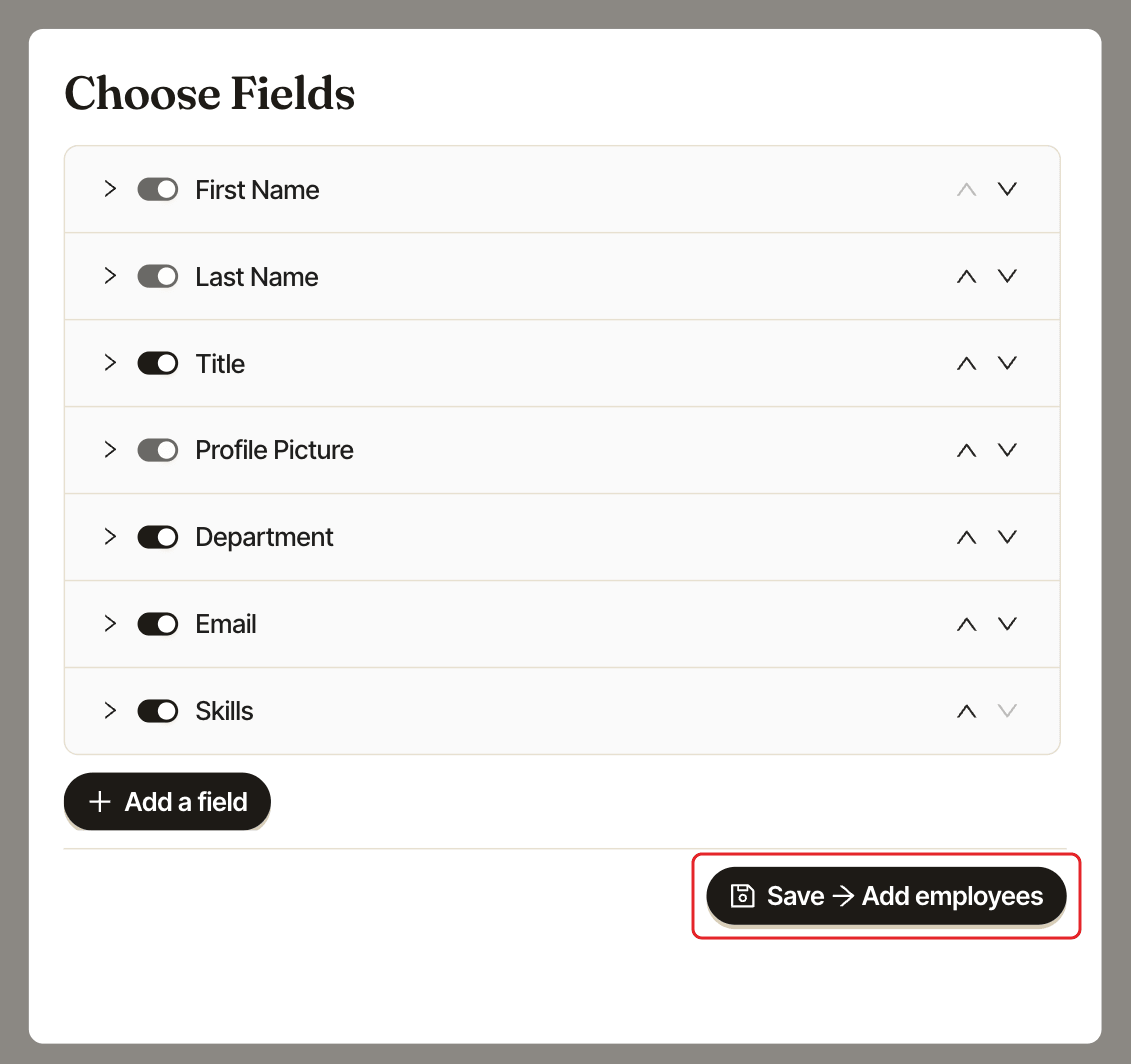
Linky starts with First Name, Last Name and Job Title (required), plus Profile Picture, Email and Phone. Turn fields on or off, add your own, then click Save → Add employees. You can change all of this later, see customize profile fields.
Step 3: Place your employees on the chart#
The org chart opens with the list of your Slack members on the left. For each person, pick their manager in Select a manager, or click No manager for the people at the top. See place people on the org chart.
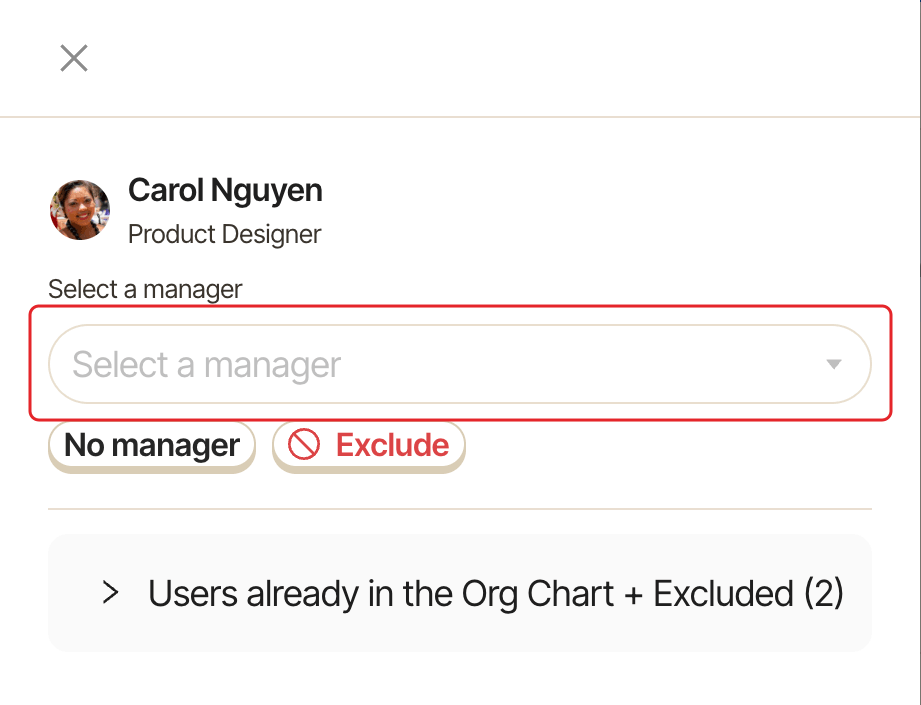
People are never placed automatically: until you give them a manager (or No manager), they stay off the chart.
Your org chart is live#
Your team can now open the chart from Linky's Home tab in Slack and look anyone up with /whois. See open the org chart and look someone up with /whois.
Setup counts as done once at least 30% of your team is on the chart, and Linky then sends you a "Nice work" message in Slack.
Linky starts with a free trial. See plans and free trial.