Find your way around the Linky dashboard
A tour of the Linky org chart dashboard for Slack teams, from the Personal and Admin modes to the Settings tab, the action bar and the more options menu.
 SlackUpdated Oct 12, 20262 min read
The Linky dashboard is where you browse and build the org chart of Linky, the BuddiesHR org chart app for Slack. It lives in the BuddiesHR web dashboard at dashboard.buddieshr.com, under Linky Directory.
Personal and Admin modes#
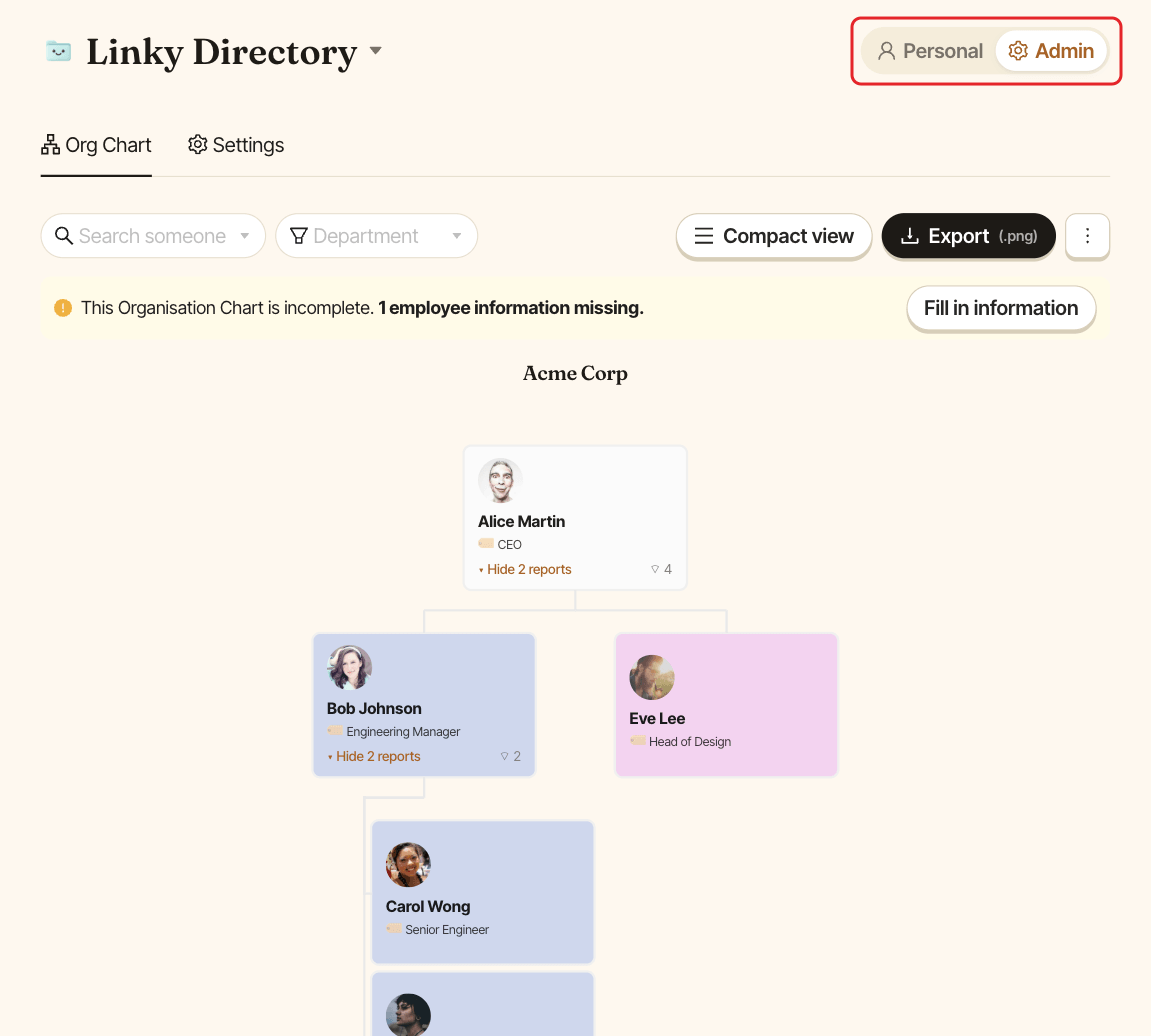
Admins see a Personal / Admin switch at the top of the page:
Personal: the chart as your colleagues see it. You can browse, search, export and edit your own profile.Admin: everything needed to build the chart and change settings.
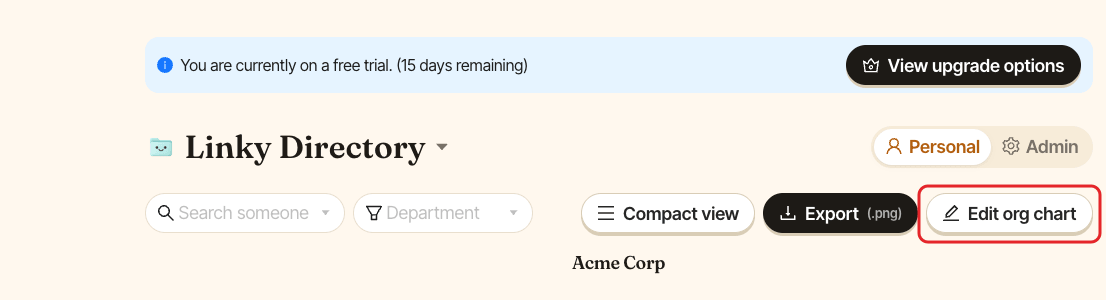
In Personal mode, admins also get an Edit org chart button in the action bar that jumps straight to Admin mode. People who aren't admins only have the Personal mode.
Tabs#
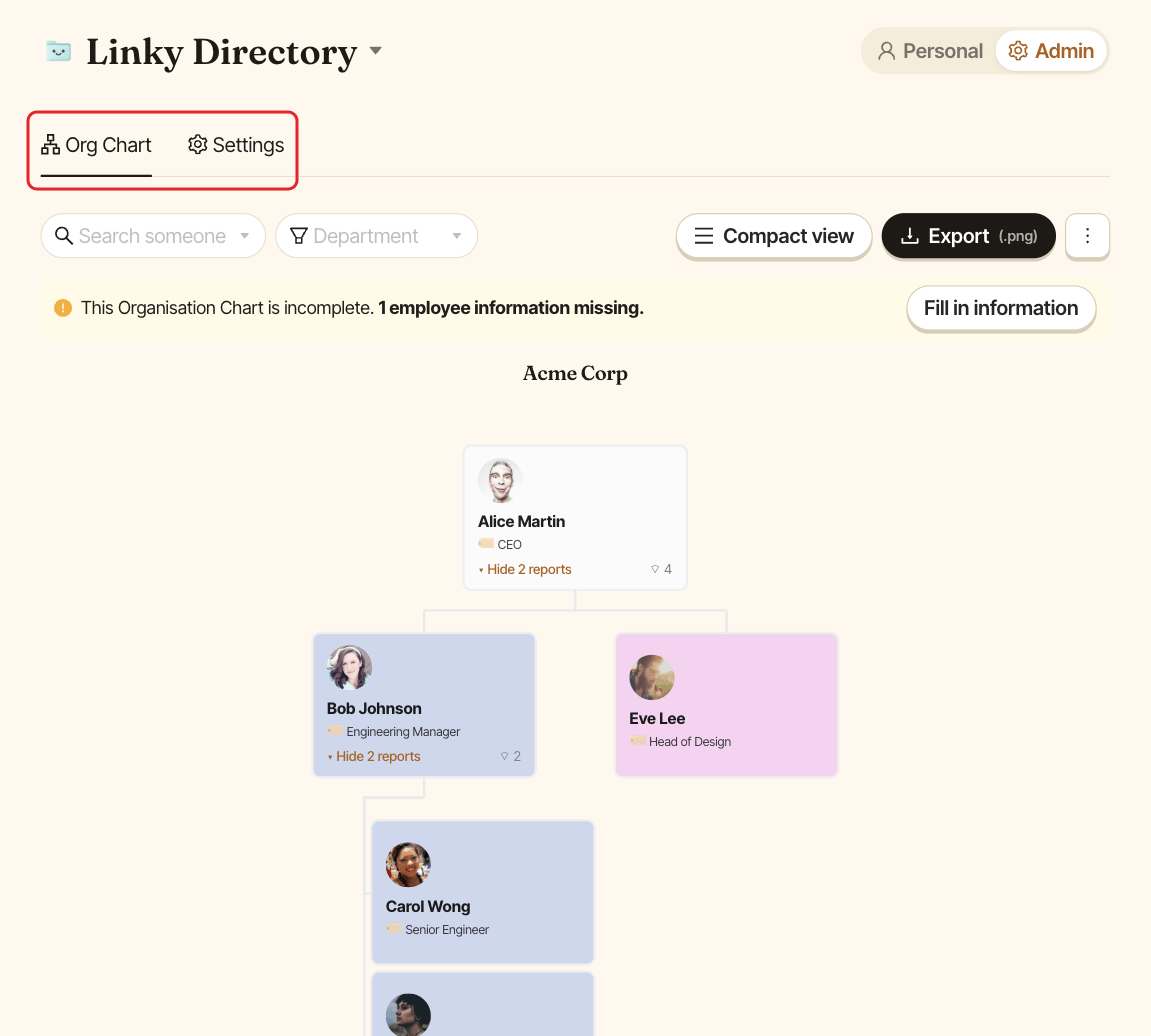
In Admin mode, two tabs sit under the header:
Org Chart: the chart itself.Settings: change notifications, profile completion reminders, profile fields,Manage adminsand, while Slack is connected,Manage guest users.
The action bar#
Once someone is on the chart, the action bar shows above it, from left to right:
| Control | What it does | Learn more |
|---|---|---|
Search someone |
Jumps to a person on the chart | Search and filter |
Department |
Shows only the matching teams (only when a Department field exists) | Set up departments |
| Filter button | Filters the chart on any field: skills, location, start date… | Search and filter |
Compact |
Shows smaller cards | Compact view |
Export (.png) |
Downloads the chart as an image | Export the org chart |
Edit org chart (admins, Personal mode) |
Switches to Admin mode |
See above |
⋮ (Admin mode only) |
Opens the more options menu | See below |
The more options menu#
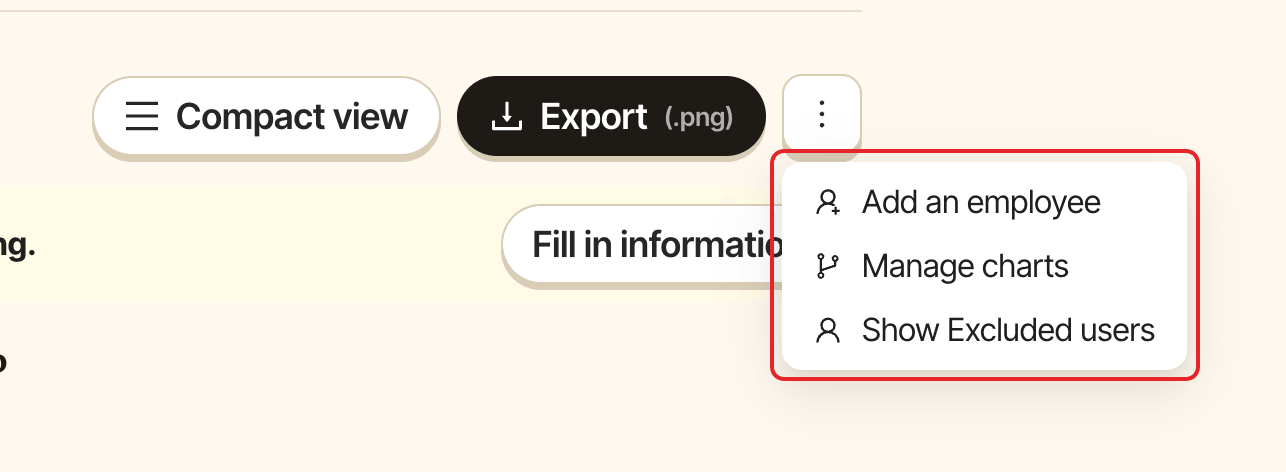
In Admin mode, the ⋮ button at the right of the action bar opens:
Add an employee: add someone by hand, see add someone who's not in Slack.Manage charts: add, rename, reorder or delete charts, see create and manage several charts.Show Excluded users: open the list of your Slack members to place or exclude them, see place people on the org chart.
The chart#
Each chart shows its name as a heading, with its people below. Click a person's picture or name to open their Profile. See browse the org chart.
In Admin mode, when some active Slack members are neither on the chart nor excluded, admins see a warning "This Organisation Chart is incomplete" with a Fill in information button.