Add or remove a Clappy admin
Give or remove Clappy admin rights from the Admins section of the dashboard settings, see who is an admin automatically, and what Clappy admins can do.
 SlackUpdated Oct 7, 20261 min read
Clappy admins can change the settings of Clappy, the BuddiesHR kudos app for Slack, and use the admin side of its dashboard. Any Clappy admin can add or remove others from the Admins section of the Settings tab.
Who is an admin automatically#
- Workspace admins of your BuddiesHR workspace always have admin access to Clappy. You can't remove them from Clappy's admins.
- The person who installed Clappy is added as a Clappy admin at install. You can remove them like any other Clappy admin.
What admins can do#
- In the dashboard: switch to the
Adminside of Clappy, with the insights dashboard, theLeaderboards, the rewards and every setting. They can also give extra claps and review reward claims. - In Slack: see the
⚙️ Admin Settingssummary at the top of Clappy's Home tab, with itsOpen dashboard ↗button, and always see the leaderboard, even when it's hidden from members.
Add or remove an admin#
Step 1: Open Manage admins#
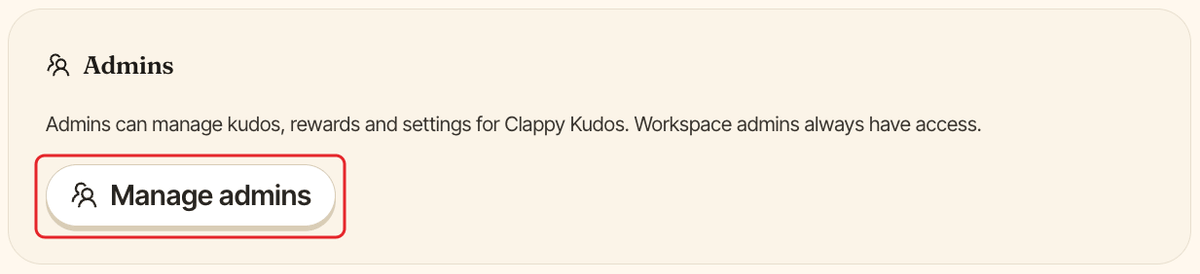
In the dashboard, open the Settings tab of Clappy's admin side (see find the admin settings). In the Admins section, click Manage admins.
Step 2: Select people and confirm#
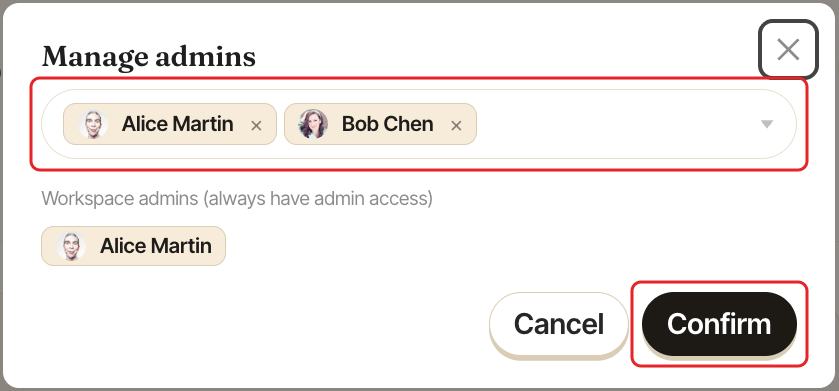
In the Manage admins window, use Search for people to add as admin to add people, or remove the ones who shouldn't be admins anymore. Workspace admins are listed separately under Workspace admins (always have admin access), so you don't need to add them.
Click Confirm. Clappy shows "Admins updated".
New admins get the Admin switch the next time they open Clappy in the dashboard.