Give kudos in Slack with /clap
Send kudos to one or more coworkers in Slack with Clappy's /clap command: write a message, pick company values, claps and visibility, and add a GIF.
 SlackUpdated Oct 12, 20264 min read
To give kudos with Clappy in Slack, type /clap anywhere in Slack, fill out the Give Recognition form and click Give 👏. Each recognition uses claps from your allowance and can be public or private.
Step 1: Open the Give Recognition form#
Type /clap in any message box in Slack and send it.
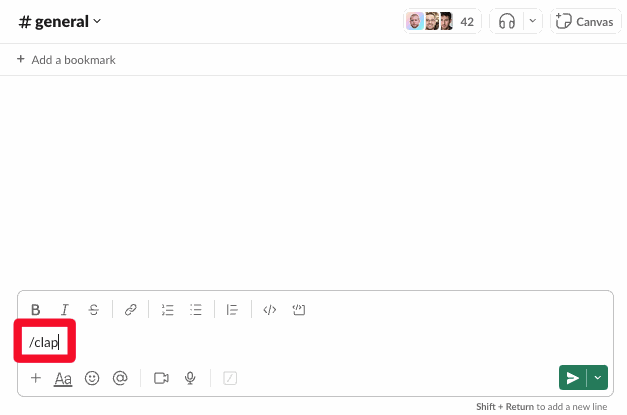
You can also open the same form:
- from Clappy's shortcut in Slack's shortcuts menu,
- with any
Give 👏button in a Clappy message or on Clappy's Home tab.
Step 2: Fill out the form#
The form has these fields:
| Field | What to enter |
|---|---|
✏️ Message |
Required. Tell them what great work they did. |
👤 Give to |
Required. One or more coworkers, up to 50. You can't select yourself, bots, people outside your workspace, or people Clappy isn't switched on for. |
🙌 Did they demonstrate any company values? |
Optional. Pick one or more values. Only shown if your admins added company values. |
🔢 Amount |
Required. Claps per recipient, 1 by default. The hint shows how many you have left, for example "You have 5×👏 to give out this week." |
👁️ Visibility |
Public (default): everyone can see it, and it's posted in your kudos channel. Private: only you and the recipients see it, by direct message. |
🖼️ GIF |
Optional. See below. |
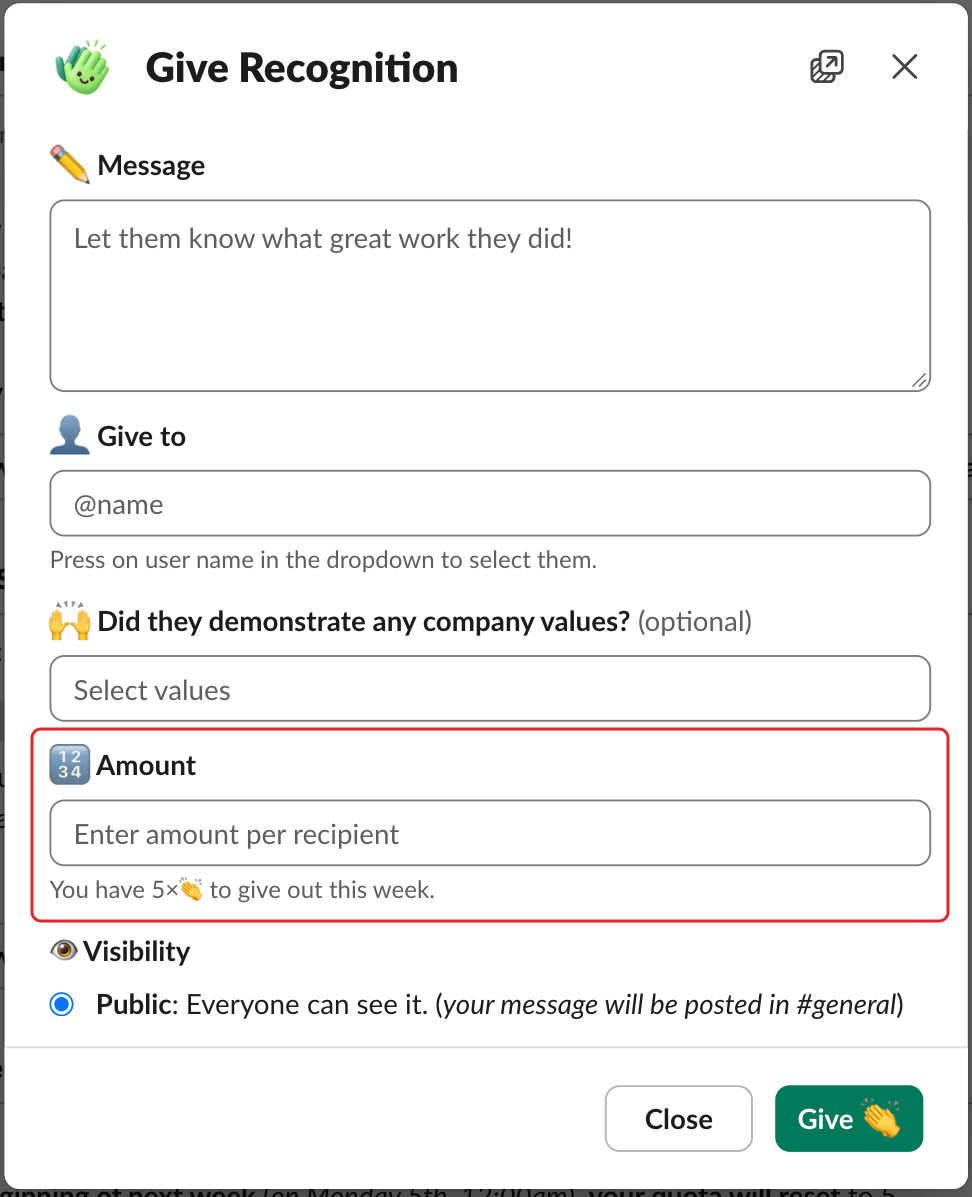
The amount is multiplied by the number of recipients. If you give 2 claps to 3 people, it uses 6 of your claps. If you don't have enough, Clappy shows "You don't have enough 👏 (N) to perform this action!", where N is what you have left.
Add a GIF#
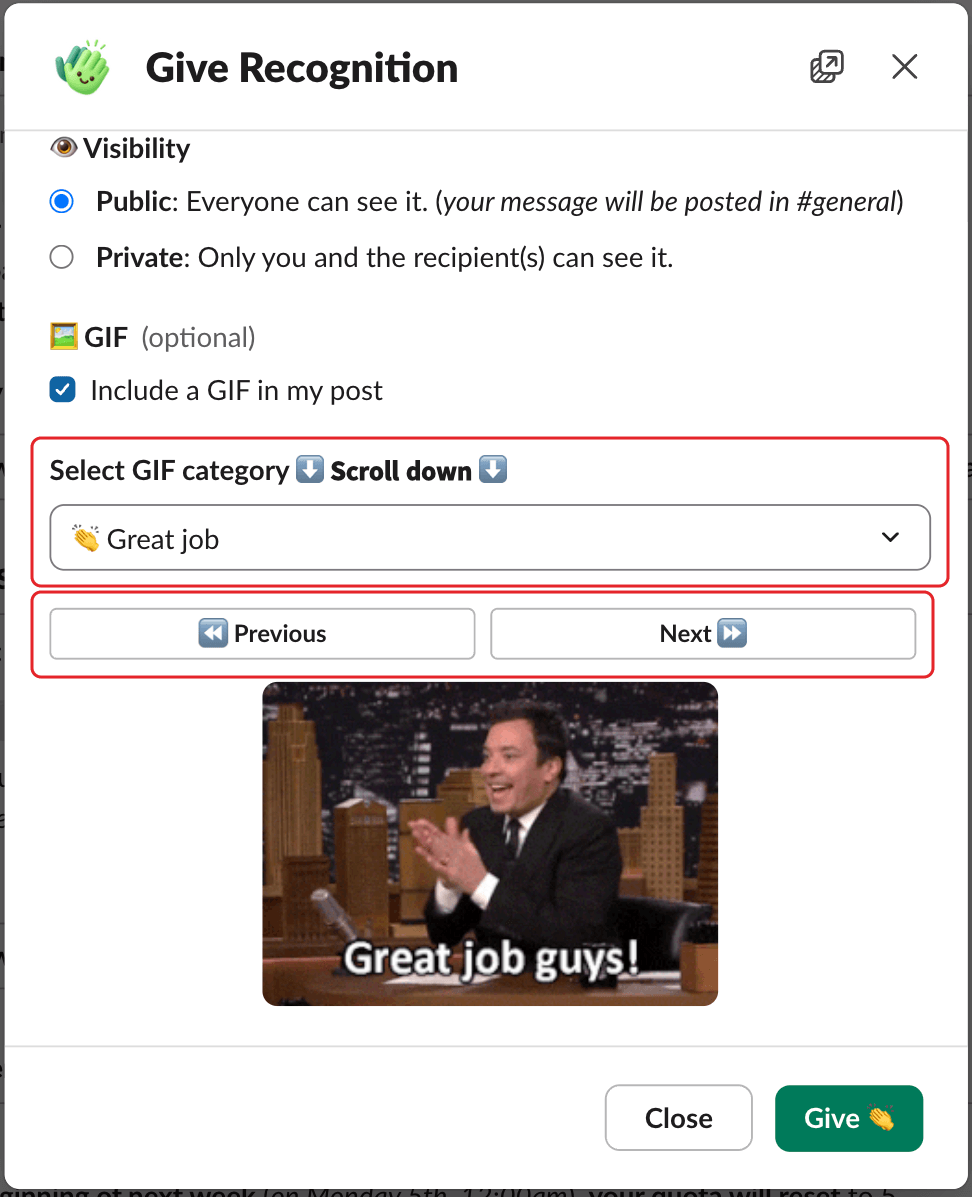
Tick Include a GIF in my post, then pick a category in Select GIF category: 🙏 Thank you, 👏 Great job, 🤩 You're awesome, 👯 Team player or 🎉 Congratulations. Use ⏪️ Previous and Next ⏩️ to browse GIFs in that category.
To use your own, pick Custom URL and paste a link to a .gif file in Custom GIF URL.
Step 3: Click Give 👏#
Click Give 👏. Clappy then:
- posts the recognition in your kudos channel if it's public and your admins picked a channel, with a
Clap this too 👏button so others can add their own claps (unless your admins turned that off), - sends each recipient a direct message with your message, values and GIF,
- sends you a direct message confirming what you gave and how many claps you have left.
Recipients and givers can turn these direct messages off, or get them by email instead. See what messages Clappy sends.
Troubleshooting#
"You don't have enough 👏 (0) to perform this action!"#
You've used all your claps for this period. They reset at the start of the next one (every Monday at midnight, company time, with a weekly allowance). See check your remaining claps.
"Free trial expired"#
Your workspace's free trial is over, so nobody can give claps until an admin subscribes. See plans, free trial and subscribing.
"Clappy isn't switched on for you yet"#
You're not yet among the people Clappy is switched on for in your workspace. Ask a workspace admin or a Clappy admin to add you.
"Please enter a valid GIF URL. (ending with .gif)"#
Custom GIF links must start with http and end with .gif. Use a direct link to the GIF file, not to the page that shows it.
My recognition went out without its GIF#
If Clappy can't load your custom GIF, it still sends the recognition, without the GIF, and tells you so by direct message.