Set up Appreciation Day in Clappy
Schedule Clappy's Appreciation Day from the web dashboard: choose the day, the kickoff, midday and recap times, and send them in Slack, by DM or by email.
 SlackUpdated Oct 7, 20264 min read
Appreciation Day (formerly Feedback Friday) is a recurring day when Clappy, the BuddiesHR kudos app for Slack, invites everyone to give out their claps: a kickoff, a midday reminder and a recap. Clappy admins set it up in the Settings tab of the BuddiesHR web dashboard.
Step 1: Open the Appreciation Day settings#
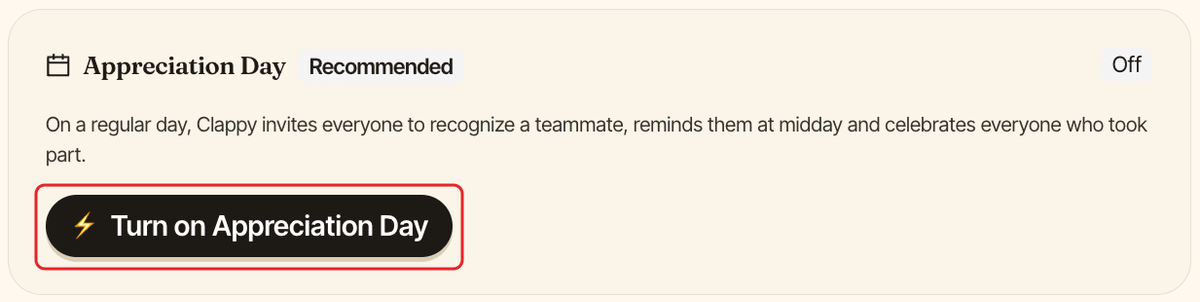
In Clappy's admin settings, find the Appreciation Day card. Click ⚡ Turn on Appreciation Day, or Edit if it's already On.
Step 2: Choose how often#
In the Appreciation Day window, pick a schedule under How often?. The default is Every week on Friday. The list also offers every 2 weeks, once a month and once a quarter. Pick Custom… to choose another day of the week or another interval, then click Done.
Step 3: Choose what Clappy sends, and when#
Under What should Clappy send?, tick the moments you want and pick a time for each:
| Moment | What it does | Default time |
|---|---|---|
Kickoff (Required) |
Launches the day and explains the concept | 9:00am |
Midday reminder |
Encourages the team to reach 100% participation | 1:00pm |
Recap |
Ends on a high note and celebrates everyone who took part | 5:00pm |
The times must run in order: kickoff, then midday reminder, then recap. They follow your company timezone, shown under the list.
Step 4: Choose where it's sent#
Under Where should it be sent?:
- Channel: pick the Slack channel Clappy posts in. It defaults to your public kudos channel. Clear it to post in no channel.
Also send a Slack DM at kickoff to people who still have claps to give: when ticked, choose who gets the DM inWho should be notified by DM?:Only people in the selected channelEveryone in the workspace
Email everyone: also emails people at each moment.
The kickoff must reach someone: pick a channel, the DM or the email. Otherwise you see "Choose at least one way to send the kickoff: a channel, a DM or an email."
Step 5: Save#
Click Turn on, or Save changes if you're editing. The card now shows On, with the schedule, the times and where Clappy sends each message.
The first Appreciation Day is the next matching day after you turn it on. If you turn it on during the day itself, it starts at the next occurrence.
What Clappy sends on Appreciation Day#
| Moment | Where | Message |
|---|---|---|
| Kickoff | Channel | "Happy Appreciation Day 🎉", the day's mission and how many people still have claps to give, with a Give 👏 button |
| Kickoff | Slack DM, if turned on | "Join the party! Would you like to participate in this Appreciation Day?", with a few prompts, how many claps you still have and a Give 👏 button |
| Kickoff | Email, if turned on | An invitation saying how many claps you still have to give |
| Midday reminder | Channel | "We're halfway through Appreciation Day ⏳" with how many people still have claps to give, and a Give 👏 button |
| Midday reminder | Email, if turned on | The same reminder, with how many claps you still have |
| Recap | Channel, and email if turned on | "We've reached the end of Appreciation Day 🏁" with the number of recognitions sent since the kickoff and the claps exchanged |
Kickoff and midday DMs and emails only go to people who still have claps to give. The recap email goes to everyone. Each DM and email ends with a Manage your notification settings link: people can turn off Appreciation Day messages from the Notifications tab of their personal dashboard.
Turn off Appreciation Day#
In the Appreciation Day card, click Turn off, then Turn off again to confirm. Clappy stops sending the kickoff, reminder and recap. Your settings are kept for when you turn it back on.