Vote in a Pulsy poll in Slack
Vote in a Pulsy poll right in the Slack channel, change or remove your vote, add your own choice and see who voted and how long the poll stays open.
 SlackUpdated Oct 5, 20262 min read
You vote in a Pulsy poll by clicking a choice's button right in the Slack channel where the poll is posted. Results update in real time for everyone.
Step 1: Click a choice#
Each choice has a button showing its vote count, for example 1 x 👍. Click it to vote.
- "You may select only one choice.": clicking another choice moves your vote.
- "You may select multiple choices.": you can vote for several choices.
To remove your vote, click the same button again.
Add your own choice#
If the poll creator allowed it, click ➕ Add choice, type your choice in Write your choice (up to 150 characters) and click Add choice. Your vote goes to it automatically, unless the question allows only one choice and you already voted. A choice that already exists is refused ("This choice has already been added.").
See who voted#
In a poll that isn't anonymous, the people who voted are shown under each choice (up to 10, then "and N more"). For the full list, click View poll details 👀. The Poll details window shows every voter, the number of Respondents and your own votes, and you can vote from there too.
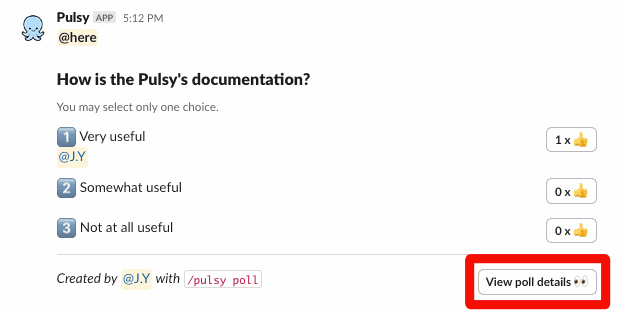
Anonymous polls say "This poll is anonymous 🎭" and never show who voted.
When the poll closes#
The Poll details window shows how long is left to vote, for example "You have 13 days left to vote in this poll." When the poll closes, Pulsy adds "🔒 This poll is now closed.", shows the final vote counts and removes the vote buttons.
You'll also find the polls you voted in under 📊 Polls in Pulsy's Home tab, tagged ✅ You voted or 🗳️ You haven't voted yet.