Run a recurring pulse survey with Pulsy
Send the same Pulsy survey automatically every day, week, month or quarter in Slack, compare editions, edit future editions and end the series.
 SlackUpdated Oct 5, 20262 min read
A recurring Pulsy survey goes out automatically on a schedule you choose, from daily to quarterly. Each time, Pulsy sends a new edition with the same questions to the audience, so you can compare results over time.
Step 1: Pick a frequency#
In the first step of the Create survey wizard, choose a Frequency other than Send once: Daily, Daily (weekdays only), Weekly, Biweekly, Triweekly, Monthly, Bimonthly or Quarterly.
Fill out the other settings and the questions as usual.
Step 2: Choose the first send date#
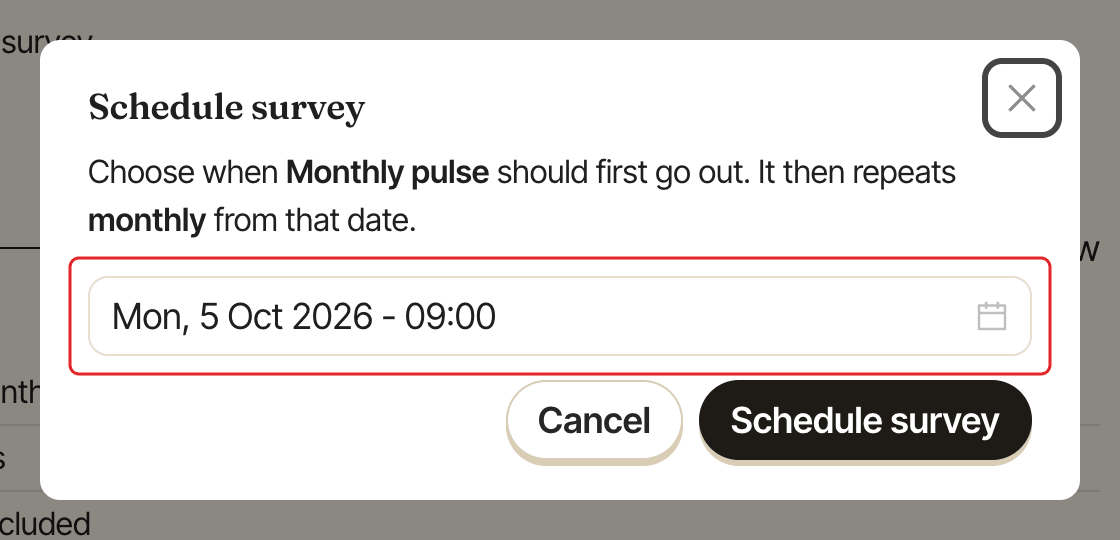
On the Review step, click Schedule survey. In the Schedule survey window, pick the date and hour of the first edition, then click Schedule survey.
- Times are whole hours, in your browser's timezone.
- The default is tomorrow at 09:00.
- The date must be in the future.
The survey then repeats at the chosen frequency from that date.
Follow each edition's results#
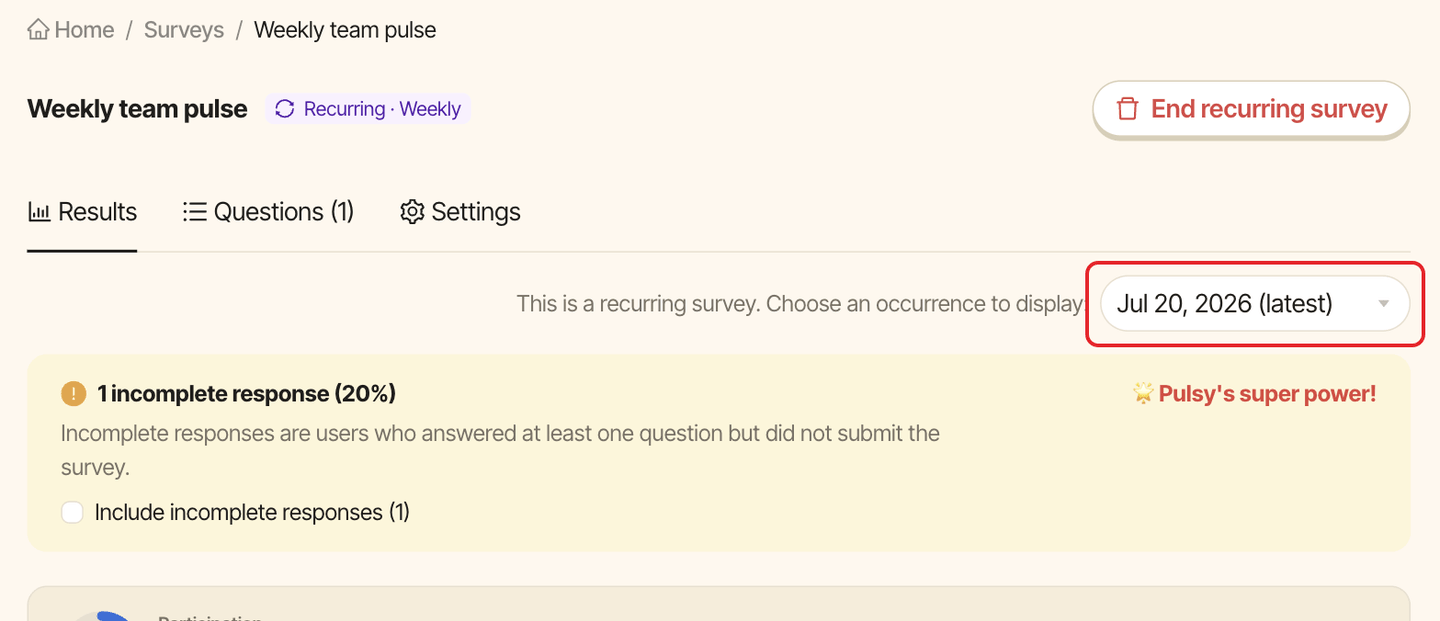
Open the series from the Surveys list. Its page shows a Recurring · Weekly tag (or your frequency) and three tabs.
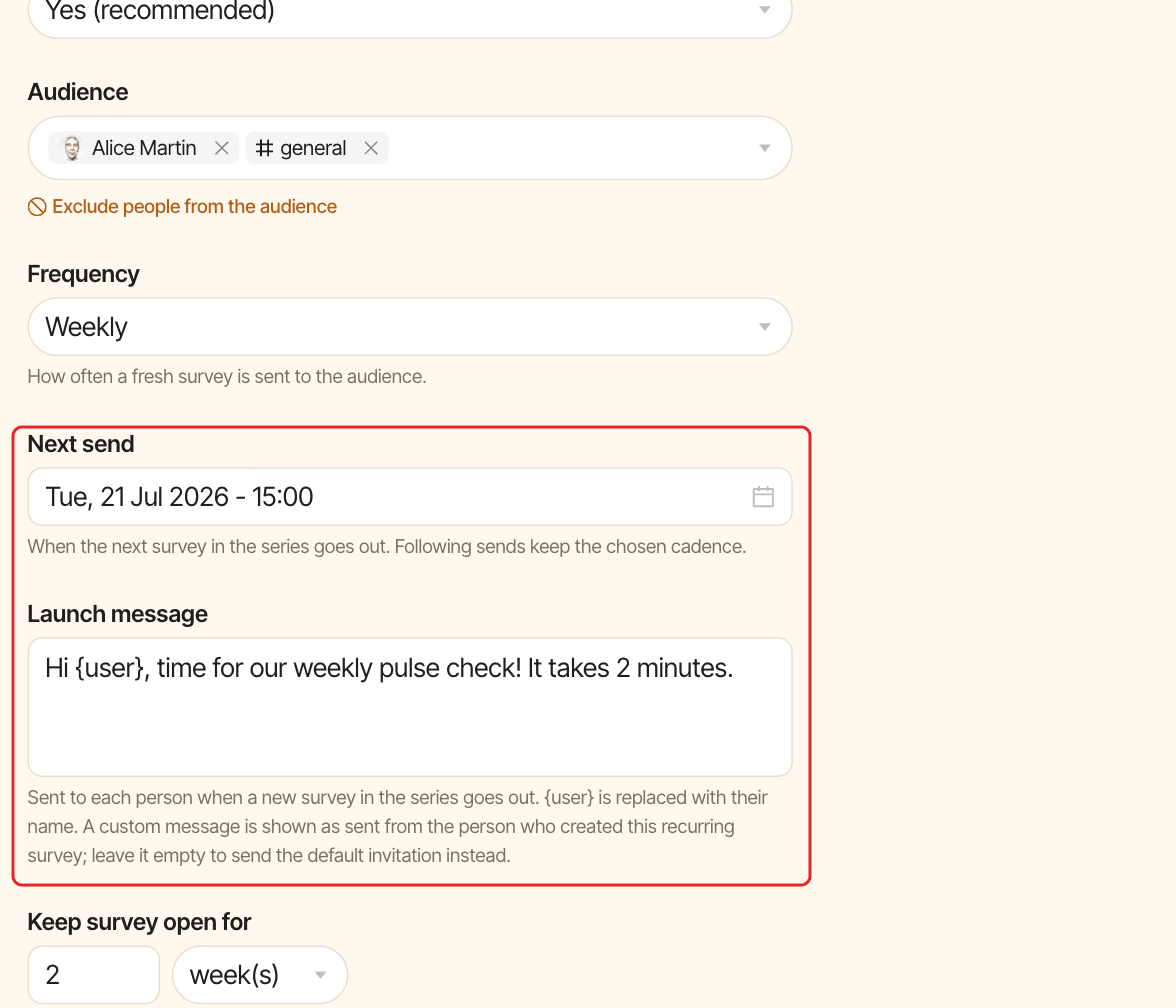
Results: under "This is a recurring survey. Choose an occurrence to display:", pick an edition. The latest one is marked "(latest)".Questions (N): add, edit, reorder or remove questions for future editions.Settings: change the name, anonymity, audience,Frequency,Next send(whole hours, in the future),Launch message,Keep survey open forandSmart reminders, then clickSave changes. Changes apply to the next edition and every one after it. Editions already sent don't change. A customLaunch messageis shown as sent from the person who created the recurring survey.
Each edition is also a survey of its own: open it from the list to send a reminder, close it or export its results.
End the series#
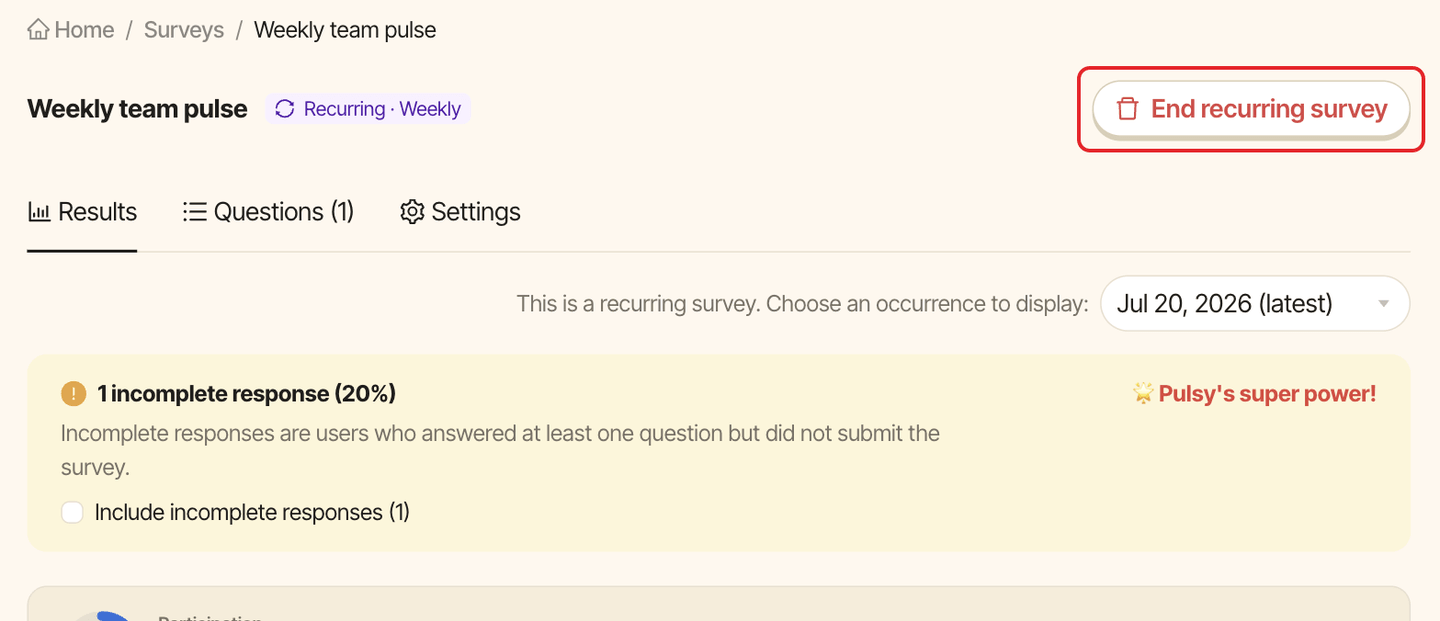
Click End recurring survey, then Yes, end series. No new editions are sent. Editions already sent keep their responses, and the series page stays available, read-only, with the Recurring · ended tag.