Use Pulsy's web dashboard and Slack Home tab
What you do in Slack and what you do in Pulsy's web dashboard, how to open the dashboard from Slack, and how admins switch to Admin mode.
 SlackUpdated Oct 5, 20262 min read
Pulsy, the BuddiesHR survey and poll app, lives in two places: Slack and the BuddiesHR web dashboard (dashboard.buddieshr.com). In Slack, everyone answers surveys and creates and votes in polls. In the web dashboard, Pulsy admins create surveys, read results and manage settings, and everyone can answer surveys and see their polls.
What happens where#
| Task | Slack | Web dashboard |
|---|---|---|
| Create, vote in and manage polls | Yes | List only |
| Answer a survey | Yes | Yes |
| Create, launch and edit surveys | No | Yes (admins) |
| Read results, export, ask follow-up questions | No | Yes (admins) |
| See live surveys and their response rate | Yes (admins) | Yes (admins) |
| Manage admins, billing | No | Yes (admins) |
Open the web dashboard#
The web dashboard is at dashboard.buddieshr.com. The easiest way in is from Slack:
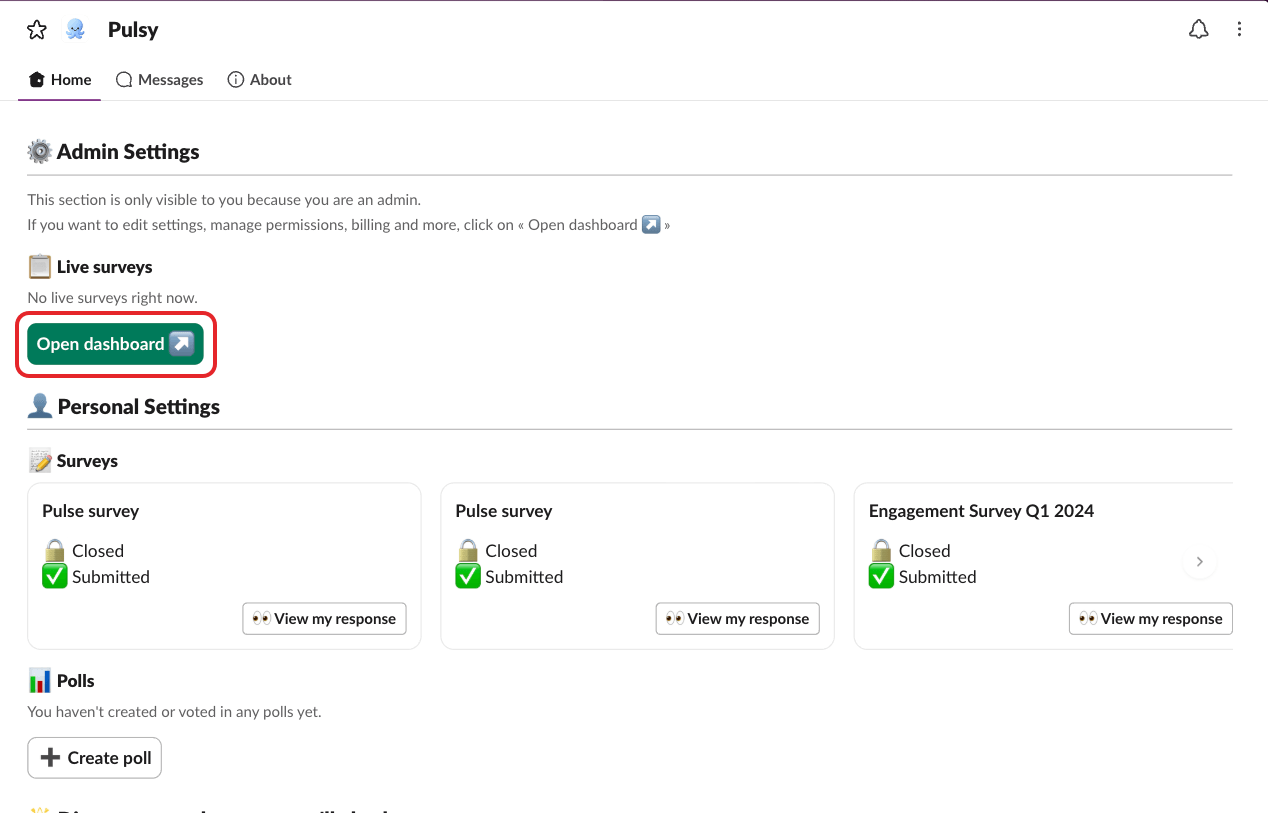
- Admins click
Open dashboard ↗in Pulsy's Home tab, or📊 View resultson a live survey. - Anyone can click
View all surveys ↗orView all polls ↗when their Home tab list is too long to show everything.
These buttons sign you in automatically.
Switch between Personal and Admin mode#
Admins see a Personal / Admin toggle in the page header. Members only see Personal mode.
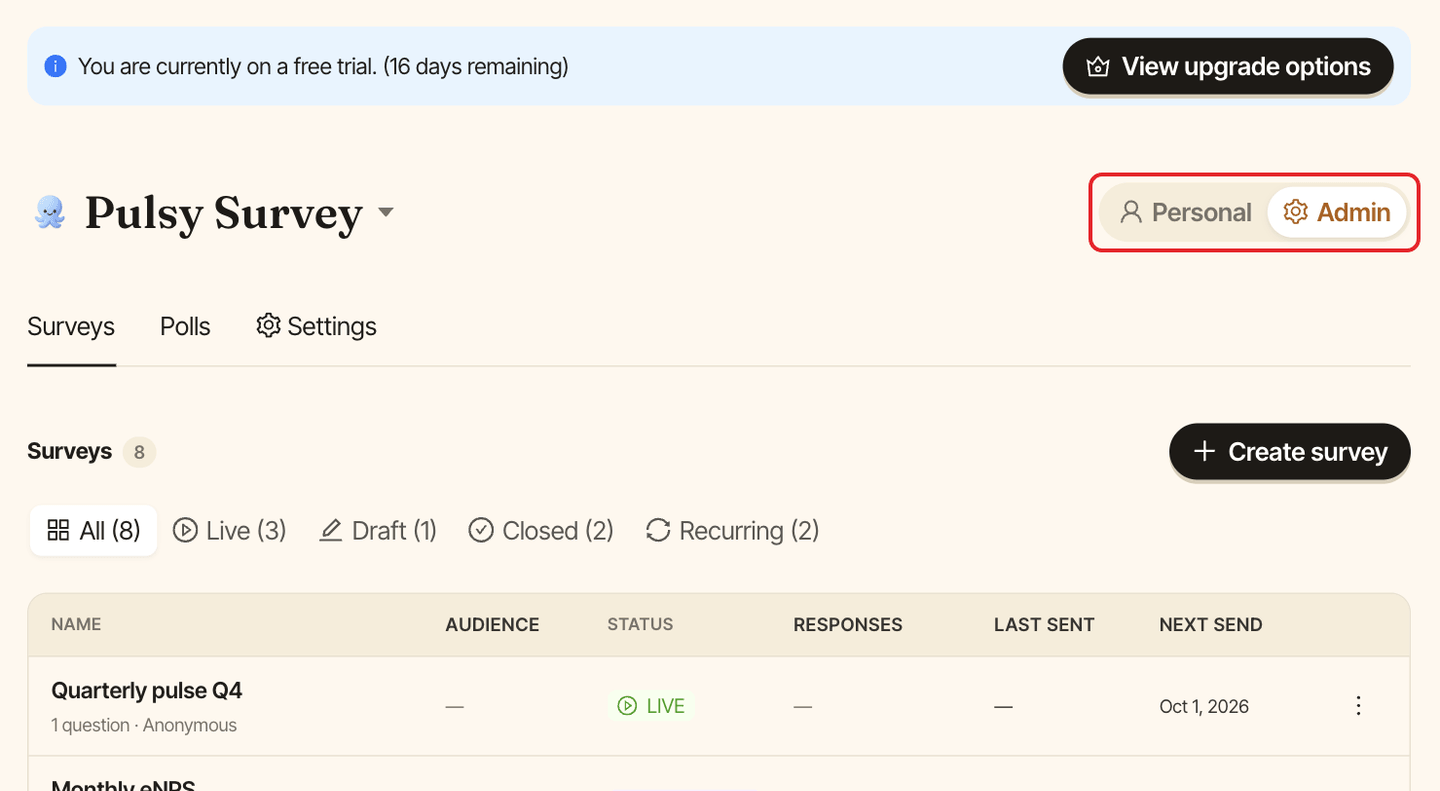
- Personal has two tabs:
Surveys(surveys to answer and past ones) andPolls(polls you created or voted in). - Admin has three tabs:
Surveys(create, launch, results and exports),Polls(every poll in the workspace, read-only) andSettings(Manage admins).
First visit as an admin#
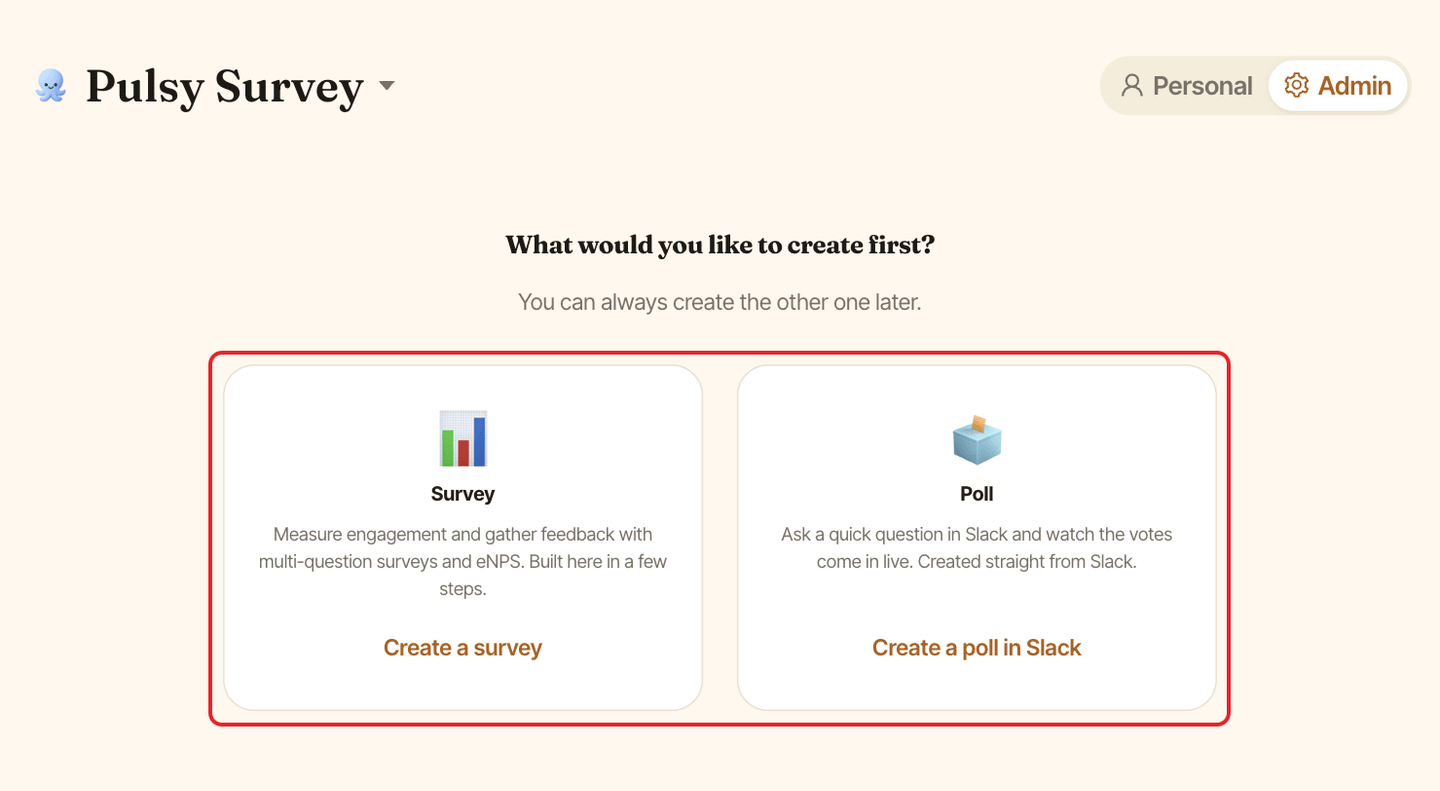
If you haven't sent a survey or a poll yet, the dashboard asks how you heard about Pulsy, then "What would you like to create first?" with two cards: Survey (Create a survey) and Poll (Create a poll in Slack, which opens Slack).
What's in the Slack Home tab#
Open Pulsy's Home tab as explained in find Pulsy's Home tab.
⚙️ Admin Settings(admins only): up to 5📋 Live surveyscards with the deadline, aN/M responses submittedgauge and📊 View results, plusOpen dashboard ↗. This section no longer holds survey creation or settings: they moved to the web dashboard.👤 Personal Settings(everyone):📝 Surveys, up to 10 surveys to answer or already closed, and📊 Polls, up to 10 polls you created or voted in, with➕ Create poll.
If Slack is disconnected#
If Pulsy is uninstalled from Slack, the web dashboard shows a banner saying so. Reinstall Pulsy with the install guide to send surveys in Slack again.