Find and filter your Pulsy surveys
Use the Surveys list in Pulsy's web dashboard to find a survey by status, see its responses, open recurring editions, and duplicate or delete surveys.
 SlackUpdated Oct 26, 20261 min read
Every Pulsy survey in your workspace is listed in Admin mode, on the Surveys tab of the BuddiesHR web dashboard, with filters by status and recurring series grouped with their editions.
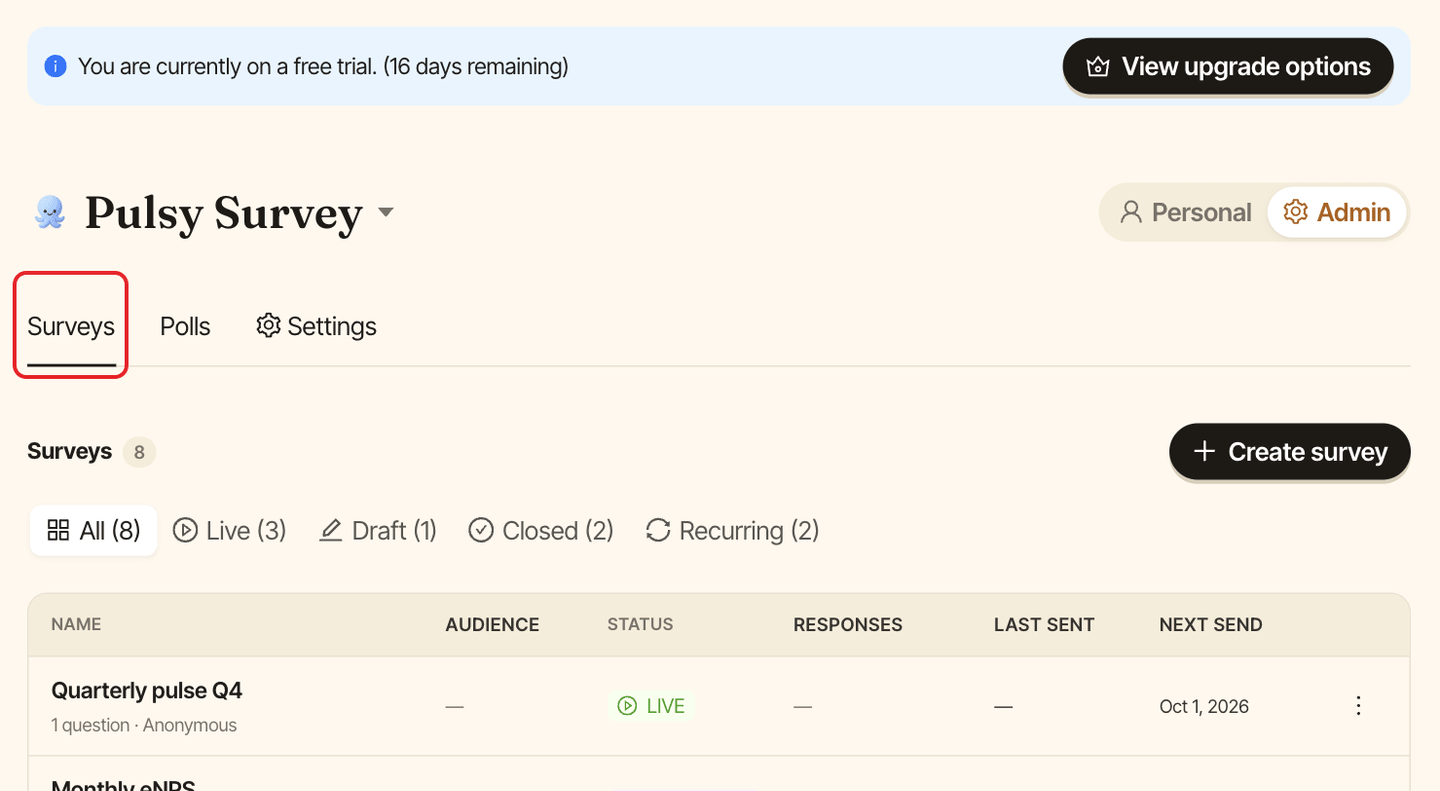
Step 1: Open the Surveys tab#
Open the admin dashboard, then click the Surveys tab. The header shows how many surveys you have and a Create survey button.
Step 2: Filter by status#
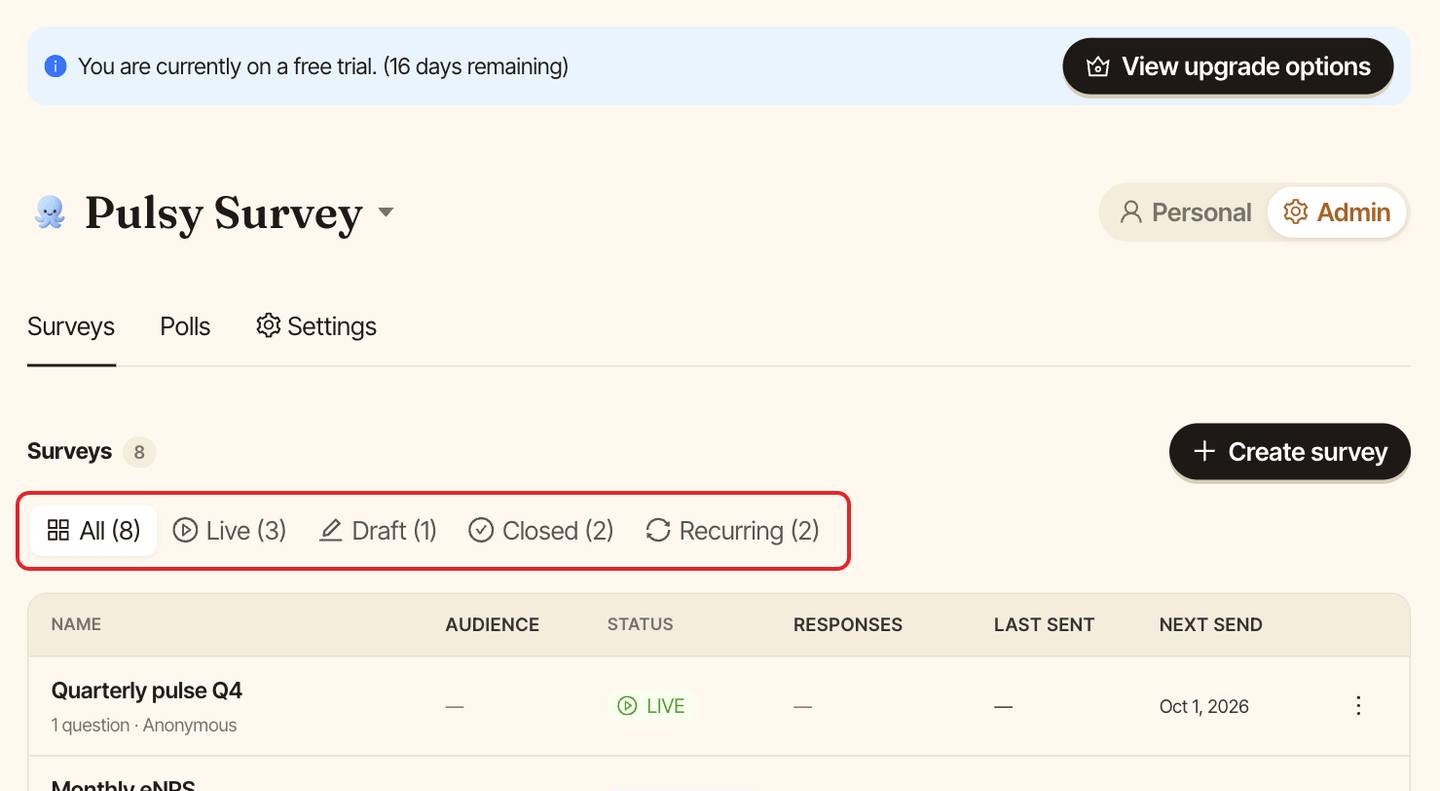
Use the filters above the list:
All (n): every survey.Live (n): surveys collecting answers, plus scheduled ones.Draft (n): surveys not launched yet.Closed (n): surveys past their deadline or closed by hand. You can reopen one from its page.Recurring (n): recurring series only.
Read the list#
Each row shows the survey's Name, Audience, Status, Responses, Last sent and Next send. Click a row to open the survey.
Recurring surveys and their editions#
A recurring survey groups its editions under one entry, for example "Edition of Aug 3, 2026", with a row for the next edition. Click View all N editions to see the older ones.
Duplicate or delete from the list#
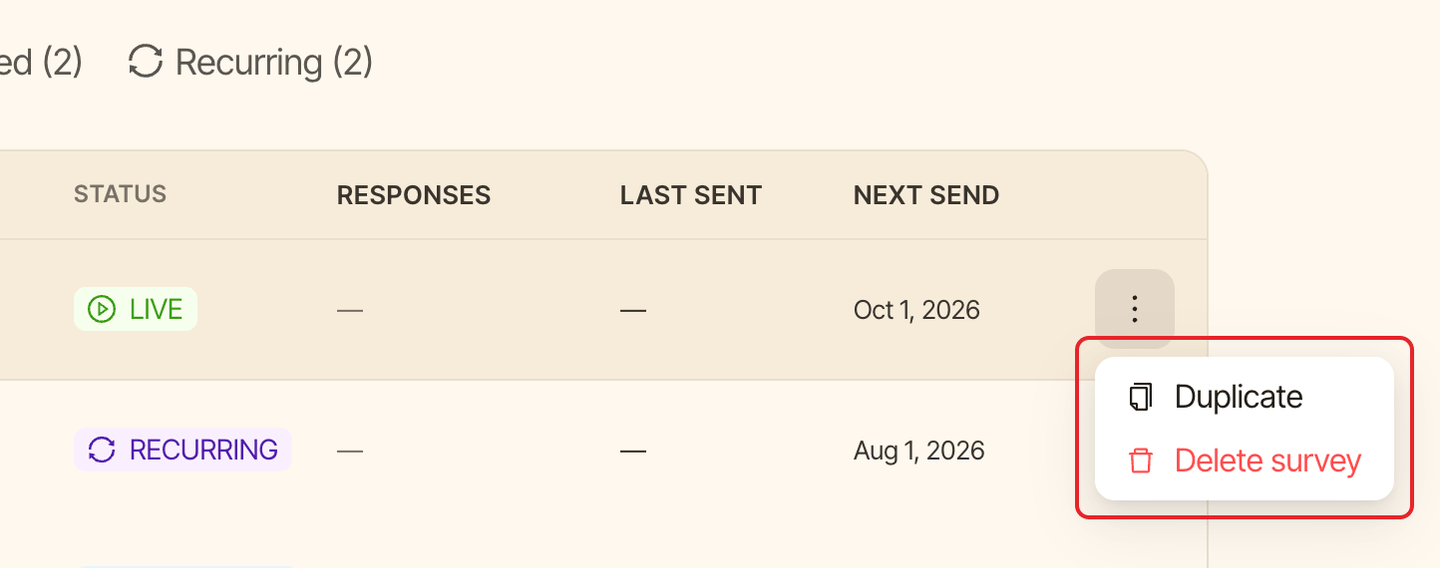
Click ⋮ at the end of a row, then Duplicate or Delete survey. See edit, close or delete a survey for what each one does.
If you haven't created a survey yet, the list says "You haven't created any surveys yet." Click Create survey to start one.