Answer a Pulsy survey in Slack or on the web
Answer a Pulsy survey from its Slack invitation or in the web dashboard, save your progress, submit before the deadline and review your response afterwards.
 SlackUpdated Oct 5, 20262 min read
When you're invited to a Pulsy survey, Pulsy sends you a direct message in Slack with a ☑️ Submit response button. You can answer in Slack or in the BuddiesHR web dashboard until the deadline; once you submit, your answers are locked.
Answer in Slack#
Step 1: Click Submit response#
Click ☑️ Submit response in the message Pulsy sent you, or on the survey card in the 📝 Surveys list of Pulsy's Home tab.
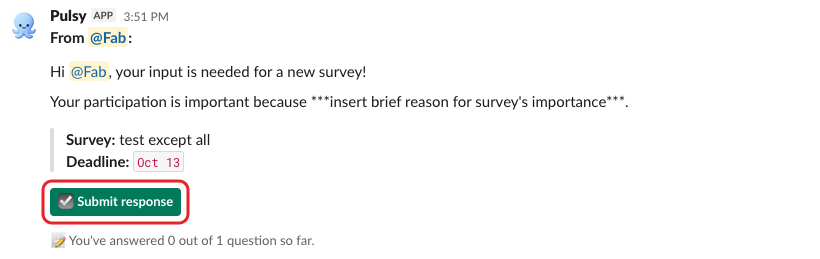
The message shows the survey's name, its deadline and how many questions you've answered so far.
Step 2: Click Needs answer for each question#
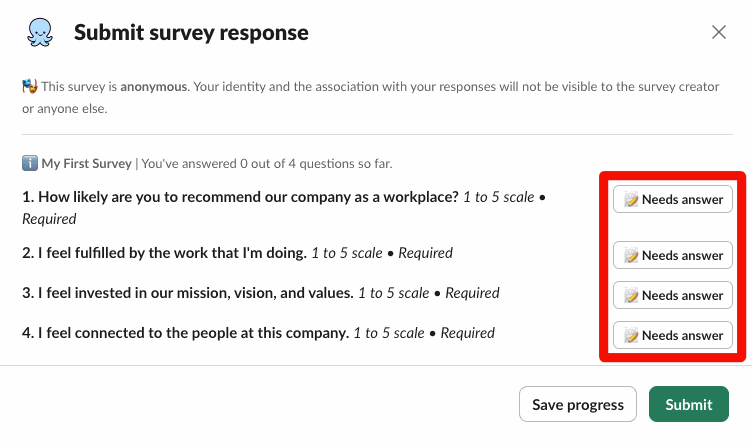
The Submit survey response window lists every question, says whether it's Required or optional, and tells you whether the survey is anonymous. Click 📝 Needs answer next to a question to open it. Optional questions have 📝 Add (optional) instead.
Step 3: Answer each question#
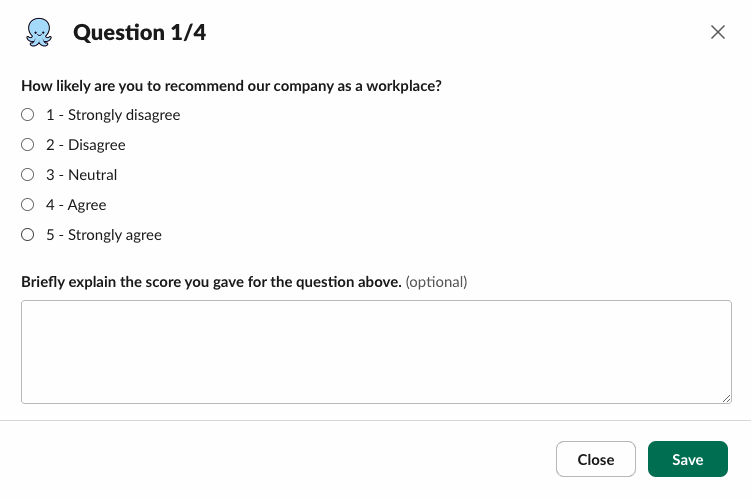
Pick your answer, add a comment if you like, then click Save. On the last question, the button is Review and finish. Open-ended answers can be up to 3,000 characters.
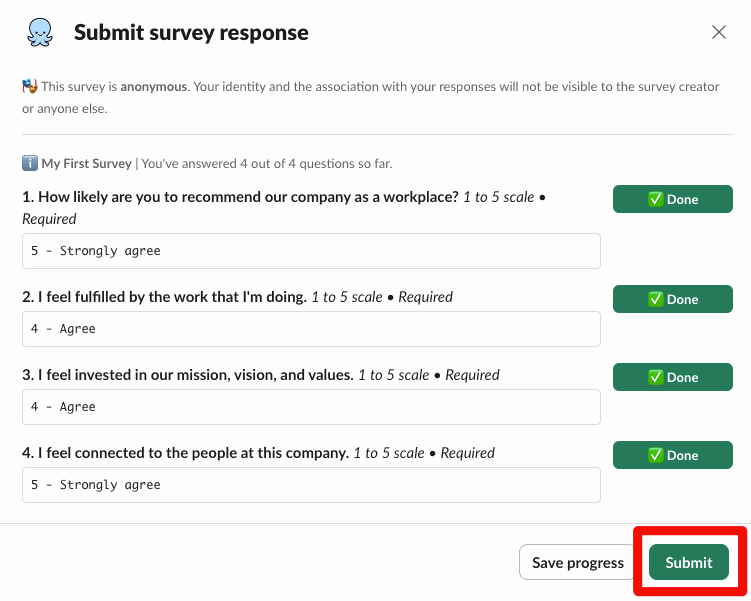
Answered questions show ✅ Done. To finish later, click Save progress: your answers are kept, and you can come back before the deadline.
Step 4: Click Submit#
Once every required question is answered, click Submit. If some are missing, Pulsy says "Some questions need answer!". Until you submit, the window reminds you that your answers are saved but not submitted yet.
Pulsy confirms with a message and a 👀 View response button. That's it, your response is in 🎉
Answer on the web#
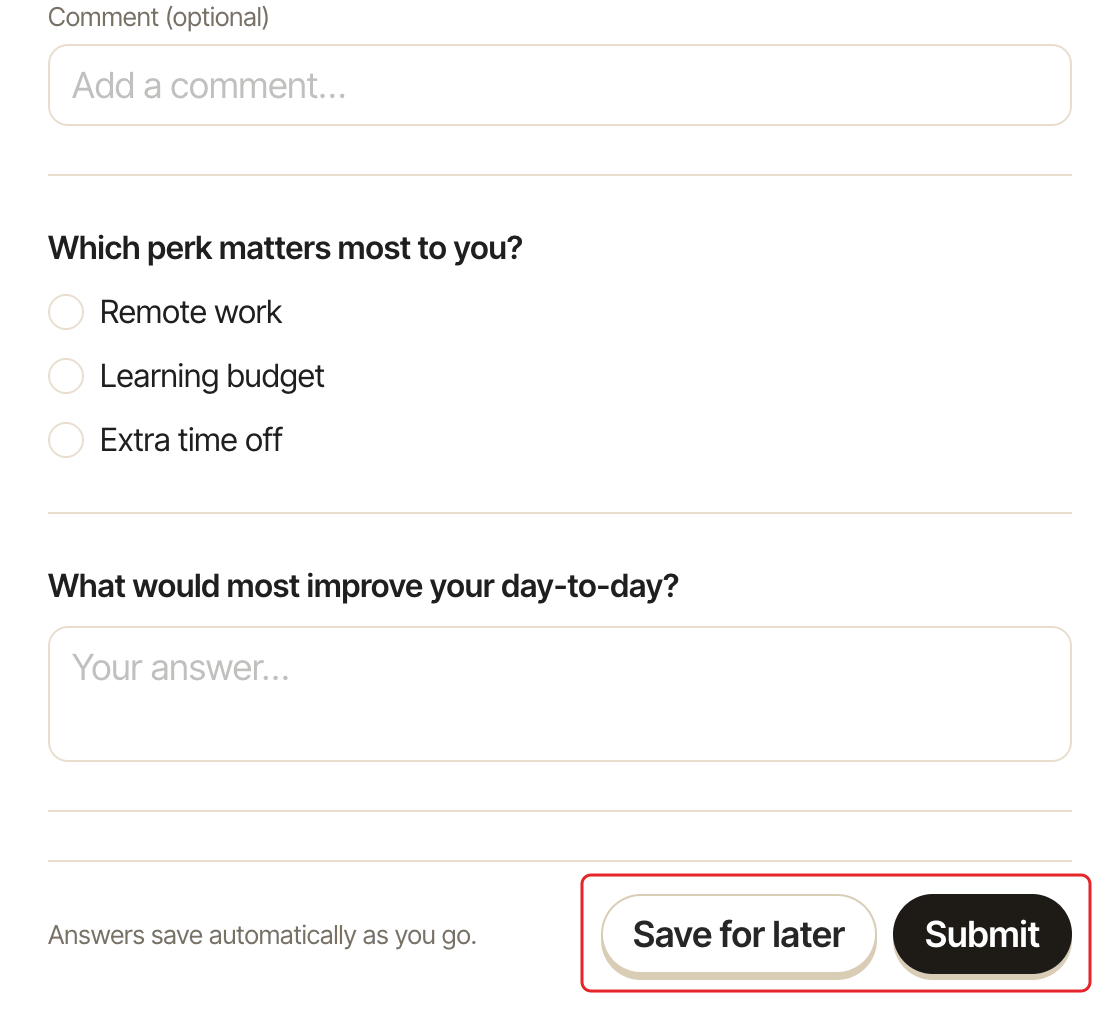
- In the web dashboard, open Personal mode and the
Surveystab. Surveys to answer are underTo answer, taggedTo answerorIn progress. - Click the survey. Your answers save automatically as you go.
- Click
Save for laterto come back later, orSubmitwhen you're done. If a required question is empty, Pulsy says "Please answer all required questions before submitting."
People who use Pulsy by email get an email with Take the survey ↗️ that opens the survey on the web.
Review your response#
- In Slack, click
👀 View responsein the confirmation message, or👀 View my responseon the survey card in Pulsy's Home tab. - On the web, click the survey in the
Surveystab of Personal mode to expand your answers. It shows asCompleted, underTo answerwhile the survey is open and underPastonce it has closed.
You can't change your answers after submitting.
Common messages#
- "This survey is closed. No further responses are being accepted.": the deadline has passed.
- "You have already submitted a response to this survey.": your response is already in.
- "This survey is not addressed to you.": you aren't in the survey's audience.