View Pulsy survey results
Open a Pulsy survey's Responses tab in the BuddiesHR web dashboard to read participation, eNPS and scores, and every answer and comment by question or person.
 SlackUpdated Oct 5, 20262 min read
Each launched Pulsy survey has a Responses tab in the BuddiesHR web dashboard, where admins read the participation rate, the NPS, average and median of each scale question, and every answer and comment.
Step 1: Open the survey's results#
Either:
- In the web dashboard, go to Admin mode,
Surveystab, and click the survey. TheResponsestab opens. - In Slack, click
📊 View resultson a survey card in the📋 Live surveyssection of Pulsy's Home tab.
For a recurring survey, pick an edition first. See run a recurring survey.
Step 2: Check participation#
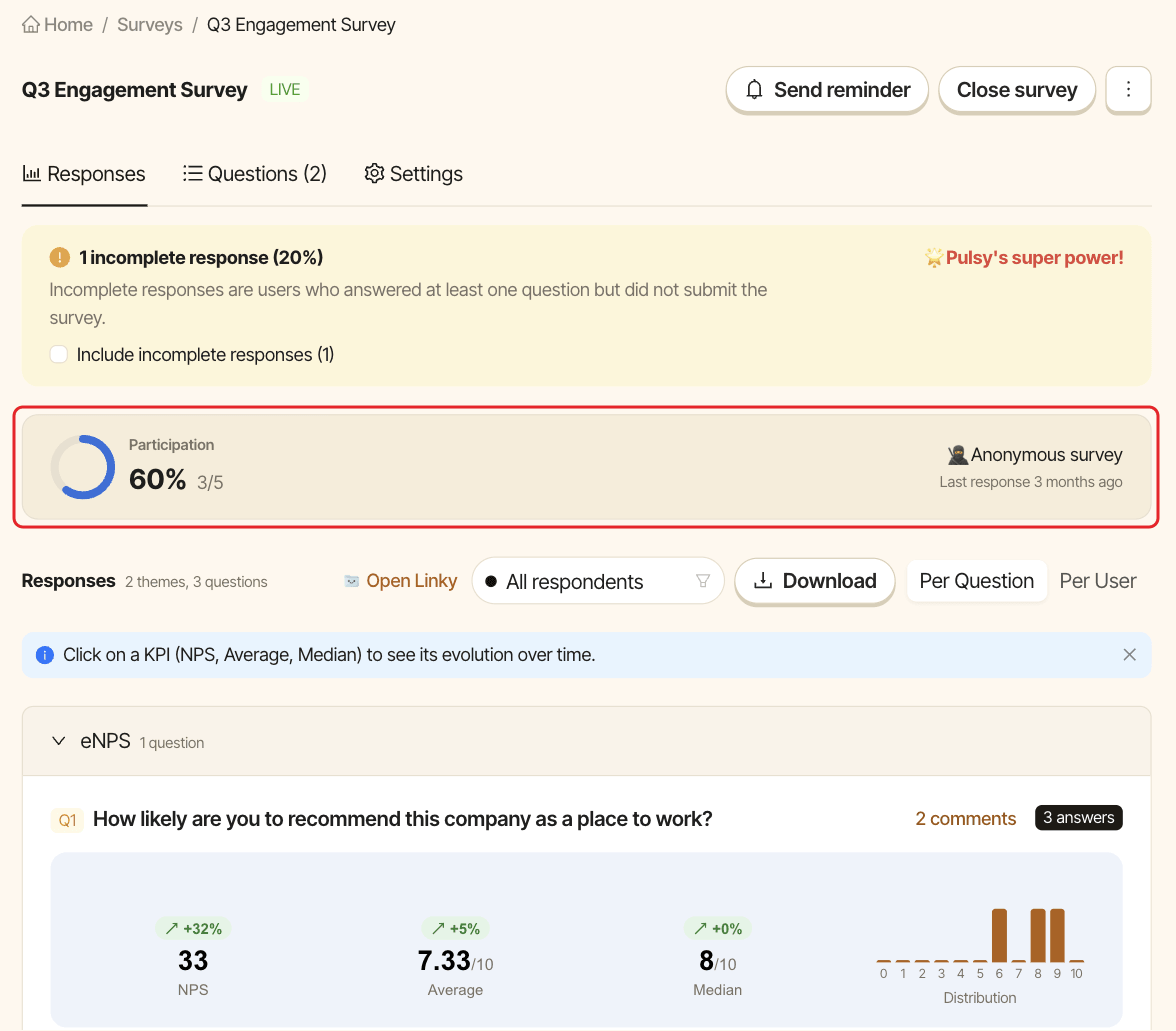
The Participation block shows the percentage of the audience who submitted, how many people that is out of the audience (for example 12/20), and when the last response came in.
Step 3: Read results per question or per person#
Use the Per Question / Per User toggle.
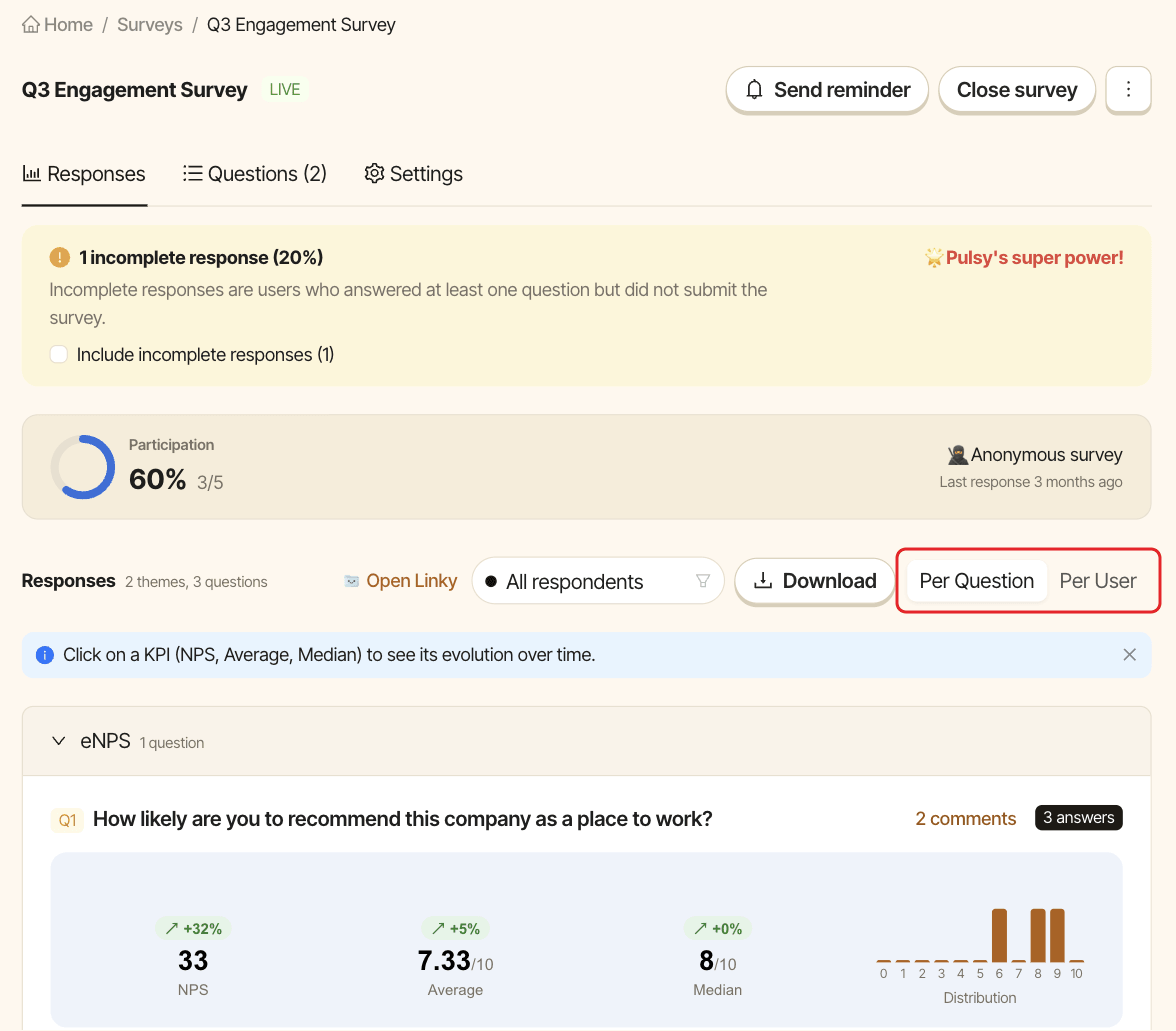
Per Question#
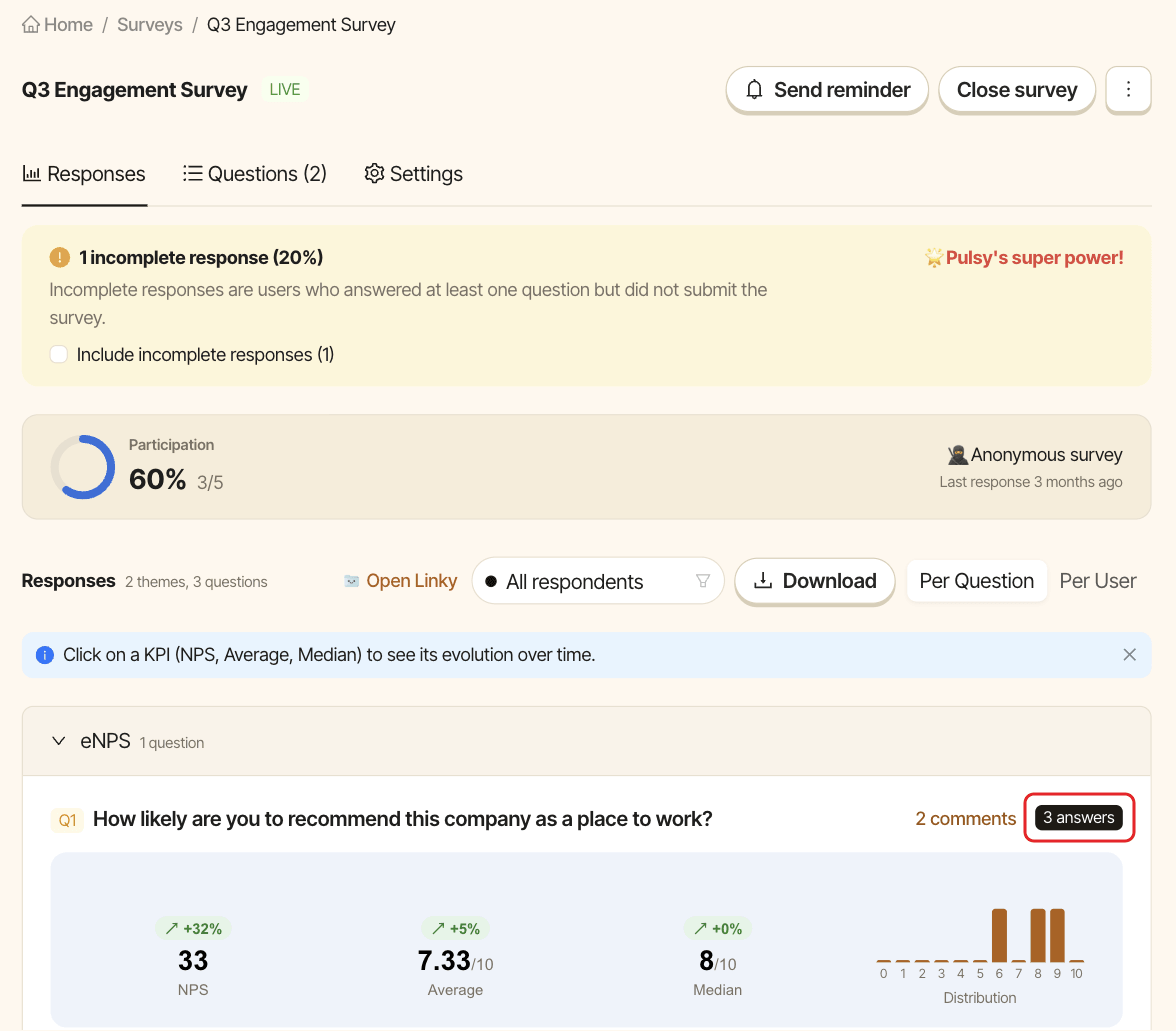
Questions are grouped by theme. Each question card shows:
- the number of answers and comments,
- for scale questions,
NPS,AverageandMediantiles, with a trend compared to the previous survey that asked the same question, - how answers are spread across the scale (
Distribution), or across the options of a multiple-choice question, - for open-ended questions, the answers, with a
Search for an employeebox.
Learn how the scores are calculated in read eNPS, average and median scores.
Per User#
Named surveys list each respondent with "Submitted" and the date, or "In progress". Anonymous surveys show "🥷 Anonymous" with a number instead. See what an anonymous survey hides.
Step 4: Read every answer#
Click N answers or N comments on a question card. The list can be sorted by Most recent, Oldest, Highest or Lowest.