Close, duplicate or delete a Pulsy poll
Close, duplicate or delete a Pulsy poll in Slack, and edit or end a recurring poll, from the Poll details window. Who can do what, step by step.
 SlackUpdated Oct 5, 20262 min read
You manage a Pulsy poll from its Poll details window in Slack. Anyone in the workspace can duplicate a poll; only the poll's creator or a Pulsy admin can close it, delete it or change its recurrence.
Step 1: Open the poll details#
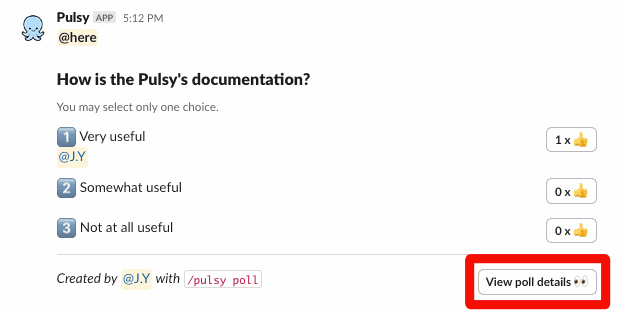
Click View poll details 👀 on the poll in the channel, or 👀 View poll on the poll card in the 📊 Polls section of Pulsy's Home tab.
Step 2: Pick an action#
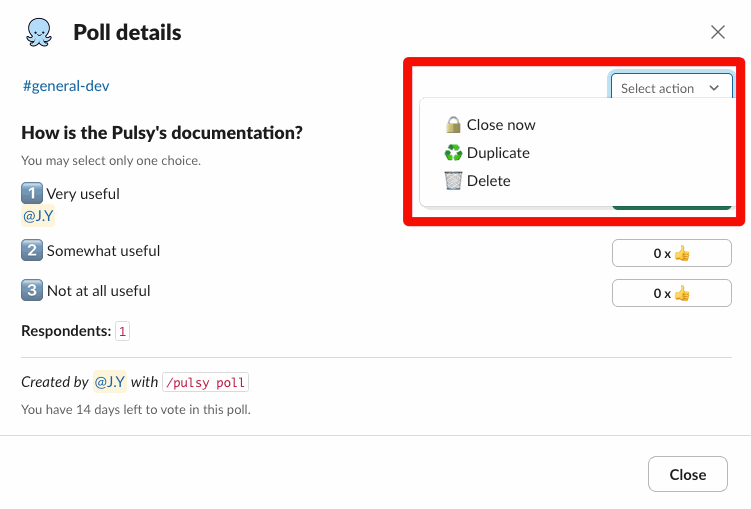
Open the Select action menu and choose:
🔒 Close now: stops voting right away. Pulsy asks you to confirm, and it can't be undone. Only shown while the poll is open.♻️ Duplicate: opens theCreate pollwindow with the same content, ready to post again.🔄 Edit recurrence settings: recurring polls only. See below.🗑️ Delete: after you confirm, deletes the poll and its message in the channel.
If you aren't the creator or an admin, Pulsy says "Only the poll creator or an admin can do this."
Edit or end a recurring poll#
Choose 🔄 Edit recurrence settings in the Select action menu. The Edit recurrence settings window shows the series' channel, questions and choices, and Settings (anonymity, mention, Frequency and Close each poll after).
- Change what you need, then click
Update. Future polls use the new settings; polls already posted don't change. - To stop the series, click
End recurring poll, thenConfirm. No more polls are posted, and you can't change these settings again.
Polls close on their own#
Every poll closes automatically at the end of its Close poll after period (2 weeks by default). Pulsy then marks it "🔒 This poll is now closed."
See all your polls#
Your polls are listed under 📊 Polls in Pulsy's Home tab, and in the Polls tab of the web dashboard's Personal mode. Admins see every poll of the workspace in Admin mode, Polls tab. These web lists are read-only: manage polls in Slack.