Export Pulsy survey results to CSV or Excel
Download a Pulsy survey's results as a CSV or an Excel (XLSX) file from its Responses tab in the web dashboard, with or without comments.
 SlackUpdated Oct 5, 20261 min read
Pulsy admins can download any launched survey's results as a CSV or an Excel (XLSX) file from the survey's Responses tab in the BuddiesHR web dashboard.
Step 1: Open the survey's results#
Open the survey's Responses tab. See view survey results.
Step 2: Click Download#
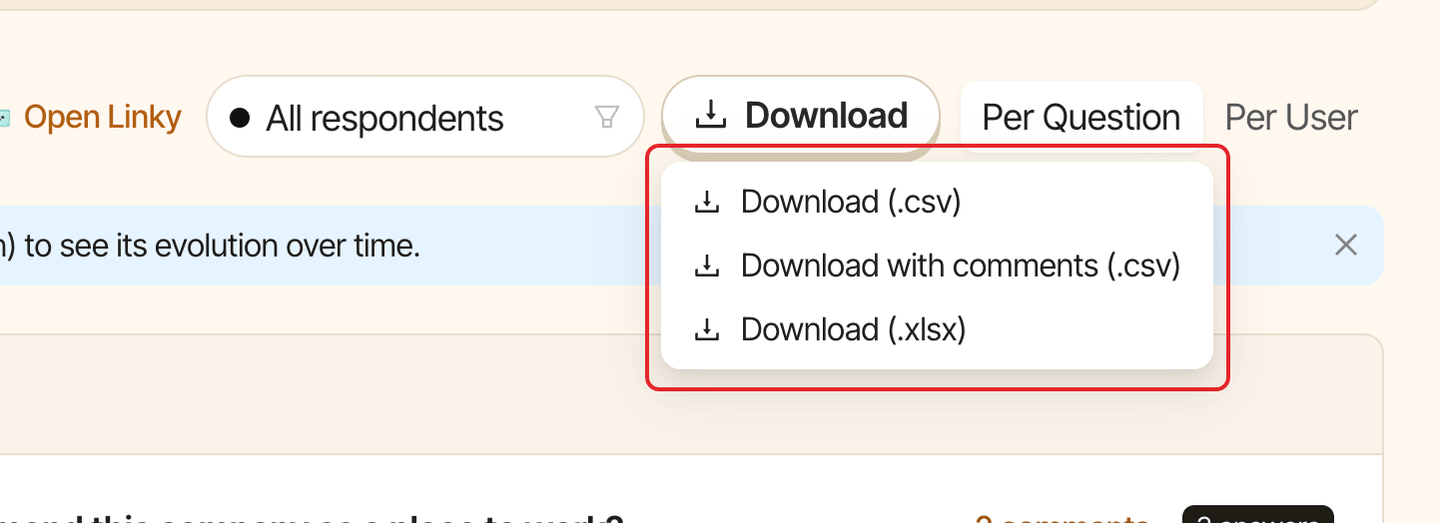
Click Download in the toolbar above the results, then pick a format.
| Option | What you get |
|---|---|
Download (.csv) |
The answers as shown on screen, one row per respondent. |
Download with comments (.csv) |
The same, plus the comments left on scale questions. |
Download (.xlsx) |
An Excel file with a "Pulsy Survey Responses" sheet: every submitted response, with a comment column next to each question that collects comments. |
What's in the file#
- Anonymous surveys: no names or emails. See what an anonymous survey hides.
- Named surveys: the CSV files have a respondent column, and the XLSX file has
NameandEmailcolumns. - Filters: the CSV files follow the current view, including the department filter and incomplete responses if you included them. The XLSX file always contains every submitted response and nothing else. See filter results by department.