How to run a survey in Slack
Slack has no survey feature. With Pulsy, you build the survey in a web dashboard and your team answers it in Slack, with reminders and live results.
 SlackUpdated Oct 5, 20262 min read
Slack has no survey feature of its own. With Pulsy, the BuddiesHR survey app for Slack, you build a survey in the BuddiesHR web dashboard from ready-made or custom questions, and your team answers it in Slack without leaving it.
Step 1: Install Pulsy#
Follow Install Pulsy in Slack. It takes about 30 seconds, and it opens the Create survey wizard in the web dashboard when you're done.
Later, open the dashboard from Pulsy's Home tab in Slack with Open dashboard ↗.
Step 2: Set up the survey#
In the web dashboard's Admin mode, go to the Surveys tab and click Create survey. Give it a name, keep it anonymous (the default) or not, and pick its audience: everyone, Slack channels or specific people. Choose how long it stays open, the reminders and whether it repeats.
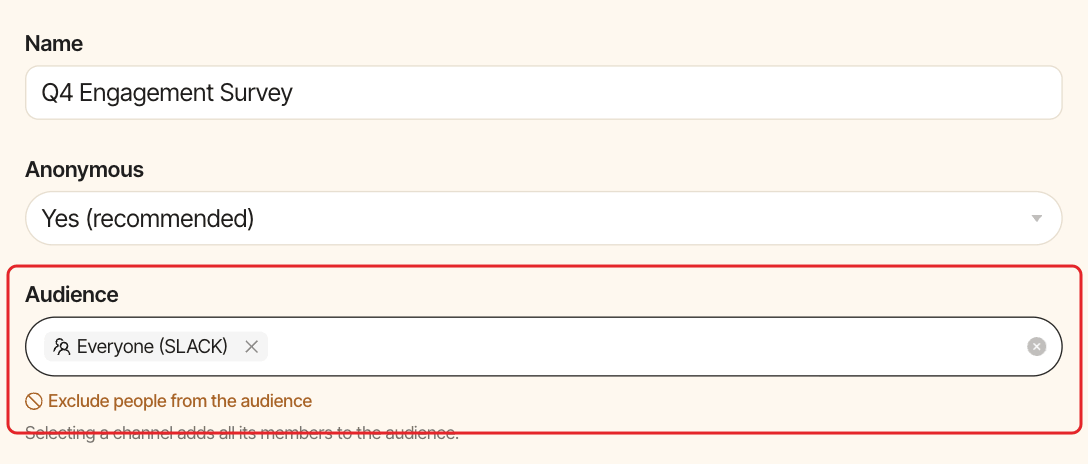
Full details: create a survey.
Step 3: Add your questions#
Click Add from question bank, pick a theme, and keep the questions you want. Pulsy's bank has 58 questions in 13 themes, including eNPS. Click Create question to write your own.
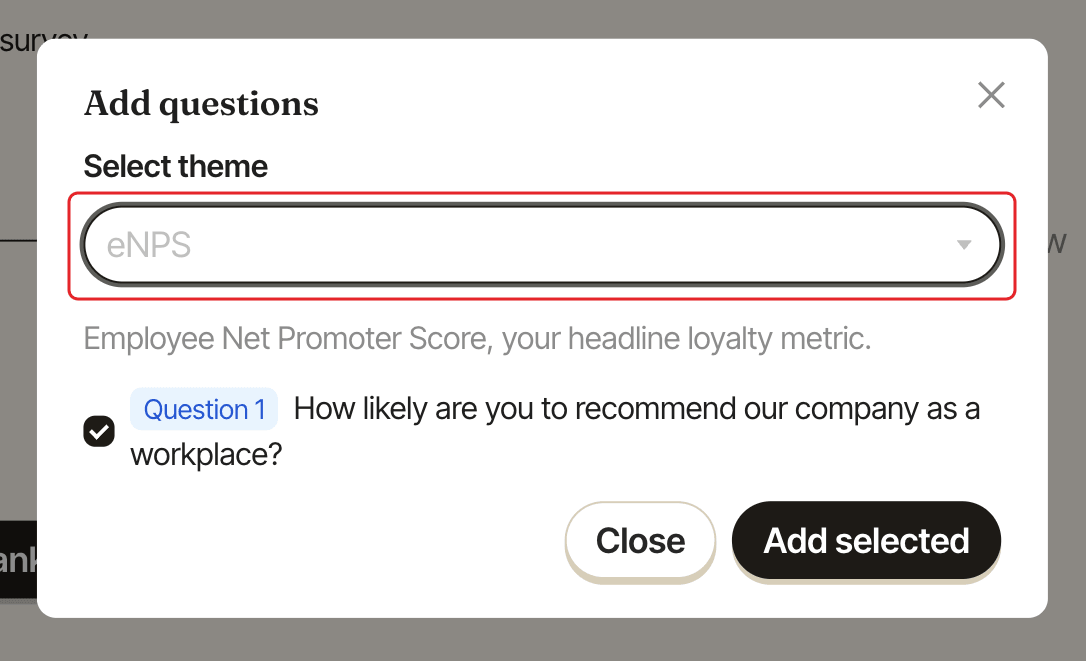
See add questions from the question bank or write your own.
Step 4: Launch it#
On the Review step, click Launch now, write the message your team receives, then click Publish now. Everyone in the audience gets a direct message in Slack with a ☑️ Submit response button. For a recurring survey, click Schedule survey and pick the first send date.
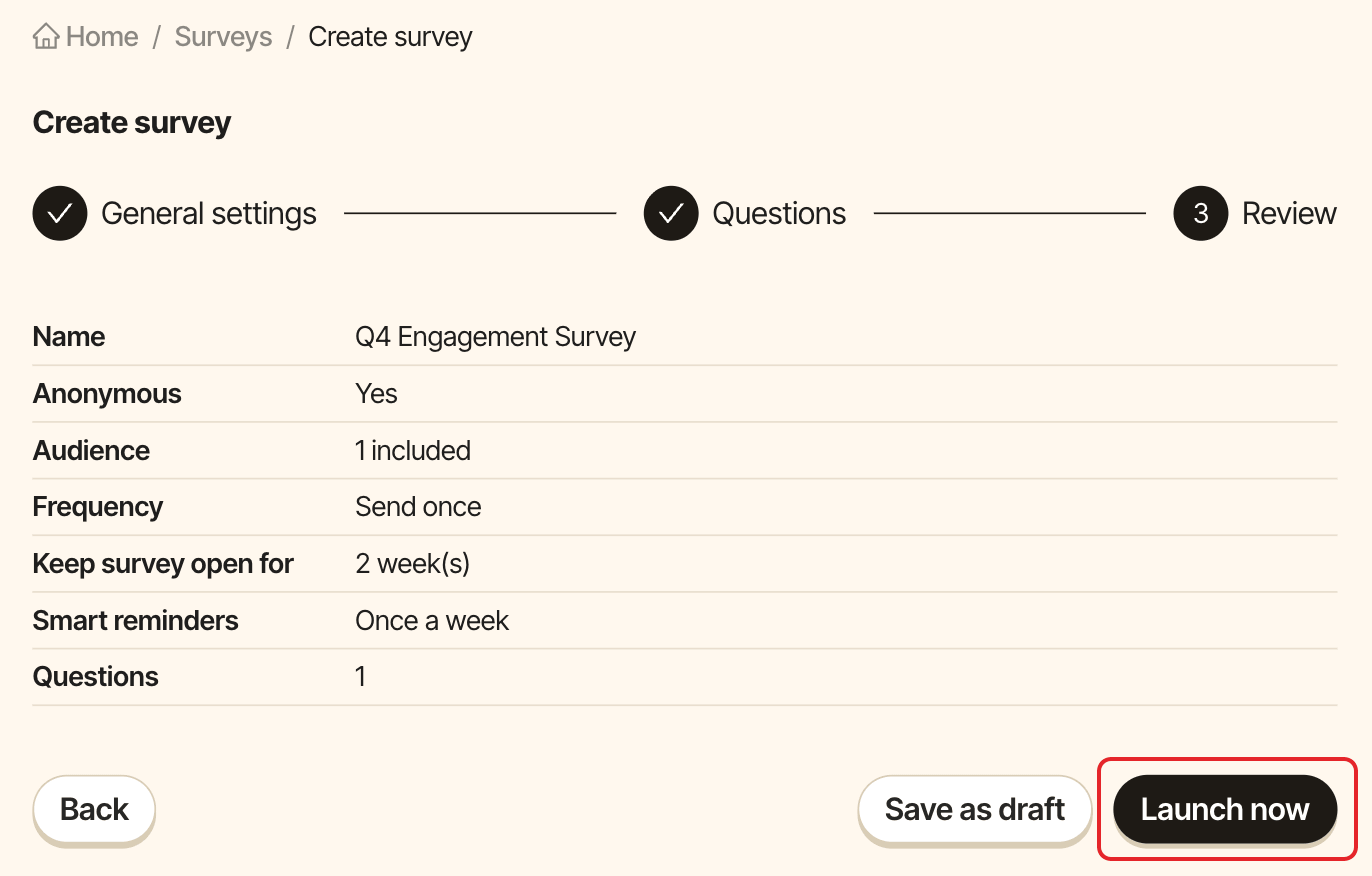
Full details: launch a survey.
Step 5: Your team answers in Slack#
People answer question by question in a Slack window, save their progress and submit. Smart reminders nudge those who haven't answered. See respond to a survey.
Step 6: Read the results#
Follow participation in Pulsy's Home tab, then explore the results in the dashboard or export them: