How to create a poll in Slack
Slack has no built-in poll. Use emoji reactions for a quick vote, or Pulsy to post a real Slack poll with anonymous votes, scheduling and live results.
 SlackUpdated Oct 5, 20262 min read
Slack doesn't have a built-in poll feature. You can improvise one with emoji reactions, or install Pulsy, the BuddiesHR poll and survey app for Slack, and type /poll to post a real poll with anonymous votes, scheduling and live results.
Option 1: An emoji reaction poll#
Fine for a quick, informal vote:
- Post your question in a channel, with one emoji per option. For example: "Team lunch on Friday? 🍕 Pizza, 🍣 Sushi, 🥗 Salad".
- Ask people to vote by reacting with the matching emoji.
- Count the reactions.
It's quick, but everyone sees who voted for what, and there's no way to close the vote or schedule it.
Option 2: A poll with Pulsy#
Pulsy adds real polls to Slack: anonymous or not, posted now or scheduled, recurring if you like, with results in real time.
Step 1: Install Pulsy#
Follow Install Pulsy in Slack. It takes about 30 seconds.
Step 2: Start a poll#
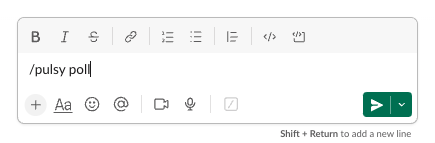
Type /pulsy poll or /poll in any conversation, or click ➕ Create poll in Pulsy's Home tab. If another app in your workspace already uses /poll, type /pulsy poll.
Step 3: Write your question and choices#
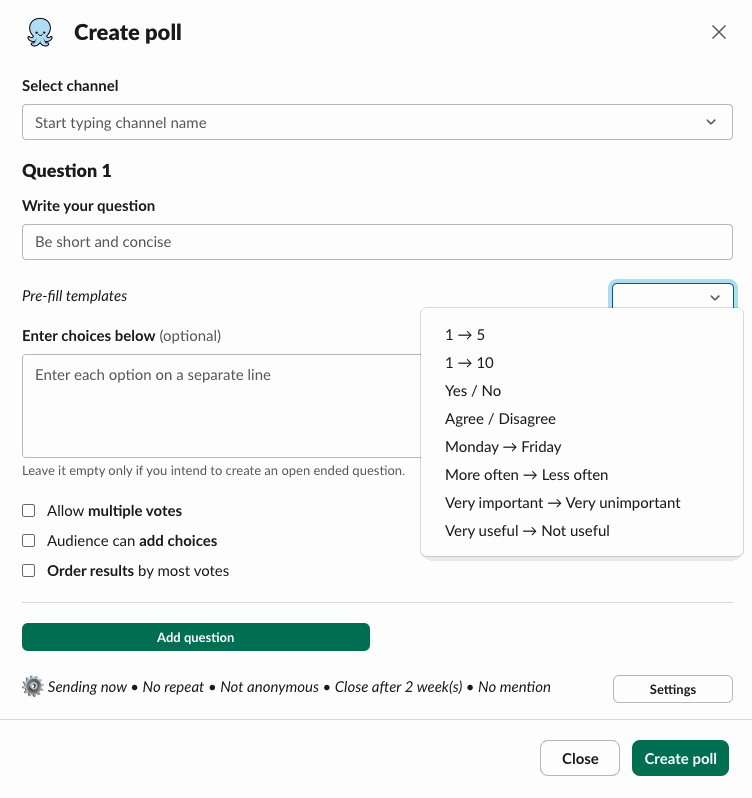
Pick the channel, write the question, then add the choices, one per line, or pick a pre-fill template such as Yes / No or 1 → 5. Check Audience can add choices to let people add their own.
Step 4: Choose the settings and post#
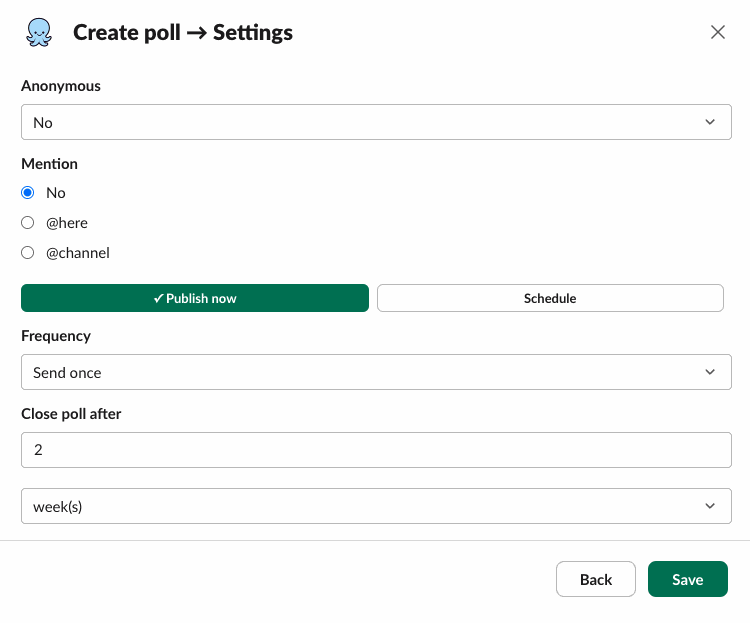
Click Settings to choose whether the poll is anonymous, who to mention, whether to publish now or schedule it, how often it repeats and when it closes (after 2 weeks by default). Click Save, then Create poll.
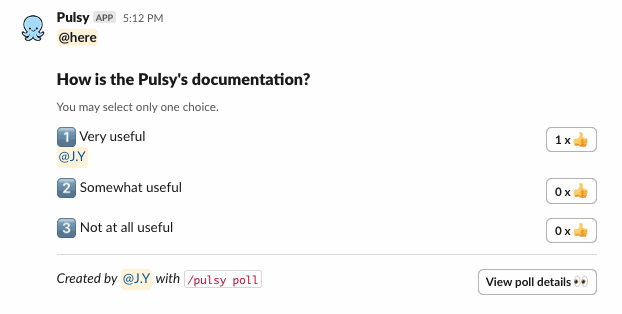
Your poll is posted and results update as people vote.
For every option, see create a poll. To close, duplicate or delete it, see manage a poll you created.