Add or remove a Pulsy admin
Give or remove Pulsy admin access in the BuddiesHR web dashboard, so the right people can create surveys, see results, manage polls and settings.
 SlackUpdated Oct 5, 20261 min read
Pulsy admins create and manage surveys, see results, manage any poll and change settings. Any Pulsy admin can add or remove admins in the Settings tab of the web dashboard's Admin mode, with Manage admins.
Step 1: Open the Settings tab#
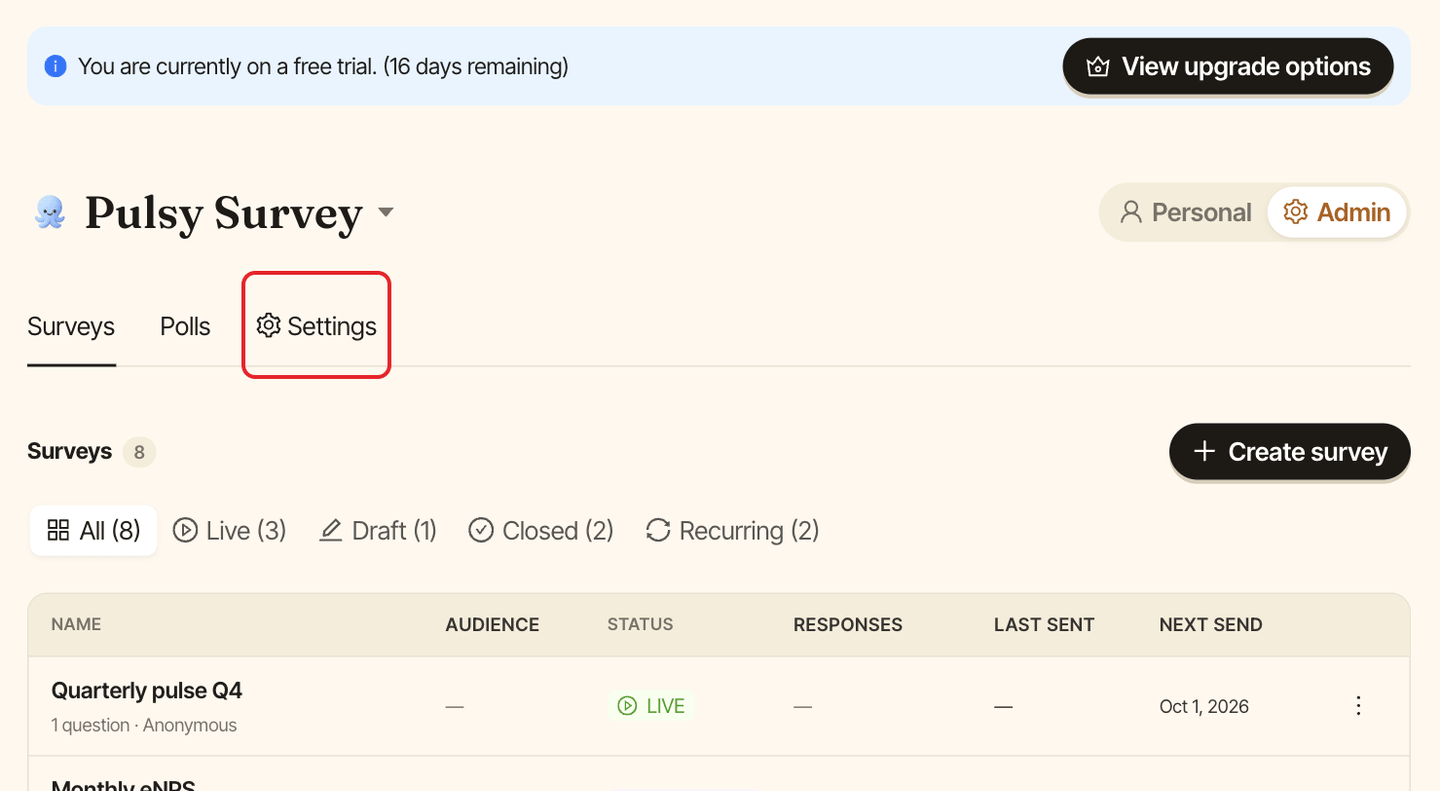
Open the admin dashboard, then click the Settings tab.
Step 2: Click Manage admins#
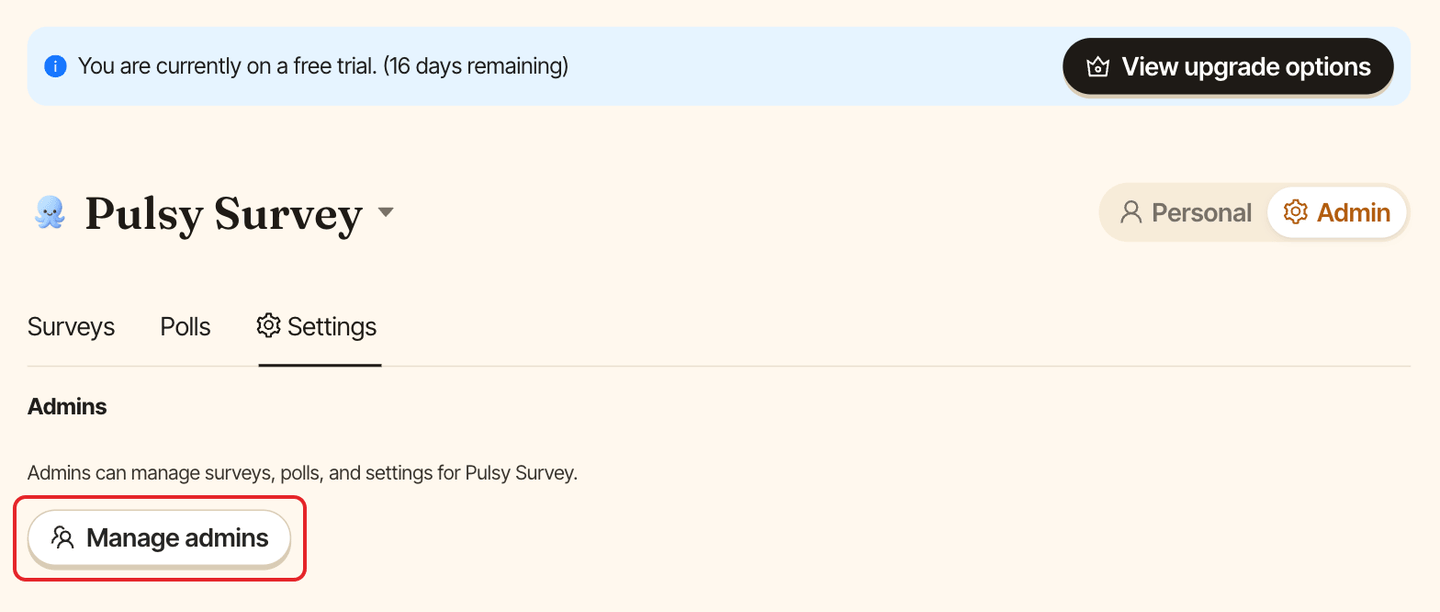
Under "Admins can manage surveys, polls, and settings for Pulsy Survey.", click Manage admins.
Step 3: Add or remove people, then confirm#
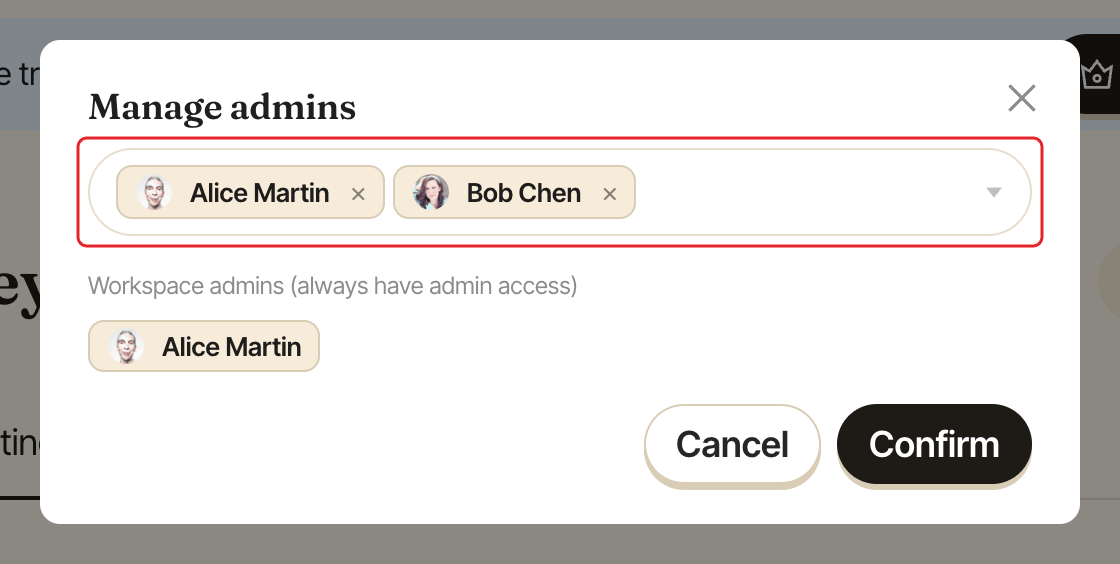
- To add someone, type their name in "Search for people to add as admin" and select them.
- To remove someone, click the cross on their name in the same field.
- Click
Confirm. Pulsy shows "Admins updated".
Workspace admins are always Pulsy admins#
The window also lists "Workspace admins (always have admin access)". BuddiesHR workspace admins are Pulsy admins automatically, and you can't remove them here.