Get around Palmy's web dashboard and Slack Home tab
What you do with Palmy in Slack, what you do in the BuddiesHR web dashboard, how to open it and how to switch between Personal and Admin mode.
 SlackUpdated Oct 5, 20262 min read
Palmy, the BuddiesHR time-off tracker, lives in two places. In Slack, everyone requests time off, approvers decide and everyone sees their balances. In the BuddiesHR web dashboard, people can do the same, and admins manage requests, quotas and settings.
What happens where#
| Task | Slack | Web dashboard |
|---|---|---|
| Request time off | Yes | Yes |
| Approve or reject a request you were picked for | Yes | Yes |
| Cancel your own request | Yes | Yes |
| See your balances | Yes | Yes |
| See every request, filter, export | No | Yes (admins) |
| Approve, reject or cancel anyone's request | No | Yes (admins) |
| Quotas, leave types, settings, calendar, admins | No (read-only summary) | Yes (admins) |
Open the web dashboard#
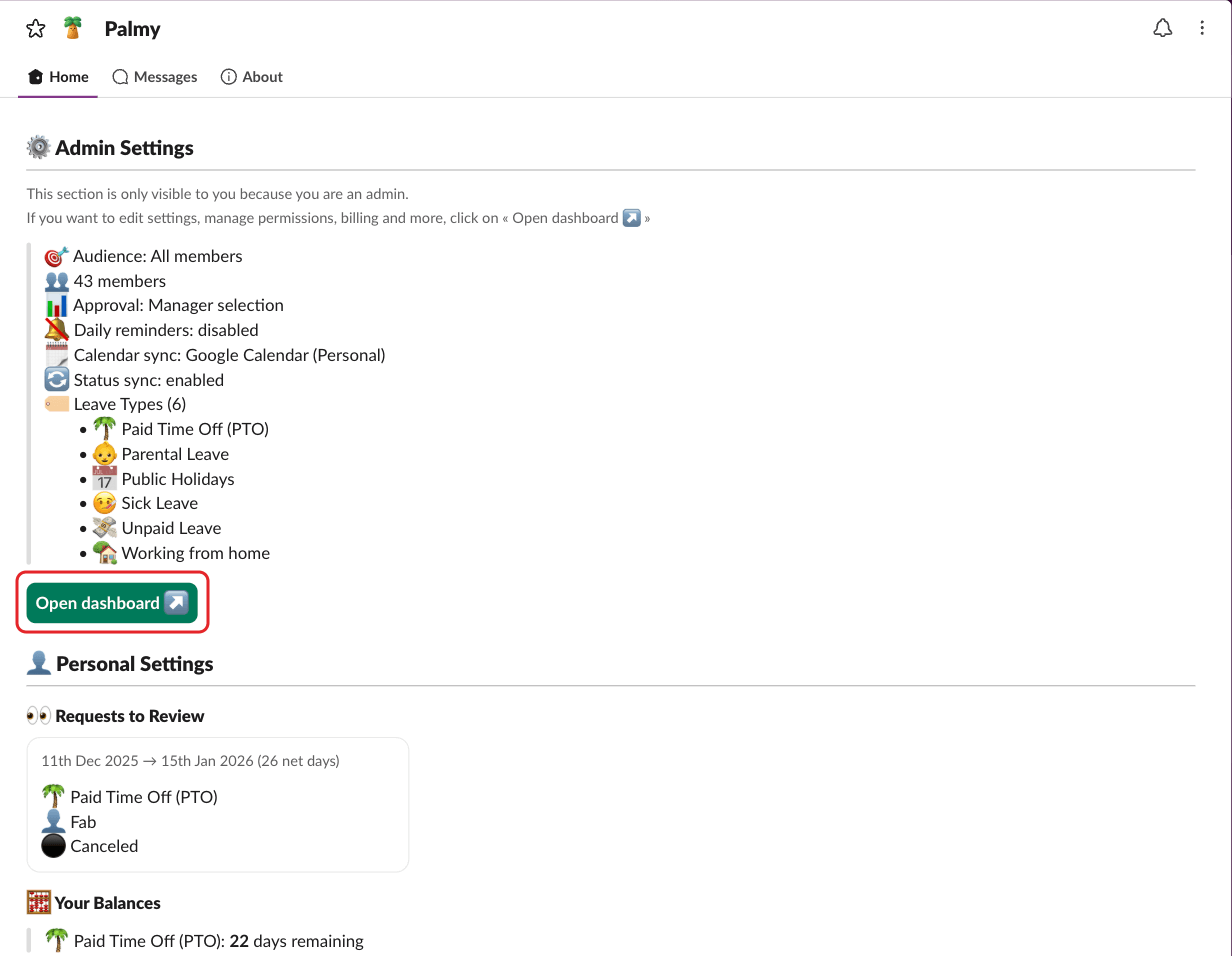
The web dashboard is at dashboard.buddieshr.com. The easiest way in is from Slack:
- Admins click
Open dashboard ↗in the⚙️ Admin Settingssection of Palmy's Home tab. - Anyone with more requests than the Home tab shows can click
View more ↗under them.
These buttons sign you in automatically.
Switch between Personal and Admin mode#
Admins see a Personal / Admin toggle in the page header. Other people only see Personal mode.
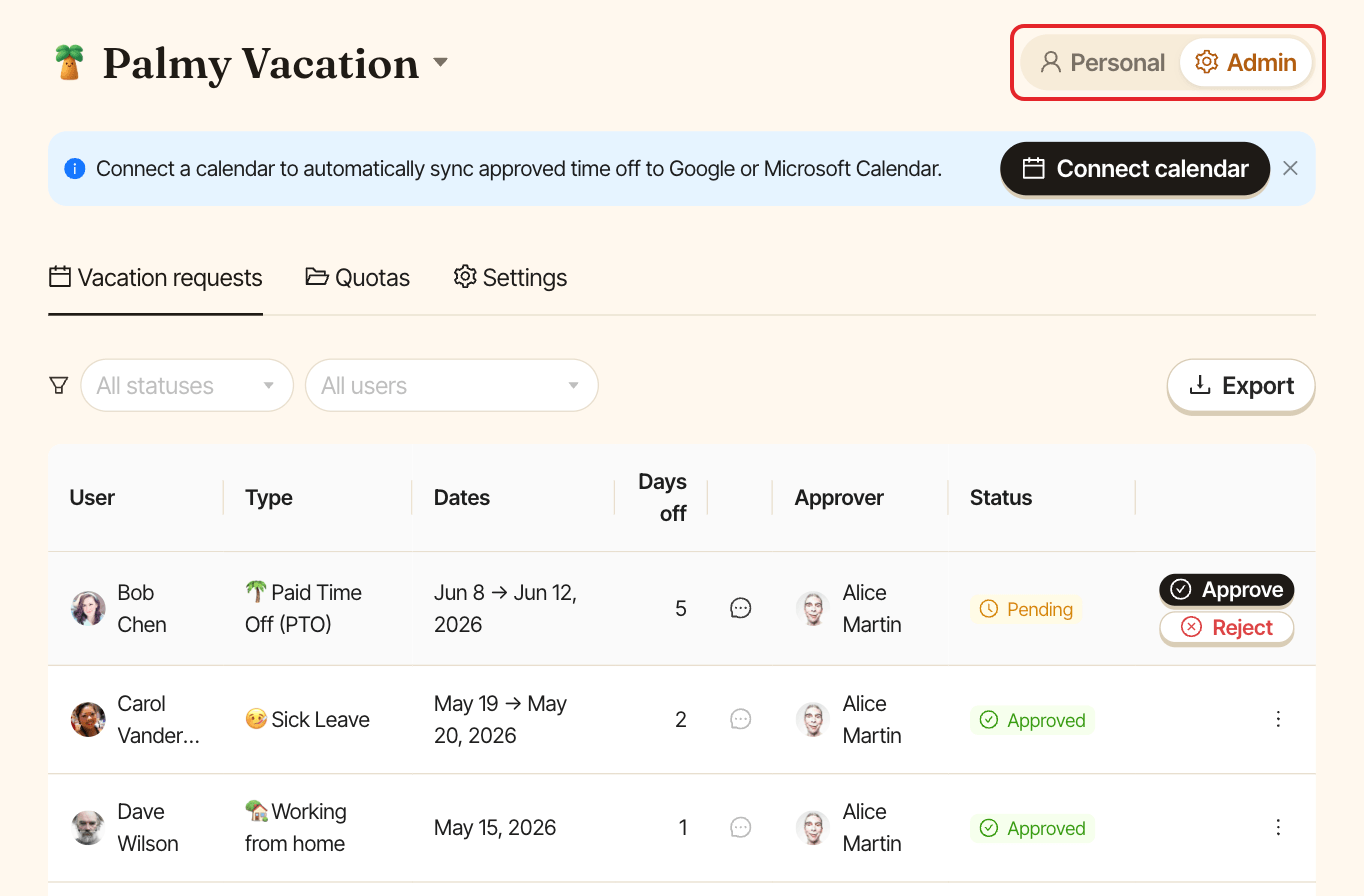
- Personal shows your balances, the
New leave requestbutton,My requestsand, if someone picked you as their approver,Pending your approval. - Admin has three tabs:
Vacation requests(every request, filters andExport),QuotasandSettings.
What's in the Slack Home tab#
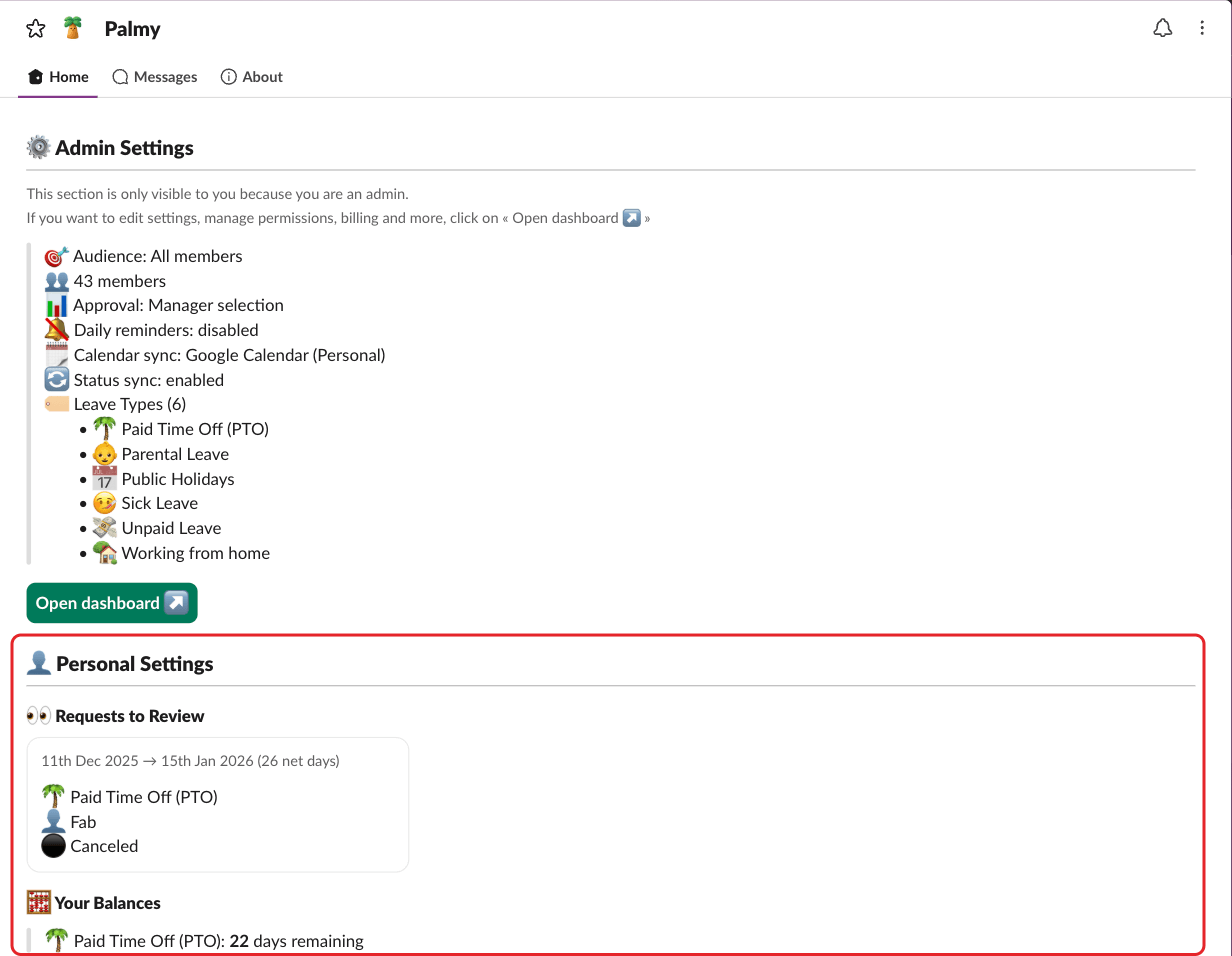
Open the Palmy app in Slack and click the Home tab.
⚙️ Admin Settings(admins only, "This section is only visible to you because you are an admin."): a read-only summary of the audience, the approval mode, daily reminders, calendar sync, status sync and leave types, plusOpen dashboard ↗. Settings are edited in the web dashboard.👤 Personal Settings(everyone):👀 Requests to Review: requests waiting for your approval, with✅ Approveand❌ Reject, then the ones you reviewed recently.🧮 Your Balances: days remaining for each leave type with a quota.🗓️ Your Time Off:➕ New time off requestand your last 10 requests, each with🚫 Cancel requestwhen it can still be canceled.
During a free trial, admins also see how many days are left at the top of the Home tab. See plans and free trial.
If Slack is disconnected#
If Palmy is uninstalled from Slack, the admin pages of the web dashboard show a banner saying so. Reinstall Palmy with the install guide.