Sync time off with Google Calendar or Outlook
Palmy admins connect one shared Google Calendar or Microsoft Outlook calendar so every approved time off request shows up as an event the team can see.
 SlackUpdated Oct 5, 20262 min read
In Palmy, the BuddiesHR time-off tracker for Slack, an admin connects one shared calendar for the whole team, from Admin › Settings › Calendar in the web dashboard. From then on, every approved request becomes an event in that calendar.
Step 1: Open the calendar settings#
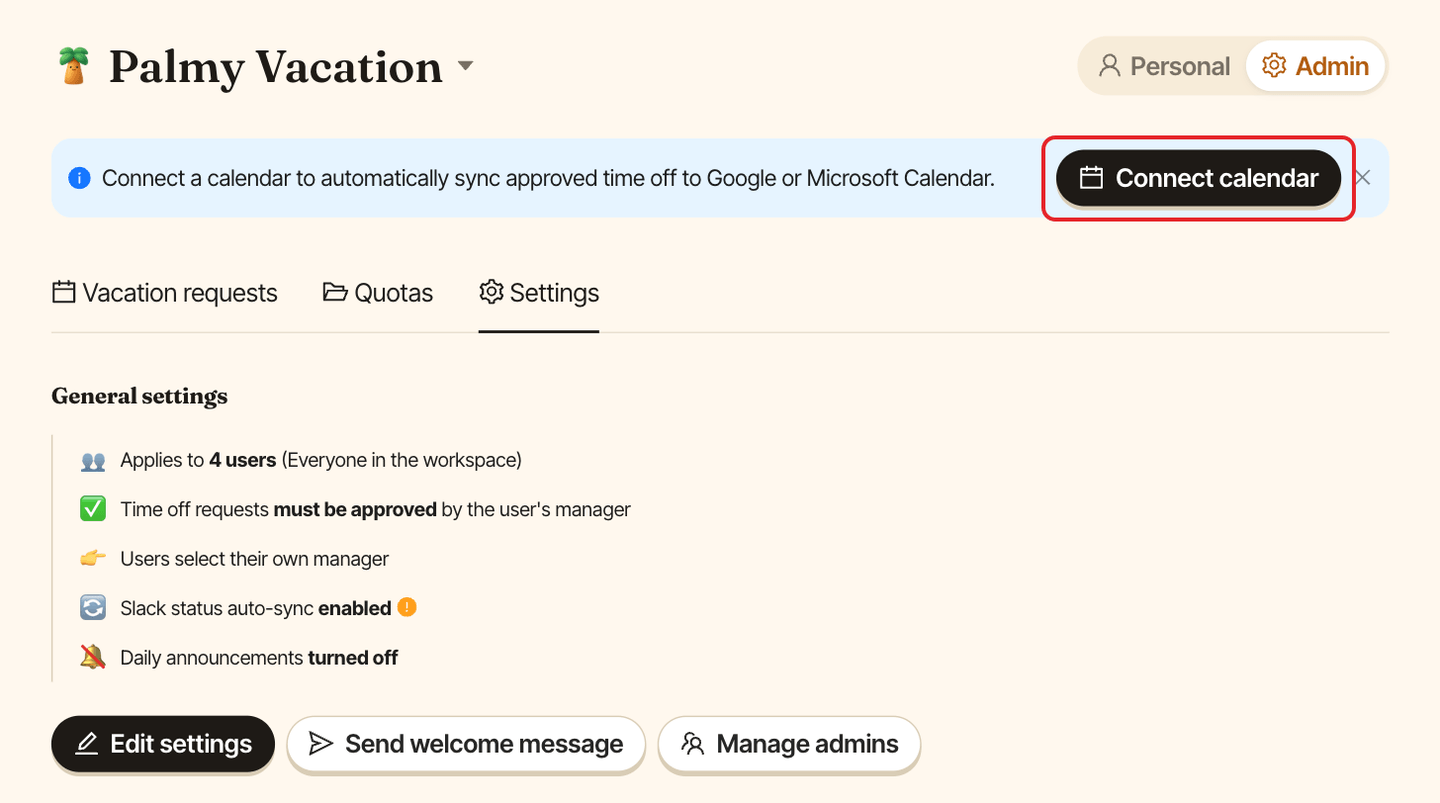
In the web dashboard, switch to Admin, open the Settings tab and find the Calendar section. Click Connect calendar.
You can also click Connect calendar in the banner "Connect a calendar to automatically sync approved time off to Google or Microsoft Calendar." at the top of the admin pages.
Step 2: Choose the provider#
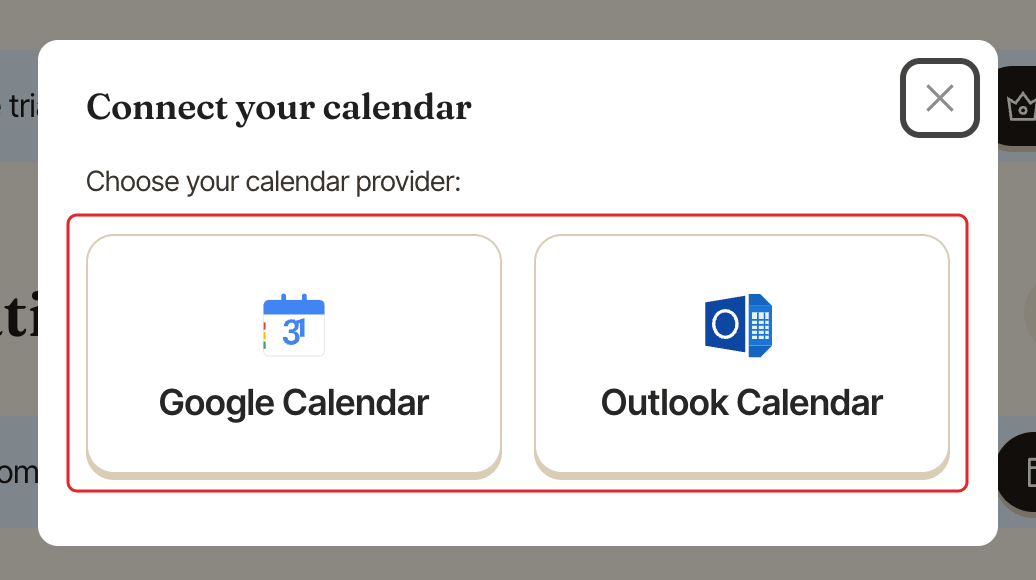
In Connect your calendar, click Google Calendar or Outlook Calendar.
Step 3: Accept the permissions#
Sign in to your Google or Microsoft account and allow Palmy to access your calendars.
Step 4: Choose the calendar#
Back in Palmy, you see Calendar connected successfully!, your primary calendar is selected and the Calendar settings window opens. Keep it or pick another calendar, then click Save. Calendars marked Read-only can't be picked.
The Calendar section now shows Connected. To change calendar later, click Edit calendar settings.
What gets synced#
- Requests approved after you connect the calendar. Earlier requests aren't added.
- Each event is titled
<name> • <leave type>, for exampleJane Doe • 🌴 Paid Time Off (PTO), and lists the type, the employee's name and email, and the dates. - The request's note is not copied to the calendar.
- When an approved request is canceled, its event is removed.
If the sync stops#
- The connection was revoked: Palmy disconnects the calendar and sends you a message saying the calendar connection was disconnected, with
🔌 Reconnect calendar. - The calendar became read-only: the
Calendarsection showsApproved time off isn't syncing, and Palmy sends you a DM with📅 Choose another calendar. ClickChoose another calendarin the warning to fix it.
Disconnect the calendar#
In the Calendar section, click Edit calendar settings, then Disconnect calendar. Confirm Disconnect calendar? with Disconnect.