Add and edit leave types in Palmy
Palmy admins add, rename, disable or delete the leave types people pick when they request time off in Slack, such as PTO, sick leave or remote work.
 SlackUpdated Oct 5, 20262 min read
Leave types are the options people see in Leave type when they request time off with Palmy, the BuddiesHR time-off tracker for Slack. Admins manage them from Admin › Settings › Edit leave types in the web dashboard.
Default leave types#
Palmy starts with six leave types, all enabled:
🌴 Paid Time Off (PTO)📅 Public Holidays💸 Unpaid Leave🤒 Sick Leave👶 Parental Leave🏡 Working from home
The emoji and name appear in requests, in the Slack status of people on leave, in calendar events and in daily announcements.
Step 1: Open the leave types#
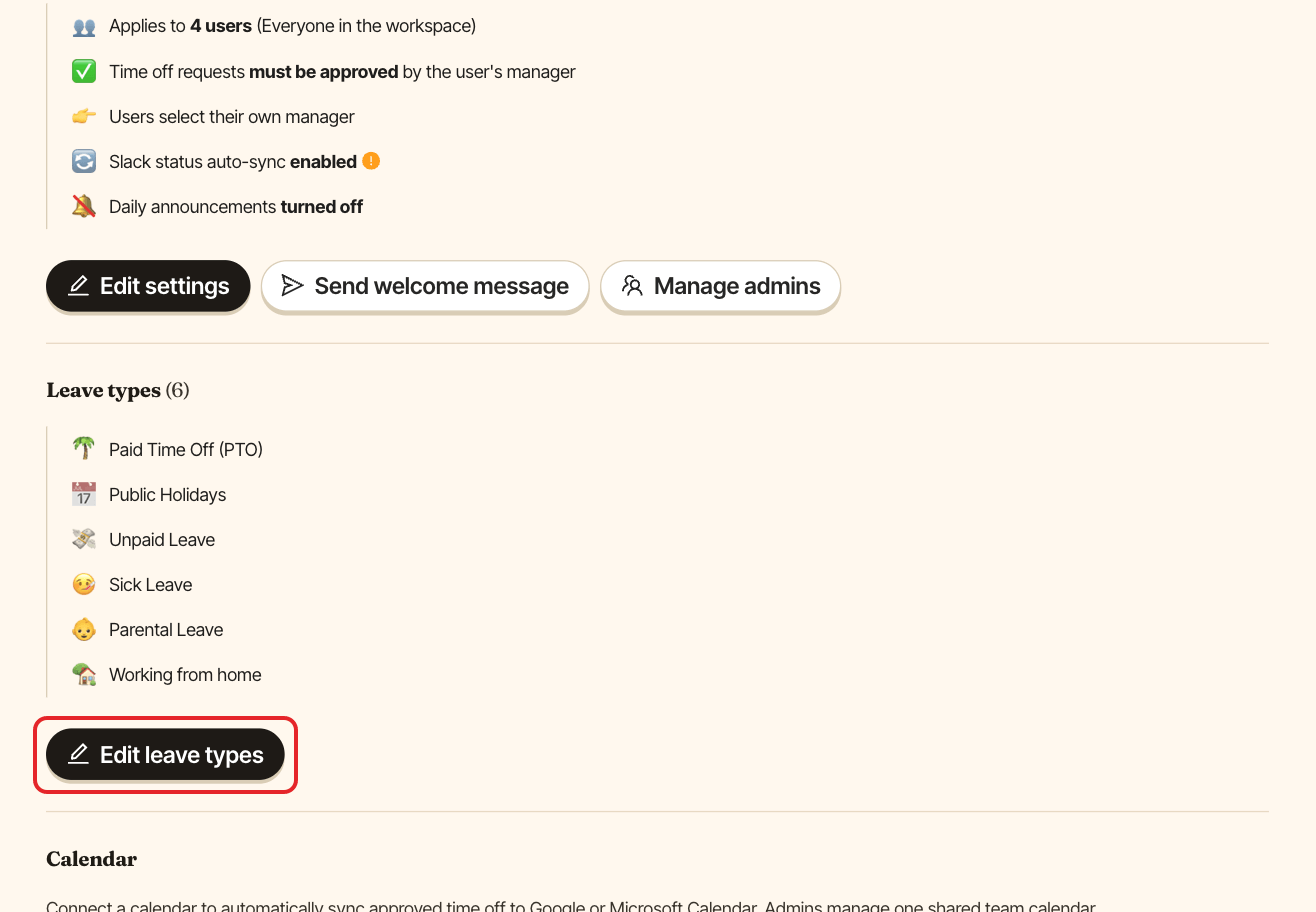
In the web dashboard, switch to Admin, open the Settings tab and click Edit leave types in the Leave types (N) section.
Step 2: Add a leave type#
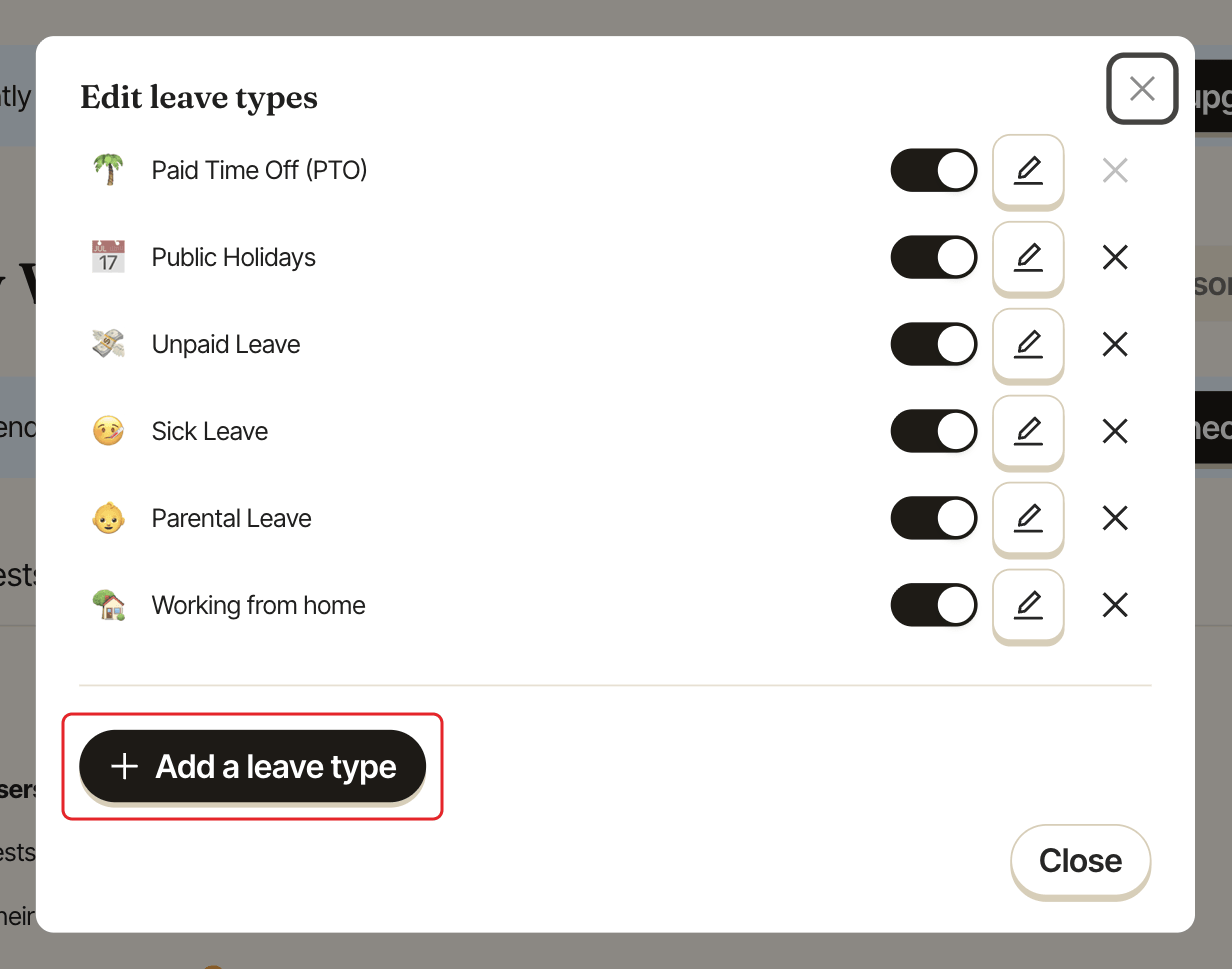
- In the
Edit leave typeswindow, clickAdd a leave type. - Pick an emoji in
Select emojiand type a name inLeave type name(up to 100 characters). Both are required. - Click
Add. You seeLeave type added.
Edit, disable or delete a leave type#
On the leave type's row:
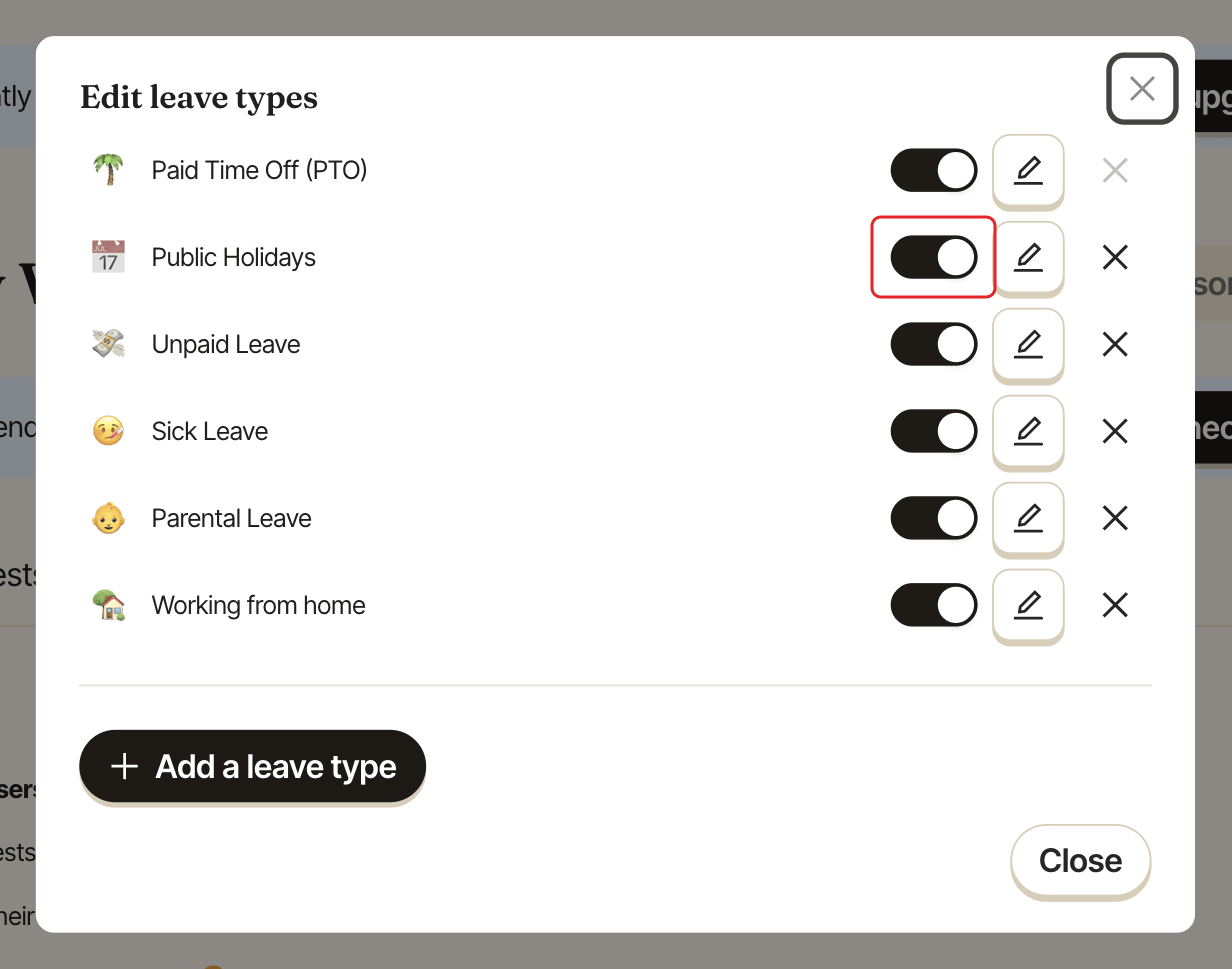
- Edit: click the pencil icon, change the emoji or name, then click the
Saveicon. - Disable: turn off the switch on its row (its tooltip says
Disable) to hide it from the request form. Existing requests and balances are kept. Turn the switch back on to enable it. - Delete: click the
×icon (its tooltip saysDelete), then confirmDelete this leave type?withDelete.
Give a leave type a balance#
A leave type has no limit until you add a quota for it. See set up quotas and accruals.