Send Palmy's welcome message to your team
Palmy admins can DM everyone who can use Palmy a welcome message in Slack that explains how to request time off with the /palmy command.
 SlackUpdated Oct 5, 20261 min read
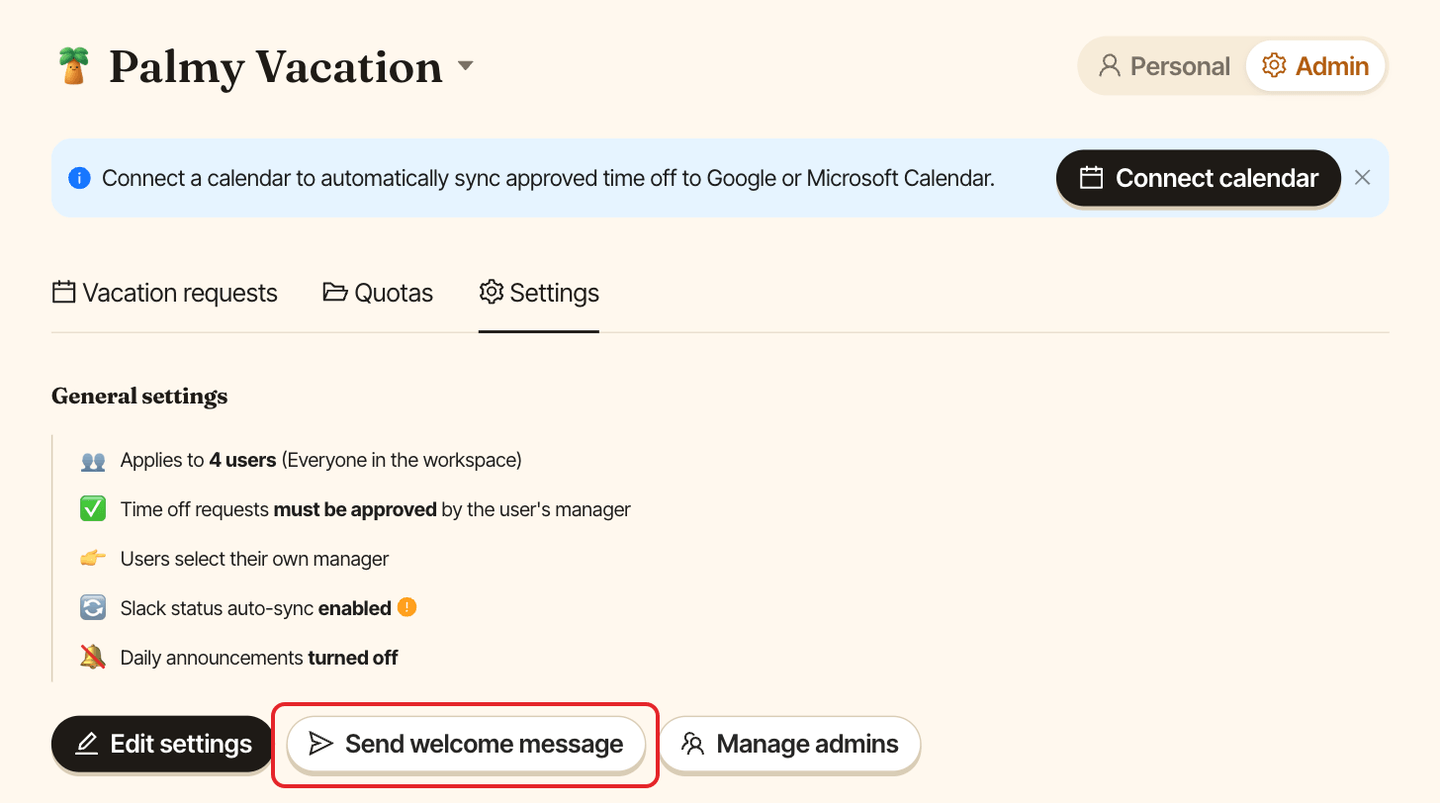
The welcome message of Palmy, the BuddiesHR time-off tracker for Slack, is a DM sent to everyone in Palmy's audience. It introduces Palmy and tells people to run /palmy anywhere in Slack to request time off. You send it during the first setup, or later from Admin › Settings › Send welcome message.
What people receive#
Hey @name, welcome to Palmy 🌴, followed by "I'm the app your Slack workspace is using to keep track of your time off requests." and an invitation to run /palmy.
Send it again#
Re-send it when you've added people to the audience, for example after changing who can use Palmy.
Step 1: Open the settings#
In the web dashboard, switch to Admin and open the Settings tab.
Step 2: Send the message#
Click Send welcome message, then confirm Send the welcome message? with Send.
If Palmy isn't connected to Slack, the welcome message goes out by email instead.
The first time someone opens Palmy#
Separately, the first time a person opens Palmy's Home tab in Slack, Palmy sends them a one-time welcome DM.