Add or remove Palmy admins
Give teammates admin access to Palmy, the time-off tracker for Slack, or remove it, from Manage admins in the Settings tab of the web dashboard.
 SlackUpdated Oct 5, 20261 min read
The person who installs Palmy, the BuddiesHR time-off tracker for Slack, is its first admin. Palmy admins can add or remove other admins from Admin › Settings › Manage admins in the web dashboard.
What admins can do#
- See and export every request, approve or reject any pending request, and cancel any approved one.
- Manage quotas, balances, leave types and settings.
- Connect the shared calendar.
- See the
Admintoggle in the web dashboard and the⚙️ Admin Settingssection in Palmy's Home tab.
Approving requests doesn't require being an admin: anyone picked as approver can decide on that request.
Step 1: Open Manage admins#
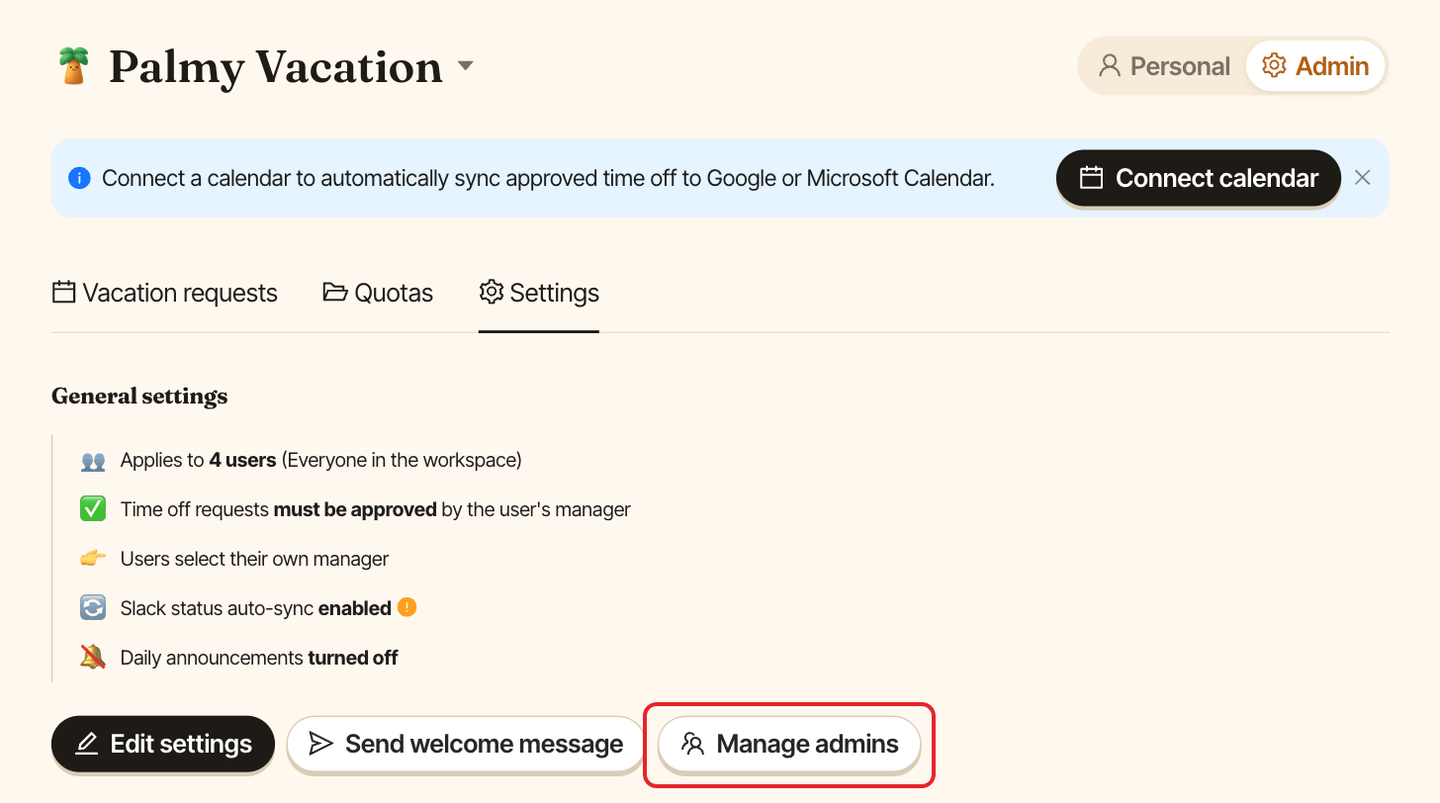
In the web dashboard, switch to Admin, open the Settings tab and click Manage admins.
Step 2: Add or remove an admin#
- To add someone, type their name in
Search for people to add as adminand select them. To remove someone, remove their name from the field. - Click
Confirm. You seeAdmins updated.
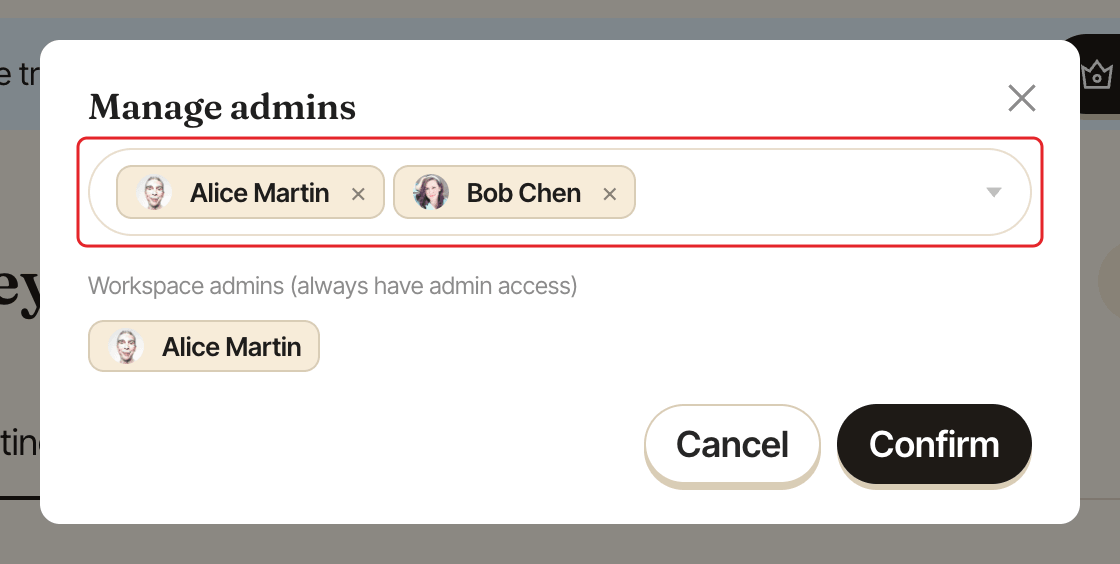
People listed under Workspace admins (always have admin access) are BuddiesHR workspace admins: they're Palmy admins too, and can't be removed here.