Export time off requests to Excel with Palmy
Palmy admins filter the team's leave requests by status or person in the web dashboard and download them as an Excel file for payroll or reporting.
 SlackUpdated Oct 5, 20261 min read
Palmy admins can download every leave request as an Excel file from the web dashboard: Admin › Vacation requests › Export. The file contains the requests that match your filters.
Step 1: Open the requests#
In the web dashboard, switch to Admin and open the Vacation requests tab.
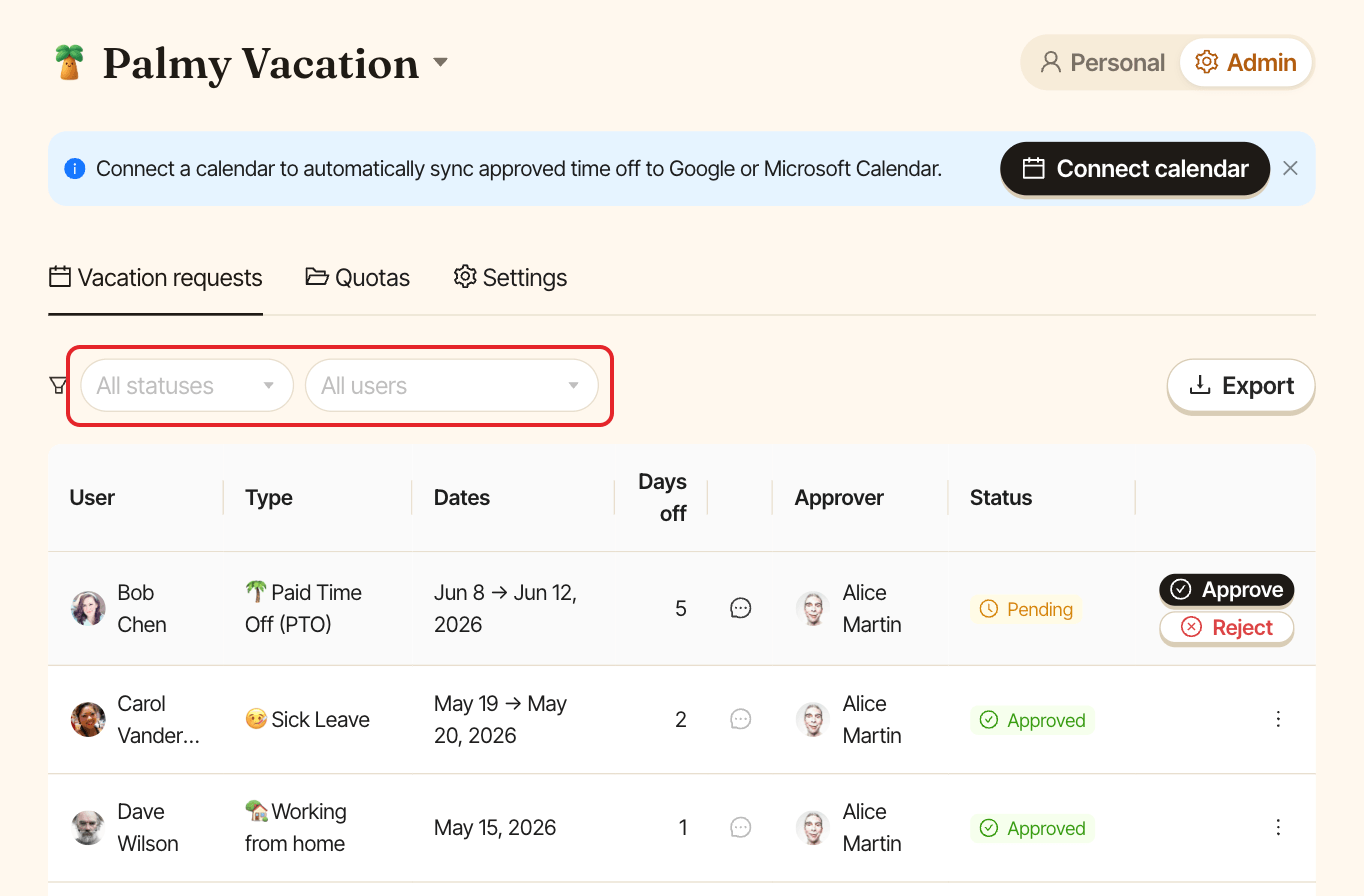
Step 2: Filter the list (optional)#
All statuses: show onlyPending,Approved,RejectedorCanceledrequests.All users: show only one person's requests.
Step 3: Export#
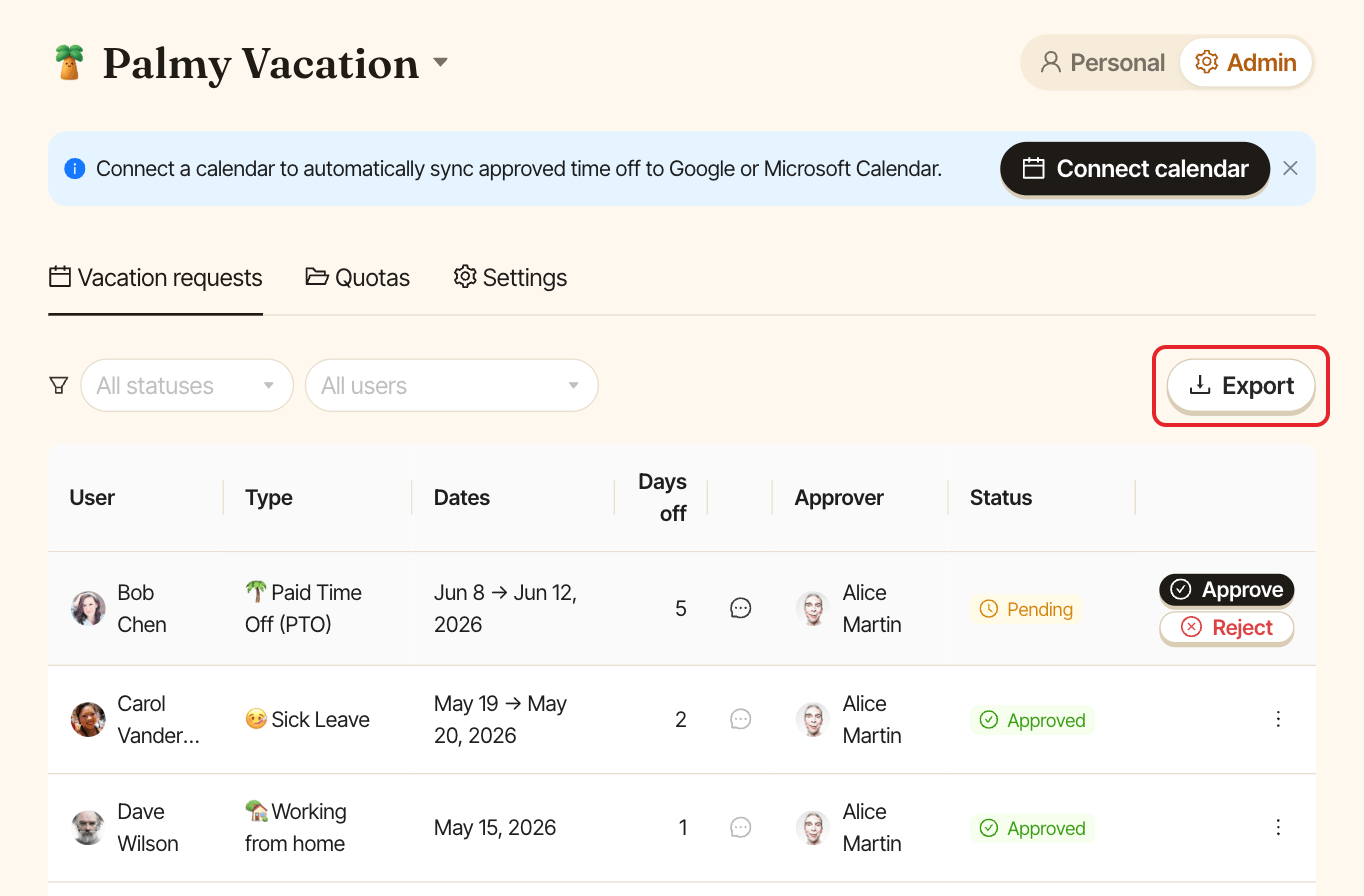
Click Export. Palmy downloads palmy-leave-requests-YYYY-MM-DD.xlsx.
What's in the file#
One row per request, with these columns:
ID, Created on, Status, Requester name, Requester email, Approver name, Approver email, Start date, End date, Net days, Leave type, Note, Rejection reason.
If the download fails, you see Couldn't export the leave requests. Please try again.