Choose who can use Palmy
Palmy admins choose who can request time off in Slack, whether everyone in the workspace, everyone except some people, or only selected users.
 SlackUpdated Oct 5, 20261 min read
By default, everyone in your Slack workspace can use Palmy, the BuddiesHR time-off tracker. Admins can limit it from Admin › Settings › Edit settings › Who should use Palmy? in the web dashboard.
Step 1: Open the settings#
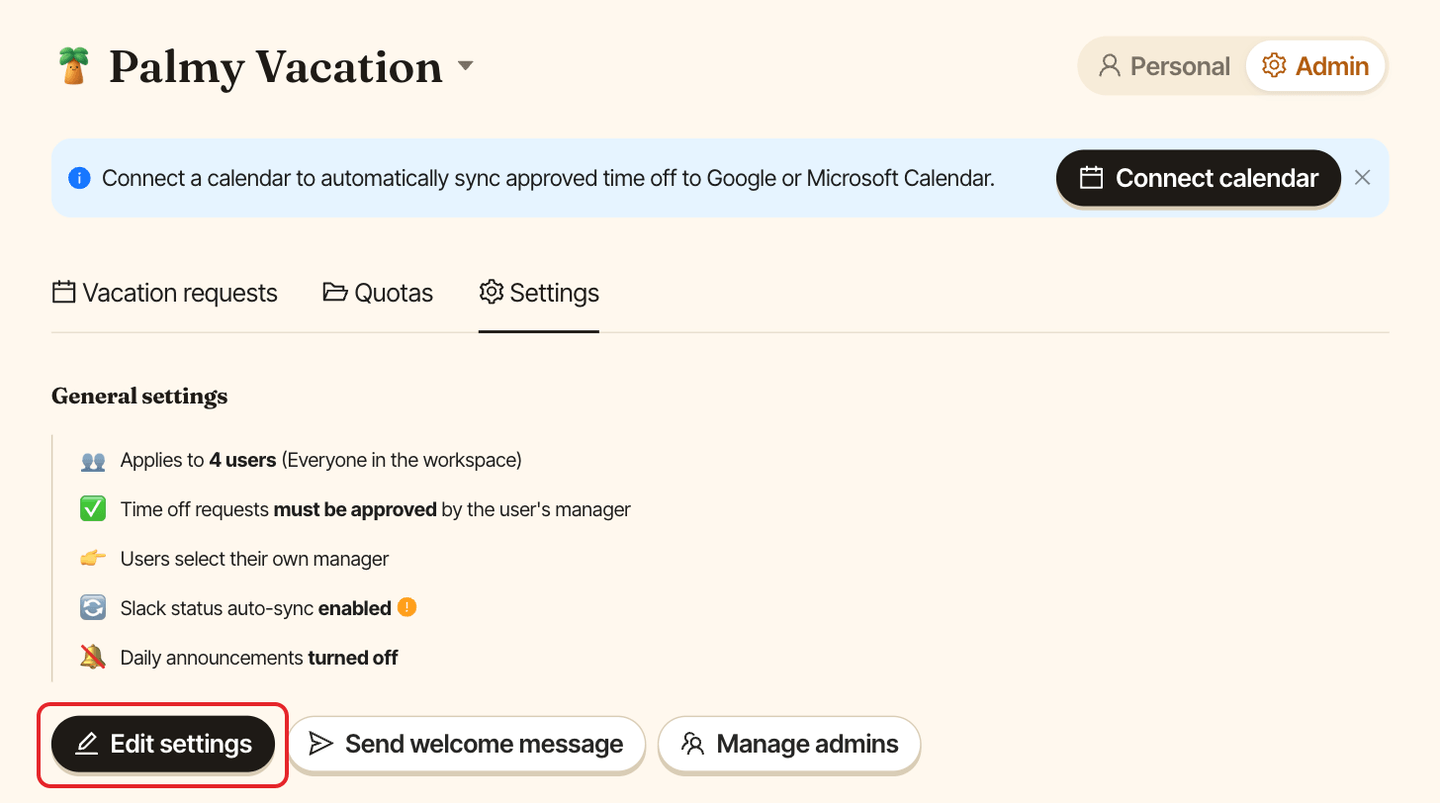
In the web dashboard, switch to Admin, open the Settings tab and click Edit settings.
Step 2: Choose the audience#
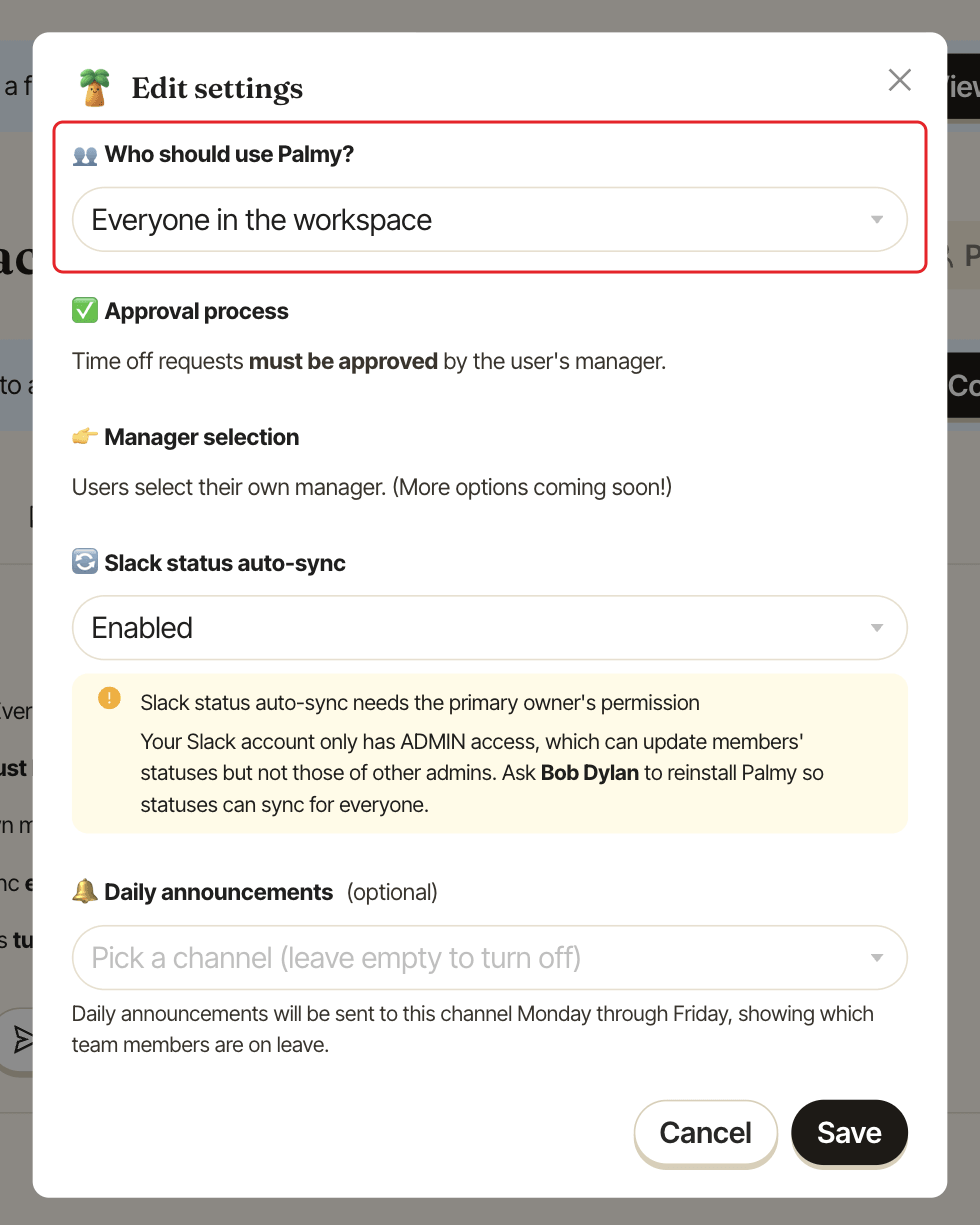
Under Who should use Palmy?, pick:
Everyone in the workspace,Everyone, except selected users, then pick the people to exclude, orOnly selected users, then pick the people who should use Palmy.
Step 3: Save#
Click Save. You see Settings saved. The General settings section then shows Applies to N users. If you picked Everyone, except selected users or Only selected users, select at least one person or Palmy won't save.
What changes for people outside the audience#
- They can't request time off.
/palmyreplies "You're not currently scoped into Palmy. Reach out to a workspace admin to be added." - They don't get the welcome message.
- Their leave isn't listed in daily announcements.
If you add people later, you can send them the welcome message.