Set Slack status automatically during leave with Palmy
With Slack status auto-sync on, Palmy sets the Slack status of people on approved leave to their leave type and Slack clears it after their last day.
 SlackUpdated Oct 5, 20262 min read
With Slack status auto-sync turned on, Palmy, the BuddiesHR time-off tracker for Slack, sets the Slack status of people on approved leave to their leave type, for example 🌴 Paid Time Off (PTO). Slack clears it automatically at 23:59:59 on the last day of the leave, so nobody has to remember to update their status.
Turn Slack status auto-sync on or off#
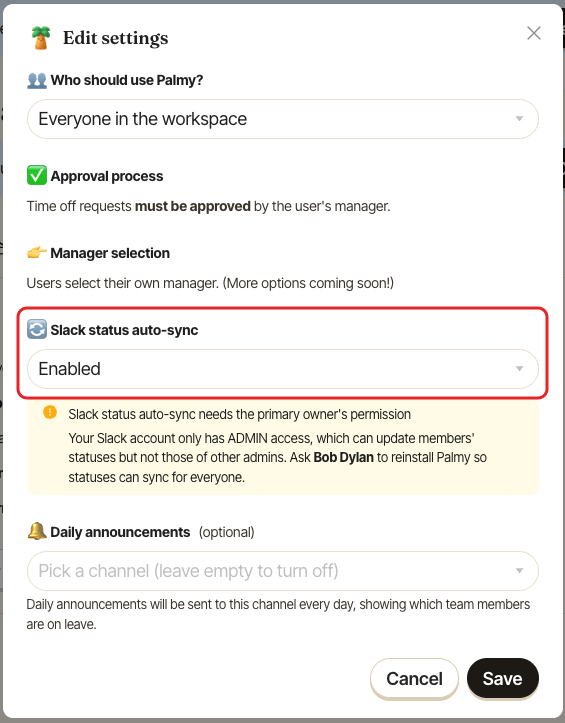
- In the web dashboard, switch to
Admin, open theSettingstab and clickEdit settings. - Under
Slack status auto-sync, chooseEnabledto turn it on, orDisabledto turn it off. - Click
Save.
The General settings section then shows Slack status auto-sync enabled or disabled, and the ⚙️ Admin Settings section of Palmy's Home tab shows 🔄 Status sync: enabled or disabled.
When the status is set#
- At midnight on the first day of the leave, in the person's own time zone.
- Right away, if the request is approved on or after its start date, while the leave is still going on.
The status uses the leave type's emoji and name. To change what people see, rename the leave type.
If an approved request is canceled after its status was set, Palmy doesn't remove the status. The person clears it in Slack.
Permissions Palmy needs#
Slack only lets an app change someone's status with the right permission:
- If the person allowed Palmy to update their profile, Palmy uses that.
- Otherwise, Palmy uses the permission of a Slack admin or owner who installed it. A Slack admin can't change the status of other admins or owners: only the primary owner can update everyone's.
When status auto-sync is on and Palmy doesn't have the primary owner's permission, the Settings tab of the web dashboard shows a warning icon next to Slack status auto-sync: Slack status auto-sync needs the primary owner's permission, with the name of the person to ask.
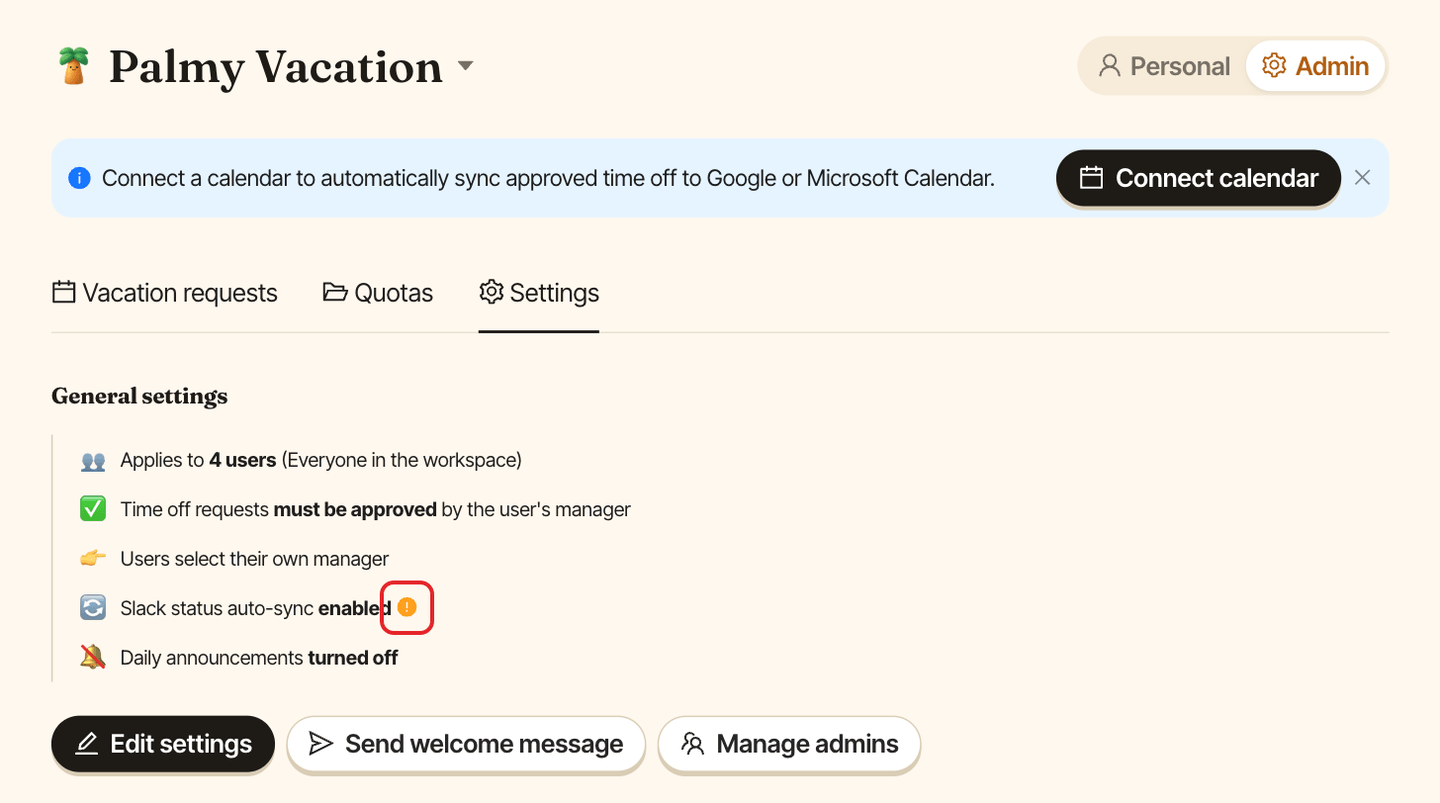
To fix it, ask your workspace's primary owner to install Palmy again from the Palmy page and click Allow.
If a status can't be updated#
Palmy sends its admins a DM, ⚠️ Palmy couldn't update some teammates' Slack status, with the people concerned and the reason.