Approve or reject a time off request in Palmy
Approve or reject a Palmy leave request from the Slack DM, the Home tab or the web dashboard, and see what happens to balances, calendar and status.
 SlackUpdated Oct 5, 20263 min read
When someone picks you as their approver, Palmy, the BuddiesHR time-off tracker for Slack, sends you a DM 🆕 New leave request from <name> with Approve and Reject buttons. Click one, confirm, and the requester is notified right away.
Approve or reject in Slack#
Step 1: Find the request#
Use either:
- the
🆕 New leave request from <name>DM, or - Palmy's
Hometab, under👀 Requests to Review. Requests waiting for you come first, followed by the ones you reviewed recently.
Step 2: Approve#
Click Approve (or ✅ Approve in the Home tab). The Approve request window shows the request: check it and confirm.
Step 2 (alternative): Reject#
Click Reject (or ❌ Reject). In the Reject request window, fill in Reason: it's required, and the requester sees it. Then confirm.
The DM updates in place with your decision. In Slack, only the assigned approver can decide: anyone else gets Only the assigned approver can decide on this request.
Approve or reject on the web#
As the approver#
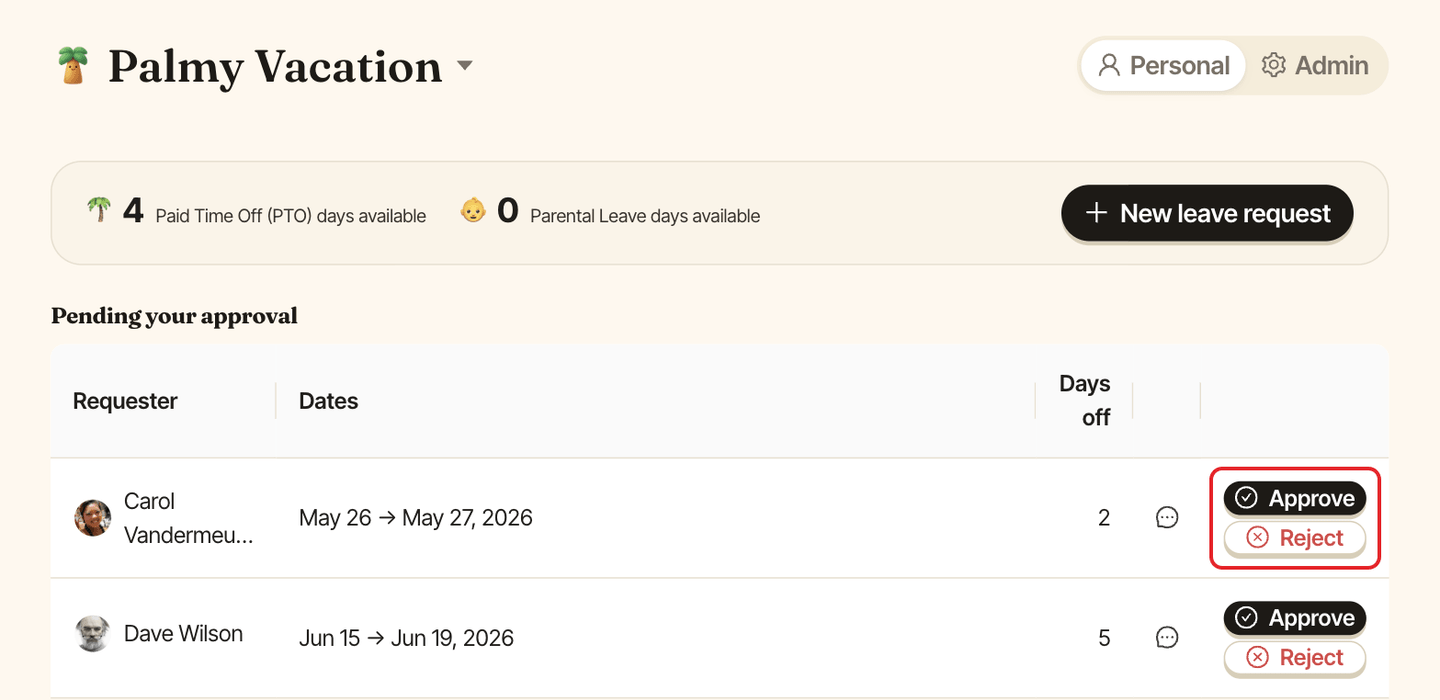
- Open the web dashboard in
Personalmode. - In
Pending your approval, clickApproveorRejecton the row. - Confirm
Approve this leave request?withApprove, or write the reason and confirm the rejection.
As an admin#
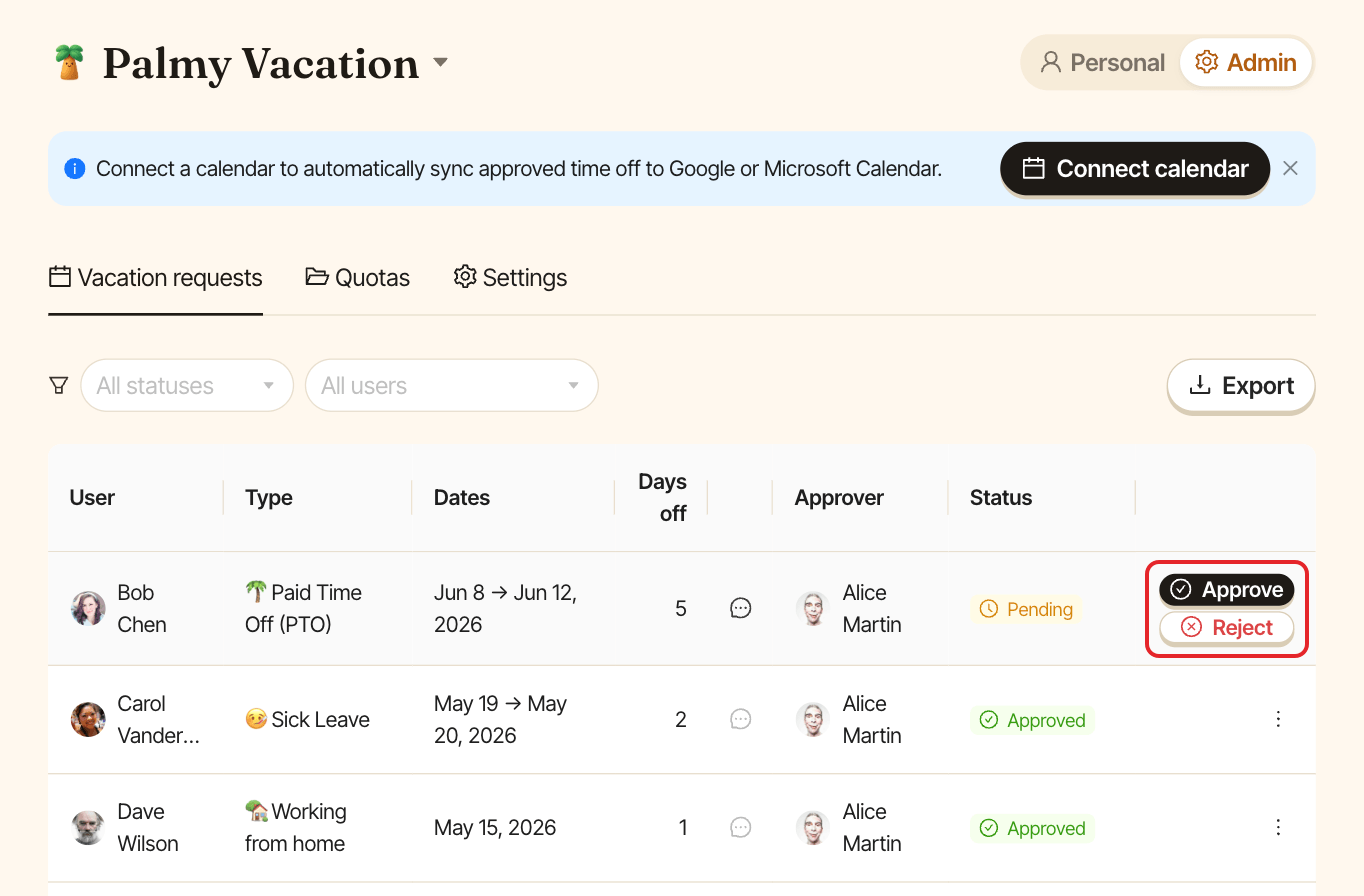
Admins can decide on any pending request, even when they weren't picked as approver.
- Switch to
Adminand open theVacation requeststab. - On a
Pendingrow, clickApproveorReject. - If you aren't the approver, Palmy warns
You're not the assigned approver. Confirm to go ahead. - To reject, fill in
Reason (required)(up to 500 characters) inReject leave requestand clickReject request.
What happens after you approve#
- The days are taken off the requester's balance if the leave type has a quota. On the web, the confirmation window shows the impact on the balance.
- The requester gets a DM saying their leave request has been approved ✅.
- The leave is added to the shared calendar, if one is connected.
- If Slack status auto-sync is on, Palmy sets the requester's Slack status when the leave starts.
If you reject, the requester gets 🛑 Your leave request has been rejected. with your reason.
Reminders for pending requests#
About 72 hours after a request is created, if it's still pending, the approver gets one reminder DM: ⏰ N pending leave requests waiting for your review. Each request is reminded once. If Palmy isn't connected to Slack, the reminder goes out by email.
Who approves requests#
The person asking for time off picks the approver each time, usually their manager. Palmy has no fixed approver per team and no multi-step approval. See how approvals work.