Set up PTO quotas and accruals in Palmy
Create a Palmy leave quota that adds days to people's balance every month or every year, and choose whether their balance can go negative.
 SlackUpdated Oct 5, 20263 min read
In Palmy, the BuddiesHR time-off tracker for Slack, a quota gives people a balance for a leave type and adds days to it automatically, for example 2 days of PTO on the 1st of every month. Admins create quotas in the web dashboard: Admin › Quotas › Create quota.
Leave types without a quota are unlimited: no balance, no check when people request them.
Create a quota#
Step 1: Open the quotas#
In the web dashboard, switch to Admin and open the Quotas tab. The Leave quotas page lists your quotas.
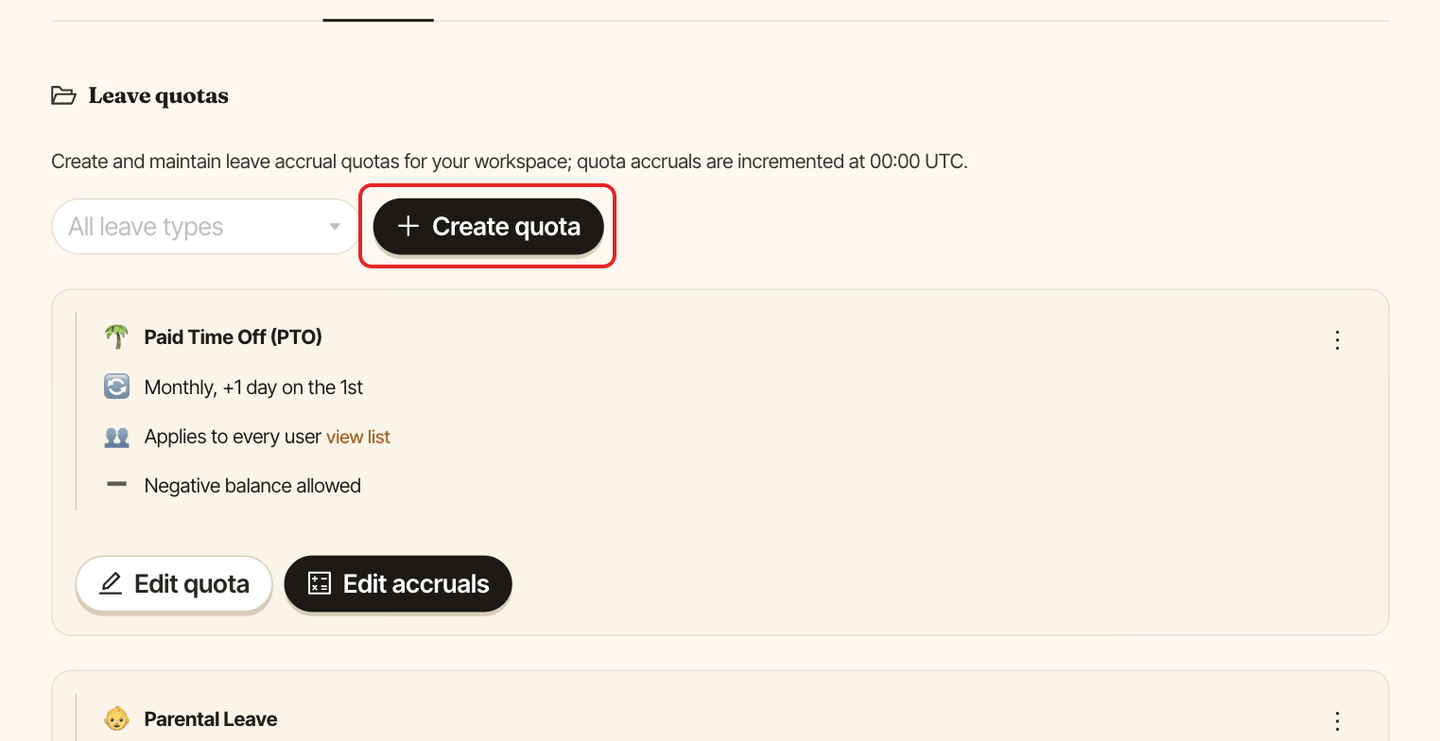
Step 2: Click Create quota#
Step 3: Fill in the form#
| Field | What it does | Default |
|---|---|---|
Leave type |
The leave type the days are added to. | The first enabled leave type |
Frequency |
Monthly or Yearly. |
Monthly |
Days per cycle |
Days added each time. Fractions are allowed, for example 2.5. |
1 |
Reset month |
Yearly quotas only: the month days are added. | January |
Reset day |
The day of the month days are added, from 1 to 28. | 1 |
Who should this quota apply to? |
Everyone in the workspace, Everyone, except selected users or Only selected users. |
Everyone in the workspace |
Allow negative balance |
Lets people request more days than they have, for example new joiners who haven't accrued any PTO yet. | Off |
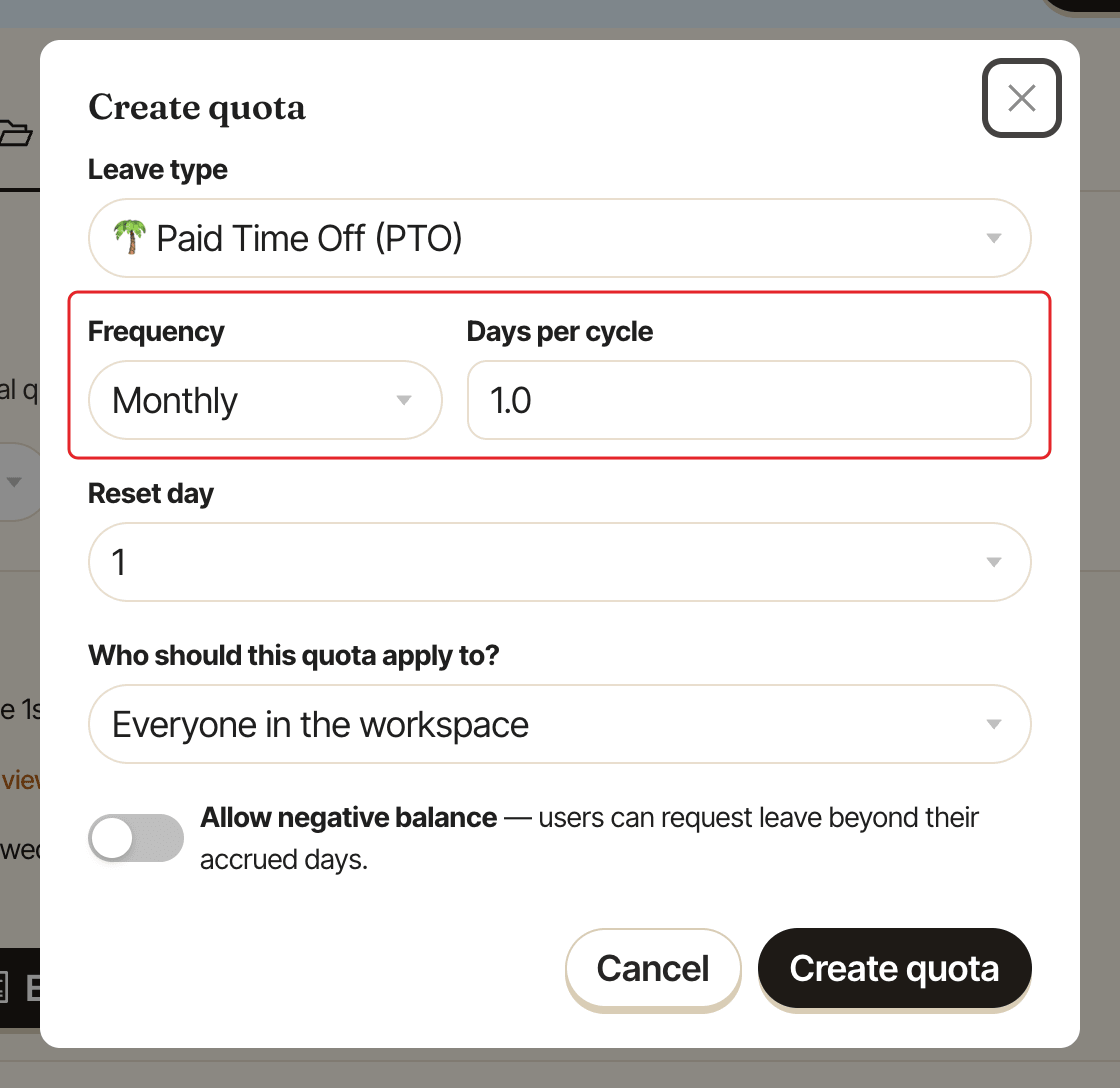
Click Create quota. You see Quota created.
How accrual works#
- Once a day, at midnight UTC, Palmy adds
Days per cycleto the balance of everyone the quota covers, if today is the quota'sReset day(andReset month, for a yearly quota). - Despite the name,
Reset daydoesn't reset the balance to zero: days are added to what's left. There's no cap on carry-over, no expiry and no pro-rating for people who join mid-cycle. - The balance goes down when a request is approved and back up when an approved request is canceled.
Several quotas on one leave type#
A person can be covered by more than one quota for the same leave type, for example a monthly quota for everyone and a yearly bonus for some people. If any of those quotas doesn't allow a negative balance, Palmy enforces it: requests and approvals that would overdraw the balance are refused.
Edit or delete a quota#
On the quota's card:
- click
Edit quotato change it, thenSave, - click
⋯›Delete quotaand confirm withDelete. Balances stay as they are; they just stop growing.
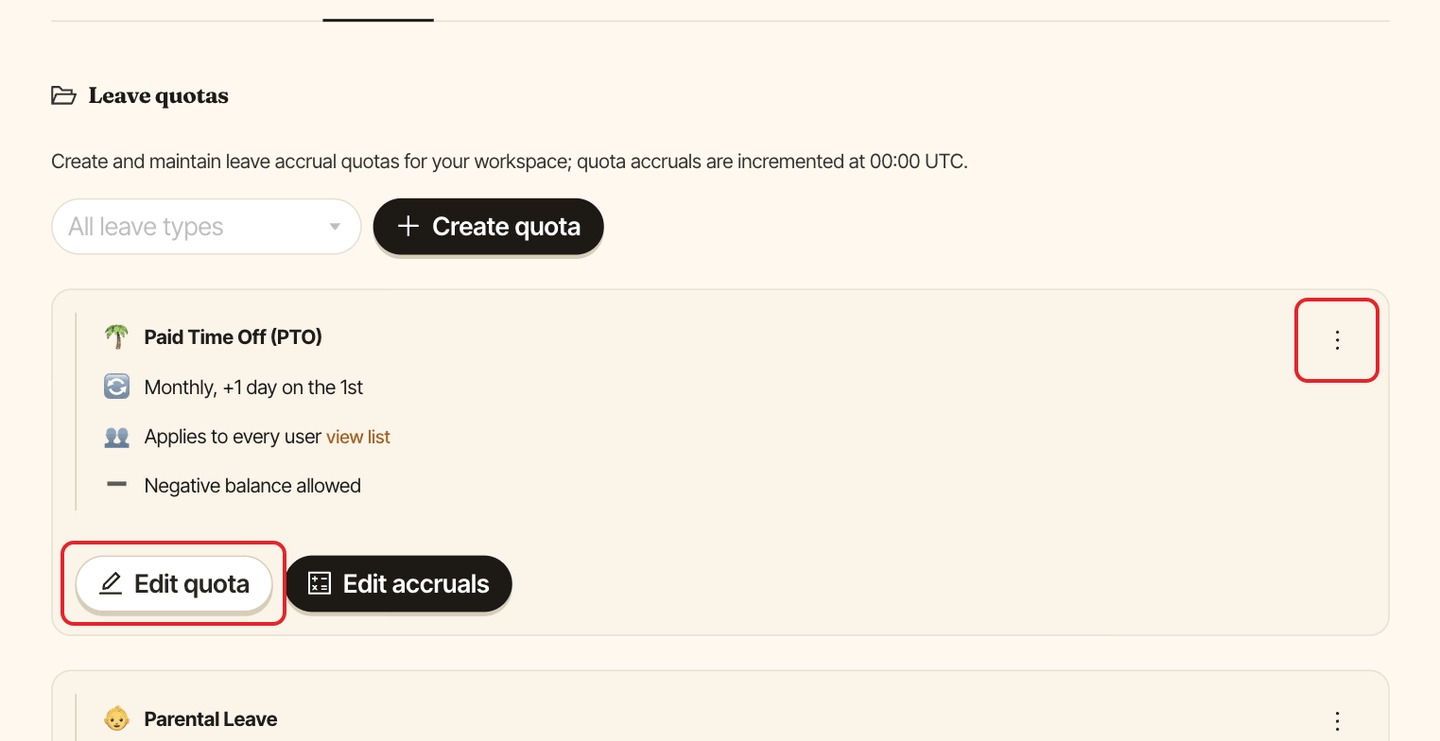
Each card sums up the quota, for example Monthly, +2 days on the 1st. To see who it covers, click view list next to Applies to: the 👥 Users in this quota window opens.
Adjust someone's balance#
To correct a balance by hand, click Edit accruals on the quota. See adjust a person's balance.