Install Palmy in Slack and finish the setup
Add Palmy to your Slack workspace, then choose who can use it, where and when daily announcements go, and whether to send a welcome message.
 SlackUpdated Oct 8, 20262 min read
Installing Palmy, the BuddiesHR time-off tracker for Slack, takes two steps: add the app to Slack, then finish a short setup in the BuddiesHR web dashboard. The person who installs Palmy becomes its first admin.
Step 1: Add Palmy to Slack#
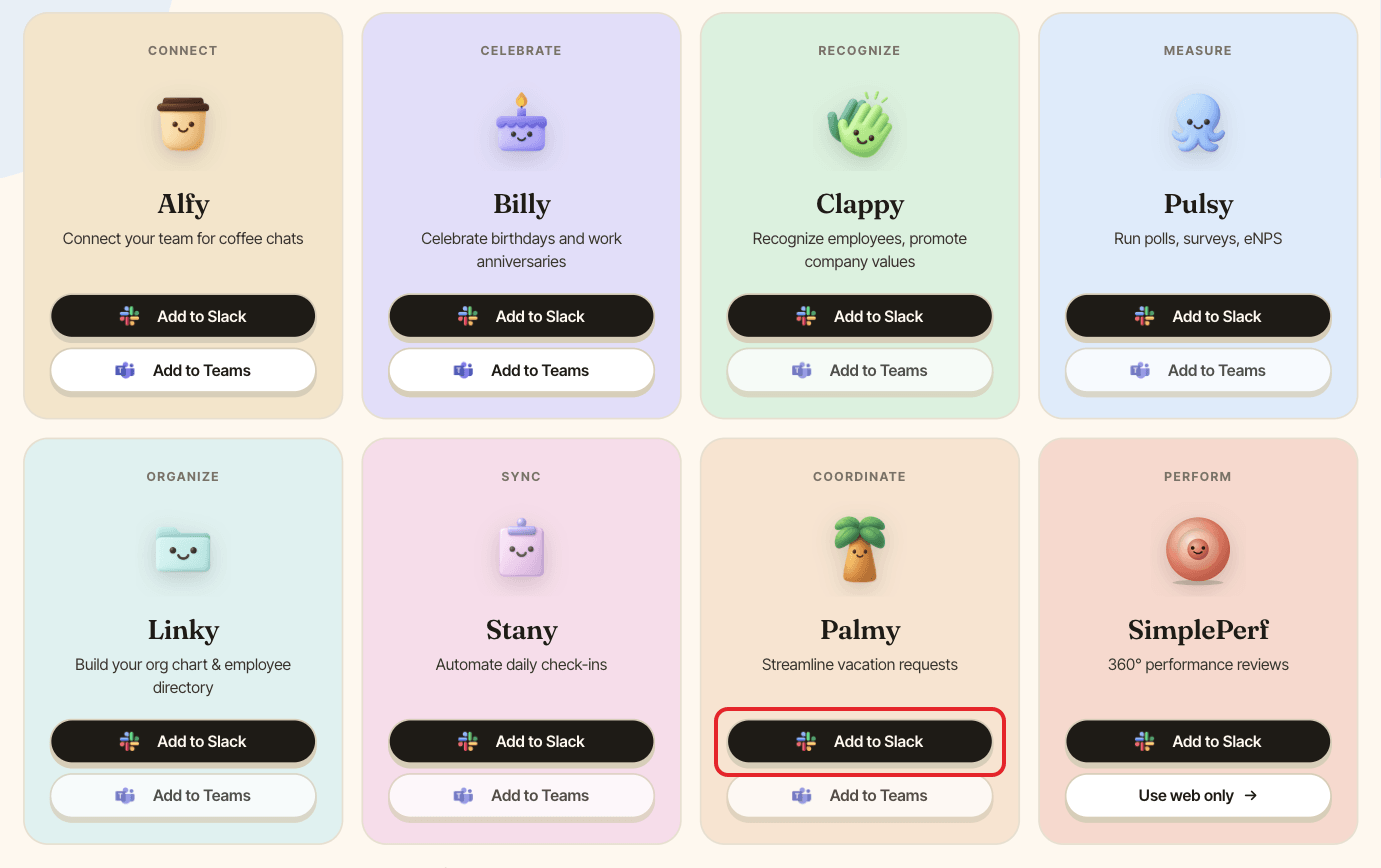
Go to the Get started page and click Add to Slack on the Palmy card. On the Palmy page, Start free in Slack takes you there too.
Check that the right workspace is selected in the top-right corner of Slack's permission screen, then click Allow.
Palmy asks to post messages, read the list of channels and people (with their email addresses), and add the /palmy command. It also asks to update profiles, so it can set the Slack status of people on leave.
Step 2: Choose who should use Palmy#
After the install you land in the web dashboard, on the Setup Palmy page. Under 👥 Who should use Palmy?, pick one option:
Everyone in the workspaceEveryone, except selected usersOnly selected users
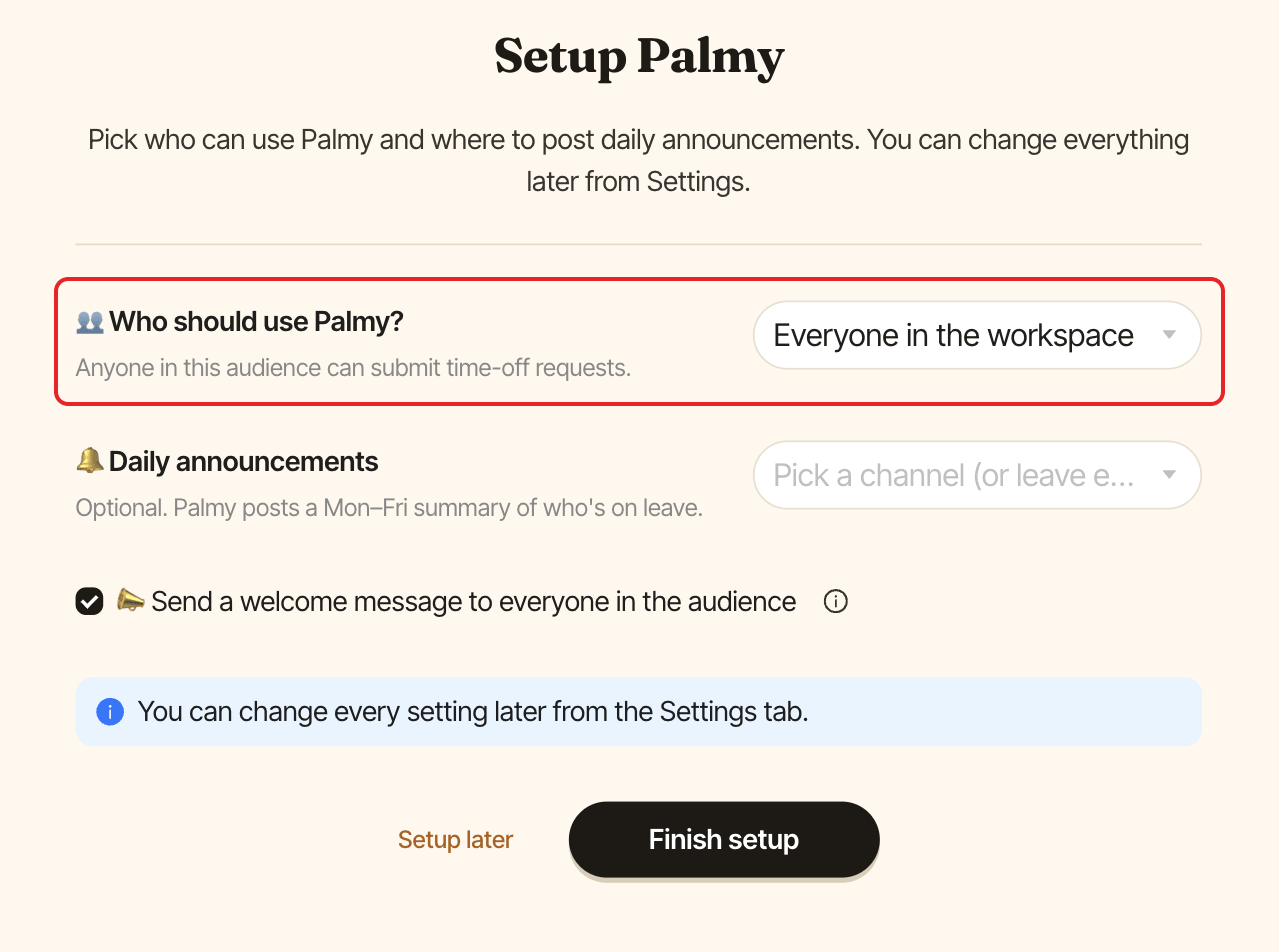
You can change this later. See choose who can use Palmy.
Step 3: Pick a channel for daily announcements (optional)#
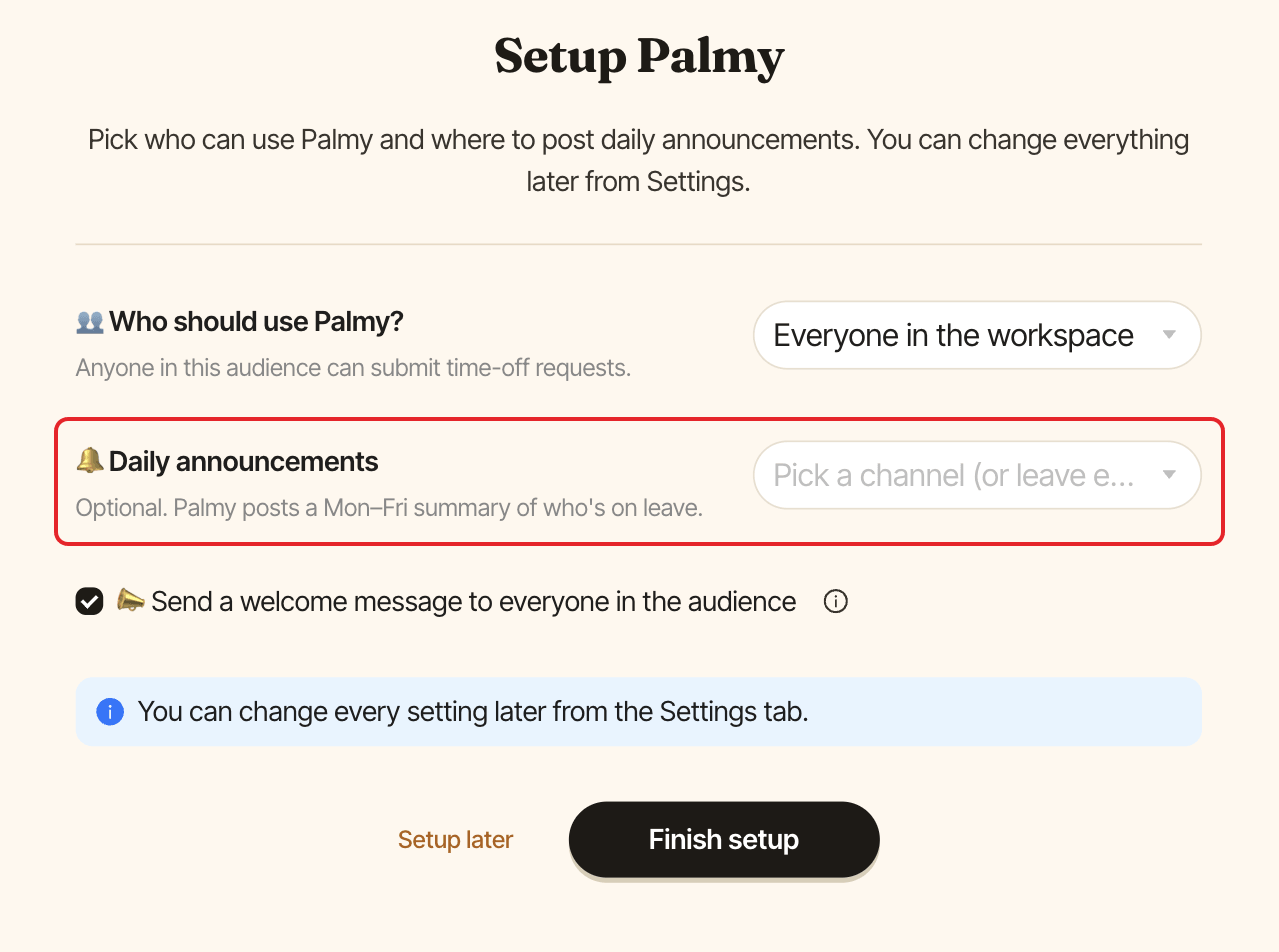
Under 🔔 Daily announcements, pick a channel where Palmy lists who's on leave every day, or leave it empty to skip. Once you pick a channel, choose the hour (9:00am by default). See post daily announcements.
Step 4: Send the welcome message and finish#
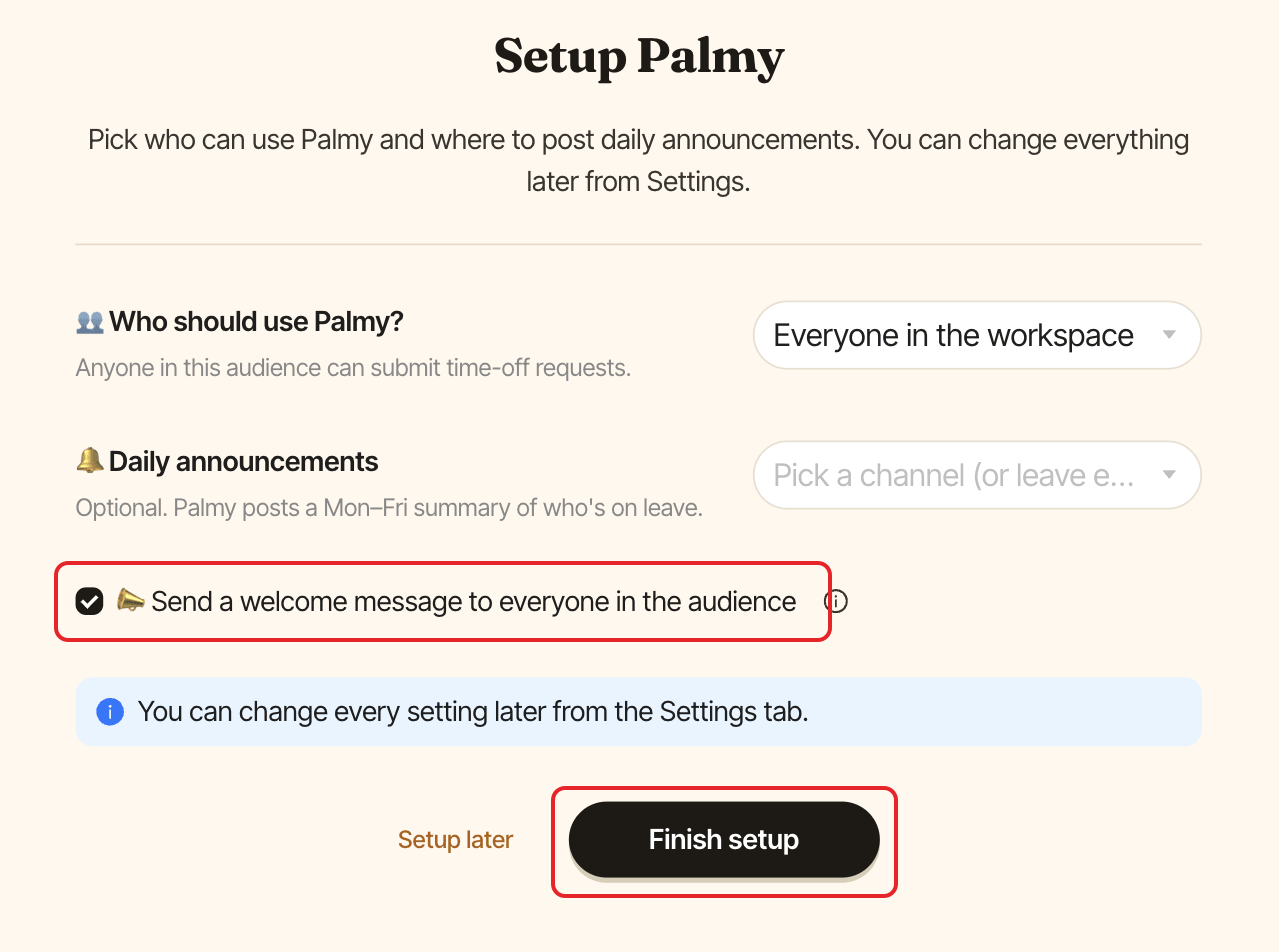
Leave 📣 Send a welcome message to everyone in the audience checked if you want Palmy to DM everyone how to request time off. Then click Finish setup.
You see Congrats! Palmy is set up, and Palmy confirms it in a Slack DM. Closing the window takes you to the Settings tab. Your team can now request time off.
What to set up next#
Palmy comes with six leave types and no quotas, so every leave type is unlimited until you add one. The setup doesn't cover Slack statuses: turn on Slack status auto-sync in the settings if you want them.