Create a performance review cycle in SimplePerf
Create a SimplePerf review cycle in four steps. Name it, choose how reviews are shared, pick the questions and people, then save it or send it.
In SimplePerf, admins create a review cycle in the web dashboard with a four-step builder: Details, Questions, Participants and Review. You can save the cycle as a draft at the last step and finish it later.
Step 1: Open the cycle builder#
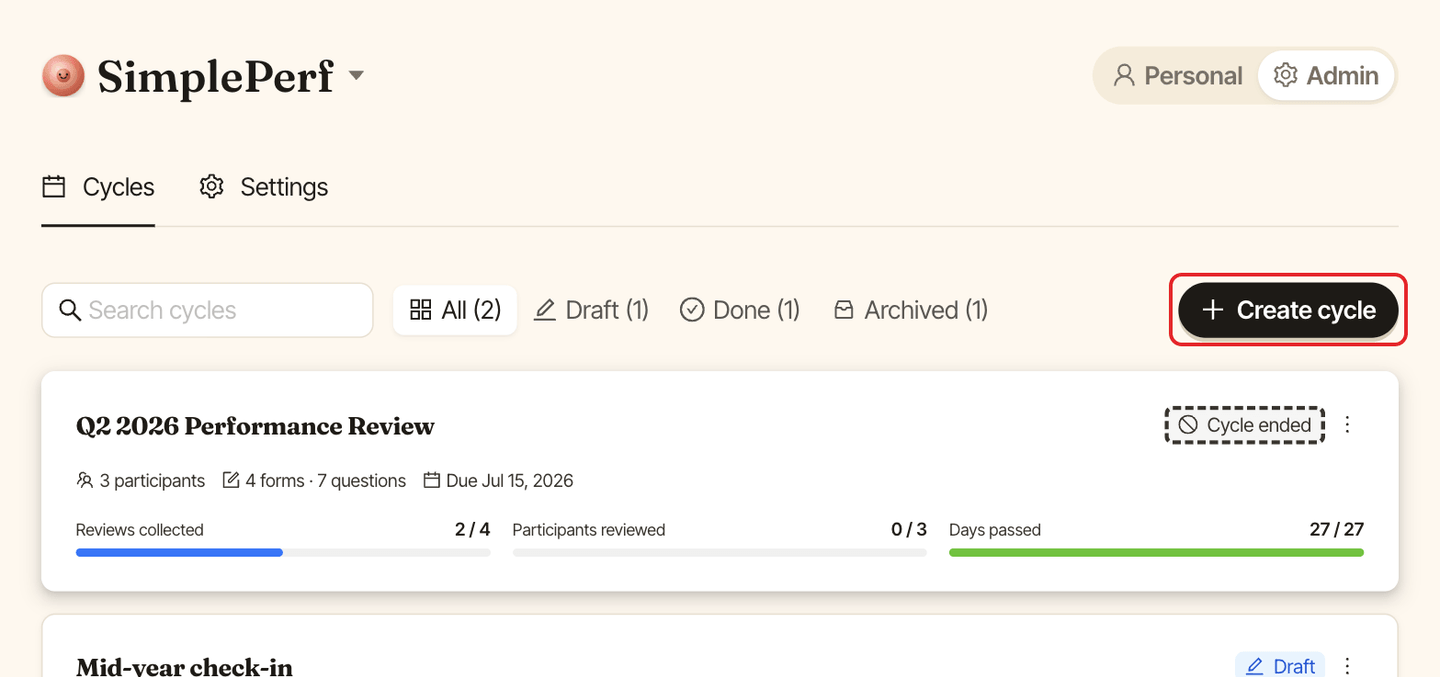
In SimplePerf, switch to Admin (top right), stay on the Cycles tab and click Create cycle.
Step 2: Fill in the details#
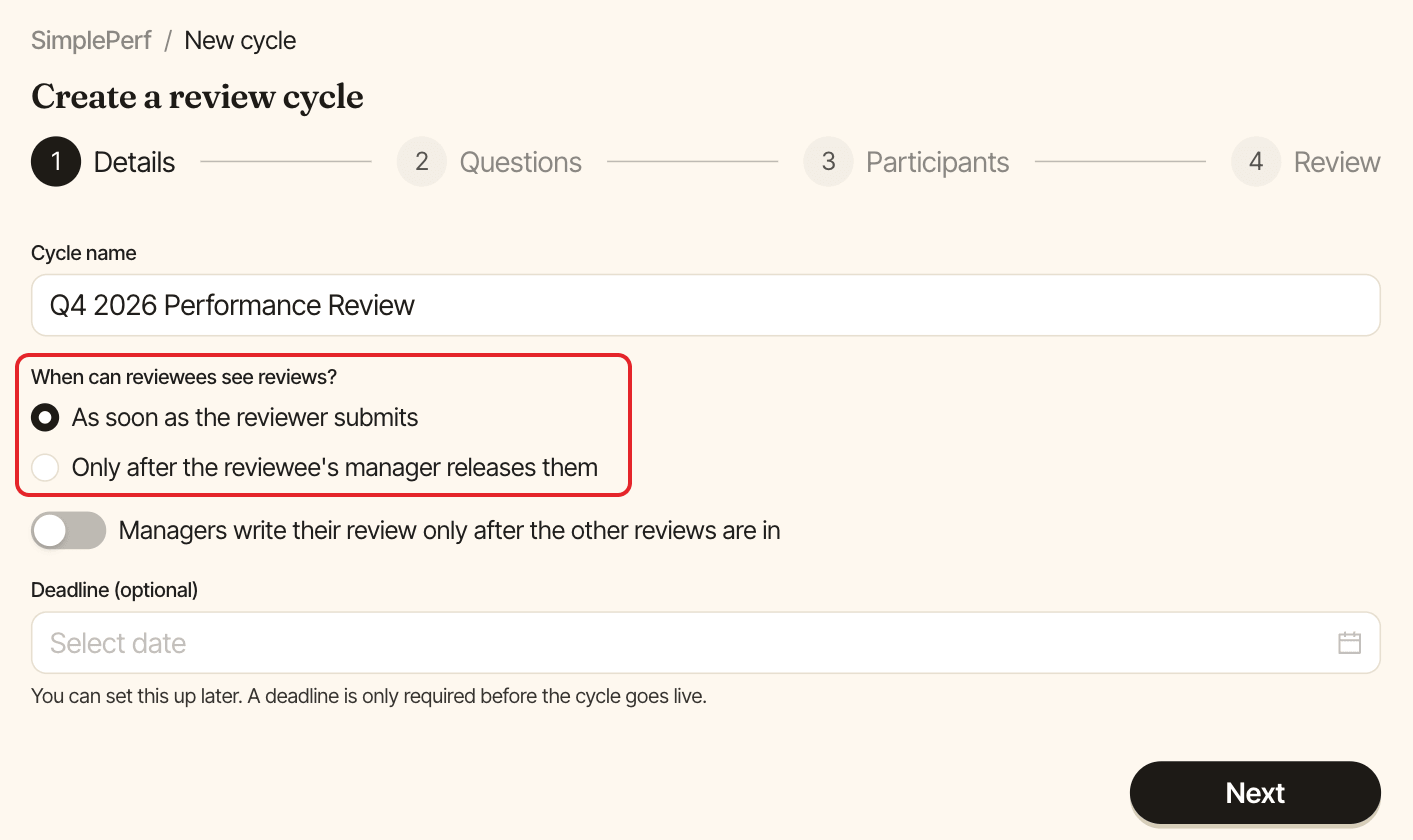
Cycle name: pre-filled with the current quarter, for example "Q4 2026 Performance Review". Change it if you like.When can reviewees see reviews?:As soon as the reviewer submits(default), orOnly after the reviewee's manager releases them. See release reviews.
Managers write their review only after the other reviews are in: turn it on if managers should read the self, peer and upward reviews before writing theirs. Managers then get a message once the other reviews about their report are in. Off by default.Deadline (optional): you can leave it empty for now. You pick the exact deadline date and time when you send the cycle.
Click Next.
Step 3: Choose the questions#
Pick the review types and edit their questions. See add and edit questions.
Step 4: Add the participants#
Choose who is reviewed and by whom. See add participants and reviewers.
Step 5: Check and send#
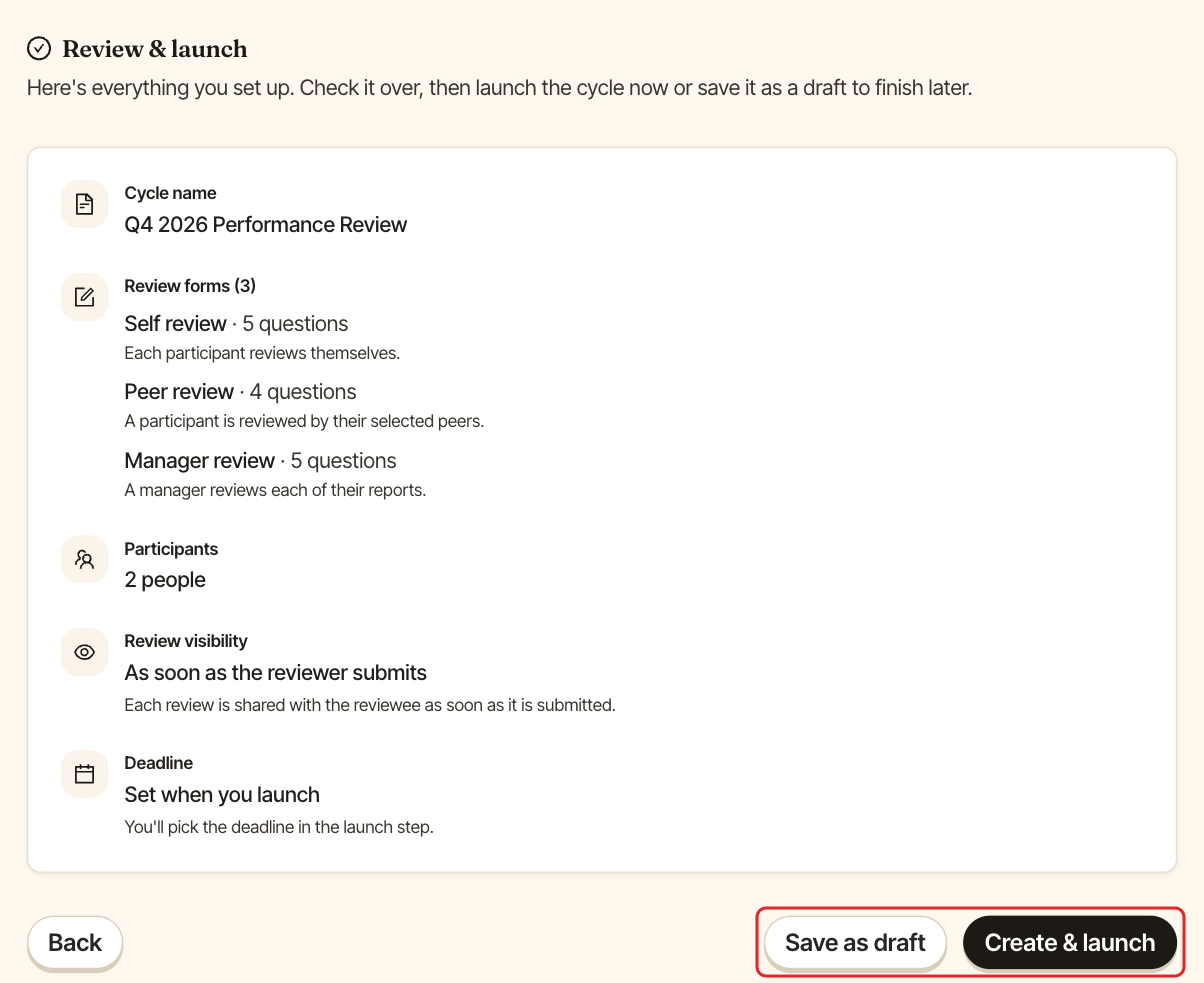
The Review step sums up the cycle: its name, review forms, participants, visibility and deadline. Then:
Save as draftto finish later, orCreate & launchto send it now or schedule it. See launch or schedule a cycle.
Start from an existing cycle#
To reuse last quarter's setup, open the cycle's ⋮ menu in the cycles list and choose Duplicate cycle. See manage your cycles.