Set up a Stany standup in a Slack channel
Add an async standup to a Slack channel with Stany from the BuddiesHR web dashboard, and choose who takes part, when it runs, reminders and questions.
 SlackUpdated Oct 5, 20263 min read
Stany admins add and edit standups on the BuddiesHR web dashboard, one Slack channel per standup, and can run as many standups as they need. Each standup has its own participants, days, time, timezone, deadline, reminders and questions. Only Stany admins can do this.
Step 1: Open the Settings tab#
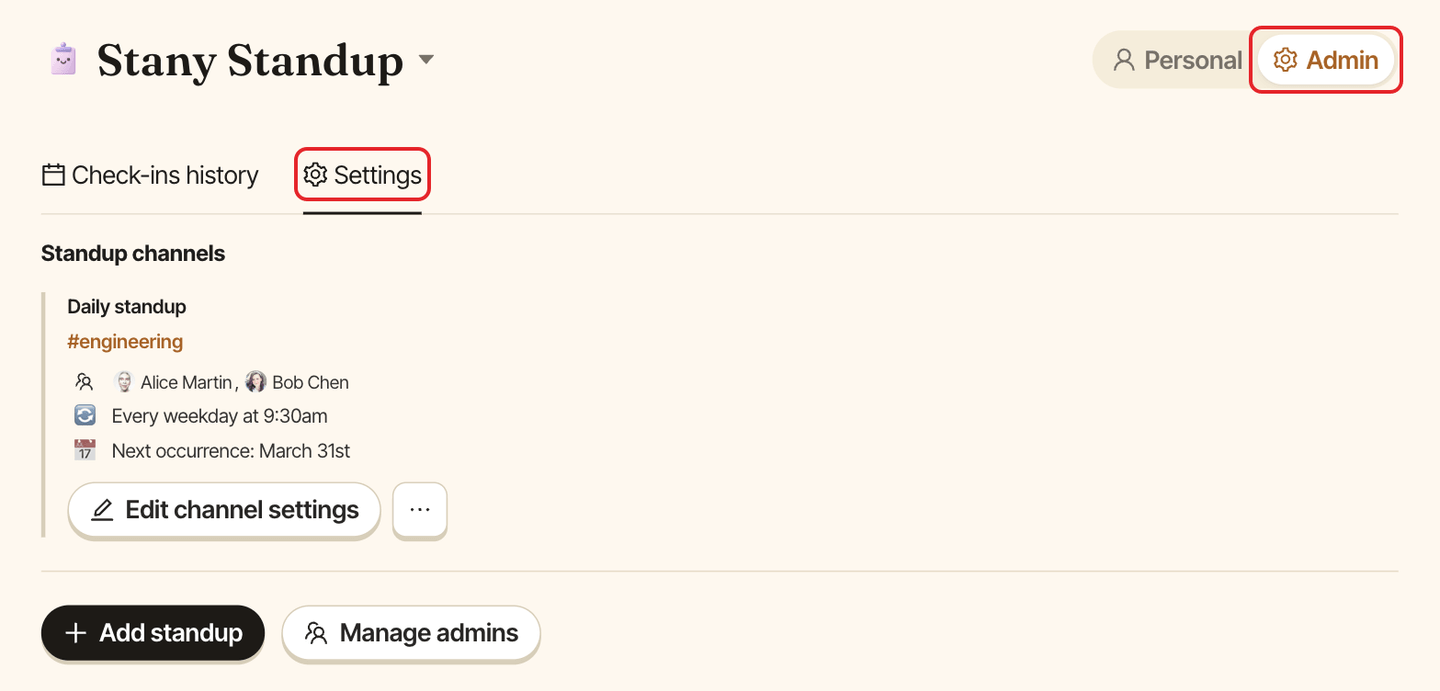
Go to dashboard.buddieshr.com, open Stany, switch to Admin at the top of the page, then open the Settings tab.
Step 2: Click Add standup#
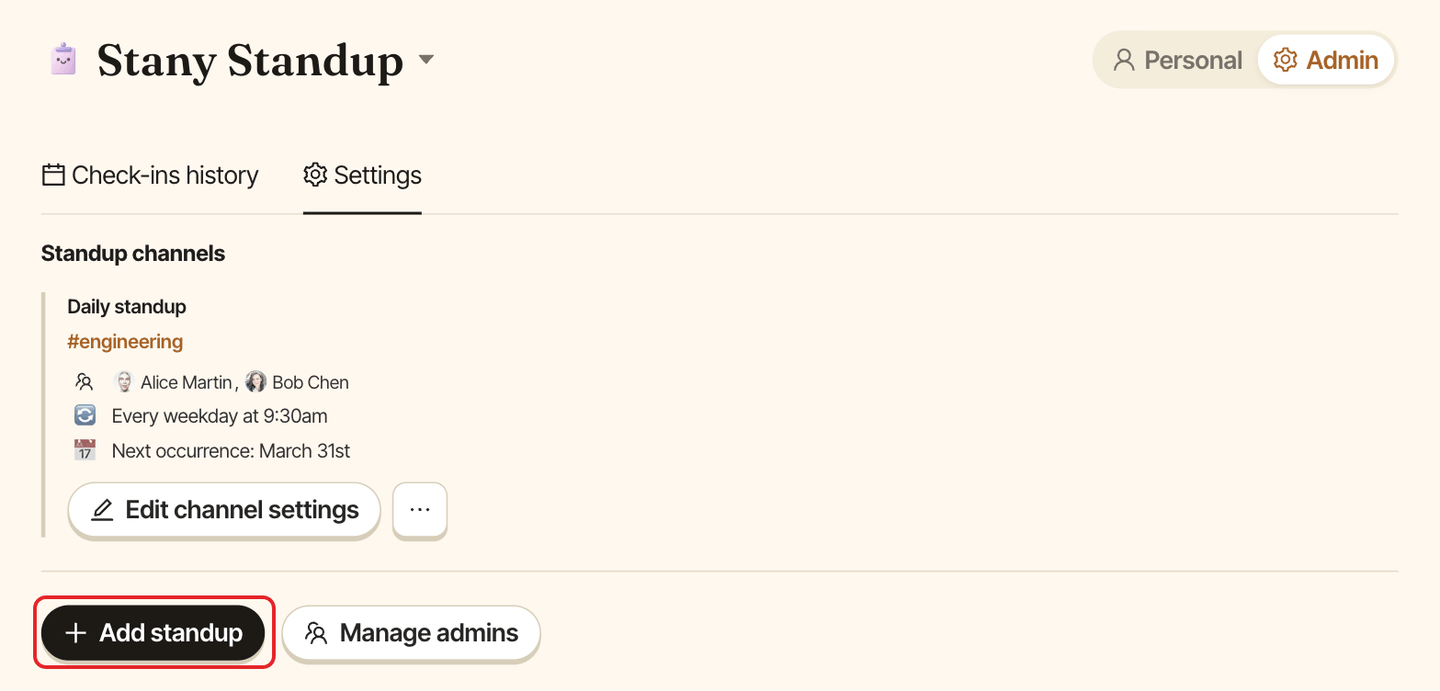
Under Standup channels, click Add standup. The Add standup window opens.
Step 3: Fill in the form#
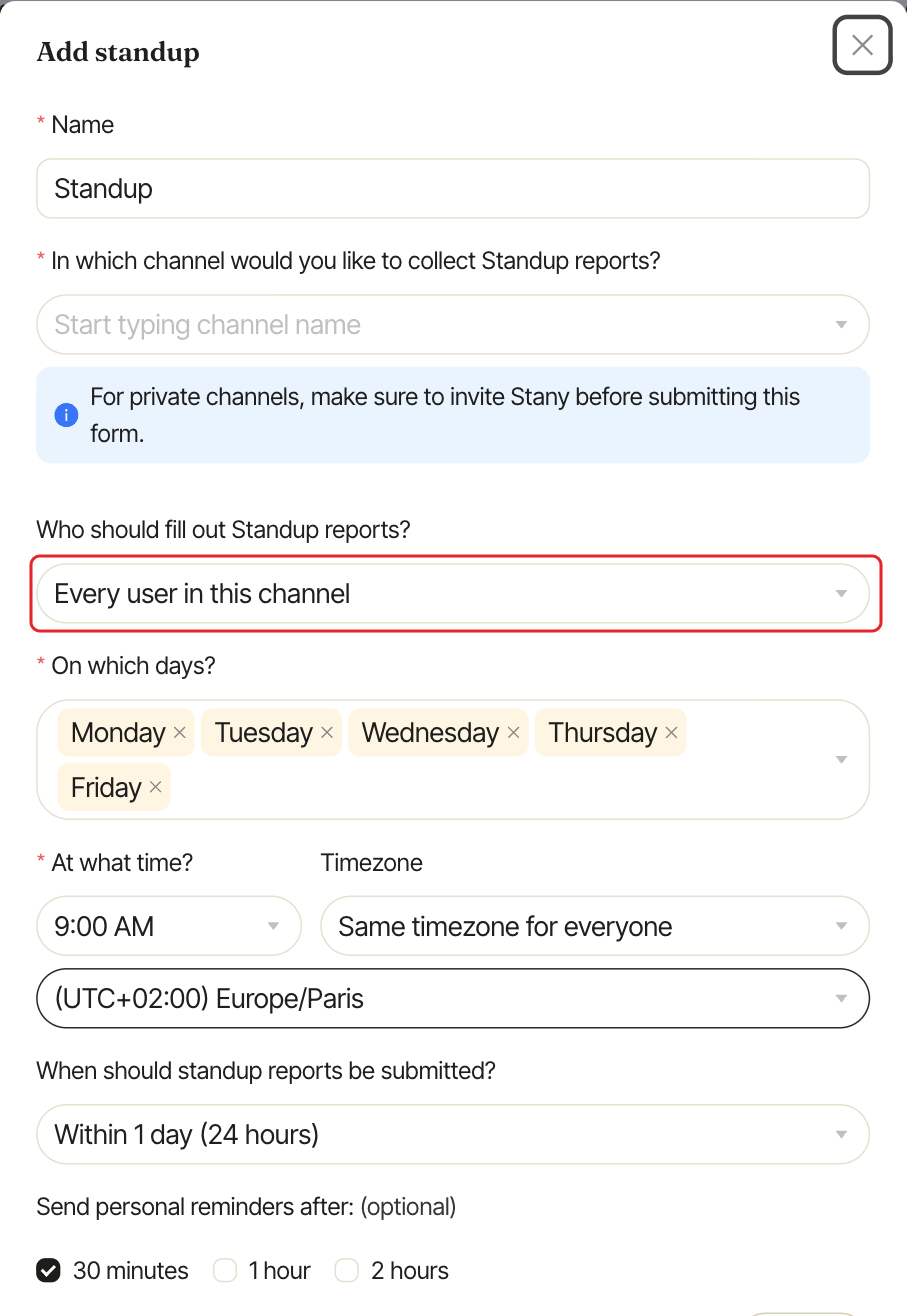
| Field | What it does | Default |
|---|---|---|
Name |
Shown in Stany's messages, for example "fill out your Standup report". Up to 100 characters. | Standup |
In which channel would you like to collect Standup reports? |
The channel where Stany posts and threads the answers. | none |
Who should fill out Standup reports? |
Every user in this channel, Every user in this channel except specified ones or Only the specified users, with a Select users list. |
Every user in this channel |
On which days? |
Any days of the week. | Monday to Friday |
At what time? |
In 15-minute steps. | 9:00 AM |
Timezone |
Same timezone for everyone (then pick the timezone) or Each user's timezone. |
Same timezone for everyone, in your browser's timezone |
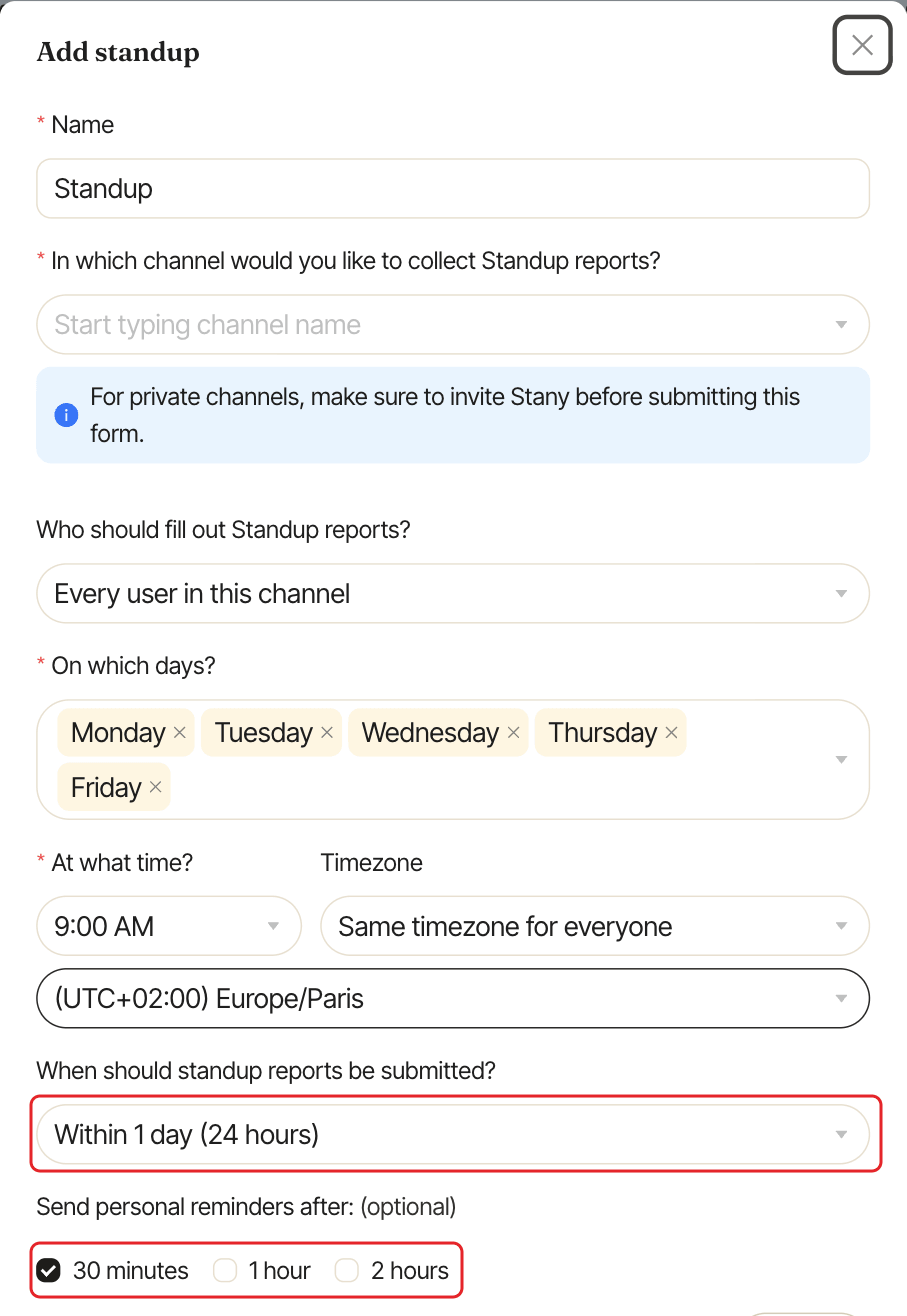
When should standup reports be submitted? |
Within 1 day (24 hours), Within 2 days, Within 3 days or Within 7 days. |
Within 1 day (24 hours) |
Send personal reminders after: (optional) |
30 minutes, 1 hour, 2 hours. Tick any. |
30 minutes |
Questions |
Click Edit to change them. |
four default questions |
For details, see:
Step 4: Submit#
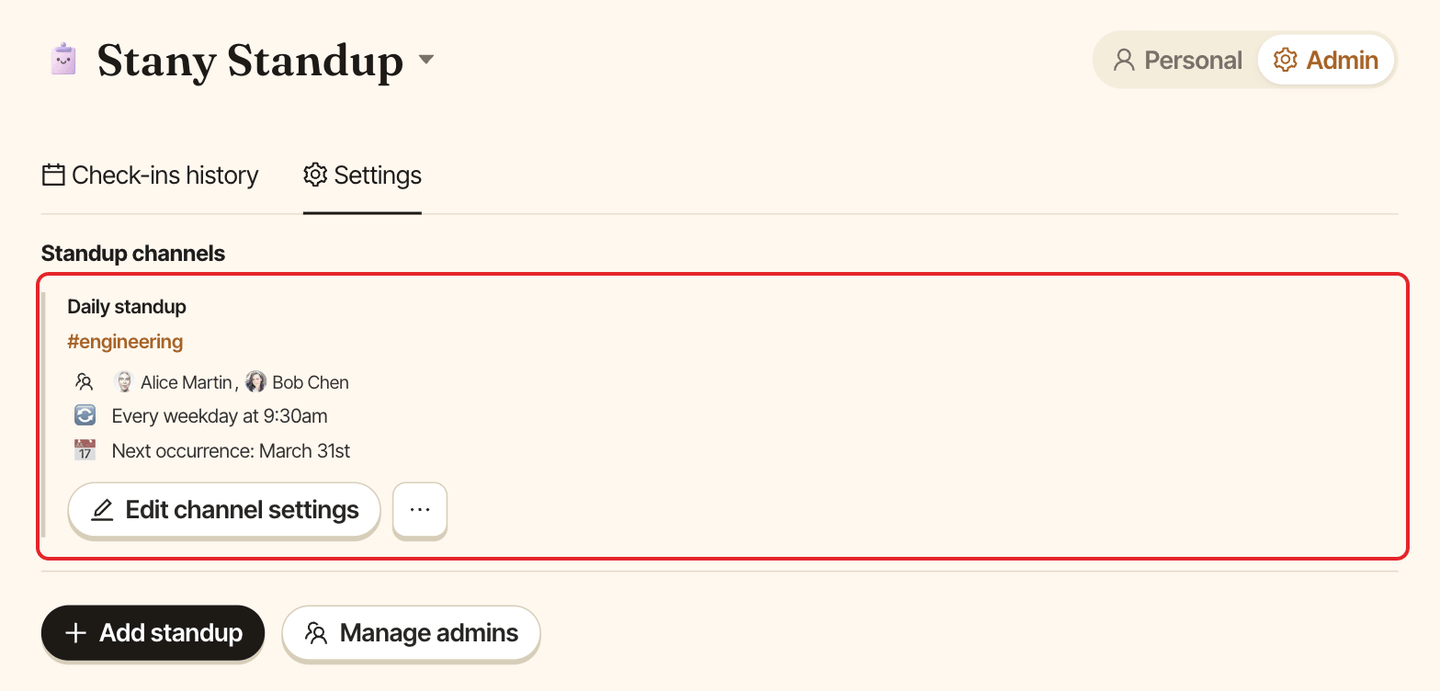
Click Submit. A message says "Standup channel created", and the standup appears as a card under Standup channels, with its members, schedule, Reminders: and Next occurrence:.
Edit a standup#
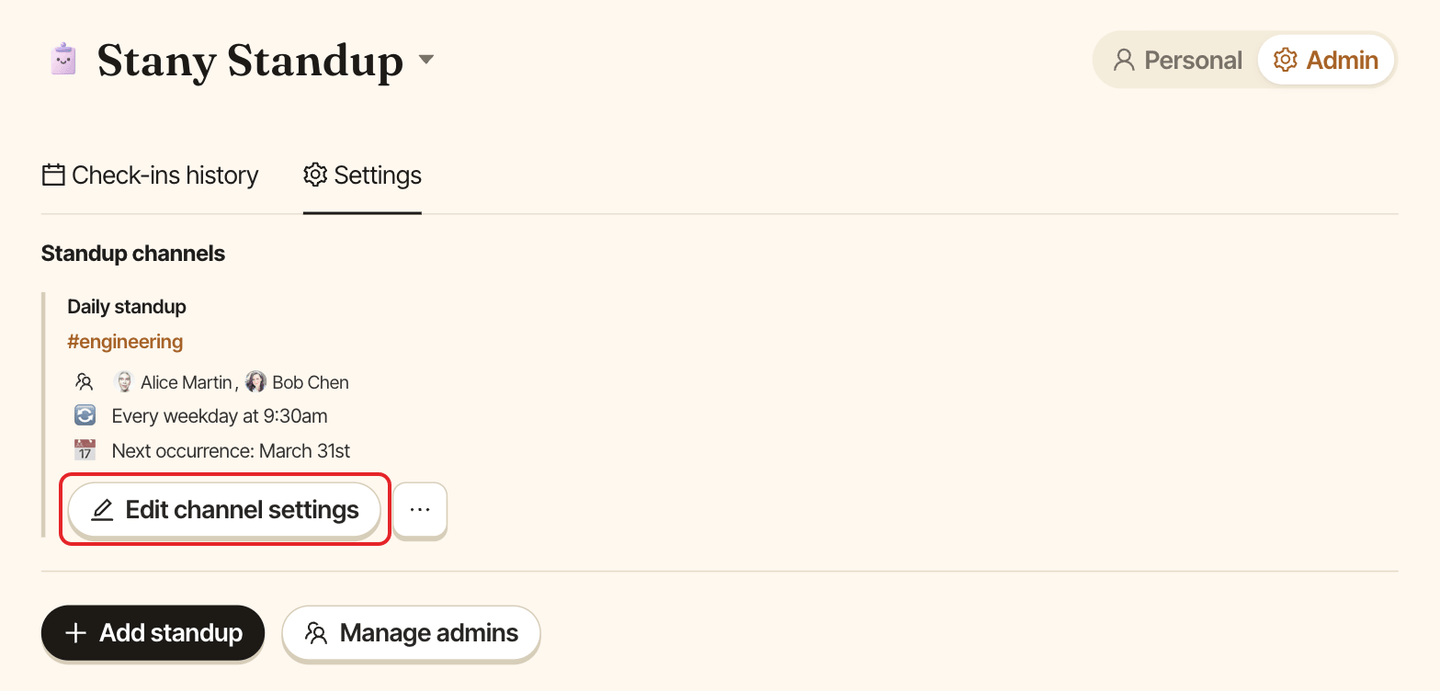
On the standup's card, click Edit channel settings. The Edit standup window has the same fields. Click Save to apply your changes. Changes to the questions apply from the next standup.
To pause or remove a standup, see Pause, resume or remove a standup.