Open Stany's Home tab in Slack
Find Stany in Slack, open its Home tab to see and answer your latest standup reports, and jump to the BuddiesHR web dashboard to manage standups.
 SlackUpdated Oct 5, 20262 min read
Stany's Home tab in Slack shows your latest standup reports with buttons to answer, skip or edit them, and, for admins, an overview of every standup. To create, edit or pause standups, use the BuddiesHR web dashboard: the Home tab links to it for admins.
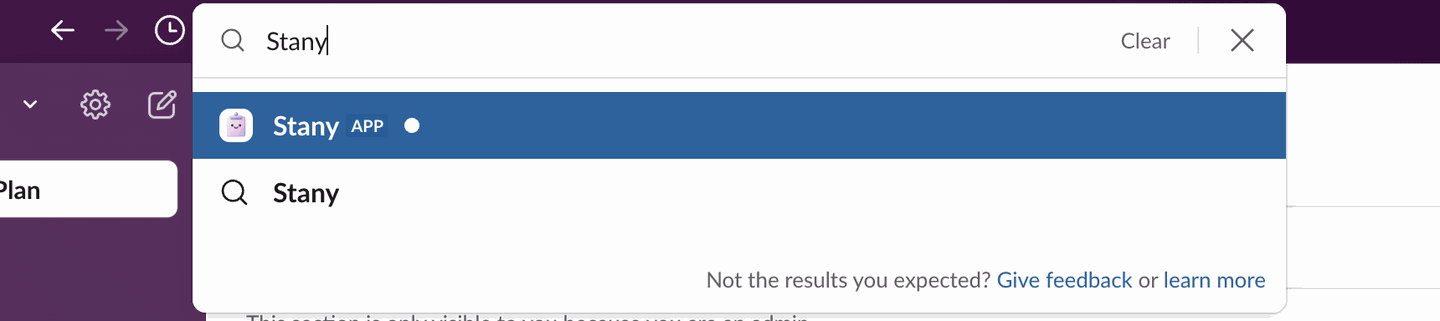
Step 1: Find Stany in Slack#
Search for "Stany" in the Slack search bar at the top, then select the Stany app.
Step 2: Open the Home tab#
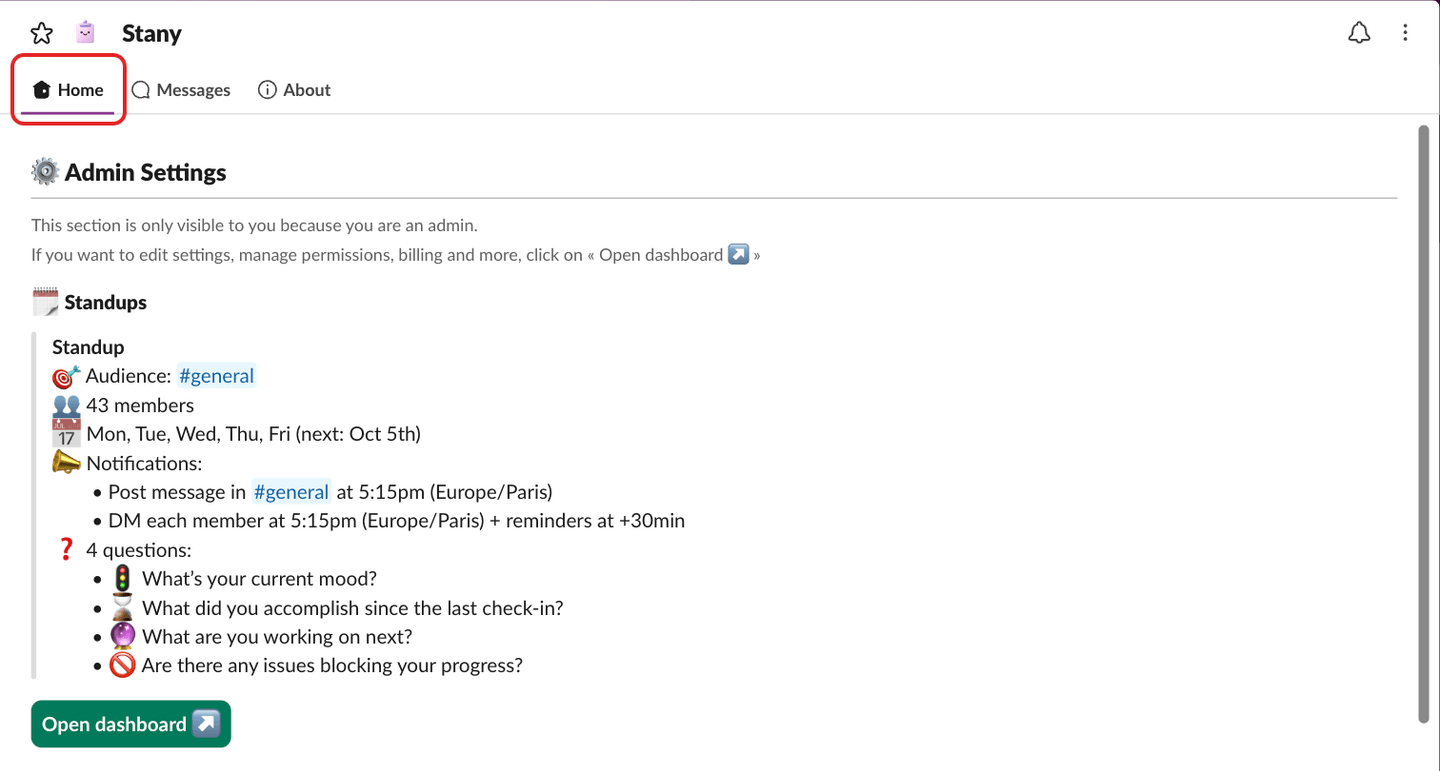
Make sure the Home tab is selected.
What you see on the Home tab#
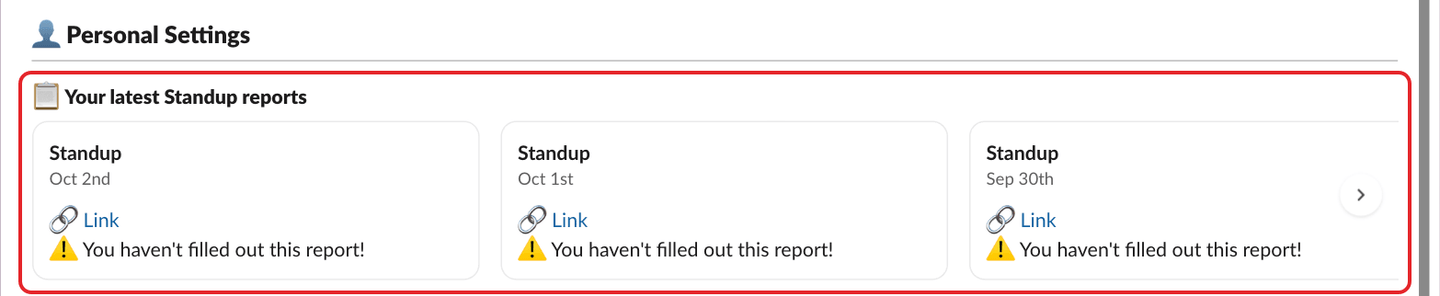
Personal Settings (everyone)#
Under 👤 Personal Settings, 📋 Your latest Standup reports shows your 6 most recent reports. Each card shows the standup, the date, a 🔗 Link to the channel post and your status: ✅ Submitted (with your mood and 🚫 Blocked if you reported a blocker), ⏩ Skipped, "Skipped until" a date, or ⚠️ You haven't filled out this report!. Depending on the status, you can:
✍️ Fill out nowor⏩ Skipa report you haven't answered,✍️ Editan answer or a skip before the deadline,👀 Viewan answer after the deadline.
For older reports, use My check-ins on the web dashboard (see Check in from the web dashboard).
Admin Settings (admins only)#
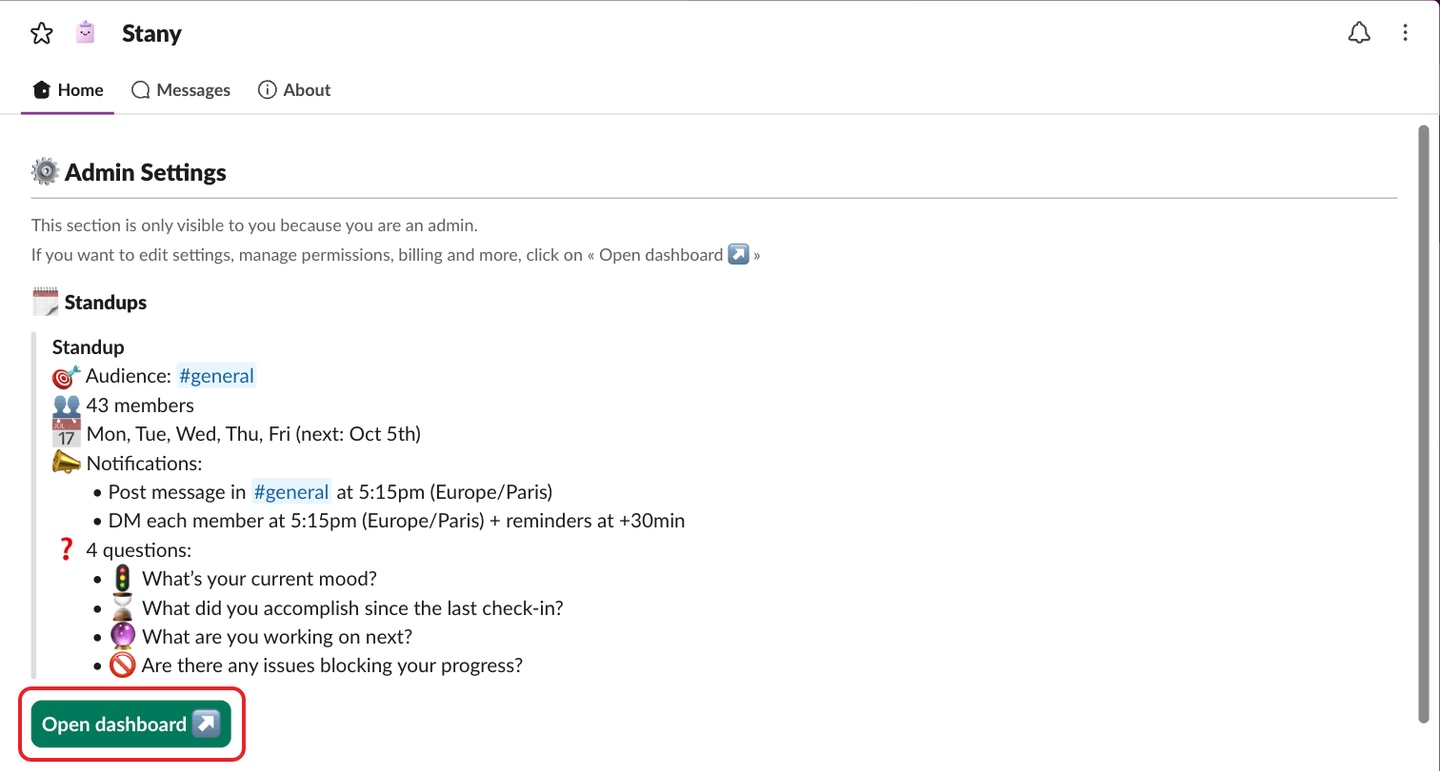
Admins also see ⚙️ Admin Settings, with a read-only list of standups under 🗓️ Standups: name, channel, members, days and next date, time and timezone, reminders, questions, and "Paused until" when paused. During the free trial, a banner at the top of the Home tab shows the days remaining.
To change anything, click Open dashboard ↗.
Open the web dashboard directly#
Go to dashboard.buddieshr.com and open Stany. Use the Personal / Admin switch at the top of the page:
PersonalshowsMy check-ins, your own reports.AdminshowsCheck-ins historyandSettings. Only Stany admins have it.