Pause, resume or remove a Stany standup
Pause a Stany standup in Slack until a date for holidays or quiet periods, resume it early, or remove it for good from the BuddiesHR web dashboard.
 SlackUpdated Oct 5, 20261 min read
Stany admins can pause a standup until a date they choose, for example over the holidays, and the standup restarts on its own on that date. Pausing, resuming and removing a standup are done from the BuddiesHR web dashboard, and only Stany admins can do them.
Step 1: Open the standup's menu#
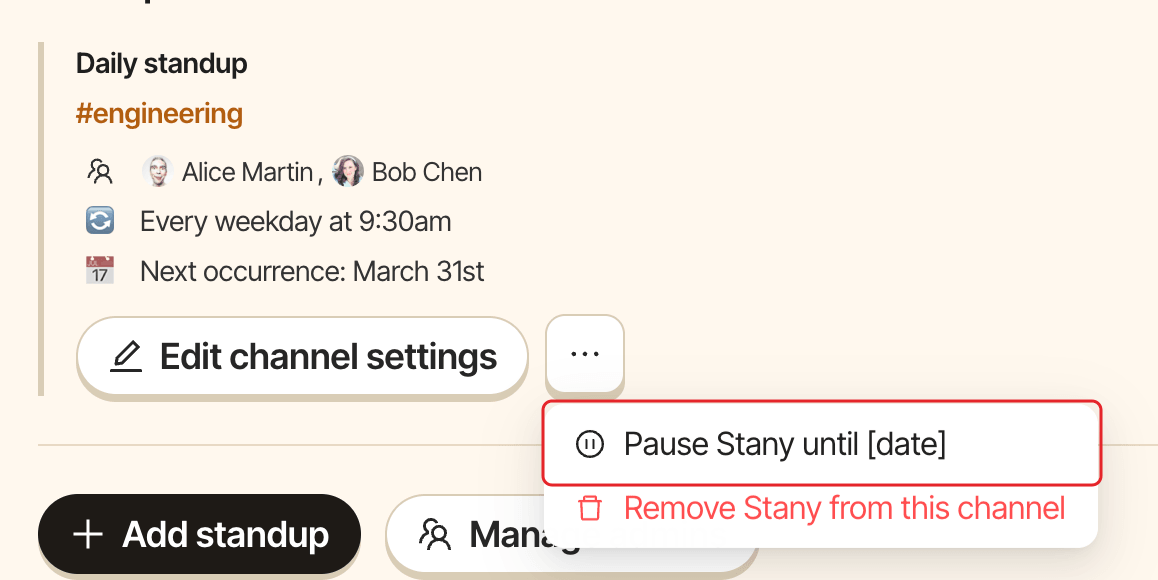
Go to dashboard.buddieshr.com, open Stany, switch to Admin and open the Settings tab. On the standup's card, click the more options button (...) next to Edit channel settings, then select Pause Stany until [date].
Step 2: Choose the date#
In the Pause Stany window, pick a date under "Pause until:" and click Confirm. Past dates can't be selected.
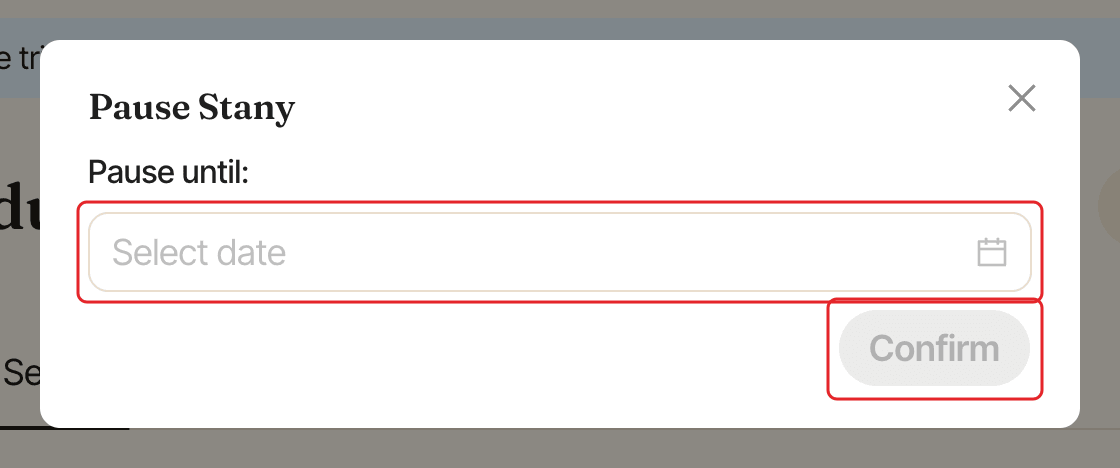
The card now shows "Paused until" and the date. Stany sends no posts, messages or reminders for this standup until then. On the date, the standup runs again on its normal schedule.
Resume a standup early#
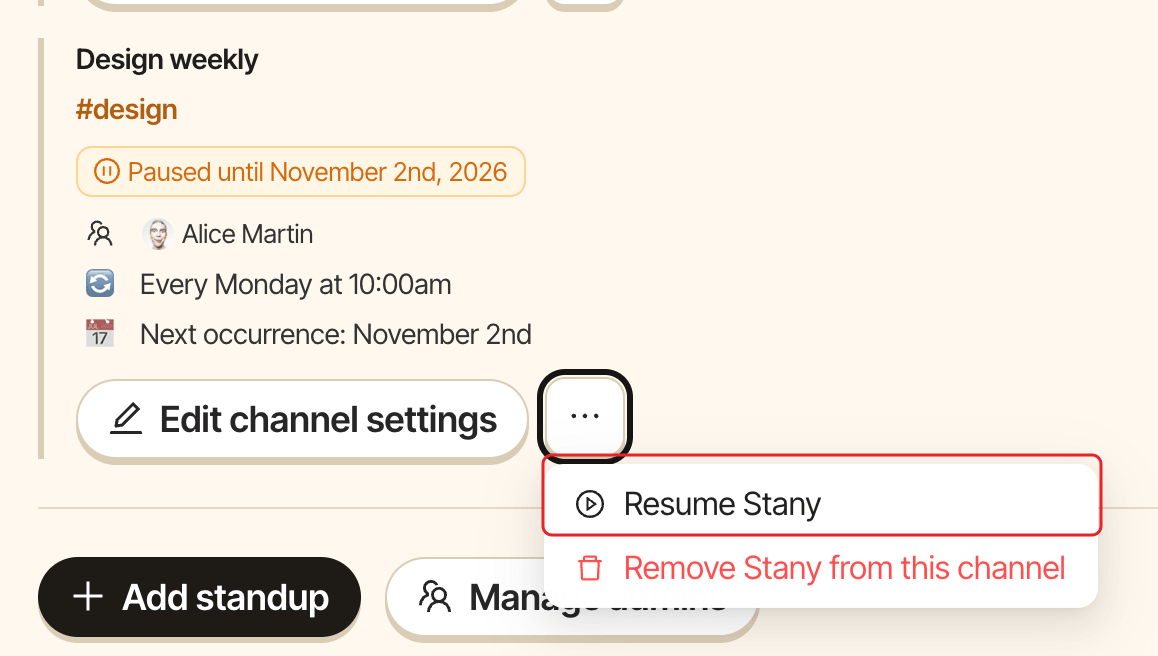
On the paused standup's card, click ... and select Resume Stany.
Remove a standup#
On the standup's card, click ... and select Remove Stany from this channel, then click Remove. Stany stops running the standup for good. This can't be undone, but the standup's past check-ins stay in Check-ins history and in exports (see View past standup reports).